Where Teams Recordings Go and How to Manage Them (2026)
Understand Teams recording storage rules in 2026, including OneDrive vs SharePoint locations and how to prevent lost files.
 Maintouch
Most Teams users assume their recordings are saved somewhere central and accessible. They’re not. Where a recording lands depends on who hit record and what kind of meeting it was, and the default setup creates more gaps than most teams expect. Spinach AI, the enterprise conversation intelligence platform and system of record for conversation data, runs on top of Teams to centralize that data in one governed record. Here’s how Teams storage works and what you can do to keep things from slipping through the cracks.
TLDR:
- Channel meetings store recordings in SharePoint; non-channel meetings go to the recorder’s OneDrive “Recordings” folder.
- Teams recordings expire after 60 days by default with no proactive warning before deletion.
- Recordings go missing for one of the most common reasons: the recorder left the company and their OneDrive was deleted with their license.
- Move files to SharePoint or change the org-wide default in Teams admin center to remove recorder-dependent ownership risk.
- Spinach AI is the system of record for conversation data: deployed company-wide on top of Zoom, Meet, Teams, Slack Huddles, and Webex, it captures during the meeting and centralizes decisions, action items with named owners, and transcripts into one governed organizational record.
Where Microsoft Teams Recordings Are Stored by Meeting Type
Where a Teams recording lands depends entirely on how the meeting was set up. Here is a quick breakdown by meeting type:
Meeting Type | Recording Storage Location | Who Controls Access | Key Risk |
|---|---|---|---|
Channel meeting | SharePoint document library for that team | Anyone with channel access | Low: IT already manages SharePoint |
Non-channel meeting (1:1, scheduled, ad-hoc) | Recorder’s OneDrive “Recordings” folder | Recorder only (manual sharing required) | High: file disappears if recorder leaves or license is removed |
Webinar / town hall | Organizer’s OneDrive “Recordings” folder | Organizer only (manual sharing required) | High: same per-user ownership risk as non-channel meetings |
Microsoft Teams Rooms | Varies by configuration | Admin-defined | Medium: requires admin to confirm routing; no consistent default |

- Channel meetings are stored in the SharePoint document library for that team, accessible from the channel post, the Files tab, or the meeting chat.
- Non-channel meetings (scheduled or ad-hoc calls, 1:1s) go to the OneDrive of the person who started the recording, inside a folder called “Recordings.”
- Webinars and town halls follow the same OneDrive rule, landing in the organizer’s account.
- Microsoft Teams Rooms sessions vary by configuration and often require an admin to confirm where capture is routed. By default, recordings go to the OneDrive of the room account (the resource account tied to the device); admins can override this to route recordings to a designated SharePoint library instead. Without that override, recordings sit in a service account’s OneDrive that most users never have direct access to.
As the University of Tennessee’s IT team notes, channel recordings live in SharePoint while non-channel recordings live in the recorder’s OneDrive. The practical consequence: if someone else hit record, the file is in their OneDrive, not yours.
How to Find a Teams Recording After a Meeting
Check the meeting chat first. Teams posts the recording link in the chat thread once processing finishes, usually a few minutes after the call ends. For channel meetings, look in the channel post where the meeting was started.
If the link isn’t there yet, go directly to the source:
- For non-channel recordings, open OneDrive and look for a folder named “Recordings” in the root directory.
- For channel recordings, open SharePoint for that team, go to Documents, and find the “Recordings” folder there.
Processing can take a few minutes to longer depending on file size, so wait and refresh before assuming something went wrong.
The bigger issue is ownership. The file lives in the recorder’s OneDrive. If that person changes roles, loses their Microsoft 365 license, or leaves the company, that recording becomes inaccessible or gets deleted entirely. IT admins can sometimes recover it by reassigning the account, but it’s a manual process with no guarantee, which is exactly why clear recording consent policies matter at the organizational level.
Where Teams Transcripts Are Stored
Transcripts and recordings are stored separately. The transcript file (.vtt or .docx) lives in the same OneDrive or SharePoint “Recordings” folder as the recording, but only exists if someone turned on transcription before or during the meeting. It does not generate automatically from the recording after the fact.
You can access a transcript three ways:
- Meeting chat: Teams posts the transcript link in the chat thread after the call, alongside the recording link.
- Meeting details: Open the meeting in your calendar, go to the “Recap” tab, and the transcript appears there if it was generated.
- OneDrive or SharePoint: Go to the “Recordings” folder and look for the .vtt file next to the .mp4.
If the organizer did not turn on transcription, there is no transcript to find. On downloading without permission: you need at least view access to the OneDrive or SharePoint location where the file lives. A shared recording link typically grants access to the transcript too, but if you were not in the meeting and were not granted access, no workaround exists short of the file owner or an IT admin explicitly sharing it with you.
How Long Teams Recordings Are Stored
Teams recordings expire after 60 days by default, after which the file is deleted automatically unless someone extended the expiration date beforehand.
Most users never touch that setting. The expiration notice appears in the recording link, but it’s easy to miss, and there’s no proactive reminder before a recording disappears. Recordings of important meetings get deleted without anyone realizing it until they go looking.
IT admins can configure org-wide retention via Microsoft Purview. Few organizations do this setup, so the 60-day default quietly governs what gets kept. That is the gap a deliberate data retention policy for enterprise AI tools is designed to close.
Who Can View, Download, and Share a Teams Recording
Permissions follow the same split as storage. For channel meetings, anyone with access to that Teams channel can view the recording. For non-channel meetings, only participants who were in the call get automatic access. The file sits in the recorder’s OneDrive, and nobody outside the meeting sees it unless someone manually shares it.
Sharing with a non-attendee means the organizer (or whoever owns the OneDrive file) has to open the recording in OneDrive, click Share, and send a link with the appropriate permissions. There is no button inside Teams to do this. You leave the app, go to OneDrive, find the file, and share it from there.
Downloading follows the same logic. If the organizer or admin has restricted download permissions on the OneDrive file, viewers can watch but not save. The person who controls the file controls whether the download option is available.
Why Teams Recordings Go Missing
Several common issues explain most missing recordings.
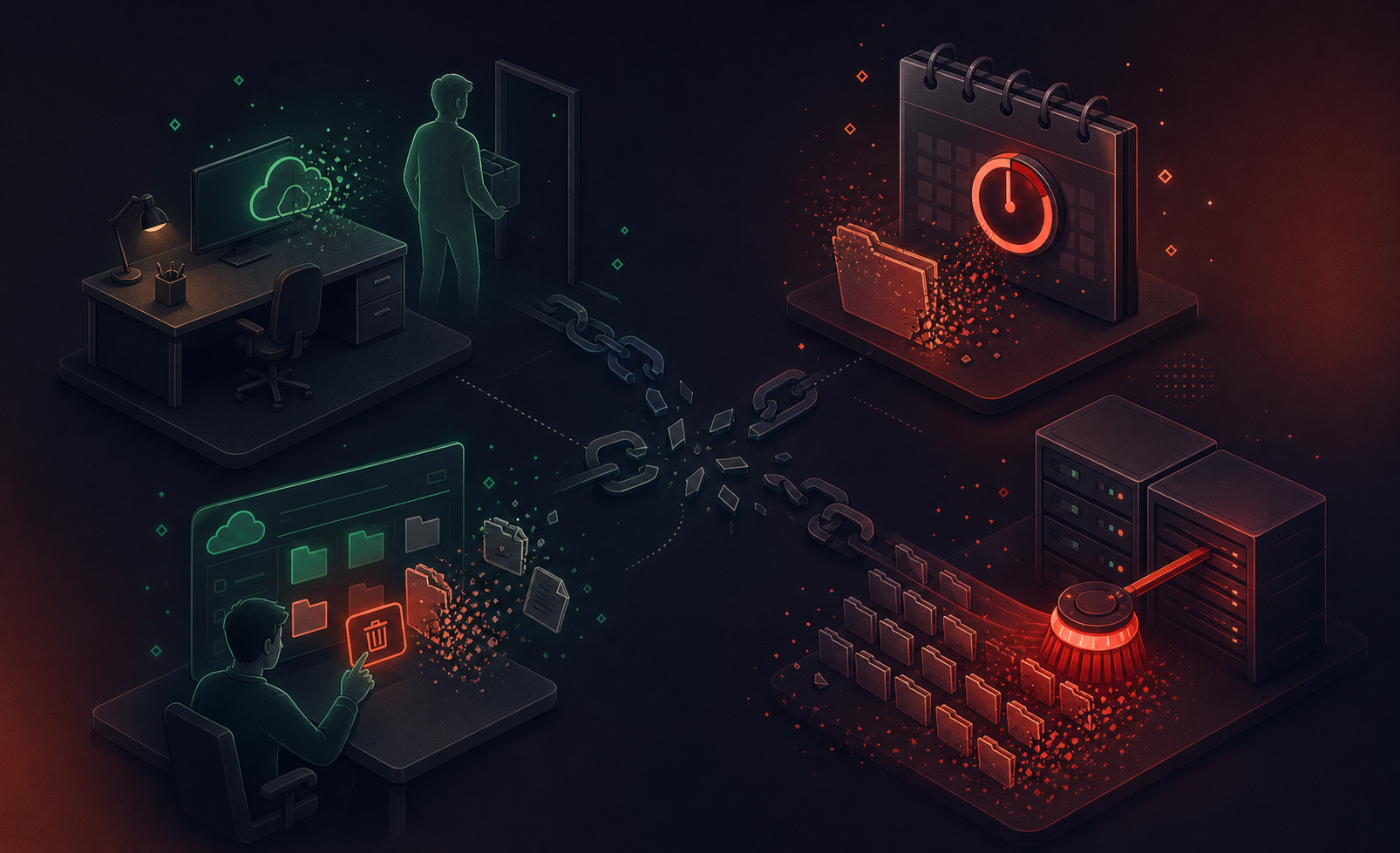
- The recorder left the company. Their OneDrive gets deleted when the Microsoft 365 license is removed, taking every file in it with them.
- The 60-day expiration passed. Nobody extended it, nobody flagged it, and Teams deleted the file on schedule.
- The user cleared their own OneDrive. Personal storage decisions affect files the whole team needed.
- A Purview retention policy deleted it. IT configured aggressive deletion policies that sweep recordings before anyone realizes the content matters.
Every one of these failure modes traces back to the same design choice: the recording is someone’s personal file, not an organizational asset, which is exactly the gap governing meeting data at scale is meant to close. When that person’s account changes, the file’s fate changes with it.
The Structural Problem with Per-User Storage
Per-user storage works fine for one person retrieving their own call. It breaks at the organizational level.
There is no central inventory of what has been recorded across the company, no org-wide search, and no uniform retention enforcement. An IT admin cannot pull up every meeting where a specific decision was made, because files are distributed across dozens of individual OneDrive accounts and SharePoint channels with inconsistent permissions, inconsistent expiration dates, and no shared taxonomy.
Compliance officers face a harder version of the same problem, one covered in depth in this meeting recording security and compliance guide. When a regulator asks for all recorded conversations tied to a particular project or time window, there is no single place to look. Someone has to remember who was in the relevant meetings, chase down whether those people recorded them, confirm the files haven’t expired, and manually assemble records from accounts that may no longer be active.
The risk compounds as organizations scale their AI use. According to a 2026 Cloud Security Alliance research note, 89% of enterprise AI usage is invisible to security teams, a finding about shadow AI tool adoption broadly and not limited to Teams. Per-user storage compounds that problem: when meeting recordings sit in individual OneDrive accounts with no central inventory, the conversation data exists but no governed layer knows where it is, who has it, or what it contains. This is a particularly acute risk for compliance-bound industries, as outlined in this guide on financial services meeting compliance.
Meeting Recording Best Practices for Enterprise Security and Compliance
Five concrete steps close most of the gaps Teams creates by default.
- Set retention policies in Microsoft Purview. Without org-level rules, the 60-day per-file default governs everything. Purview lets you apply retention labels to OneDrive and SharePoint locations so recordings are kept or deleted on a schedule you control, not a per-user one.
- Default important meeting series to channel meetings. Channel meetings store recordings in SharePoint, which IT already manages. Scheduling recurring project syncs and leadership reviews as channel meetings removes recorder-specific ownership from the equation.
- Build offboarding into the recording lifecycle. When an employee leaves, someone in IT should check their OneDrive Recordings folder before the license is removed. Transfer ownership of files worth keeping or move them to a shared location.
- Communicate expiration dates to meeting organizers. The 60-day default is invisible until a file disappears. A short policy document and a line in your onboarding checklist prevents the most avoidable losses.
- Define recording ownership per meeting type. Decide in advance which role owns the recording for each recurring meeting category: channel admin for team meetings, organizer for project syncs, department head for all-hands. Ambiguity is what produces gaps.
None of this requires third-party tooling. It does require someone to own the policy, document it, and revisit it when Microsoft changes defaults. Organizations that want to weigh those tradeoffs against purpose-built options can start with this enterprise meeting software buyer’s guide.
How to Save a Teams Recording to SharePoint or a Shared Folder
Two approaches exist: move the file manually, or change where recordings land by default.
For the manual route, open OneDrive, find the Recordings folder, right-click the file, and select Move to or Copy to. Pick the destination SharePoint library or shared folder. Moving transfers ownership to that location. Copying leaves the original in OneDrive while creating a second copy in SharePoint. For files that need to outlive someone’s account, choose move over copy.
To change the default recording location org-wide, that is an admin-level setting in the Teams admin center under Meeting policies. Admins can point non-channel recordings to a designated SharePoint library instead of individual OneDrive accounts. Existing files are not affected retroactively.
Channel meetings already go to SharePoint automatically. The gap is non-channel meetings, which covers most 1:1s and cross-functional syncs. Changing the admin default for those is the highest-impact single configuration change for reducing recorder-dependent storage risk.
How Centralizing Conversation Data Closes the Governance Gap Teams Creates
Spinach AI is an enterprise conversation intelligence platform, deployed once company-wide and running on top of Teams rather than replacing it. As of July 2026, the difference from Teams’ per-user storage model is architectural: Spinach functions as the conversation data system of record, one governed data asset for the entire organization, not files scattered across individual accounts.
Spinach joins meetings on Zoom, Meet, Teams, Slack Huddles, and Webex and captures audio, video, transcript, screen share, and in-meeting chat during the meeting. Capture is the input step. When the meeting ends, Spinach delivers structured outputs and routes them into downstream tools: decisions, action items with named owners, tickets, CRM records. Collections apply rules to group and share meetings by participant, title, or series, so sharing is policy-based instead of per-meeting and manual. That is one piece of what makes up enterprise conversation intelligence.
On Enterprise, retention is configurable per data type (transcript, summary, and video separately) from one week to indefinite. SAML SSO, SCIM, PII redaction at the transcript level, and an admin dashboard with audit logging cover the governance gaps Teams’ per-user model leaves open by design, all of which are capabilities worth weighing in any conversation intelligence buyer’s guide. To query all conversation data with Claude or ChatGPT on a native Teams stack, organizations must build a centralization layer themselves or ask every employee to share every meeting manually. Spinach provides that organizational layer out of the box: its MCP server (Business and Enterprise) connects Claude and ChatGPT to the centralized record with admin approval and user-based permission enforcement. Spinach powers thousands of organizations including public enterprises. See how this compares with revenue-intelligence tools in Spinach AI vs Gong.
Final Thoughts on Where Teams Recordings and Transcripts End Up
Knowing where Teams recordings go is only half the problem. The other half is keeping them accessible when accounts change, licenses lapse, or the 60-day clock runs out. None of the fixes here are complicated, but they do require someone to own the policy and actually set it up. If your organization wants conversation data governed without building that layer yourself, Spinach AI, the enterprise conversation intelligence platform and system of record for conversation data, runs on top of Teams to capture, centralize, manage, and power it company-wide.
It depends on how the meeting was set up. Channel meetings store recordings in the SharePoint document library for that team; non-channel meetings (1:1s, scheduled calls, ad-hoc meetings) go to the OneDrive of the person who hit record, inside a folder called “Recordings.” If someone else started the recording, the file is in their OneDrive, not yours. That is why recordings disappear when that person changes roles or leaves the company.
Yes. Teams recordings expire and are deleted after 60 days by default unless someone manually extends the expiration date beforehand. To override this org-wide, IT admins need to configure retention policies in Microsoft Purview. Without that deliberate setup, the 60-day default quietly governs what gets kept, and most users never see the expiration notice until the file is already gone.
Transcript files (.vtt or .docx) are stored in the same OneDrive or SharePoint “Recordings” folder as the recording itself, but only if someone turned on transcription before or during the call. You can reach them three ways: the meeting chat thread (Teams posts the link there after the call), the “Recap” tab inside the calendar event, or by going directly to the Recordings folder in OneDrive or SharePoint. There is no transcript to find if the organizer never turned on transcription; it does not generate automatically from the recording after the fact.
Teams stores recordings as personal files in individual OneDrive accounts and SharePoint channels, with no central inventory, no org-wide search, and no uniform retention enforcement. Spinach AI takes the opposite approach: one governed data asset across the entire organization, where recordings, transcripts, decisions, and action items are centralized, searchable, and subject to policy, not scattered across individual accounts that disappear when someone leaves. On Enterprise, retention is configurable per data type (transcript, summary, and video separately) from one week to indefinite, with SAML SSO, SCIM, PII redaction at the transcript level, and an admin dashboard with audit logging covering the governance gaps Teams’ per-user model leaves open by design.
Two options: move the file manually, or change the default recording location at the admin level. For the manual route, open OneDrive, find the Recordings folder, right-click the file, and select “Move to,” then pick the destination SharePoint library. Moving transfers ownership to that location; copying leaves the original in OneDrive. For a permanent fix, IT admins can point non-channel recordings to a designated SharePoint library by default through the Teams admin center under Meeting policies. The highest-impact single change for reducing recorder-dependent storage risk is switching that admin default: channel meetings already land in SharePoint automatically, but non-channel meetings (which cover most 1:1s and cross-functional syncs) do not unless an admin changes the setting.
What to do next
Now that you've read this article, here are some things you should do:
- If communication is a challenge for your team, you should check out our library of meeting agenda templates.
- You should try Spinach to see how it can help you run a high performing org.
- If you found this article helpful, please share it with others on Linkedin or X (Twitter)

