Video Conference Meeting Best Practices and Tools October 2026
See how to set up, secure, and run effective video conference meetings in October 2026, plus the leading tools teams rely on.
 Maintouch
There’s a gap between joining a video conference meeting and actually running one well. Most people have figured out how to unmute. Fewer have sorted out how to keep 12 people on track, end on time, and walk away with decisions that actually stick. That’s what this covers, along with how Spinach AI, the system of record for conversation data, captures the decisions from every call across your company.
TLDR:
- Video conference meetings use codec compression and cloud relay servers to deliver real-time audio and video across any distance.
- 52% of professionals multitask during video calls and 61% report mental drain after back-to-back sessions, per 2026 video conferencing statistics.
- Security baselines for any conferencing deployment include waiting rooms, MFA, end-to-end encryption, and role-based permissions.
- AI summaries now ship by default in Teams, Zoom, and Meet, but governing and querying that data across your org requires a separate architecture layer.
- Spinach AI is the system of record for conversation data: deployed company-wide, it joins Zoom, Meet, Teams, Slack Huddles, and Webex meetings, captures during the meeting, and delivers decisions, action items with named owners, and tickets when the meeting ends.
What Is a Video Conference Meeting?
A video conference meeting is a live, real-time conversation between two or more people held over the internet using audio and video. Unlike a phone call, participants can see each other’s faces, share screens, and collaborate on documents without being in the same room.
What separates video conferencing from traditional meetings is location independence. A team spread across three continents can hold a structured discussion, review a presentation, and make decisions in a single session, with no travel required.
How Video Conference Meetings Work
When you click “join” on a video call, your device’s camera and microphone capture raw audio and video. A codec compresses that data enough to travel across the internet without noticeable lag, then decompresses it on the receiving end so other participants appear on your screen within fractions of a second.

Most video conferencing tools run on cloud servers acting as a central relay, distributing your feed to every participant simultaneously. Low bandwidth or high latency is what causes frozen frames and choppy audio.
Call quality depends on your upload and download speeds, the codec in use, and your proximity to the provider’s servers. Most tools adjust resolution dynamically when your connection weakens, which explains why a call can look sharp one moment and pixelated the next.
Types of Video Conference Meetings
Not all video conference meetings run the same way. The format shapes everything from tool selection to how you structure the agenda.
- One-on-one calls: interviews, coaching sessions, and client check-ins where both sides are active participants.
- Small team meetings: standups, sprint reviews, and working sessions with 3-10 people that require shared collaboration.
- Webinars and large virtual events: one-to-many broadcasts where most attendees watch instead of participate.
- Hybrid meetings: some participants in a conference room, others joining remotely.
- All-hands and town halls: company-wide sessions with one or a few speakers and a large audience.
Hybrid meetings tend to be the trickiest. In-room participants can hear each other without a mic, which creates an uneven experience for remote attendees. Getting the format right before picking a tool saves rework later.
Common Use Cases for Video Conferencing
Video conferencing shows up across nearly every business function. Seeing the other person changes the conversation in ways a phone call or email thread cannot replicate.
- Standups and team check-ins: quick syncs where reading expressions matters as much as the update itself.
- Client presentations: screen sharing slides or prototypes in real time, with the ability to gauge reactions and adjust on the fly.
- Job interviews: structured enough to feel formal, flexible enough to run across time zones without coordinating travel.
- Sales demos: showing a product live while handling objections as they surface.
- One-on-one coaching or performance reviews: conversations that benefit from facial cues and a sense of presence.
- Cross-office collaboration: design reviews, planning sessions, or technical handoffs between distributed teams.
- Training and onboarding: structured sessions with screen sharing, breakout rooms, and Q&A that a recorded video alone cannot match.
Each use case involves real-time decision-making, relationship-building, or complex information exchange. Those are the moments where seeing each other’s face earns its keep.
Advantages of Video Conferencing
The global video conferencing market was valued at $13.1 billion in 2025 and is projected to reach $24.6 billion by 2033 at a 7.9% CAGR (Grand View Research, 2026). That growth rate points to broad adoption well past early hype.
The core advantages hold across industries:
- Reduced travel costs and the time lost to it
- Faster decisions when key people can convene within minutes, not days
- Non-verbal cues that a phone call strips away entirely
- Access to talent regardless of geography
- Business continuity when travel or in-person meetings become impossible
Disadvantages of Video Conferencing
The benefits are real, but so are the friction points. According to video conferencing statistics tracked in 2026, 52% of professionals admit to multitasking often or always during video calls, and 61% of remote workers report mental drain after back-to-back sessions.
- Call fatigue: schedule breaks between meetings and cap session length at 45 minutes where possible.
- Technical failures: a stable wired connection and a backup dial-in number cover most scenarios.
- Security risks: waiting rooms, meeting passwords, and end-to-end encryption are baseline requirements, not optional.
- Digital divide: not every participant has reliable broadband or a quiet space, which shapes who speaks and who doesn’t.
None of these are reasons to avoid video conferencing. They are reasons to design calls with intention.
What Equipment Is Needed for Video Conference Meetings
Equipment needs scale with the setting. A solo participant needs a webcam, a headset or quality microphone, and a stable internet connection. A small conference room requires a room-based camera with a wide field of view (something in the class of the Logitech Rally Bar Mini or equivalent 4K USB conference camera), a speakerphone or ceiling mic array, and a display large enough for remote participants to read shared content.
Larger spaces add complexity: multiple microphones, echo cancellation, and dedicated AV hardware to prevent the front row from dominating audio pickup. In hybrid environments, the deciding factor is whether in-room audio reaches remote participants clearly. Consumer-grade speakerphones work for small rooms; anything larger warrants enterprise-grade equipment with automatic speaker tracking and noise suppression built in.
Leading Video Conferencing Apps and Tools
Each tool fits a different organizational context. The table below covers the main options as of October 2026, with Spinach AI listed first as the organizational layer that sits on top of whichever conferencing tool each team uses.
Tool | Best for | Free tier |
|---|---|---|
Spinach AI | Company-wide capture, governance, and routing of meeting data across Zoom, Meet, Teams, Slack Huddles, and Webex | Yes, Starter plan is free |
Microsoft Teams | Microsoft 365 organizations | Yes, via teams.live.com |
Zoom | Cross-platform calls and webinars | Yes, 40-min group limit (as of October 2026) |
Google Meet | Google Workspace users | Yes |
Cisco Webex | Enterprise AV and compliance needs | Yes |
Slack Huddles | Quick internal audio/video syncs | Yes |
Microsoft Teams warrants extra detail given its market share. You can access it through a browser at teams.live.com, download the desktop app, or join from mobile. Joining a meeting requires a meeting link or ID plus passcode. The free tier covers unlimited one-on-one calls and group meetings up to 60 minutes; paid Microsoft 365 plans add recording, longer meetings, and admin controls.
How to Set Up and Schedule a Video Conference Meeting
Setting up a scheduled video conference follows the same basic sequence across most tools: create the meeting, configure access controls, and share the join link.
Microsoft Teams
In Teams, go to Calendar, select New Meeting, fill in the title, date, and attendees, then click Send. The invite lands in participants’ Outlook calendars with a join link embedded. Open Meeting Options before the call to set who can bypass the lobby, who can present, and whether attendees can unmute themselves.
Zoom
Click Schedule in the Zoom app, set date and duration, then copy the meeting link or add it directly to Google Calendar or Outlook. Turn on the waiting room and require a passcode under Security to control entry.
Google Meet
Open Google Calendar, create an event, and click Add Google Meet video conferencing. The link generates automatically and goes to every invited guest.
Before sending any invite:
- Add an agenda to the invite body so attendees come prepared
- Set a waiting room or lobby to control entry timing
- Confirm time zones when participants span multiple regions
- Include a dial-in number as a fallback for poor connections
Video Conference Meeting Best Practices Before the Call
Good preparation separates a meeting that runs on time from one that starts with five minutes of “can you hear me now.”
- Test your camera, microphone, and speakers at least 10 minutes before the call, not as participants are joining.
- Send an agenda in the invite body so attendees know the goal and their role before they click join.
- Confirm the join link works and includes any required passcode, since a broken link at start time wastes everyone’s first few minutes.
- Match the meeting format to the group size. A 20-person call structured like a working session will drift; a two-person brainstorm crammed into a webinar format feels stiff.
- Set participant permissions in advance: who can share screens, who enters through a lobby, and whether recording is on.
- Share reference documents or slides ahead of time so attendees aren’t reading and listening simultaneously.
- Check time zones before sending the invite, since a single-line calendar entry that says “3:00 PM” breaks down the moment half your group is in a different country.
Video Conference Meeting Best Practices During the Call
During the call, a few habits separate productive video conference meetings from ones that drag.
- Mute when not speaking. Background noise compounds across every unmuted line and pulls focus from whoever has the floor.
- Keep your camera on unless bandwidth forces the issue. Visible faces reduce cross-talk and hold participants accountable in ways audio alone does not.
- Assign a facilitator before the call starts to track the agenda, call on people, and cut tangents before they eat the clock.
- Use the chat window for questions instead of interrupting. The facilitator can batch them at natural breaks.
- Call on people by name when discussion stalls. Open-ended invitations produce silence; directed questions produce answers.
- End each agenda item with a stated decision, a next action, and a named owner before moving on.
Hybrid Calls
Hybrid calls need extra attention. In-room participants tend to talk to each other and away from the camera, leaving remote attendees watching the backs of people’s heads. Point the room camera toward speakers, mute in-room laptops to avoid echo, and share a remote presenter’s screen on the room display so everyone is looking at the same thing.
Security and Compliance in Video Conference Meetings
Video meetings in 2026 carry more risk than most teams account for. Executive decisions, pricing discussions, hiring calls, and legal reviews all run through the same infrastructure as a weekly standup, and recordings are unstructured data that is harder to govern than a database row.
The baseline controls any conferencing deployment needs:
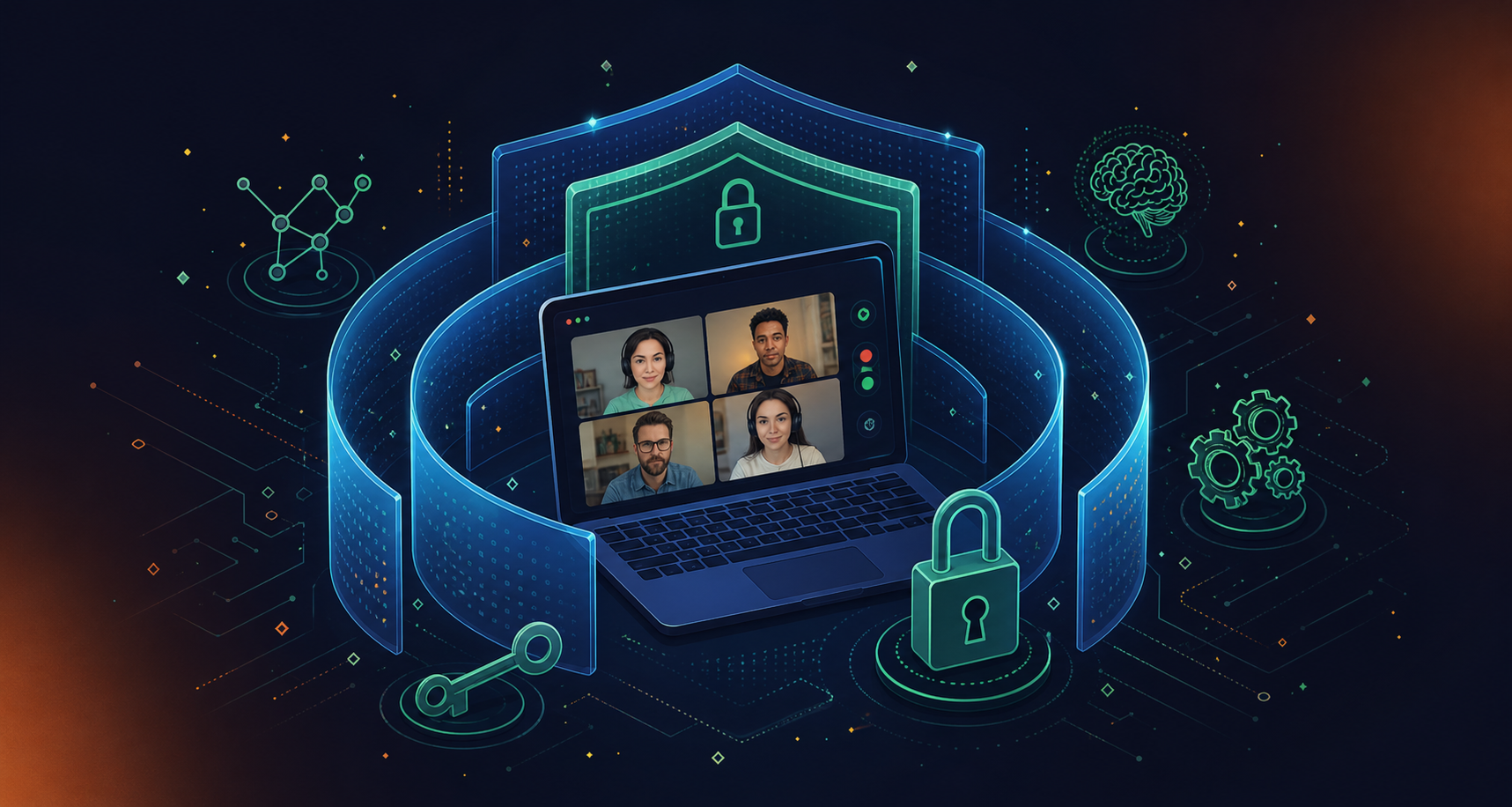
- Waiting rooms and meeting passwords to block uninvited entry
- MFA for accounts that can access recordings or meeting history
- End-to-end encryption in transit; encryption at rest for stored recordings
- Role-based permissions that separate who can record from who can share
As Neat’s 2026 security guidance notes, recordings, transcripts, and summaries require clear governance and retention policies. For compliance-sensitive industries, GDPR requires explicit data processing justification for stored participant data, HIPAA engagements need a BAA with any vendor handling meeting data, and all-party consent states require an active notification mechanism that goes beyond a meeting recording consent policy alone. Keeping recordings indefinitely is an accumulating liability, not a neutral default.
How AI Is Changing Video Conference Meetings
AI has moved from a novelty add-on to a standard layer in most conferencing tools. Automated captions, generated summaries, and action item extraction now ship in Teams, Zoom, and Meet by default, reducing post-call manual work, which has pushed many teams to evaluate how AI captures and governs meeting data.
The more consequential shift is what happens to meeting data downstream. When every call is transcribed and summarized, organizations accumulate an enormous corpus of unstructured conversation data. The question stops being “did someone write down what we decided?” and starts being “can we query what was decided across every meeting, by every team, over the past year?” That shift is what conversation intelligence is built to answer.
Generating a summary is table stakes. Governing meeting data at scale, connecting it to the right people and systems, and making it queryable by AI agents requires organizational architecture that individual productivity features inside a conferencing app do not provide. As Vonage’s analysis of video conferencing trends notes, the direction is toward AI agents operating within video sessions for information retrieval, well past automated notes alone.
Governance considerations are real: who owns the transcript, how long it is retained, whether it trains models, and what consent was in place when recording started. Teams adding AI to their conferencing stack without answering those questions first are accumulating liability alongside the summaries, which is why an enterprise conversation intelligence buyer’s guide is worth working through before signing a contract.
How Video Conference Meeting Data Gets Captured and Governed at Scale
Spinach AI joins meetings and captures every modality during the call (video, audio, transcript, screen share, and in-meeting chat) across Zoom, Google Meet, Microsoft Teams, Slack Huddles, and Webex, delivering structured outputs when the meeting ends: decisions, action items with named owners, tickets, CRM records, and recap emails routed automatically into your tools.
Where individual AI notetakers create per-user silos and shadow IT sprawl, Spinach deploys company-wide with enforced policy as a meeting system of record. Collections group and share meetings automatically by participant, title, or series, a capability worth weighing in any meeting management software evaluation. Compliance controls include SOC 2 Type II, GDPR, and HIPAA, with PII redaction at the transcript level and configurable data retention for enterprise AI tools per data type from one week to indefinite on Enterprise. On Business and Enterprise plans, the MCP server connects that conversation corpus directly to Claude and ChatGPT with admin-controlled permissions, making every organizational meeting queryable by both people and agents.
Final Thoughts on Making Video Conference Meetings Actually Work
Video calls can replace a lot of what used to require a flight and a conference room, but only if you set them up to succeed. The technology is the easy part. The harder part is structuring each session so participants know their role, decisions get recorded, and follow-through actually happens. Spinach AI joins the call, captures decisions and action items with named owners during the meeting, and routes them into your tools when it ends, deployed once across the company with enforced policy. Govern meeting data with Spinach AI from the first call forward.
The core advantages are speed of decision-making, access to non-verbal cues, geographic flexibility, and eliminated travel costs. The primary disadvantages are call fatigue from back-to-back sessions, technical failures on poor connections, security exposure when meetings aren’t configured with waiting rooms and encryption, and an uneven experience in hybrid settings where in-room participants dominate audio. Designing sessions with a 45-minute cap, a clear agenda, and baseline security controls resolves most of the friction points.
In Microsoft Teams, go to Calendar, select New Meeting, fill in the title, date, and attendees, then click Send. The invite lands in participants’ Outlook calendars with a join link embedded; open Meeting Options before the call to set lobby bypass rules, presenter permissions, and whether attendees can unmute. For access, participants can join through a browser at teams.live.com, the desktop app, or mobile using the meeting link or ID and passcode.
Both tools deliver strong individual-level controls, but neither is built as an organizational system of record for conversation data. Teams and Zoom produce per-user notes, summaries, and recordings that sit in individual accounts with no centralized governance layer, no cross-meeting querying, and no policy-enforced sharing across teams. If organizational governance (configurable retention per data type, compliance monitoring, and a single queryable corpus across all meetings) is the actual requirement, that architecture sits above the conferencing platform, not inside it.
Baseline controls for any enterprise conferencing deployment are waiting rooms with meeting passwords, MFA on accounts that can access recordings or meeting history, end-to-end encryption in transit, encryption at rest for stored recordings, and role-based permissions separating who can record from who can share. For compliance-sensitive industries, GDPR requires explicit data processing justification for stored participant data, HIPAA engagements require a BAA with any vendor handling meeting data, and all-party consent jurisdictions require an active notification mechanism at the start of the recording. Storing recordings indefinitely without a defined retention policy is a compliance liability, not a neutral default.
The failure mode is consistent: decisions get made on the call, no one writes them down in a structured form, and follow-through breaks down. Assigning a facilitator to close each agenda item with a stated decision, a next action, and a named owner before moving on is the manual floor. For teams running meetings across Zoom, Google Meet, Microsoft Teams, Slack Huddles, or Webex at any scale, Spinach AI joins the call, captures decisions and action items with named owners during the meeting, and routes structured outputs (tickets, CRM records, recap summaries) into your tools when the meeting ends. No credit card required for the free tier.
Open the meeting link in a browser and select “Continue on this browser” instead of launching the desktop client. This works on teams.live.com for free-tier users and skips the install step entirely, which matters when you’re joining from a shared or locked-down device.
The free tier at teams.live.com supports unlimited one-on-one calls and group meetings up to 60 minutes, with no Microsoft 365 subscription required. Paid Microsoft 365 plans add cloud recording, meetings beyond the 60-minute cap, and admin controls, so the free version works for small teams but hits walls fast as group size and meeting length grow.
Pick based on where your client already lives: Teams fits organizations already on Microsoft 365, while Zoom tends to work better for cross-platform calls where the client has no existing login. Neither tool governs the conversation data afterward, so the bigger question is what happens to decisions and action items once the call ends, regardless of which app hosts it.
Yes, but the format has to shift from a working session to a structured one, with a named facilitator, a published agenda, and chat-based questions instead of open floor time. Past roughly 10-12 active participants, unstructured discussion breaks down, which is why standups and sprint reviews stay small while town halls and webinars switch to a few speakers and a large listening audience.
Common examples include daily standups, client demos with live screen sharing, remote job interviews, cross-office design reviews, and all-hands town halls. Each example involves either real-time decision-making or relationship-building that a phone call or async message can’t replicate, which is why video rather than audio-only stays the default for these use cases.
Video calls demand constant self-monitoring (watching your own feed, managing eye contact, reading multiple faces at once) that audio calls don’t require. Per 2026 data, 61% of remote workers report mental drain after back-to-back video sessions, which is the reasoning behind capping call length at 45 minutes and scheduling breaks between sessions rather than stacking meetings end to end.
A small room needs a wide-angle camera, a speakerphone or ceiling mic array, and a display large enough for remote participants to read shared content. Larger rooms need multiple microphones, echo cancellation, and automatic speaker tracking, since a single consumer-grade speakerphone will let whoever sits closest dominate the audio pickup and leave remote attendees straining to hear the rest of the room.
Yes, the Texas Open Meetings Act permits governmental bodies to conduct meetings via video conference provided the public can access and view the broadcast and the body follows posting and notice requirements. The underlying principle extends beyond Texas: any regulated or public-facing meeting held over video needs a documented access and notice process, not just a working camera and microphone.
Turn your camera off when bandwidth is forcing choppy audio or frozen video, since clear audio matters more than a visible face for comprehension. Outside of connection problems, keeping cameras on reduces cross-talk and keeps participants accountable in ways an audio-only call doesn’t, so camera-off should be the exception tied to a specific constraint, not the default.
A webinar is a one-to-many broadcast where most attendees watch rather than participate, while a standard video conference meeting expects active back-and-forth from everyone on the call. Picking the wrong format causes real friction: a 20-person planning session run like a webinar kills discussion, and a two-person conversation crammed into webinar software feels unnecessarily formal.
What should you do now
Now that you've read this article, here are some things you should do:
- You should check out our library of meeting agenda templates for every type of meeting.
- Check out Spinach to see how it can help you run a high performing org.
- If you found this article helpful, please share it with others on Linkedin or X (Twitter)

