Capture Slack Huddle Notes Automatically (September 2026)
Learn how to capture Slack Huddle notes and send action items to Jira and Confluence without any manual steps. September 2026.
 Maintouch
The fastest way to lose an important decision is to make it in a Slack huddle and assume someone will remember it. Most teams don’t have a reliable system for capturing what happened, let alone routing those notes to the right tools. That’s a solvable problem.
TLDR:
- Slack does not natively record huddles, so any verbal decision disappears when everyone drops off
- About 80% of AI meeting assistants cannot capture huddles at all, as Slack blocks third-party bots from joining (Shadow, 2026)
- Device-level recorders like Shadow and Granola work around the API block but are mostly Mac-only with no downstream routing
- Slack AI generates a text summary on eligible paid plans, but stops there: no action items filed to Jira, Confluence, or your CRM
- Spinach AI captures Slack Huddles as part of a company-wide deployment, routing decisions and action items into Jira, Linear, Confluence, Salesforce, HubSpot, and other connected tools when the huddle ends
What Is a Slack Huddle?
Slack Huddles are live audio and video conversations that start instantly from any channel or direct message, without scheduling anything in advance. Flip the toggle, and you’re in a call. Other channel members can join whenever they’re ready.
Unlike a scheduled meeting, huddles are built for quick, informal collaboration: a fast code review, a two-minute blocker conversation, or a sync-up meeting that doesn’t need a calendar invite. They support audio, video, and screen sharing, so they can handle real work without the overhead of a formal call.
The key difference from channel messages is the medium: huddles are synchronous and spoken, while channel messages are async and written. According to Slack’s own data, teams that use huddles see a 37% increase in productivity (Slack FY24 Customer Tracking Survey, October 2023), which tracks given how much faster decisions happen over a live conversation than a thread.
How to Start, Join, and Leave a Huddle
Starting a huddle takes one click. Look for the headphone icon at the bottom of any channel or DM sidebar and click it. You’re live immediately, with no invite or scheduling required.
Starting a huddle
- Open a channel or DM in Slack
- Click the headphone icon in the lower-left corner of the message bar
- Your status switches to active, and other members in that channel can see the huddle is open
Joining an active huddle
When a huddle is running in a channel, you’ll see a pulsing icon next to the channel name. Click it, then select “Join.” In a DM, the other person gets a notification and can tap in directly.
Inviting others mid-huddle
Click the people icon to open the participant panel, then invite someone by name. They’ll get a notification to join.
Leaving a huddle
Click the red phone icon to exit. The huddle stays open for others until everyone leaves or the last person ends it.
What Gets Saved After a Huddle Ends
When a huddle ends, Slack saves any links, documents, and messages shared during the call into the channel thread. What doesn’t get saved is the conversation itself: Slack does not natively record live huddles, so no audio or video is preserved when everyone drops off.
That gap matters. Anything decided verbally (a priority call, an architectural choice, a commitment made on the spot) lives only in participants’ memories once the huddle closes. If someone missed it, or context needs to travel downstream, there’s nothing to point them to.
How to Take Notes During a Huddle (Built-In Options)
Slack gives you a few ways to capture notes without leaving the app.
The most basic option is typing into the huddle thread as the conversation happens. Any message sent during an active huddle gets pinned to the channel thread automatically, so quick notes, links, or decisions typed mid-call stay visible after everyone drops off.
A step up from that is Slack Canvas, which you can open during a huddle and edit collaboratively in real time. It works well for structured notes like agendas, decisions, and follow-ups that need to live somewhere more permanent than a thread message.
For workspaces on eligible paid plans, Slack AI can generate huddle notes automatically after the call ends, producing key takeaways, action items, and a record of who said what, posted directly into the channel thread.
Why Built-In Notes Fall Short for Most Teams
Slack AI huddle notes work fine for a quick internal recap. The gaps show up fast when your workflow needs more than text in a thread.
The first constraint is plan eligibility. Slack AI huddle notes are not available on free or lower-tier workspaces, so many teams have no native note option at all.
The second is what the output actually is: a text summary, posted in channel. No audio, no recording, nothing to search later or share with someone who wasn’t in the huddle. If a stakeholder asks what was decided two weeks ago, a channel message is not a reliable record. That gap is at the heart of what enterprise conversation intelligence is designed to solve.
The third gap is routing. Slack AI does not push action items to Jira, create a Confluence page, update a Salesforce record, or file anything anywhere. Someone still has to read the summary and manually move decisions into whatever tools actually run the work. That step is the one that often gets skipped in practice.
The Technical Barrier to Capturing Slack Huddles
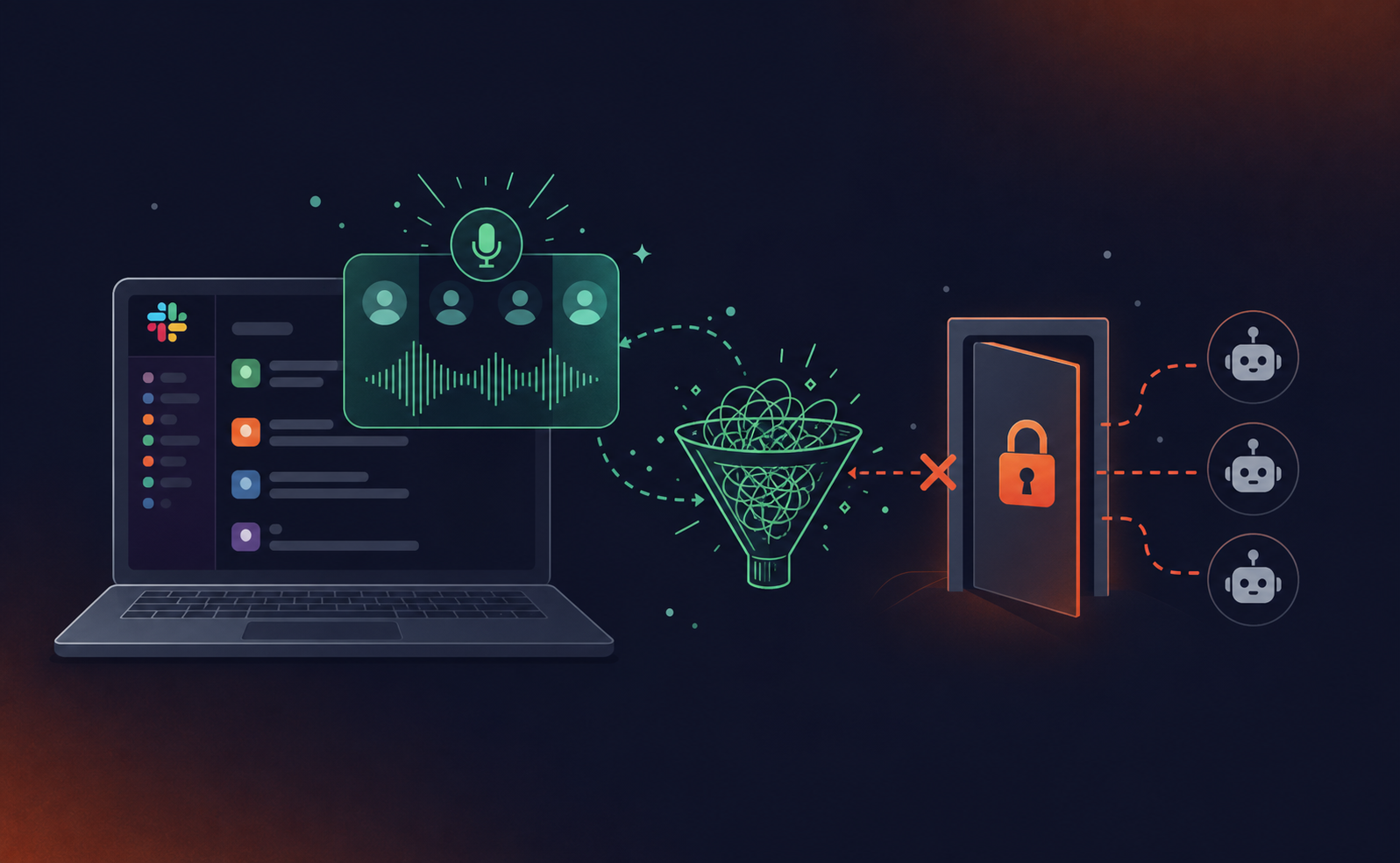
Slack’s architecture is the reason most AI meeting assistants go blank the moment a huddle starts. According to Shadow’s 2026 AI assistants for huddles roundup, Slack exposes no API for huddle audio or transcripts and blocks third-party meeting bots from joining, unlike Zoom or Google Meet. That eliminates roughly 80% of the category outright.
Bot-based assistants that join via a calendar link simply cannot see a huddle. There’s no waiting room, no meeting URL, no audio stream they can tap. This is a critical gap for AI tools for remote teams that rely on huddles for daily communication. If your current assistant works on Zoom, assume it does nothing for huddles unless the vendor has explicitly solved for this.
Approaches to Capturing Huddle Audio Automatically
Two architectural approaches work around Slack’s bot restriction.
Device-level system audio capture
Tools like Shadow and Granola record directly from your machine’s audio output instead of joining as a meeting participant. Because they capture what your speakers play, Slack’s API restrictions are irrelevant.
The trade-offs are real:
- Most are Mac-only, which cuts out Windows users entirely
- Many require you to manually start recording when a huddle begins, so any session you forget to trigger goes uncaptured
- Output is typically a local summary or transcript, with limited ability to automatically create action items from meeting transcripts or route them to downstream tools like Jira or your CRM
Enterprise conversation intelligence platform
Spinach AI is an enterprise conversation intelligence platform, deployed company-wide across Zoom, Google Meet, Microsoft Teams, Webex, and Slack Huddles, and it is not a per-person meeting assistant. For Zoom, Meet, Teams, and Webex, Spinach joins automatically via calendar. For Slack Huddles, Spinach captures the conversation and applies the same structured outputs: decisions, action items with named owners, and automatic routing into your connected tools. Because Spinach is the system of record for conversation data across the organization, every huddle, standup, and sales call feeds a single governed record, not a per-channel summary or a folder of individual notes.
If routing structured outputs to your team’s tools matters more than a text summary in Slack, an organizational platform with huddle support covers substantially more ground than a standalone recorder.
How to Share Huddle Notes With Your Team
Once you have notes, getting them to the right people without manual copy-paste is the actual problem.
If you’re using Slack AI huddle notes, the summary posts automatically into the channel thread, covering everyone in that channel. For anyone outside it, you’ll need to forward the thread or move the content elsewhere.
For teams that need notes in a shared doc, Confluence, Notion, and Google Docs are the common targets, and there are ways to sync Google Meet notes to Confluence automatically without manual exports every time. With Spinach AI connected, summaries route automatically to whichever knowledge tool you’ve configured.
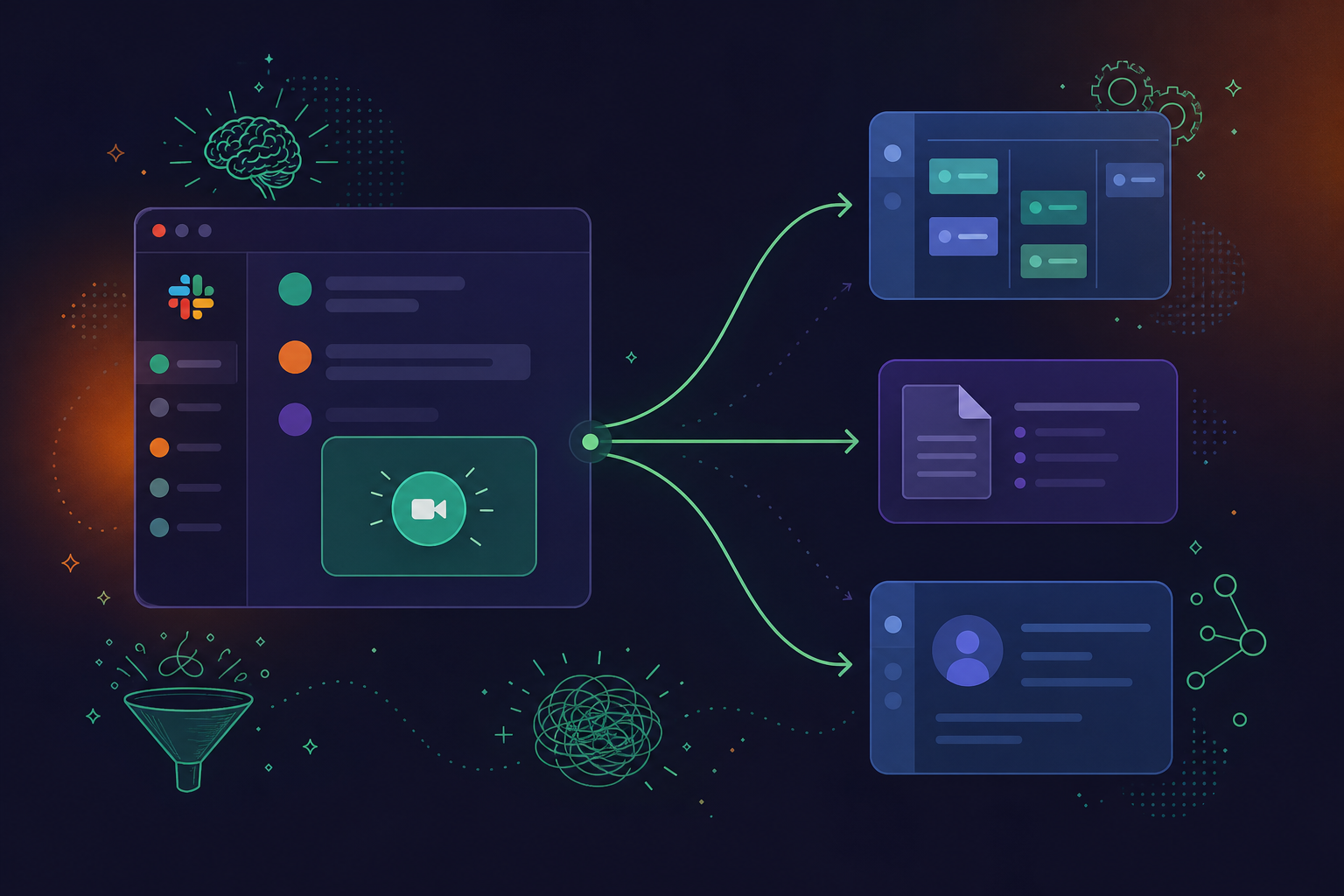
Here’s how a repeatable post-huddle workflow looks:
- Huddle ends and the summary auto-posts to the channel thread
- Notes route to your knowledge base (Confluence, Notion, or Google Docs) without manual export
- Action items file to your project management tool with named owners in Jira, Linear, or Asana via meeting notes
- CRM gets updated if any customer context came up, so commitments don’t disappear into Slack history
How to Run More Effective Slack Huddles
Good huddle notes start before the huddle does.
A quick message in the channel before you start (two or three bullet points on what you’re covering) keeps the conversation focused and gives participants a reason to join. During the call, say decisions and owners out loud by name. “Sarah owns the API change, deadline is Thursday” is capturable. Vague agreement is not.
Keep huddles short by default. If you haven’t resolved it in fifteen minutes, the topic probably needs a doc or a proper meeting. Anchoring discussion to a visible artifact like a design or pull request (or knowing how to convert meeting transcripts to Jira tickets afterward) cuts the back-and-forth that makes huddles run long.
Close every huddle the same way: state what was decided, who owns what, and any follow-up needed. That thirty-second recap is the difference between a productive conversation and one that evaporates.
When to Use a Huddle vs. a Scheduled Meeting
Use a huddle | Use a scheduled meeting |
|---|---|
Unblocking a quick decision | Decisions that need a paper trail |
Pair programming or code review | Cross-functional syncs with external stakeholders |
Brainstorming immediately after another call | Recurring ceremonies: standups, planning, retros |
Informal open office hours | Topics requiring prep, an agenda, or pre-reading |
Two or three people, five to fifteen minutes | Larger groups or anyone outside your workspace |
Huddles win on speed. No invite, no link, no waiting room. If the question can be answered in one conversation and the outcome only needs to travel to the people in the room, a huddle is the right call.
Scheduled meetings earn their place when the output matters beyond the participants. If you need a recording, a shareable summary, or structured notes routed to Jira and Confluence, a calendar meeting with an AI assistant covering it properly is the better setup.
How Slack Huddle Capture Works With Spinach AI
Spinach AI is an enterprise conversation intelligence platform. It is the system of record for conversation data, deployed company-wide across Zoom, Google Meet, Microsoft Teams, Webex, and Slack Huddles. When a huddle ends, structured outputs route automatically into Jira, Linear, Asana, ClickUp, Confluence, Notion, Salesforce, HubSpot, and other connected tools, with decisions and action items tied to named owners.
Because Spinach is deployed company-wide, every huddle across every team feeds a single governed conversation record. Sales, engineering, and leadership aren’t generating separate captures in separate tools. That record is queryable across the full organizational corpus, by people and by AI agents.
That’s the gap individual recorders and Slack AI summaries leave open. A channel thread summary reaches the people already in that channel. Spinach captures during the meeting, delivers structured knowledge when the meeting ends, and routes it into the systems that run the work, so it stays retrievable by people and agents who weren’t in the room.
Final Thoughts on Slack Huddle Notes and Capture
The fastest call in your day shouldn’t also be the least documented one. Huddles work best when the conversation is short and the output is clear, but that only holds if decisions travel beyond the people who were in the room. Building a simple close ritual helps, and pairing it with an enterprise conversation intelligence platform removes the step that most teams skip entirely. Spinach AI captures every huddle as part of company-wide deployment, joining Zoom, Google Meet, Teams, Webex, and Slack Huddles, and routes structured decisions and action items into Jira, Confluence, Salesforce, and your other connected tools when the meeting ends. Get started with Spinach AI to cover your huddles alongside every other meeting type, so nothing decided in a quick call disappears by end of day.
Spinach AI captures Slack Huddles, but the path is different from bot-join meeting platforms. Slack exposes no API for huddle audio and blocks third-party bots from joining, so Spinach covers huddles through device-level capture or Quick Record, not the calendar-integrated bot flow that handles Zoom, Google Meet, Teams, and Webex. Once captured, the same structured outputs apply: decisions, action items with named owners, and automatic routing into Jira, Confluence, Salesforce, and your other connected tools.
Slack AI huddle notes work for a quick in-channel recap, but the output is a text summary posted to that channel thread and nothing more. It does not push action items to Jira or Linear, update a Salesforce record, or write to Confluence. Someone still has to read the summary and move decisions into the tools that run the work. Spinach routes structured outputs automatically into your project management, CRM, and knowledge tools, and because it deploys company-wide, every huddle across every team feeds a single governed conversation record instead of a per-channel summary that only channel members can find.
The built-in options stop at the channel thread: Slack AI posts its summary there, covering current channel members, but anyone outside that channel has to be forwarded the content manually. With Spinach connected, summaries route automatically to your configured knowledge base (Confluence, Notion, or Google Docs) and action items file to Jira, Linear, or Asana with named owners, so the people who matter get the output without anyone copying and pasting after the huddle ends.
Two approaches work around Slack’s bot restriction. Device-level system audio capture (used by tools like Shadow and Granola) records from your machine’s audio output, bypassing the API block entirely, though most are Mac-only and many require you to manually start recording. A calendar-integrated assistant like Spinach covers huddles through device-level capture alongside automatic bot-join coverage for Zoom, Meet, Teams, and Webex, giving you one system and one governed record for your full meeting stack instead of a standalone recorder that handles huddles and nothing else.
Slack does not expose an API for huddle audio or transcripts and blocks third-party bots from joining, which rules out roughly 80% of AI meeting assistants that rely on joining via a calendar link. A bot-based assistant that works on Zoom simply has no audio stream to tap in a huddle. Tools that solve for this use device-level system audio capture instead, recording directly from your machine and bypassing the join-as-participant requirement entirely.
Slack AI huddle notes require an eligible paid Slack plan, so free workspace users have no native note option at all. Your best path is a device-level capture tool or an enterprise conversation intelligence platform like Spinach, which works regardless of your Slack tier and routes structured outputs into your connected tools when the huddle ends.
Huddles start instantly from any channel with no invite or calendar link required, making them faster for unblocking a decision or running a short code review. Scheduled Zoom meetings earn their place when you need a recording, a shareable summary, or structured outputs routed to Jira and Confluence — outputs that require a meeting assistant with full coverage of both formats.
If the decision or action item needs to land in Jira with a named owner, a scheduled meeting with an AI assistant covering it properly gives you a more reliable path. Huddles work for speed, but because Slack exposes no API for huddle audio, most meeting assistants cannot capture them — meaning any action items discussed verbally have to be filed by hand unless you have a tool with explicit huddle support.
The most reliable practice is a thirty-second closing ritual: state the decision, name the owner, and call out any follow-up before everyone drops off. Pairing that with an enterprise conversation intelligence platform that captures huddle audio and routes decisions automatically into your knowledge base and project management tools removes the manual step that most teams skip.
Yes — Spinach is deployed company-wide across Zoom, Google Meet, Microsoft Teams, Webex, and Slack Huddles from one organizational account. For Zoom, Meet, Teams, and Webex, Spinach joins automatically via calendar; for Slack Huddles, it captures via device-level capture or Quick Record, with the same structured outputs — decisions, action items with named owners, and automatic routing into your connected tools — applied across every format.
Slack saves links and messages shared during an active huddle into the channel thread automatically, so typed content and shared URLs persist after the call. The spoken audio and video are not natively saved by Slack, which is the gap that device-level capture tools and enterprise conversation intelligence platforms are built to cover.
Most device-level system audio capture tools that work around Slack’s API restriction are Mac-only, which leaves Windows users without a standalone option. An enterprise conversation intelligence platform deployed company-wide covers both operating environments, so your full team gets the same structured outputs regardless of which machine they’re on.
Connect an enterprise conversation intelligence platform like Spinach to your Jira workspace before the huddle starts. When the huddle ends, Spinach routes structured outputs — action items with named owners — directly into Jira or Linear, without anyone reading a summary and re-keying decisions by hand.
Spinach routes structured outputs into Jira, Linear, Asana, ClickUp, Trello, Confluence, Notion, Google Docs, Salesforce, HubSpot, Attio, and Zoho, with Google Drive auto-save and Zapier also available. CRM records update if customer context came up, and knowledge-base pages write automatically to whichever tool your team has configured.
Individual note-taking apps are built for one person’s meetings and typically cannot capture huddles at all, since Slack blocks third-party bots from joining. Spinach is an enterprise conversation intelligence platform deployed company-wide, so every huddle across every team — alongside every Zoom, Meet, Teams, and Webex call — feeds a single governed conversation record, rather than producing per-user notes scattered across separate tools.
What to do next
You made it to the end of this article! Here are some things you can do now:
- You should check out our library of meeting agenda templates for every type of meeting.
- Learn more about Spinach and how it can help you run a high performing org.
- If you found this article helpful, please share it with others on Linkedin or X (Twitter)

