How to Convert Meeting Transcripts to Jira Tickets in April 2026
Learn how to convert meeting transcripts to Jira tickets automatically in April 2026. Cut manual work by 40% with AI-powered automation and voice commands.
 Maintouch
When you’re converting meeting transcripts to Jira tickets by hand, you’re racing against memory and hoping nothing falls through. Your standups and sprint reviews generate clear commitments, but those commitments live in fragmented notes until someone manually creates the ticket. Research shows 44% of action items from meetings never get completed, and the problem starts right here: spoken work that never becomes tracked work. Bugs get flagged, features get discussed, nobody opens Jira, and the backlog stays incomplete.
TLDR:
- You can turn meeting transcripts into Jira tickets using native integrations or voice commands
- Automation cuts manual ticket creation time by 40% and prevents the 44% of action items that never get completed
- Voice-activated ticket creation captures work items mid-meeting without breaking conversation flow
- Spinach AI automates Jira ticket creation from meeting conversations with enterprise-grade compliance
Why Convert Meeting Transcripts to Jira Tickets
Every sprint planning session, every backlog refinement, every stakeholder call produces a list of things that need to get done. The problem? Those things live in someone’s notes, someone’s memory, or nowhere at all. 44% of action items never get completed, meaning nearly half of what your team agrees to do simply disappears.
For product and engineering teams, this is a real cost. When a bug gets flagged on a call but never reaches Jira, it doesn’t get fixed. Converting meeting transcripts directly to Jira tickets closes that gap, turning spoken commitments into tracked, assignable work items before anyone forgets.
It also creates accountability, reduces manual overhead, and builds a searchable record of how decisions become development work.
Meeting Transcript Tools That Connect to Jira
Not all AI meeting assistants connect to Jira the same way. The ones worth using in 2026 push structured data directly into your backlog without manual copy-paste.
Here’s what separates tools with real Jira integrations from those that just export text:
- Native Jira connectors that create tickets without leaving your workflow
- Speaker identification so action items get assigned to the right person
- AI-powered task detection that pulls assignable work from conversation automatically
- Field mapping to Jira’s required inputs: summary, description, assignee, and priority
- Webhook or API support for custom pipeline setups
Tools like Fireflies, Otter, and Notion AI also surface meeting content, though their Jira connections vary in depth. Some rely on Zapier as a bridge instead of a direct integration, which adds setup complexity and latency.
Tool | Jira Integration Type | Key Capabilities | Best For |
|---|---|---|---|
Spinach AI | Native direct integration | Voice-activated ticket creation, automatic action item detection, speaker identification, 100+ language support, SOC 2 and GDPR compliant | Teams needing enterprise-grade compliance with real-time ticket creation and multi-language support |
Fireflies | Native integration with API support | Automated transcription, searchable meeting library, CRM integrations, custom topic tracking | Teams wanting full meeting analytics alongside Jira ticket creation |
Otter | Via Zapier middleware | Real-time transcription, collaborative note-taking, speaker identification, mobile app access | Teams that value collaborative editing and mobile accessibility over direct integration |
Notion AI | Via Zapier or manual export | AI summarization, workspace integration, flexible formatting, custom databases | Teams already using Notion as their primary documentation hub |
Understanding the Transcript-to-Ticket Workflow
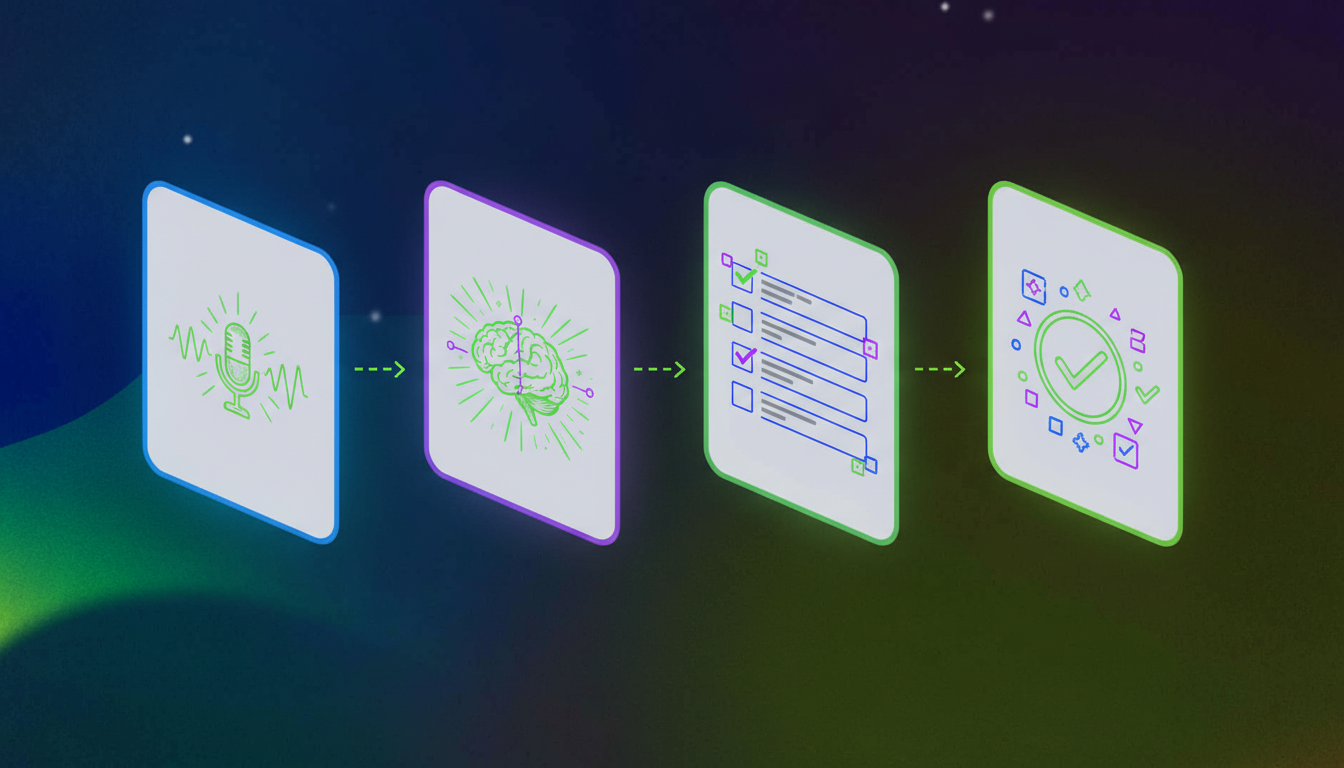
The process has more steps than it looks like from the outside. Understanding each stage helps you configure things correctly and troubleshoot when output doesn’t match expectations.
Stage 1: Audio Capture and Transcription
Your meeting audio gets transcribed in real time, with speaker labels attached to each segment. Accuracy here matters, because the AI analysis downstream is only as good as what the transcript says.
Stage 2: AI Analysis
Once the transcript exists, the AI scans for signals: action item language (“we need to,” “can you take”), decision markers, assignee mentions, and deadlines. Voice commands like “Hey Spinach, create a ticket” can also flag specific moments for guaranteed capture.
Stage 3: Structured Data Mapping
Raw action items get shaped into Jira’s data model. Natural language like “Priya should fix the login bug before Friday” becomes a ticket with type, assignee, date, and description pulled from surrounding context.
Stage 4: Trigger and Delivery
Integration tools apply rules to decide what actually gets pushed. Some send every detected task. Others wait for explicit commands or reviewer approval. Knowing which mode you’re running in keeps your backlog clean.
Manual Methods for Creating Jira Tickets from Transcripts
Not every team is ready to automate. Budget constraints, IT approval cycles, or being mid-sprint can leave you needing a manual workflow that still holds up.
A few habits make the manual process far less painful:
- Review transcripts within 30 minutes of the meeting ending, while context is still fresh
- Use a consistent ticket naming convention that references the source meeting for traceability
- Build a Jira ticket template with pre-filled fields for issue type, sprint, and priority so you’re only filling in the specifics
- Batch-create tickets from copied action items instead of switching windows repeatedly
- Tag tickets with a meeting label so you can audit how much work originates from recurring calls
Browser-based clipboard managers like Paste or Raycast can cut the friction of moving text between transcript exports and Jira’s issue form. With a repeatable system, a 60-minute planning call can be triaged into Jira in under 15 minutes.
Automated Workflows Using Jira Automation Rules
Once meeting data lands in Jira, native automation rules can handle the rest. Automation tools decrease manual work by 40%, and Jira’s built-in rule engine is a big reason why.
Here’s what you can configure once tickets from meetings start flowing in:
- Auto-assign tickets based on mentioned components or labels
- Add standardized checklists to specific issue types on creation
- Link related tickets when multiple action items come from the same call
- Trigger assignee notifications the moment a ticket is created
- Build parent-child relationships between strategic discussion points and their implementation tasks
The trigger you’ll use most is “Issue Created.” From there, rules branch based on label or type. A ticket tagged meeting-generated can automatically get routed to the right sprint, assigned to the right person, and linked to an epic, all without anyone touching it manually.
Using Integration Platforms to Connect Transcripts and Jira
When native integrations don’t cover your exact workflow, middleware like Zapier or Make fills the gap. Both can monitor for a completed meeting event, pull structured data from a transcript API, and create Jira issues based on conditions you define.
Where these tools shine is conditional logic. You can route tickets to different projects based on keywords, skip low-priority items, or enrich issues with participant lists and recording links that a direct integration might drop.
That said, middleware adds steps. Each zap or scenario is another thing to maintain when APIs change or auth tokens expire. Use these tools when you need custom logic that native connectors can’t handle.
Voice Commands and Real-Time Ticket Creation
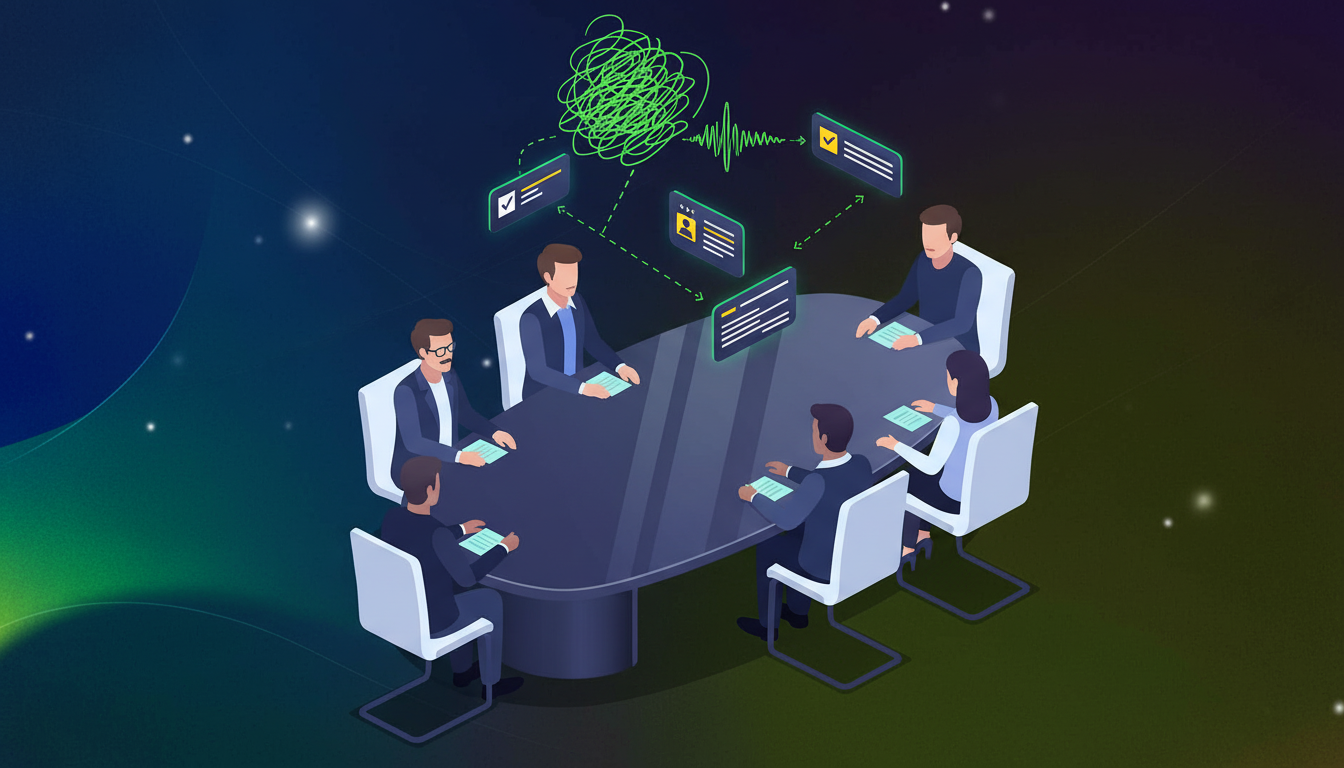
Voice-activated ticket creation skips post-meeting processing entirely. You flag work items the moment they come up in conversation, not after the fact.
Saying “Hey Spinach, create a ticket” captures whatever follows as a structured task, queued for Jira before the meeting wraps. No tab-switching, no interruption, no relying on someone to remember.
This matters most in fast-moving standups or sprint reviews where five action items can surface in three minutes. Voice commands let teams commit to work on the spot, keeping meeting flow intact while guaranteeing nothing slips through.
Best Practices for Structuring Meeting-Generated Tickets
Good tickets don’t write themselves, even with AI doing the heavy lifting. Structure is what separates an actionable backlog item from a vague note nobody wants to touch.
- Prefix ticket summaries with a meeting identifier (e.g.,
[Sprint Planning 6/3]) for traceability back to the source conversation. - Include a short transcript excerpt in the description to preserve original context for anyone picking up the ticket later.
- Tag all meeting-sourced tickets with a
meeting-generatedlabel for easy filtering and reporting. - One ticket, one action item. Never bundle two commitments into a single issue.
- Use a template with required fields so AI-generated drafts don’t ship incomplete.
That last point deserves attention. Jira allows required fields, but for meeting-generated tickets, set those fields to optional in your integration settings so tickets aren’t blocked from creation mid-flow. Review and fill gaps in a daily triage pass instead.
Handling Context and Follow-Up Information
A ticket that says “fix auth flow” helps nobody if the developer picking it up wasn’t in the room. Context loss is one of the real failure modes of meeting-to-ticket workflows, and it compounds over time as sprints pile up.
A few approaches that actually hold up:
- Link tickets to the recording timestamp where the item was first raised, instead of just the meeting itself
- Paste a short transcript excerpt (two to three sentences) directly into the description so the original framing survives
- Create a parent Epic for any strategic initiative that spawned multiple tickets across one discussion
- Use Jira’s comment field for follow-up clarification as teammates review the transcript after the fact
- Maintain a Confluence page for the meeting and link all related tickets bidirectionally, so the thread is traceable in both directions
The goal is just enough context that the person implementing the ticket doesn’t need to track down whoever opened it.
Measuring the Impact of Transcript-to-Ticket Automation
Unproductive meetings cost businesses $37 billion annually, making follow-through a financial question as much as a productivity one.
Track these metrics before and after rolling out automation:
- Time from meeting end to ticket creation
- Percentage of spoken commitments that become tracked issues
- Action item completion rate across sprints
- Frequency of follow-up meetings about “what did we decide”
Qualitative signals matter too. If your team stops asking who was supposed to handle something, the workflow is holding.
Common Challenges and Troubleshooting
Four issues come up repeatedly in transcript-to-ticket setups. Here’s how to handle each one:
- AI flags discussion as action items: Tighten detection sensitivity in your tool’s settings, or use explicit voice commands to confirm what actually counts as a ticket.
- Duplicate tickets from multiple participants: Add deduplication logic in your automation rules, or hold generated drafts for a quick review pass before creation.
- Wrong Jira assignee: Build a name-to-username mapping table and add company-specific nicknames to your custom vocabulary settings.
- Jargon breaks transcription accuracy: Add internal abbreviations and product names to custom vocabulary so the AI reads them correctly from the start.
How Spinach AI Automates Meeting-to-Jira Workflows
Spinach was built to handle exactly this workflow, from capture to ticket creation, without stitching together separate tools.
When Jira is connected, Spinach automatically detects action items, assigns them to the people mentioned in conversation, and queues drafts for one-click ticket creation with project selection. Say “Hey Spinach, create a ticket” mid-meeting and it’s captured before the next agenda item starts. You can also reference in-progress Jira tickets during discussion and have them surface directly in your post-meeting summary.
For global teams, Spinach supports 100+ languages. For enterprise teams, it’s SOC 2, GDPR, and HIPAA compliant, with governance controls built in from the start.
Final Thoughts on Closing the Meeting-to-Work Gap
What gets said in meetings matters less than what actually gets built afterward. The teams that win are the ones who turn discussions into tickets without manual overhead. Converting meeting transcripts to Jira tickets automatically means your backlog reflects real commitments, not wishful thinking. You can patch this together with integrations and automation rules, or pick a tool that does it out of the box. Try Spinach’s meeting setup and see how much work you were leaving on the table.
Most teams complete setup in under 30 minutes using native integrations like Spinach’s Jira connector. Custom workflows using middleware platforms may take 1-2 hours to configure logic and field mappings.
Add deduplication logic in your Jira automation rules, or configure your tool to hold generated drafts for a quick review pass before pushing them to your backlog. Voice commands like “Hey Spinach, create a ticket” also give you explicit control over what gets captured.
Yes—tools with speaker identification extract assignee names from conversation and map them to Jira usernames. Build a name-to-username mapping table in your settings to handle nicknames and ensure accurate assignments.
Use manual workflows when you’re working under budget constraints, waiting on IT approval for integrations, or need to triage complex discussions where AI might flag too many items. A manual system with templates and batching can process a 60-minute planning call in under 15 minutes.
Tighten your tool’s detection sensitivity settings, or switch to explicit voice commands that only create tickets when you say so. This gives you control over what becomes tracked work versus what stays as meeting context.
Automation cuts manual ticket creation time by 40%, prevents the 44% of action items that typically never get completed, creates accountability through tracked commitments, and builds a searchable record of how decisions become development work.
Tools with real Jira integrations include Spinach AI, Fireflies, and Otter, though the depth of integration varies. Some tools rely on Zapier as a bridge rather than direct integration, which adds setup complexity and latency.
You can say commands like “Hey Spinach, create a ticket” during the meeting to flag work items in real-time. This captures whatever follows as a structured task queued for Jira before the meeting wraps, without interrupting conversation flow.
Include a meeting identifier prefix in the summary, a short transcript excerpt in the description for context, a meeting-generated label for filtering, and link to the recording timestamp where the item was raised. Each ticket should cover only one action item.
Zapier and Make fill gaps when native integrations don’t cover your workflow, allowing conditional logic to route tickets to different projects based on keywords, skip low-priority items, or enrich issues with participant lists and recording links.
Track time from meeting end to ticket creation, percentage of spoken commitments that become tracked issues, action item completion rate across sprints, and frequency of follow-up meetings about decisions. These indicate whether your workflow is preventing the typical 44% action item drop-off.
Add internal abbreviations, product names, and company-specific terminology to your tool’s custom vocabulary settings so the AI reads them correctly from the start, which improves downstream ticket quality.
AI-detected action items are automatically identified from conversation patterns and decision markers, while voice commands give you explicit control to flag specific moments for ticket creation, preventing over-capture of discussion points.
Use Jira’s comment field for follow-up clarification, link to the recording timestamp where the item was discussed, maintain a bidirectional link to a Confluence page for the meeting, and create parent Epics for strategic initiatives that spawned multiple tickets.
Look for native Jira connectors, speaker identification for proper assignment, AI-powered task detection, field mapping to Jira’s required inputs (summary, description, assignee, priority), and webhook or API support for custom pipeline setups.
What you should do next
Next, here are some things you can do now that you've read this article:
- You should check out our library of meeting agenda templates for every type of meeting.
- Learn more about Spinach and how it can help you run a high performing org.
- If you found this article helpful, please share it with others on Linkedin or X (Twitter)

