How to Sync Google Meet Meeting Notes and Action Items to HubSpot Automatically in 2026
Learn how to sync Google Meet notes and action items to HubSpot without manual work. Complete setup guide with AI automation tips for April 2026.
 Maintouch
Every Google Meet ends the same way: close the call, open HubSpot, paste notes, assign tasks, repeat. That workflow costs your team 15 minutes per meeting and still misses details because someone was listening instead of typing. If you want to sync Google Meet to HubSpot without the admin work, you need a tool that joins the meeting, captures what was said, and pushes structured notes to the right contact automatically.
TLDR:
- You can sync Google Meet notes to HubSpot in under 5 minutes using AI assistants or native tools
- AI meeting assistants boost action item completion from 50-60% to 85-95% by auto-assigning tasks
- Manual note-taking wastes 15-20 minutes per meeting; automation cuts that to under 2 minutes
- Spinach AI joins Google Meet calls, transcribes conversations, and pushes structured summaries to HubSpot automatically with SOC 2, GDPR, and HIPAA compliance
Why Syncing Meeting Notes and Action Items Matters for Team Productivity
44% of action items from meetings never get completed, and 71% of meetings fail to meet their objectives due to poor follow-through. That’s a systems problem.
The average employee spends 28.3% of the standard workweek in meetings, from daily standups to client calls. Factor in the follow-up: manually copying notes into HubSpot, reassigning action items, updating contact records. The meeting ends, but the admin work doesn’t.
When your CRM records rely on someone remembering to log a call, the entire pipeline breaks on human error. Automation closes that gap.
The Problem with Manual Google Meet to HubSpot Transfers
Manually moving Google Meet notes into HubSpot means finishing a call, opening a new tab, opening the right contact record, pasting notes, creating follow-up tasks, tagging the right owner, and repeating for every action item. That’s five to eight steps per meeting, done from memory, after the fact.
In practice, someone misses a detail because they were typing instead of listening. Someone else logs notes three days later. A third skips it entirely. Time lost in unproductive meetings has doubled since 2019, reaching 5 hours per week per employee. Better meeting practices can reclaim some of that lost time.
Your HubSpot data ends up reflecting what people remembered to type, not what actually happened.
Understanding the Google Meet and HubSpot Integration Ecosystem
There are two broad categories of tools for syncing Google Meet to HubSpot.
The first is native and low-code options: HubSpot’s own Google Meet integration, plus automation tools like Zapier. HubSpot’s native app lets users pull up contact records during a call, create contacts, associate meetings to a record, and add notes manually. It handles structure well, but it doesn’t write your notes for you.
The second is AI meeting assistants, which sit in the meeting, capture what’s said, generate summaries, extract action items, and push all of it to HubSpot automatically with no manual input.
How to Choose
- Team size: native tools work fine for solo reps; AI assistants scale better across teams
- Workflow complexity: if you need action items assigned, tagged, and synced without touching a keyboard, native tools fall short
- Accuracy requirements: manually typed notes carry human error; AI-captured notes reflect what was actually said
Both categories solve different problems, and choosing the wrong one means only solving half of yours. How frequently you meet also impacts which solution works best.
Built-In and Low-Code Options for Connecting Google Meet to HubSpot
HubSpot’s built-in Google Meet integration handles scheduling: generate a Meet link from a contact record, log a meeting, and associate it with a deal. Reps can type notes in real time during the call.
What it doesn’t do is listen. No transcription, no action item detection, no automatic post-call summary. Everything that goes into HubSpot still passes through human hands.
Zapier sits one level above that, handling automation for various workflows. Zapier’s HubSpot and Google Meet integration lets you trigger on a new contact entering a list and auto-create a Google Meet, or reverse it to push data into HubSpot when a meeting ends.
The honest limitation: Zapier moves structured data between fields. It doesn’t understand what was said, who owns which action item, or what decisions were made. You’re automating logistics, not insight.
Using AI Meeting Assistants to Sync Google Meet to HubSpot
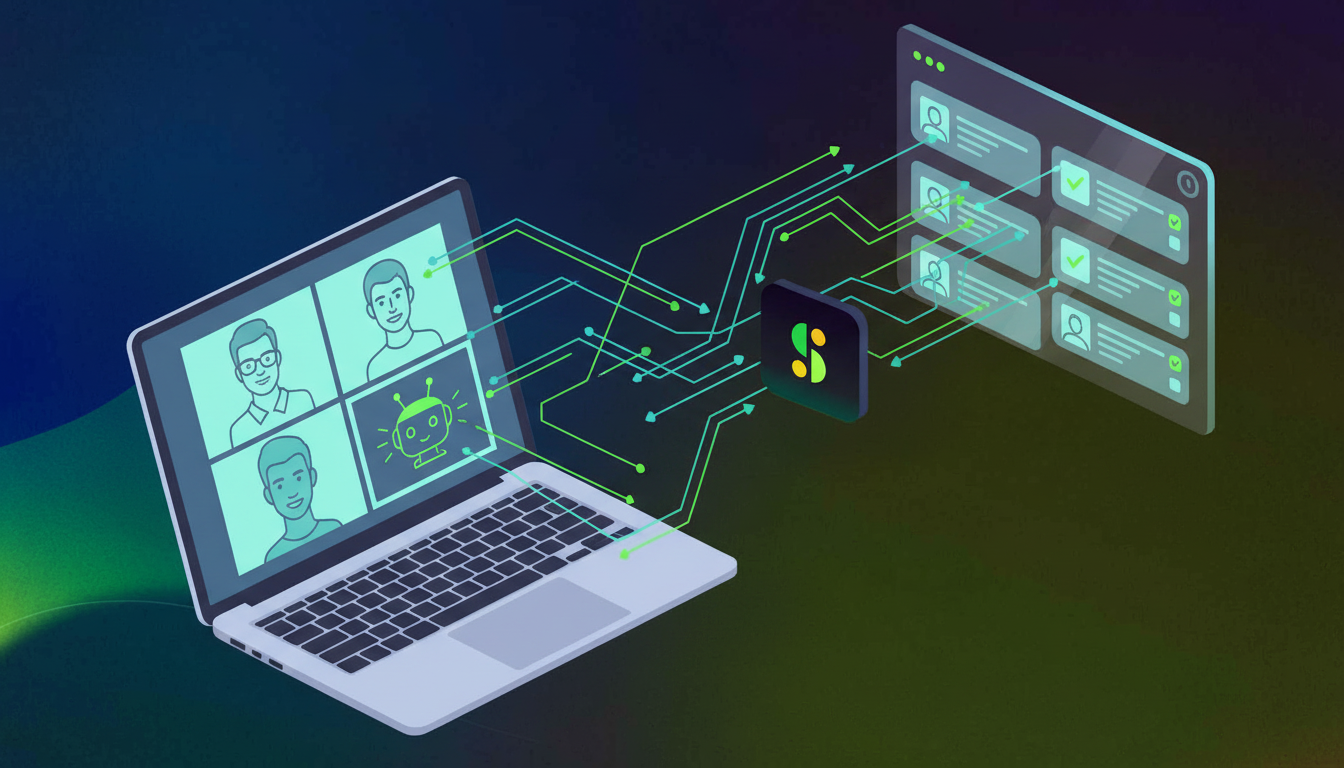
AI meeting assistants take a fundamentally different approach. Instead of moving data between fields, they attend the meeting, process conversation in real time, and push structured output to HubSpot before you’ve closed the tab. These AI transcription tools handle the heavy lifting.
These tools join your Google Meet automatically, transcribe the conversation, generate a summary, identify action items with assignees, and sync all of it directly to the relevant HubSpot contact record. No copy-paste. No manual logging. The AI reads context, so it knows the difference between “Sarah mentioned she’d follow up” and a confirmed commitment.
The outcome is measurable. Teams moving from manual note-taking to automated systems typically see action item completion rates jump from 50-60% up to 85-95%. The right AI meeting notes tool makes this transition smooth. When the system captures accountability at the source, things actually get done.
Human judgment is still available after the fact through draft review, but it’s no longer required to get data into your CRM at all.
How AI Improves Action Item Extraction and Assignment
Raw transcription gives you a wall of text. What you actually need is the ability to tell the difference between “we should probably look into that sometime” and “Marcus will send the proposal by Friday.”
That distinction is where AI earns its place. Spinach uses LLMs trained to detect commitment language, speaker context, and deadline cues from natural conversation. Like other top AI note takers, it identifies who said what and when. When someone says “I’ll handle that,” the system knows who spoke, links the task to them, and surfaces it as an assigned action item instead of a discussion note.
Speaker recognition matters here. Without it, action items get attributed to the meeting instead of the person, which is functionally useless inside HubSpot, where tasks need an owner to trigger follow-up workflows.
A voice command for action items adds another layer of control. Say it mid-call and the next statement gets flagged as a confirmed action item, regardless of how casually it was phrased.
Setting Up Your Automated Google Meet to HubSpot Workflow
Getting connected takes less time than most people expect. The order matters, so here’s how to do it without backtracking.
Initial Setup Requirements
Before anything else, confirm you have:
- HubSpot admin access (or Super Admin for integration installs)
- A Google account that matches your calendar
- Google Calendar connected to your meeting tool of choice
Calendar and Meeting Configuration
For HubSpot’s native Google Meet integration: click the Marketplace icon in the top navigation bar, search for Google Meet, click Install, sign in to your Google account, click Continue, then review permissions and click Allow.
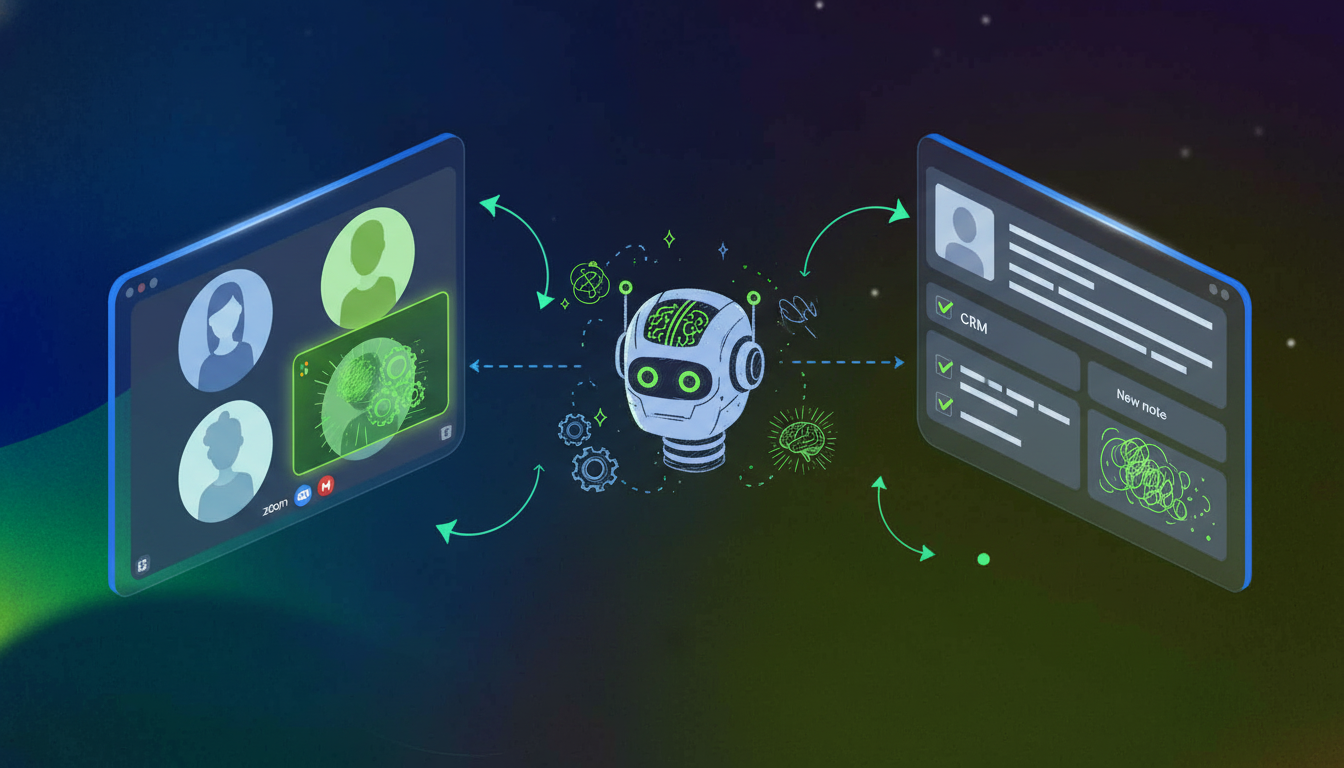
For Spinach, connect Google Calendar in your dashboard, then connect HubSpot under Settings > Integrations. This setup is similar across most meeting note software platforms. Spinach will auto-join scheduled Google Meet calls and push summaries to the matching HubSpot contact record after each meeting.
Use consistent meeting title conventions. “Call with [Company Name]” maps cleaner to HubSpot records than generic titles like “Sync” or “Chat.”
Testing Your Workflow
Run one internal test meeting before rolling out to your team:
- Schedule a Google Meet with your calendar connected
- Confirm the AI assistant joins and records
- Check the HubSpot contact record for the auto-logged summary
- Verify action items appear with correct assignees
Best Practices for Google Meet Notes That Sync Successfully to HubSpot
Vague language produces vague output. How you speak and how you prepare directly shape what gets captured and synced.
- Say “Hey Spinach” before stating a task to lock it in as a confirmed action item
- Name assignees out loud (“Marcus will send the contract by Thursday”) and state deadlines explicitly instead of using relative terms like “soon”
- Add agenda topics in your Spinach dashboard so the AI tracks discussion against each item
- Use consistent meeting title formats so Spinach maps notes to the right HubSpot contact automatically
The more context the AI has going in, the less you’ll need to correct going out.
Troubleshooting Common Sync Issues Between Google Meet and HubSpot
If the sync between Google Meet and HubSpot stops working, the fix is usually straightforward. Here are the most common issues and how to resolve them.
Authentication and Permission Errors
A broken OAuth token is the most frequent cause. Go to Settings > Integrations and reconnect both Google Calendar and HubSpot. Confirm you’re using the same email across both tools. HubSpot may also require Super Admin approval, so check with your admin if the integration has disappeared.
Missing or Duplicate Action Items
- Action items missing: confirm Spinach was admitted from the waiting room and stayed on the call.
- Notes not appearing in HubSpot: Spinach updates existing contacts instead of creating new ones, so the contact record must already exist.
- Duplicate tasks: disable either the Zapier zap or Spinach if both are pushing to the same record.
Sync Delays
Summaries post after processing completes, typically within a few minutes. If notes haven’t appeared after 15 minutes, check that the calendar invite included a Google Meet link, that Spinach was toggled on before the call, and that your meeting exists in Spinach’s Meeting History. If the summary is there but missing from HubSpot, reconnect the integration under Settings.
Measuring the ROI of Automated Meeting Notes
Pull the math from your own calendar: count weekly meetings, multiply by 15-20 minutes of post-call admin, and you have a concrete cost figure before opening a pricing page.
Action item completion rates jump to 85-95% when teams move from manual to automated systems. That’s a 35% improvement worth putting in front of any manager.
Metric | Before Automation | After Automation |
|---|---|---|
Time spent on notes | 15-20 minutes | 0-2 minutes |
Action item completion rate | 50-60% | 85-95% |
Weekly admin hours | 3-5 hours | 0.5-1 hour |
To track this inside HubSpot, use the activity report to measure logged call notes before and after setup, then pull task completion rates from your deals dashboard.
How Spinach AI Automates Your Entire Google Meet to HubSpot Workflow
Here’s what the full workflow looks like when Spinach handles it: you finish a Google Meet call, and the HubSpot record is already updated. No tabs, no typing, no follow-up reminder to yourself.
Automated Meeting Capture and HubSpot Sync
Spinach joins your Google Meet automatically through your calendar invite, attends the full call, and pushes a structured summary to the matching HubSpot contact record once the meeting ends. The note includes the date, duration, key decisions, and full context, logged without anyone touching a keyboard.
Action Item Extraction and Task Creation
Spinach’s AI reads commitment language in real time. When someone takes ownership of a next step, Spinach captures it, attributes it to the right person, and creates an assigned task in HubSpot. Deadlines stated out loud get attached automatically.
Enterprise-Grade Security and Compliance
Every conversation processed through Spinach is covered by SOC 2, GDPR, and HIPAA compliance, with zero data retention by AI providers and no customer data used for model training. When choosing transcription software, security should be a top consideration. Full details at spinach.ai/security.
Final Thoughts on Connecting Google Meet Action Items to HubSpot
You already spend a quarter of your week in meetings. Syncing Google Meet to HubSpot means that time produces clean data instead of scattered memory. The AI joins automatically, reads context from conversation, and pushes structured summaries with assigned tasks straight to your CRM. Your contact records stay current without anyone typing a word. Start automating your meeting workflow and stop treating note-taking like a manual process.
Yes. AI meeting assistants like Spinach join your Google Meet, transcribe the conversation, generate summaries, extract action items with assignees, and push everything to HubSpot automatically—no manual input required.
HubSpot’s native app handles scheduling and manual note-taking during calls, but doesn’t transcribe or extract action items automatically. AI assistants capture what’s actually said, assign tasks based on who spoke, and sync structured data to HubSpot without you touching a keyboard.
Setup takes under 10 minutes: connect Google Calendar to your AI assistant, connect HubSpot under integrations, and run one test meeting to confirm summaries and action items appear in the right contact record.
Automate capture and assignment at the source. Teams moving from manual note-taking to AI-powered sync see action item completion rates jump from 50-60% to 85-95% because tasks get assigned to the right person with clear deadlines the moment they’re spoken.
Use voice commands like “Hey Spinach” before stating a task, name assignees out loud during the call (“Marcus will send the contract by Thursday”), and confirm your AI assistant has speaker recognition turned on so tasks get attributed correctly.
Yes. AI meeting assistants like Spinach connect directly to both Google Meet and HubSpot, capturing transcripts and pushing structured summaries without requiring Zapier as a middleware layer. This direct integration cuts setup steps and reduces points of failure in your workflow.
The bot can’t record if it’s stuck in the waiting room, so no notes get captured or synced to HubSpot. Set your Google Meet to auto-admit known participants, or train your team to admit the bot at the start of every call to prevent data loss.
Speaker recognition accuracy depends on clear audio and distinct voices, but modern AI assistants achieve 90%+ accuracy when participants speak naturally. Name assignees out loud during the call to remove ambiguity and lock in correct task ownership.
Use HubSpot’s native app if you’re comfortable typing notes during calls and don’t need automatic action item extraction. Switch to an AI assistant if you want transcription, auto-assigned tasks, and zero manual data entry after meetings end.
Run an internal test meeting with a colleague, let the AI assistant join and record, then check the HubSpot contact record within 15 minutes to confirm the summary appeared with correct action items and assignees. Fix any connection issues before rolling out to your full team.
Yes. Spinach supports transcription and action item extraction in over 100 languages, processing multi-language conversations and outputting summaries in your preferred language. Confirm your AI assistant supports your team’s working languages before setup.
Record every internal meeting if your team struggles with follow-through on action items or needs cross-functional visibility into decisions. Limit recording to customer calls if you’re only concerned with CRM hygiene and external relationship management, though broader capture creates better organizational memory.
Disable task creation in one tool if you’re running both Zapier and an AI assistant that both push to HubSpot. Check your integration settings to confirm only one system is writing action items to contact records, or use different HubSpot fields for each source.
A transcript is a raw word-for-word record of everything said, while an AI-generated summary extracts key decisions, action items, and discussion topics into a structured format. Summaries save time by surfacing what matters without requiring anyone to read through 30 minutes of conversation.
Most AI meeting assistants store recordings and transcripts in their own platform rather than uploading video files directly to HubSpot, but they do push text summaries and action items to contact records. If you need the full recording in HubSpot, check whether your tool supports video export or API access for custom workflows.
What to do now
You made it to the end of this article! Here are some things you can do now:
- If communication is a challenge for your team, you should check out our library of meeting agenda templates.
- You should try Spinach to see how it can help you run a high performing org.
- If you found this article helpful, please share it with others on Linkedin or X (Twitter)

