How to Set Up Notion AI Meeting Notes (September 2026)
Sep 2026 guide to Notion AI Meeting Notes: setup, custom instructions, action item routing, and how Spinach AI scales meeting capture org-wide.
 Maintouch
The days of copying your meeting transcript out of one tool and pasting it into Notion are behind you, provided you’re on the right plan. Notion’s built-in AI Meeting Notes joins your call, transcribes it, and drops a structured summary with action items straight into your workspace. Here’s exactly how to set it up.
TLDR:
- Notion AI Meeting Notes requires the Business plan ($20/user/month) and the desktop app on Mac or Windows; browser and mobile are not supported
- Type
/meetto trigger recording; without it, nothing captures, and the summary lands in your workspace when the meeting ends - Set custom instructions per meeting type before recording starts to get structured output you can act on without editing afterward
- Routing action items into Notion databases requires a manual step or configured automation; nothing moves automatically at meeting end
- Spinach AI is an enterprise conversation intelligence platform that joins calls across Zoom, Google Meet, Teams, Slack Huddles, and Webex as an org-wide layer, routing decisions and action items with named owners into Notion, Jira, Salesforce, and more at meeting end
What Notion AI Meeting Notes Actually Does
Notion does have a native meeting notes feature. AI Meeting Notes joins your call, transcribes the conversation with speaker labels, and generates a structured summary with key points and action items, all saved directly inside your Notion workspace. If you’re comparing best tools for AI meeting notes beyond Notion, options vary widely by deployment model.
The output lands as a Notion page: a transcript identifying who said what, an AI-generated overview of what was covered, and a pull of action items your team can act on. No copy-pasting from a separate tool, no manual formatting.
One thing worth knowing upfront: this is a beta feature, and it requires Notion’s Business or Enterprise plan.
Plan and System Requirements
Before running through setup, check that you actually have access. Notion AI Meeting Notes requires the Business plan ($20/user/month billed annually at the time of writing; verify current pricing at checkout) or Enterprise, as confirmed on Notion’s pricing page. Free and Plus users don’t have it.
Beyond the plan, there’s a hardware dependency most guides skip: the feature captures audio directly from your system, not through a meeting bot. That means you need the Notion desktop app installed on Mac or Windows. Browser-based Notion won’t work, and neither will mobile.
Quick checklist before you proceed:
- Business or Enterprise plan active
- Notion desktop app installed
- Mac or Windows device (browser and mobile are not supported)
- Microphone permissions granted to the app
How to Set Up Notion AI Meeting Notes Step by Step
With your plan confirmed and the desktop app installed, here’s the full setup sequence:
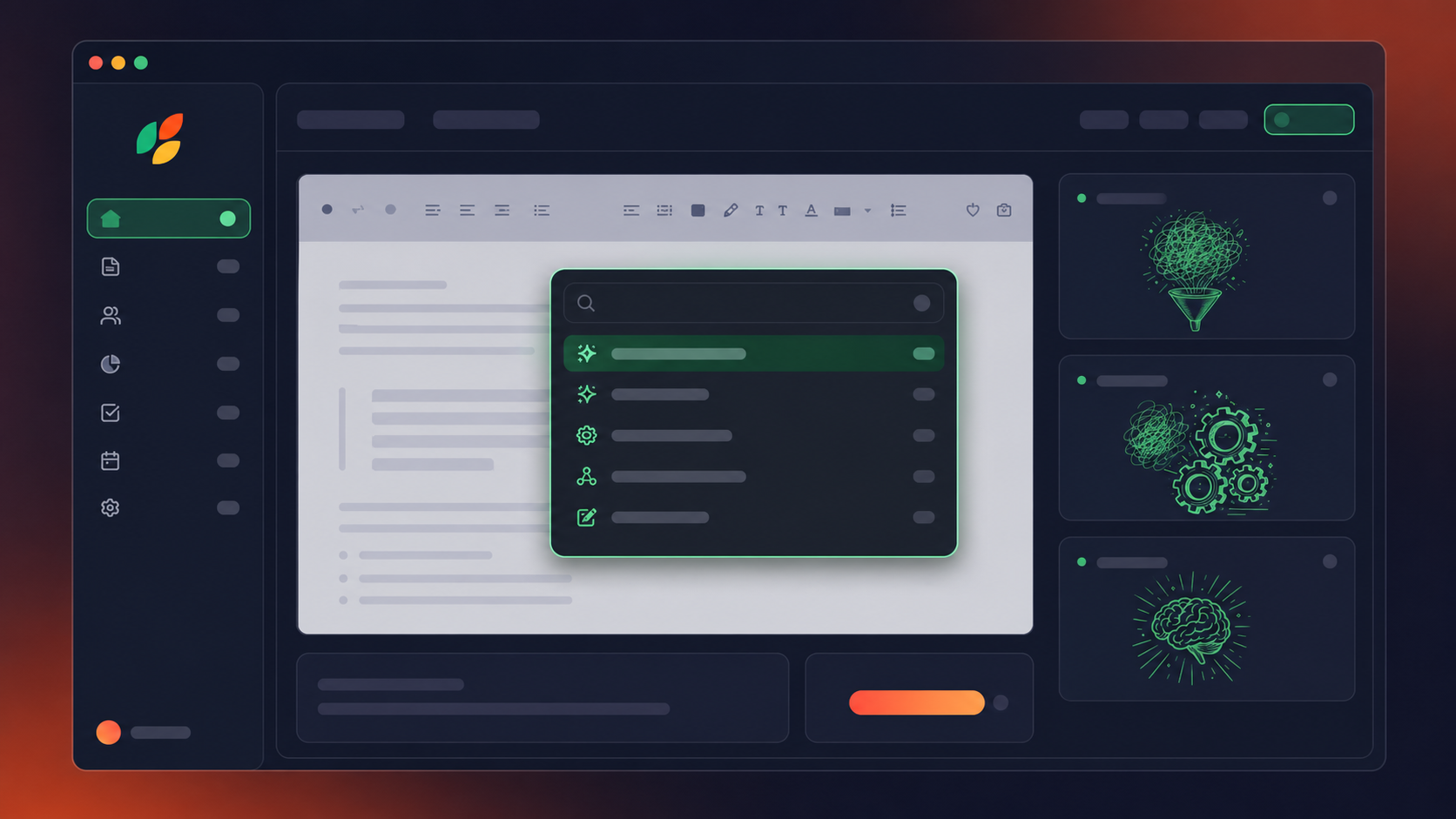
- Open the Notion desktop app and go to Settings
- Under “Workspace,” confirm Notion AI is active for your account
- Grant microphone and system audio permissions when prompted (macOS: System Settings > Privacy & Security > Microphone)
- Connect Notion Calendar under Settings > Connections if you haven’t already
- Create or select a database where meeting notes will be saved, then set it as your default under Settings > AI Meeting Notes
- Open any Notion page and type
/meetto trigger the AI Meeting Notes panel - Click “Start recording” and Notion captures audio locally on your device
The /meet command is the live trigger. Without it, nothing records. Once active, a small indicator confirms transcription is running. When the meeting ends, click “Stop” and Notion generates the summary directly in your workspace.
How to Customize Your Summary Format
Notion AI Meeting Notes lets you write custom instructions that shape the summary around your specific meeting type before the recording starts.
Open the AI Meeting Notes panel (via /meet) and find the “Customize” or “Instructions” field. Type a plain-language prompt describing what you want captured:
- 1:1s: “List decisions made, any blockers mentioned, and follow-up commitments with owner names.” A structured meeting notes action items template can help you build consistent prompts for each meeting type.
- Sprint reviews: “Capture completed work, carryover items, and retrospective action items separately.”
- Client calls: “Summarize client requests, open questions, and agreed next steps.”
- Interviews: “Note candidate responses by question, standout moments, and a hiring recommendation.”
To avoid retyping instructions every session, set a default template in Settings > AI Meeting Notes. Every future meeting routed to that database inherits the format automatically. The more specific your instructions, the better the output. Vague prompts produce generic results; precise category labels get you structured notes you can act on without editing afterward.
How to Connect AI Meeting Notes to Your Notion Calendar
Connecting Notion Calendar ties your scheduled events to notes automatically. Without it, you’re creating meeting pages by hand and filing them yourself.
To connect:
- Go to Settings > Connections in the desktop app
- Select Notion Calendar and authorize with your Google or Outlook account
- Under Settings > AI Meeting Notes, choose a default Notion database for notes to land in
Once connected, the Meetings tab appears in your left sidebar, showing upcoming events and linking any generated notes page directly to the corresponding event. When a meeting ends, the summary routes into your default database, tagged with the meeting title and date.
For multiple meeting types with different formats, you can override the default database per event from the Meetings tab before recording starts.
How to Share and Control Access to Meeting Notes
Meeting notes generated by Notion AI inherit standard Notion page permissions. By default, access is scoped to your workspace, so only members can see the page unless you change it.
To share with someone outside your workspace, open the notes page, click “Share,” and toggle on “Share to web” or invite them directly by email. Guests get view-only access unless you explicitly grant edit permissions.
A few practical controls worth knowing:
- Lock the page to prevent edits after the meeting ends
- Move the page into a private section if the content is sensitive
- Use Notion’s database filters to restrict which team members see which meeting types
On consent: Notion surfaces a visible notification within the meeting interface when transcription is active. You cannot record silently, which matters if your meetings include external guests or clients operating under recording consent laws.
Recording Consent and Legal Considerations
Recording laws vary by location. In the US, federal law requires one-party consent, but states like California, Illinois, and Florida require all parties to agree before a recording begins. In the EU, GDPR adds a data processing layer on top of basic consent requirements.
Notion surfaces a disclosure when transcription is active, as noted in Notion’s AI Meeting Notes documentation. That disclosure is visible to participants in the meeting interface, so recording is never silent.
What Notion’s disclosure does not do: confirm that each participant has legally consented under their jurisdiction’s standard, handle data processing agreements for EU participants, or give you documentation of consent for compliance purposes. For internal meetings with colleagues in a single-consent state, the built-in notification is typically sufficient. For external clients, compliance-sensitive industries, or multiparty-consent jurisdictions, get explicit verbal or written confirmation before recording starts, and document it.
How Meeting Insights Connect to Notion Projects and Databases
Notion’s database structure is what makes this genuinely useful. Once your notes page exists, you can pull action items into any existing database using linked views, relation properties, or simple copy-to-database commands.
The practical workflow: after a meeting ends, open the generated summary, select an action item, and use the “Add to database” option to push it as a new entry into a project tracker or task list. Tools that can automatically create action items from meeting transcripts eliminate this manual step entirely. From there it behaves like any other Notion database row: assign an owner, set a due date, attach it to a project or sprint.
A few connection patterns worth knowing:
- Use a relation property on your notes database to link each meeting page to the relevant project, or route meeting notes to Asana directly if your team works there
- Create a filtered view in your project database that surfaces action items by meeting date
- Use Notion automations to trigger task creation when a new meeting notes page is added to the database
The limitation: none of this happens automatically. Notion generates the notes and extracts action items, but routing them into the right database row still requires a manual step or a configured automation. That’s a meaningful difference from tools that push structured output into your project tracker without any hand-holding.
How to Upload Existing Recordings to Notion AI
Notion AI Meeting Notes supports file uploads, so you can process recordings from calls that happened before you set up the feature.
To upload an existing recording, open the Notion desktop app, go to the AI Meeting Notes panel, and select your audio or video file. Notion transcribes and summarizes it the same way it handles a live session, dropping the output into your default notes database with a transcript, summary, and extracted action items.
A few things to confirm before uploading:
- File format must be supported (MP4, MP3, M4A, or WAV are generally accepted)
- File size limits apply, so very long recordings may need to be split beforehand
- Speaker identification works best when audio is clean and participants are distinct
The main constraint worth knowing: Notion cannot retroactively backfill a large archive at scale. The upload flow is meeting-by-meeting, which adds up fast for teams sitting on hundreds of historical calls.
Where Notion AI Meeting Notes Works Well and Where It Falls Short
Notion AI meeting notes fits a specific profile well: a small team that already runs its work inside Notion, wants notes without adding another tool, and can accept a Business plan cost. The familiar UI helps: no new app to learn, and the output lands exactly where the team already works.
The limitations are real. Because the feature captures system audio through the desktop app instead of joining calls as a bot, every person who wants notes has to run the app locally and start recording themselves. There’s no central deployment where one admin turns it on for everyone. That per-user, per-device setup doesn’t scale across an org the way a meeting bot does.
A few other constraints worth factoring in:
- Business or Enterprise plan required; no access on Free or Plus tiers
- No org-wide policy controls for sharing, retention, or access by default
- Action items require manual steps to route into project databases
- Historical recordings need meeting-by-meeting uploads, with no bulk backfill option
For a 5-person team doing internal syncs entirely in Notion, most of these tradeoffs are acceptable. For a larger organization that needs governed sharing, audit trails, or consistent output across multiple meeting tools, the architecture starts to show its limits.
Notion AI Meeting Notes vs. Spinach AI: Quick Comparison (as of July 2026)
Factor | Notion AI Meeting Notes | Spinach AI |
|---|---|---|
Deployment | Per-user, per-device (desktop app required) | Org-wide bot; one IT deployment covers everyone |
Supported platforms | Any call running on your local device | Zoom, Google Meet, Microsoft Teams, Slack Huddles, Webex |
Recording trigger | Manual; each user types | Record-by-default policy set once by admin |
Minimum plan | Business ($20/user/month billed annually, as of July 2026) | Business ($19/user/month billed annually, as of July 2026) |
Action item routing | Manual step or configured automation required | Auto-routes to Notion, Jira, Salesforce, HubSpot at meeting end |
Compliance | Consent disclosure in meeting interface; no HIPAA/SOC 2 detail | SOC 2 Type II and GDPR compliant; HIPAA compliant with BAA available on Enterprise engagements |
Admin controls | No org-level policy for sharing, retention, or access | Admin dashboard with audit logging and configurable retention |
Best fit | Small teams already living in Notion, internal syncs only | Organizations needing governed, cross-platform meeting intelligence |
When You Need More Than Notion AI Meeting Notes
Notion AI meeting notes works inside one tool, for one person, on one device. That constraint is fine until it isn’t.
The scenarios where teams hit the wall are fairly consistent:
- Meetings happen across Zoom, Google Meet, Teams, and Webex, well beyond any single capture setup, and revenue teams in particular need a Google Meet HubSpot integration that routes notes automatically
- IT needs a single governed deployment in place of per-user desktop app configurations
- Legal or compliance requires configurable data retention and audit trails
- Action items need to route into Jira, Salesforce, or HubSpot automatically, without a manual step in between. Teams managing engineering work often need to convert meeting transcripts to Jira tickets as part of that flow
- Multiple teams need consistent output with org-level defaults enforced across everyone
These are the normal operating conditions for any company past a few dozen people. Notion’s architecture, built around local device capture and per-user setup, doesn’t scale to meet them.
Meeting Intelligence at the Organizational Level: Beyond Notion AI
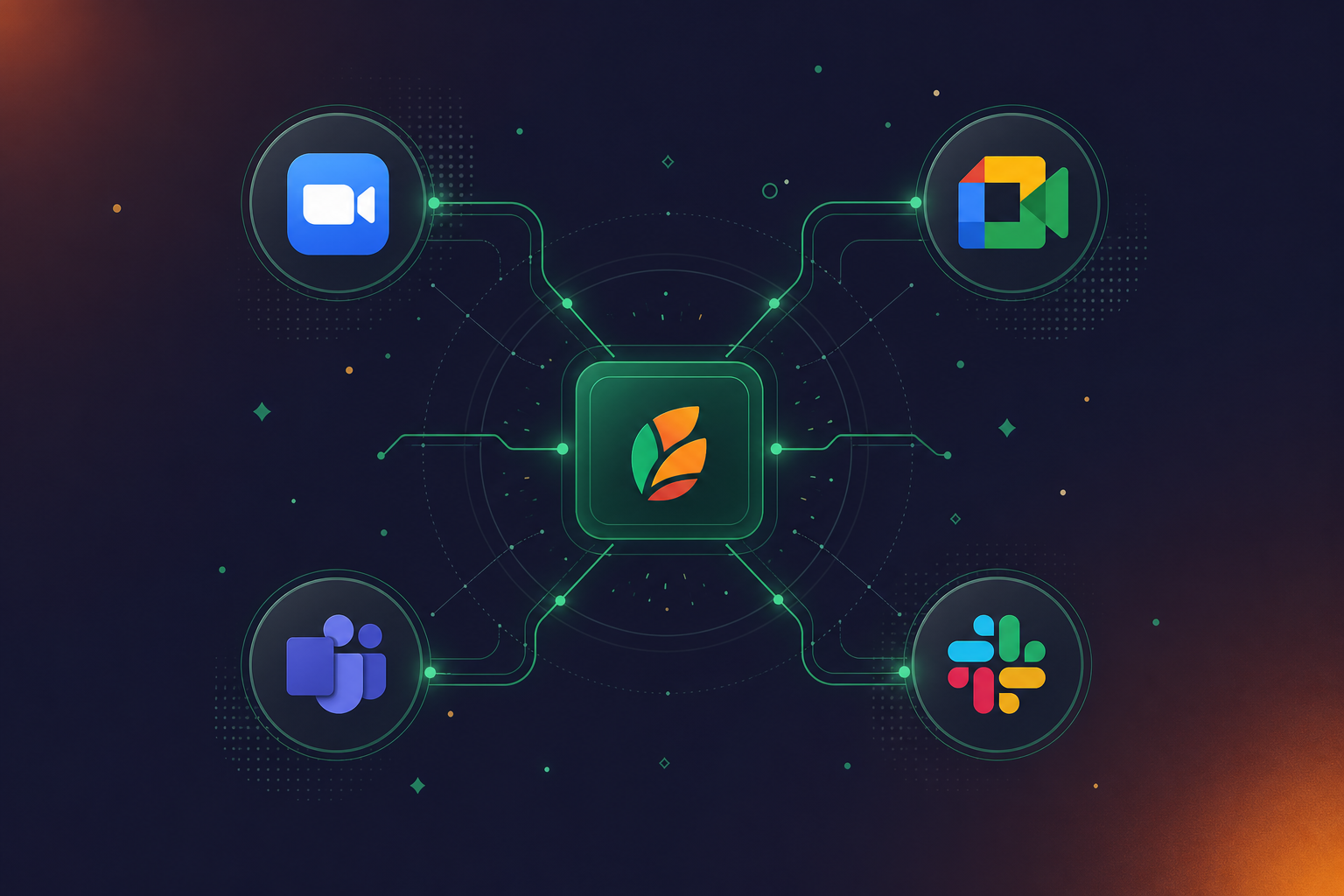
Spinach AI joins every call across Zoom, Google Meet, Microsoft Teams, Slack Huddles, and Webex as an organizational layer, not a per-user desktop app. Where Notion AI Meeting Notes requires each person to run the feature locally, Spinach deploys company-wide with record-by-default policy and a single governed record of every conversation.
The output difference is structural. Spinach captures every conversation across the enterprise and routes decisions, action items with named owners, tickets, and CRM records at meeting end directly into Notion, Confluence, Google Docs, Jira, Salesforce, HubSpot, and more, without a manual step in between. Collections automatically group and share meetings by participant, title, or series, so the right people get the right output without per-meeting configuration.
For organizations with compliance requirements, Spinach is SOC 2 Type II and GDPR compliant, with HIPAA compliance and BAA available on Enterprise engagements. Retention is configurable per data type, such as transcript, summary, and video, and an admin dashboard provides audit logging and usage reporting. Learn more about enterprise conversation intelligence and what governed deployment looks like at scale. On Business and Enterprise plans, conversation data feeds into Claude or ChatGPT via the MCP server, making every meeting queryable across the organization.
Start a free 14-day trial
Final Thoughts on Getting the Most from Notion AI Meeting Notes
Notion AI Meeting Notes works well within a narrow set of conditions, and knowing those conditions upfront saves you from running into them mid-rollout. Your setup, your device, your plan tier, and your custom instructions all shape what you actually get out of it. The tool does its job cleanly for internal teams that already live in Notion. The moment you need it to scale across an org or route output into tools outside Notion automatically, the architecture shows its limits. Spinach AI is the organizational layer built for that. It is deployed company-wide, capturing every conversation across Zoom, Google Meet, Teams, Slack Huddles, and Webex, and routing structured decisions and action items with named owners into Notion, Jira, Salesforce, and more at meeting end.
Start a free 14-day trial
Notion AI Meeting Notes captures audio through your local desktop app, so it works with any call you run on your device — but every person who wants notes must run the app themselves and start recording manually. Spinach joins calls as an organizational bot across Zoom, Google Meet, Microsoft Teams, Slack Huddles, and Webex, deployed company-wide under a single governed policy so one admin setup covers the entire organization.
Notion’s native AI Meeting Notes feature writes summaries directly to a Notion page when the recording ends — no copy-pasting required, provided you have a Business or Enterprise plan, the desktop app installed, and the `/meet` command active before the call starts. For teams that also need action items routed into Jira, Salesforce, or HubSpot without a manual step, Spinach routes structured outputs into Notion and those downstream tools automatically at meeting end.
Open the Notion desktop app, confirm Notion AI is enabled under Settings, grant microphone and system audio permissions, connect Notion Calendar under Settings > Connections, set a default notes database under Settings > AI Meeting Notes, then type `/meet` on any page to start recording. Without the `/meet` command active before the call begins, nothing is captured.
Notion AI Meeting Notes fits a small team that already works inside Notion and can accept per-user, per-device setup — each person runs the desktop app and starts recording themselves, with no org-level policy controls for sharing, retention, or access. Spinach is built for company-wide deployment: IT deploys it once, record-by-default policy applies across every team, and conversation data feeds into a single governed record with configurable retention per data type and an admin dashboard with audit logging.
No. Notion AI Meeting Notes requires the Business plan ($20/user/month billed annually) or Enterprise — Free and Plus users do not have access to the feature. If Business plan cost is a constraint and your team meets across multiple platforms, Spinach’s Business plan at $19/user/month billed annually covers unlimited meetings across Zoom, Google Meet, Teams, Slack Huddles, and Webex, with native Notion integration included.
Only the Notion desktop app on Mac or Windows supports AI Meeting Notes — browser-based Notion and mobile devices are not supported. This means anyone on your team who works primarily in a browser tab is excluded from the feature entirely, which is worth factoring in before rolling it out across a distributed team.
Downgrading from Business removes access to the AI Meeting Notes feature, so new recordings will no longer be captured or summarized. Existing notes pages already in your workspace remain accessible as standard Notion pages, but no new summaries will generate until you restore a qualifying plan.
Open the AI Meeting Notes panel via the `/meet` command, find the Instructions field, and write a plain-language prompt naming the specific categories you want extracted — decisions, blockers, owner names, open questions — matched to your meeting type. Vague instructions like “summarize the meeting” produce generic output; category-specific labels like “list each action item with the person who owns it” produce structured notes you can act on without editing afterward.
No — Notion AI Meeting Notes generates a summary and extracts action items onto a Notion page, but routing those items into Jira, Salesforce, or any tool outside Notion requires a manual step or a configured Notion automation. Tools built around a meeting-bot architecture, like Spinach, route decisions and action items with named owners directly into Jira, Salesforce, HubSpot, and Notion at meeting end without any hand-off step.
Notion AI Meeting Notes captures audio through your local device and processes it through Notion’s AI pipeline, with limited public documentation on non-English transcription accuracy. Spinach uses transcription-model-agnostic architecture, meaning it selects the most accurate available model per language across 100 supported languages — model agnosticism is the primary reason organizations in Hebrew and other non-English-dominant environments switch to it.
Notion’s upload flow is meeting-by-meeting — you open the AI Meeting Notes panel in the desktop app, select a file, and Notion transcribes and summarizes it individually. There is no bulk backfill option, so teams sitting on hundreds of past recordings face a manual upload for each one, which adds up quickly at any meaningful scale.
Notion surfaces a visible disclosure within the meeting interface when transcription is active, so recording is never silent. What that notification does not cover is jurisdiction-specific legal consent — it does not confirm all-party consent under California, Illinois, or EU GDPR standards, and it does not produce documentation of consent for compliance purposes. For external clients or regulated industries, get explicit verbal or written confirmation before recording starts.
Notion AI Meeting Notes labels speakers in the transcript based on audio captured from your device, and accuracy depends on how clearly distinct each participant’s voice is and how clean the audio is. Speaker identification works best with high-quality audio and a small number of distinct voices — noisy calls or large groups with similar vocal patterns will produce less reliable attribution.
Notion AI Meeting Notes captures audio locally on one device per person, so each team member must run the desktop app and start recording themselves on whichever platform the call happens to use — there is no central bot that joins across platforms automatically. If your team runs calls across Zoom, Google Meet, and Teams, a dedicated tool like Spinach joins every call as an organizational layer across all five major platforms, with one admin setup covering the entire organization under a single governed policy.
Notion AI Meeting Notes generally accepts MP4, MP3, M4A, and WAV files for upload, though file size limits apply and very long recordings may need to be split before uploading. Always verify current format and size constraints in Notion’s help documentation before attempting to process a large archive, since these limits can change with product updates.
What you should do next
Now that you've read this article, here are some things you should do:
- You should check out our library of meeting agenda templates for every type of meeting.
- You should try Spinach to see how it can help you run a high performing org.
- If you found this article helpful, please share it with others on Linkedin or X (Twitter)

