How to Sync Teams Meeting Notes and Action Items to ClickUp Automatically (2026)
August 2026 guide to syncing Microsoft Teams notes to ClickUp automatically, with AI extracting action items, owners, and due dates.
 Maintouch
If your team is still copy-pasting action items from Teams transcripts into ClickUp after every meeting, you’re spending real time on something that can run without you. The trick is knowing which part of the workflow to automate and which approach actually does the extraction, beyond the handoff.
TLDR:
- Native Teams-ClickUp integration and Zapier both stop at handoff; action item extraction stays manual with both options
- AI meeting assistants close that gap by mapping speaker names to owners and converting deadline language into date fields
- Saying “I will” with a named owner and a concrete date gives the AI what it needs to create a complete ClickUp task
- Setup takes about 15 minutes: connect ClickUp in your AI assistant settings, map assignee and due date fields, run one test meeting
- Spinach AI joins your Teams meeting, captures during the call, and delivers structured ClickUp tasks with named owners when the meeting ends
Why Syncing Meeting Notes and Action Items Matters for Team Productivity
The typical knowledge worker spends 11.3 hours per week in meetings, according to Laxis’s State of Meetings 2026. The same report found that 40% of meetings end without clear follow-ups, and 70% of decisions are forgotten within 24 hours when notes go uncaptured.
The meeting itself rarely causes the breakdown. What breaks down is the manual gap between a Teams call and a ClickUp task: someone has to re-read a transcript, extract action items, assign owners, and key them into a ClickUp project. At scale, that gap is a real liability. Automating that sync makes follow-through the default, not the exception.
The Problem with Manual Microsoft Teams to ClickUp Transfers
After a Teams call ends, someone has to open the transcript, read back through it to find what was actually decided, then copy-paste raw text into ClickUp and break it into individual tasks. Each task needs a title, an assignee, a due date, and enough context for the recipient to act without rewatching the recording.
That context is where the handoff breaks. A name mentioned mid-sentence does not automatically become an assigned owner. A deadline described as “before the next sprint” does not become a date field. Employees frequently leave meetings without a clear idea of next steps, and manual transfer compounds that confusion instead of resolving it.
Understanding the Microsoft Teams and ClickUp Integration Ecosystem
Three distinct approaches exist for connecting Microsoft Teams meeting output to ClickUp tasks, and they differ in setup effort, extraction accuracy, and how much human judgment they still require after the fact.
The two broad categories are built-in and low-code options versus AI meeting assistants. As Devart noted in September 2025, ClickUp lists Microsoft Teams as a native integration for pushing notifications and creating tasks from chat messages, while Zapier extends this to custom multi-app workflows without code.
Approach | Setup Effort | Action Item Extraction | Ongoing Maintenance | Best For |
|---|---|---|---|---|
Native Teams and ClickUp integration | Low | Manual | Low | Notification routing |
Zapier automation | Medium | Manual | Medium | Rule-based task creation |
AI meeting assistant | Low to medium | Automated | Low | Full meeting-to-task automation |
Native and Zapier options both leave action item extraction to you. Someone still reads the transcript and decides what becomes a task, unlike workflows that automatically create tickets from meetings. AI meeting assistants handle that extraction step automatically, which is why the sections that follow treat them separately.
Built-In and Low-Code Options for Connecting Microsoft Teams to ClickUp
The native Teams and ClickUp integration does one thing well: it surfaces ClickUp activity inside Teams channels. Task updates, status changes, and new task notifications appear in a designated channel without switching apps. Setup lives inside ClickUp’s integrations settings and requires workspace admin permissions.
What it cannot do is read a meeting. The integration reflects ClickUp data inside Teams, but it has no access to what was said, who committed to what, or when something needs to be done.
- Native Teams and ClickUp integration: surfaces ClickUp task activity inside Teams channels; action item extraction stays manual
- Zapier automation: triggers ClickUp task creation from Teams messages; requires a human to write structured output before Zapier has anything to act on
Native Teams and ClickUp Integration
The flow runs one direction: ClickUp activity into Teams, or a Teams chat message into a ClickUp task. There is no transcript parsing, no speaker-to-assignee mapping, no deadline inference. Someone still reads the meeting output and decides what to type.
Zapier Automation for Meeting Notes
Zapier connects ClickUp and Microsoft Teams through trigger-and-action pairs. A new message in a Teams channel can automatically generate a task in ClickUp. The problem is upstream: for that task to have a real title, owner, and due date, someone has to first write a structured message in Teams after the meeting. Zapier executes the handoff; it does not do the extraction.
Human judgment fills the gap either way.
Using AI Meeting Assistants to Sync Microsoft Teams to ClickUp
AI meeting assistants close the gap that native integrations and Zapier leave open. Where those options wait for a human to read the transcript and decide what matters, an enterprise conversation intelligence platform like Spinach AI joins the Teams call directly, captures the conversation during the meeting, and delivers structured output when the meeting ends: a summary, key decisions, and action items with named owners routed into ClickUp without anyone re-keying a word.
The extraction step is what makes the difference. Spinach isn’t built as a per-person note-taking tool. It’s an organizational platform deployed company-wide, turning every conversation into governed, AI-ready data that routes into the systems your teams already use. The AI reads spoken language, maps a name to an assignee, and infers a deadline from context. Adoption of AI meeting notes tools has grown sharply across organizations of all sizes heading into 2026. Human judgment stays in the loop for approvals and prioritization. The AI does the extraction first, so your team reviews tasks instead of writing them from scratch.
How AI Improves Action Item Extraction and Assignment
Three parsing problems separate automatically creating action items from meeting transcripts into a structured ClickUp task: what counts as a commitment, who made it, and when it needs to be done.
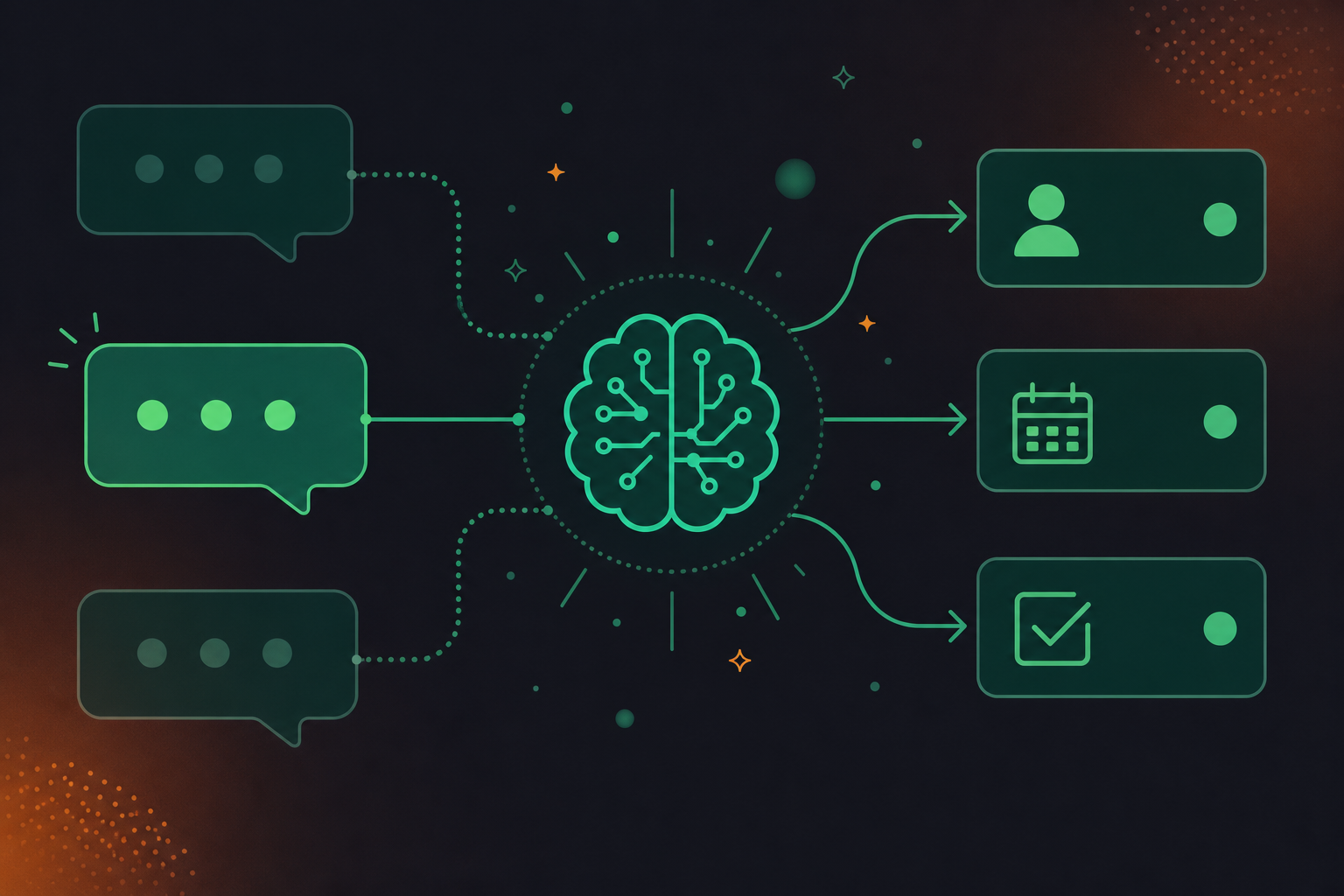
- Commitment detection: separates first-person obligations from general discussion so only real commitments become tasks
- Speaker attribution: maps each spoken commitment to the named participant who made it, setting them as the ClickUp task owner
- Deadline inference: converts relative time expressions like “before Friday’s standup” into concrete due dates on each task
Commitment Detection vs. General Discussion
An LLM reads semantic structure, not keywords alone. “I’ll update the spec by Friday” contains a first-person commitment, a named deliverable, and a deadline. “We should probably update the spec” contains none of those things. Only the first becomes a ClickUp task. Keyword search cannot make that distinction reliably. An LLM can, because it reads intent and obligation.
Speaker Attribution and Deadline Inference
Speaker diarization ties each utterance to the person who said it. When “I’ll update the spec” comes from a specific voice, the AI maps that voice to a participant name and sets them as the ClickUp task owner. Temporal expressions like “before we meet again Thursday” get converted into concrete due dates the same way. Spinach captures video, audio, transcript, screen share, and in-meeting chat, extracts action items with named owners, and routes them into ClickUp. The output is a reviewable task, fully formed.
Setting Up Your Automated Microsoft Teams to ClickUp Workflow
Getting the workflow running takes about 15 minutes across three steps. The sequence is the same whether you’re using Spinach or another AI meeting assistant, though the specifics below reflect Spinach’s setup.
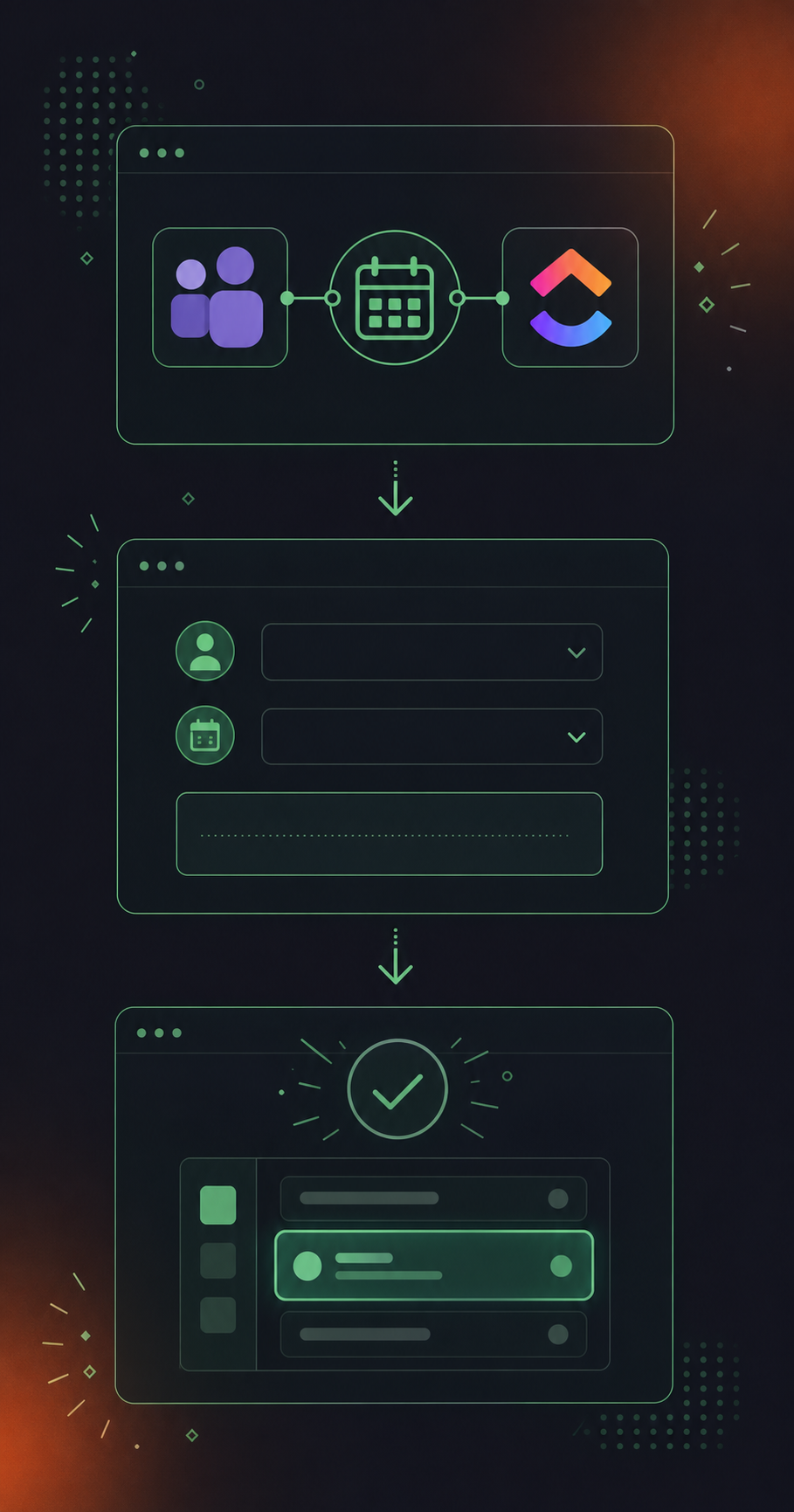
- Initial requirements: confirm ClickUp workspace admin access, connect Microsoft Calendar to Spinach, and verify that external guests are permitted to join your Teams meetings
- Configuration and naming conventions: connect ClickUp in Spinach settings, select the destination workspace and list, set a task naming convention, and map assignee and due date fields
- Testing before full deployment: run a short internal meeting, then verify that tasks appear in the correct ClickUp list with the right assignees and due dates before rolling out to the full team
Initial Requirements
Before configuring anything, confirm you have:
- ClickUp workspace admin access to connect integrations and select destination lists
- Microsoft Calendar connected to Spinach so it can join scheduled Teams meetings automatically
- Teams meeting organizer access, with external guests permitted to join calls
Configuration and Naming Conventions
- In Spinach settings, open integrations and connect ClickUp. Select the destination workspace, space, and list where tasks should land.
- Set a default naming convention for tasks:
[Meeting Name] [Date]: [Action Item]keeps ClickUp lists readable and prevents duplicate tasks when the same topic recurs across weeks. - Confirm assignee and due date fields are mapped. Spinach extracts named owners and temporal deadlines from the conversation and populates those fields on each task.
Testing Before Full Deployment
Run a short internal meeting with two or three participants. After it ends, open ClickUp and verify the generated tasks appear in the correct list, carry the right assignees, and reflect accurate due dates. If a task landed in the wrong space or an owner is missing, adjust the field mapping in Spinach settings before rolling out to the full team.
Best Practices for Microsoft Teams Notes That Sync Successfully to ClickUp
Two habits account for most of the cleanup work that happens after a sync.
Structuring Discussion for Cleaner Capture
The single highest-impact change: verbalize ownership and timing out loud. “I’ll send the revised brief to Jordan by Thursday” gives an AI assistant everything it needs: a deliverable, a named owner, and a deadline. Implied commitments buried in group discussion (“someone should probably follow up on that”) produce vague or missing tasks.
Patterns that consistently improve extraction:
- Use first-person commitments: “I will” beats “we should”
- Name the recipient or owner explicitly, not by pronoun
- State a concrete date or milestone, even a relative one like “before Friday’s standup”
Pre-Meeting Prep That Reduces Cleanup
A shared agenda with named topics helps AI assistants categorize action items correctly. When a commitment surfaces during a discussion labeled “Q3 roadmap,” Spinach can assign that task to the right ClickUp workstream instead of dropping it into a catch-all list. Set agenda items in Spinach before the meeting starts, and the AI uses that context to assign action items to named owners during the call. Keeping a consistent meeting notes action items template across recurring series means the summary structure stays predictable and your ClickUp tasks require less post-meeting cleanup.
Troubleshooting Common Sync Issues Between Microsoft Teams and ClickUp
Most sync failures trace back to one of a handful of root causes. The table below maps each issue to its fix first, so you can resolve it without reading through the full explanation.
- Tasks not appearing in ClickUp: the OAuth token connecting your ClickUp workspace has expired or been revoked. Reconnect the integration in ClickUp settings and re-authorize the Microsoft account to restore the link.
- Action items missing from output: commitments were implied instead of spoken directly. Coach speakers to state the owner and deadline out loud; review AI summary settings to confirm action item detection is turned on.
- Duplicate ClickUp tasks per meeting: the automation triggered more than once on the same calendar event. Check Zapier history for duplicate runs and add a deduplication filter to prevent repeat task creation.
- Tasks created in the wrong ClickUp list: the default destination list was not configured in integration settings. Set a default list in the AI assistant or Zapier action configuration so tasks land in the correct space every time.
- Bot did not join the Teams meeting: the calendar connection is not authorized, or the meeting was scheduled ad hoc outside the connected calendar. Verify calendar sync permissions; for unscheduled calls, use the ad hoc recording option for Teams meetings to capture the session.
- Sync delay of 10 or more minutes: the Zapier plan tier limits polling frequency. Upgrade to a higher Zapier plan or switch to a native integration with webhook-based triggers for near-instant delivery.
One point worth knowing about Spinach AI: the bot is always visible to participants and can be admitted from the Teams waiting room after verbal consent. If someone removes it mid-meeting or moves it back to the waiting room, the meeting summary will be incomplete. Use the pause command instead of removing the bot outright when a sensitive discussion comes up.
Measuring the ROI of Automated Meeting Notes
Atlassian research on meeting costs finds that only 11% of meetings are rated highly productive by attendees. That context matters when building an internal case for this workflow.
- Task creation volume by meeting date: tracks how many ClickUp tasks the workflow generates per meeting, confirming the automation is running and surfacing meetings that produce unusually few items
- Action item completion rate against original due dates: measures whether tasks created from meeting output are closed on time, the clearest signal of whether follow-through has improved
- Overdue task trends week over week: identifies whether the backlog of missed deadlines is shrinking; a declining trend confirms the workflow is converting commitments into completed work, not merely logged tasks
- Time reclaimed from manual re-entry: the before-and-after estimate of how long the team previously spent copying transcript content into ClickUp each week; captured from calendar data and direct time estimates instead of automated reporting
Metrics to Track in ClickUp
Configure your ClickUp dashboard to surface three views: task creation volume by meeting date, completion rate against original due dates, and overdue task trends week over week. Both signals are visible in ClickUp’s Goals and Workload reporting without custom configuration.
Presenting Results Internally
Keep the before-and-after comparison to two numbers: time reclaimed from manual re-entry each week and the change in action item follow-through rate. Pull the first from calendar data and direct time estimates, the second from ClickUp’s task completion reporting across two comparable time windows. Those figures hold up in a quarterly review without any external benchmarking required. Teams using Google Meet can also look into syncing meeting notes to Confluence automatically.
How the Full Microsoft Teams to ClickUp Workflow Gets Automated
Spinach AI is an enterprise conversation intelligence platform. It serves as the system of record for conversation data across your organization. It joins your Microsoft Teams meeting, captures the conversation during the call, and when the meeting ends, delivers structured ClickUp tasks with named owners and concrete due dates via native integration. No transcript review. No manual task formatting. No middleware.
- Joins your Microsoft Teams meeting directly and captures the conversation during the call
- Extracts action items with named owners and concrete due dates from spoken language, without anyone re-keying a word
- Routes fully formed tasks to the correct ClickUp list when the meeting ends
- Documents decisions and centralizes the full meeting record as a governed organizational asset
What Spinach Eliminates That Other Methods Still Require
With native Teams integration and Zapier, these steps stay manual:
- Reading the transcript to find commitments and separate them from general discussion
- Identifying who owns each action item based on conversational context
- Converting deadline language like “end of week” into actual date fields
- Formatting, titling, and routing each task to the correct ClickUp list
Spinach handles all of these automatically.
How Spinach Routes Structured Data into ClickUp
Action items land in ClickUp as fully formed tasks: named owner, due date, correct list. Decisions are documented. The full meeting record is centralized as a governed organizational asset, searchable across the team without anyone re-entering a word. Spinach captures across Microsoft Teams, Zoom, Google Meet, Slack Huddles, and Webex, so the same workflow applies regardless of which meeting tool your organization uses on a given day. Teams on Google Meet can apply the same approach to sync Google Meet notes to HubSpot as well.
Spinach natively integrates with ClickUp, Jira, Linear, Asana, Slack, Salesforce, HubSpot, Confluence, Notion, and more. It is SOC 2 Type II, GDPR, and HIPAA compliant, and customer data is never used to train AI models.
Getting Started
Connect Microsoft Teams and ClickUp in Spinach, run one meeting, and check the ClickUp tasks that appear when the call ends. The Starter plan includes unlimited meeting capture at no cost; ClickUp integration and structured task routing are available on Pro and above.
Final Thoughts on Getting Meeting Notes and Action Items from Teams into ClickUp
Automatic meeting-to-task sync doesn’t change how your meetings run. It changes what happens after them. The commitments your team makes out loud become ClickUp tasks with named owners and real due dates, without anyone touching a transcript. If that sounds worth testing, start with Spinach AI and see what your next Teams call produces.
Connect an AI meeting assistant like Spinach AI to your Microsoft Calendar and ClickUp workspace, then let it join your Teams calls and route structured output when each meeting ends. Spinach captures the conversation during the call, extracts action items with named owners and concrete due dates, and creates fully formed ClickUp tasks in the correct list without anyone re-keying a word. The setup takes roughly 15 minutes: connect ClickUp in Spinach settings, select your destination workspace and list, map assignee and due date fields, then run a test meeting to confirm tasks land correctly.
Zapier executes the handoff between Teams and ClickUp, but someone still has to read the transcript, extract commitments, identify owners, and write a structured message before Zapier has anything to act on. Spinach handles the extraction step that Zapier leaves to you: reading spoken language, mapping speaker names to task owners, converting deadline phrases like “before Friday’s standup” into date fields, and routing fully formed tasks into ClickUp when the meeting ends. If your goal is to stop re-keying decisions by hand after every call, Zapier alone does not get you there.
Yes. AI meeting assistants like Spinach AI join the Teams call directly and extract commitments during the conversation, so no one on your team needs to open a transcript after the fact. The native Teams-ClickUp integration and Zapier both leave extraction to a human; Spinach replaces that step with automated detection of first-person commitments, named owners, and explicit deadlines before routing tasks into ClickUp.
The native integration reflects ClickUp activity inside Teams channels and can push a chat message into a task, but it has no access to what was said in a meeting, who committed to what, or when something is due. An AI meeting assistant joins the call itself, captures the conversation, and produces structured output (decisions, action items with named owners, and due dates) that lands in ClickUp without manual formatting. The native integration handles notification routing; an AI meeting assistant handles the extraction and assignment work that follows every meeting.
State ownership and timing out loud using first-person, named commitments: “I’ll send the revised brief to Jordan by Thursday” gives Spinach everything it needs to create a complete ClickUp task. Implied commitments like “someone should probably follow up on that” produce vague or missing tasks because they contain no owner, no deliverable, and no deadline. Using first-person language, naming the recipient explicitly, and anchoring to a concrete date or milestone, even a relative one like “before the next sprint,” accounts for most of the cleanup work that teams run into after a sync.
Spinach supports large-scale historical backfill of existing recordings, so meetings captured before you configured the ClickUp integration can be processed retroactively. Upload past recordings through the platform and route the structured output into your ClickUp workspace using the same field mapping you set for live meetings.
Yes, and recurring meetings benefit most from the automation because the same workflow runs without anyone resetting it each week. Spinach can apply a shared agenda structure to recurring series, which means action items land in the correct ClickUp workstream consistently rather than collecting in a catch-all list.
Spinach maps task title, assignee, and due date from spoken language in the meeting, so each ClickUp task arrives with a named owner and a concrete deadline rather than a blank field waiting for manual entry. You configure the destination workspace, space, and list in Spinach settings before the first meeting runs.
You select the destination workspace, space, and list during setup in Spinach settings, so you can direct output from different meeting series to different ClickUp workspaces. Setting a clear naming convention for tasks, such as meeting name plus date plus action item, keeps each workspace readable when the same topic recurs across teams.
Speaker diarization ties each spoken utterance to the participant who said it, which is how Spinach maps a first-person commitment to a named ClickUp task owner rather than leaving the assignee field blank. Without it, an AI assistant can detect that a commitment was made but cannot reliably identify who made it, requiring manual assignment after the fact.
Track three views in your ClickUp dashboard: task creation volume by meeting date to confirm the workflow is running, action item completion rate against original due dates to measure follow-through, and overdue task trends week over week to see whether the backlog of missed deadlines is shrinking. A declining overdue trend is the clearest signal that the automation is converting spoken commitments into completed work.
The Spinach bot is always visible and never covert — participants see it in the meeting. Organizations can rename it, set a custom in-meeting notification message, and admit it from the Teams waiting room only after verbal consent, giving meeting organizers full control over how the bot appears to internal and external attendees.
A missing assignee almost always means the commitment was stated without a named owner in the meeting — phrases like ‘someone should follow up’ give the AI no speaker to map. Coach participants to use first-person language with an explicit name, such as ‘I will send this to Jordan by Thursday,’ and check that assignee field mapping is active in your Spinach integration settings.
Spinach is SOC 2 Type II, GDPR, and HIPAA compliant, hosted on AWS, with encryption in transit and at rest, PII redaction at the transcript level, and a BAA available for Enterprise and HIPAA engagements. Customer data is never used to train AI models, and zero data retention terms apply with all LLM providers.
Start on Spinach’s Starter plan, which includes unlimited meeting capture at no cost, then connect ClickUp through the integrations settings on Pro or above where structured task routing is available. The full setup takes roughly 15 minutes: connect Microsoft Calendar, authorize ClickUp, select your destination list, map assignee and due date fields, then run one test meeting to confirm tasks appear correctly before rolling out to the full team.
What to do next
Next, here are some things you can do now that you've read this article:
- If communication is a challenge for your team, you should check out our library of meeting agenda templates.
- Learn more about Spinach and how it can help you run a high performing org.
- If you found this article helpful, please share it with others on Linkedin or X (Twitter)

