How to Automatically Create Jira Tickets From Teams Meeting Notes in 2026
Auto-create Jira tickets from Teams meetings in August 2026. Spinach AI extracts spoken action items and files structured tickets instantly.
 Maintouch
Most Teams and Jira integrations push notifications in one direction. They don’t read what was said, figure out who owns what, and create the tickets for you. That gap is exactly what this walkthrough covers, and the fix is simpler to set up than you’d expect.
TLDR:
- 47% of meeting action items are never captured (KenzNote, 2026); the gap shows up as missing Jira tickets and a frozen backlog
- Native connectors like Zapier read typed messages but miss spoken commitments entirely; only AI meeting assistants extract action items from audio
- Say “Alex, can you take the API ticket by Thursday?” not “someone should look at that”; named owners and dates produce usable Jira tickets
- Spinach AI joins your Teams meeting automatically, captures during the call, and delivers Jira tickets with named assignees when the meeting ends
Why Syncing Meeting Notes and Action Items Matters for Team Productivity
The average employee spends 392 hours per year in meetings, according to Flowtrace research cited by Archie. But the real drain happens after the call ends: Atlassian research suggests that for every hour in a meeting, employees spend another 30 to 45 minutes on prep, documentation, and follow-up.
Without notes, 70% of decisions are forgotten within 24 hours. Action items go unrecorded, and Jira backlogs stay frozen while work stalls. Teams using other platforms face the same challenge; learn how to automatically create Jira tickets from Zoom meetings for a parallel approach.
This is a routing problem. The conversation happens, the context exists, but nothing moves it into the tools where your team actually works. Automated Microsoft Teams to Jira workflows close that gap by turning discussion into tracked, assigned tickets without anyone re-keying a word.
The Problem with Manual Microsoft Teams to Jira Transfers
After every Teams meeting, someone volunteers to “send out notes.” They scrub the chat for anything that sounded like a task, reconstruct commitments from memory, open Jira, and manually re-enter each one: title, assignee, priority, due date. Then they post a recap so people know it happened.
That sequence happens after every meeting, for every team, every week.
The deeper problem is structural. Native integrations handle notifications; they don’t handle the translation of conversation to ticket. Jira pushes updates into Teams. The reverse doesn’t work the same way. Someone has to read the thread, find the ticket, and update it by hand.
According to KenzNote’s 2026 meeting productivity research, 47% of action items discussed in meetings are never captured, and 63% of workers can’t remember all tasks from earlier that day. The same gap compounds in recurring meetings like standups; see the daily standup killers that make this worse. That’s the action item gap showing up in your Jira board as missing tickets and a frozen backlog.
Understanding the Microsoft Teams and Jira Integration Ecosystem
Two distinct solution categories exist for connecting Teams meetings to Jira, and choosing the wrong one for your workflow adds friction instead of removing it.
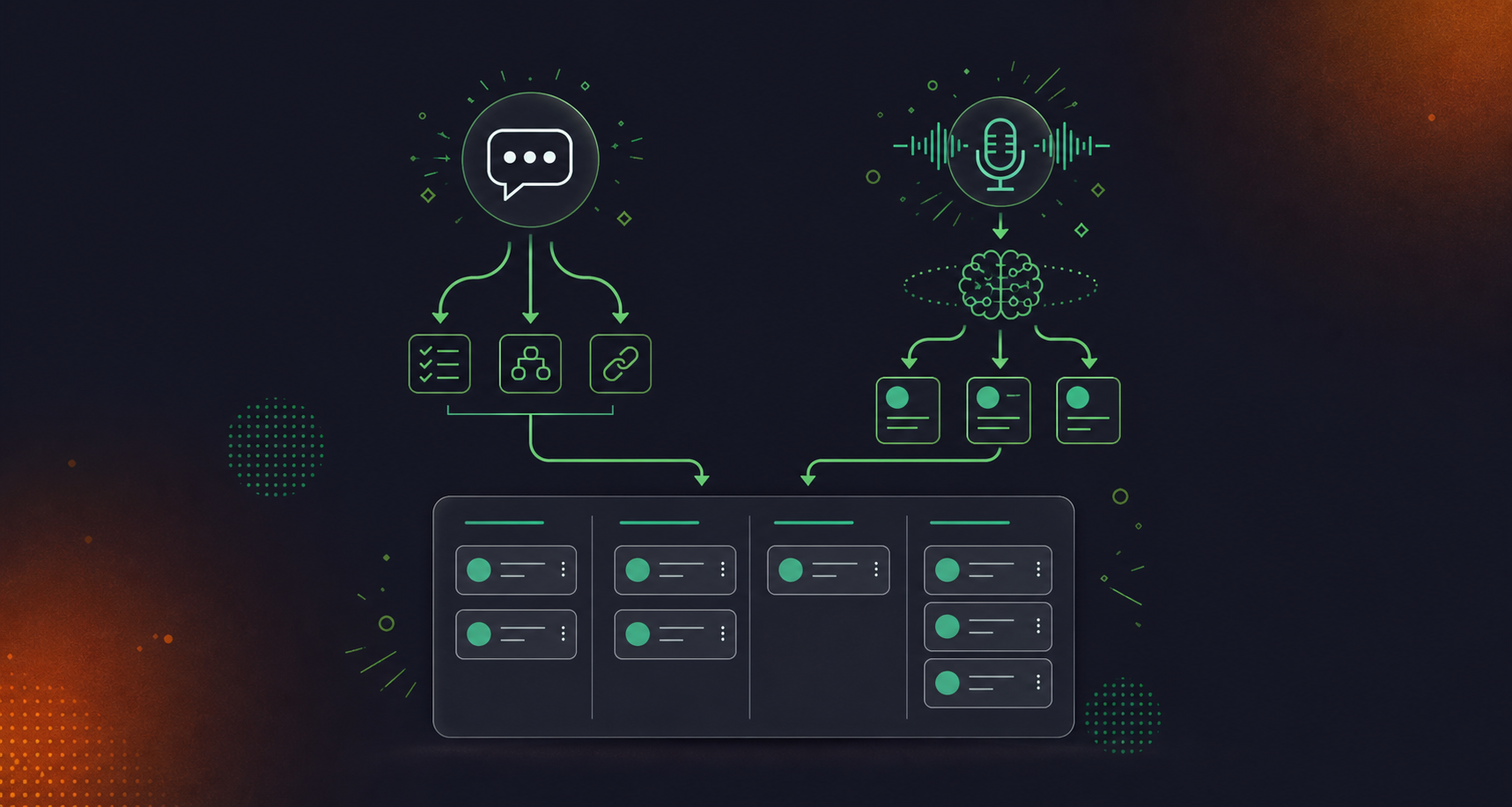
The first category covers built-in and low-code connectors: Atlassian’s native Jira Cloud app for Teams, Power Automate, and Zapier. These tools handle notification routing and let you trigger ticket creation from chat messages or form inputs. The field also includes the Advanced Microsoft Teams Connector for Jira and Appfire Integration+, each with different configuration depth. What none of them do is read a spoken conversation and turn it into a structured ticket.
The second category is AI meeting assistants. These join the Teams call directly, extract action items from the audio, detect who said what, and route the output to Jira automatically. For a broader comparison, see the best tools for AI meeting notes.
- Built-in and low-code connectors (Atlassian’s native Jira Cloud app for Teams, Power Automate, Zapier): handle notification routing and typed-message triggers. Setup is low to medium effort. Action item extraction requires manual input or explicit keyword rules; neither reads meeting audio nor identifies spoken commitments.
- AI meeting assistants (Spinach AI): join the Teams call as a participant, capture spoken dialogue across video, audio, transcript, screen share, and in-meeting chat, and deliver structured outputs (action items with named owners, decisions, and Jira tickets) to the correct project when the meeting ends. Assignee detection and deadline extraction happen automatically from conversation context. Unlike individual note-takers that solve one person’s problem, Spinach AI is an enterprise conversation intelligence platform, serving as the system of record for conversation data across the organization. It is deployed company-wide with enforced policy so every Teams meeting produces the same governed, routable output.
Approach | Setup Effort | Action Item Extraction | Assignee Detection | Works from Meeting Audio |
|---|---|---|---|---|
Native Jira Cloud app for Teams | Low | Manual | Manual | No |
Power Automate | Medium | Partial (rule-based) | Manual | No |
Zapier | Medium | Partial (rule-based) | Manual | No |
AI meeting assistant | Low to Medium | Automatic | Automatic (speaker recognition) | Yes |
If your team’s pain is missing notifications or wanting to file a ticket from a chat message, the first category covers it. If spoken commitments never make it into Jira at all, only the second category solves it.
Built-In and Low-Code Options for Connecting Microsoft Teams to Jira
The official Atlassian app is the fastest starting point. Install it from the Teams App Store, authenticate with your Jira account, and you get a shared view of Jira spaces inside Teams without switching tabs. You can create Jira work items straight from Teams chat messages, with AI analyzing chat context to generate structured work items, then search, update, assign, and watch items without leaving Teams. One caveat: global integrations for alert routing require Premium or Enterprise Jira Service Management plans.
- Zapier as an automation layer: Zapier adds a configuration tier above the native app. Set a trigger on a new Teams channel message or meeting chat event, then map it to a “create Jira issue” action with project, issue type, and assignee fields.
- Where it falls short: Zapier needs explicit keyword rules to know what counts as a task. Unstructured meeting language (“let’s have someone look into that”) doesn’t map cleanly to a trigger condition. For transcript-based workflows, see how to convert meeting transcripts to Jira tickets directly. As one analysis of the Teams-Jira ecosystem put it, the native integrations handle notifications but not the translation of conversation to ticket. Neither approach reads meeting audio, identifies who made a commitment, or surfaces action items from spoken dialogue.
Using AI Meeting Assistants to Sync Microsoft Teams to Jira
Built-in connectors read typed messages. AI meeting assistants read the room.
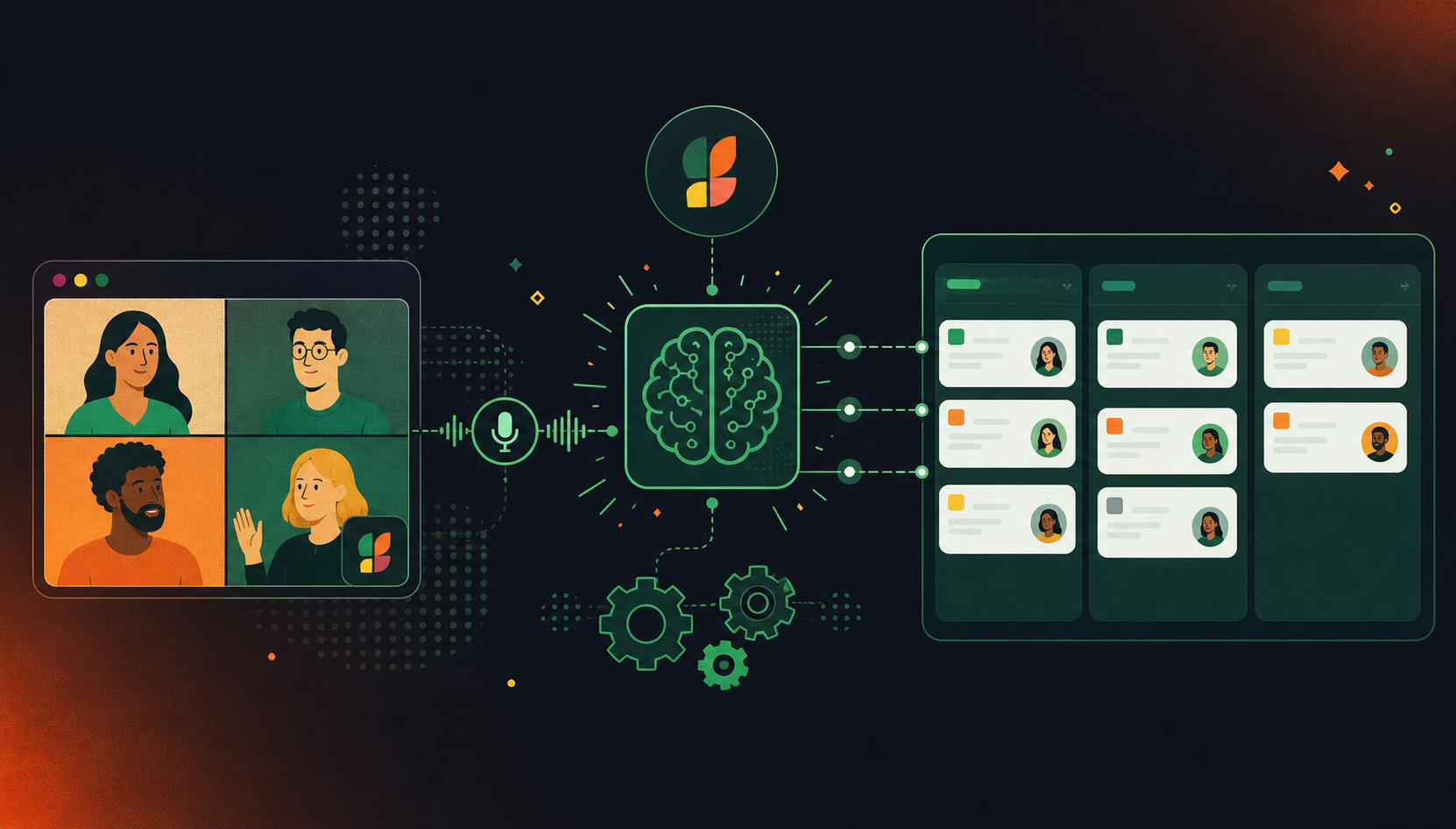
The mechanism works like this: the assistant joins your Teams call, captures spoken dialogue during the meeting, and when the call ends it delivers structured outputs (action items with named owners, decisions, and draft Jira tickets) without anyone touching a keyboard. No post-meeting recap, no manual re-keying.
That distinction matters because most commitments are spoken, not typed. “Can you take the API auth work?” never appears in a chat message. A rule-based Zapier trigger misses it entirely. An AI assistant catches it, attributes it to the right person, and routes it to Jira automatically.
The assistant handles the translation that native connectors skip: deciding what counts as a ticket, who owns it, and which Jira project it belongs to.
How AI Improves Action Item Extraction and Assignment
Rule-based triggers look for keywords. AI models read intent, which is what makes the difference between a cluttered backlog and one that actually reflects what your team committed to.
There are four areas where this plays out in practice:
- Commitment detection: the gap between “we should look into that” and “I’ll handle the API fix by Thursday” is invisible to a Zapier rule. For a deeper look at this problem, see how to automatically create action items from meeting transcripts. AI reads the full conversational context to distinguish discussion from a genuine commitment, not merely scanning for trigger words.
- Speaker recognition for assignment: Spinach attributes each action item to the person who made the commitment. In Jira terms, the assignee field populates from who said what, not from whoever scheduled the meeting.
- Deadline extraction: phrases like “before the next standup” or “by end of week” get resolved into actual dates, removing the most common reason tickets sit unscheduled after creation.
- Decisions vs. action items vs. open questions: these are structurally different outputs. AI produces them separately, mapping cleanly to Jira’s issue types. A decision doesn’t become a ticket. An open question doesn’t get assigned. The backlog stays accurate.
Setting Up Your Automated Microsoft Teams to Jira Workflow
Three things are needed before the workflow runs: an active Jira Cloud or Data Center instance, Microsoft Teams admin permission to add apps, and a Spinach AI account connected to Microsoft Calendar.
- Calendar connection: Connect Microsoft Calendar to Spinach inside Settings. Once the calendar sync is active, Spinach auto-joins every scheduled Teams meeting that has a video link, with no manual invite required per meeting. (If you need a walkthrough of how to record a Teams meeting, that covers the capture setup.) During the call, Spinach captures across video, audio, transcript, screen share, and in-meeting chat. Meetings without a video link in the calendar invite are skipped, so verify that recurring ceremonies have a Teams link attached before the first synced session.
- Jira sync configuration: Link your Jira workspace in Spinach, set a default project, and map your issue types (bug, task, story). Spinach also detects existing tickets referenced during discussion and links them to avoid creating duplicates.
- Test before full deployment: Run one internal meeting with two participants. Confirm action items land in the correct Jira project with the right assignees, and verify no duplicates appear against existing tickets.
Best Practices for Microsoft Teams Notes That Sync Successfully to Jira
Jira’s data model requires populated fields: assignee, issue type, description, due date. Vague conversation produces vague tickets. A few habits close that gap.
- Structuring discussion for better AI capture: Name the owner out loud. “Alex, can you take the API ticket?” maps directly to Jira’s assignee field. “Someone should look into that” maps to nothing. A meeting notes action items template can help teams structure discussion before the call. The same logic applies to due dates: “by Thursday” extracts cleanly; “soon” does not. Patterns that produce clean output: “I’ll handle X by Y date” gives the AI an owner, a task, and a deadline in one sentence; “We decided to go with Z” signals a decision with clear resolution; “The blocker is W, and it’s blocking the auth work” gives context for the ticket description. Patterns that produce ambiguous output: “We need to figure this out” has no owner and no action; “That’s a thing we should probably do” has no owner, no deadline, and no ticket-ready description.
- Pre-meeting prep to reduce post-meeting cleanup: Drop relevant Jira ticket numbers into the Teams meeting invite or agenda before the call. Spinach detects referenced tickets in context and links new discussion to them, avoiding duplicate entries in your backlog. For recurring ceremonies, use the same meeting title format every time. Spinach generates ceremony-specific summaries for standups, sprint planning, and retrospectives. Teams running remote standups benefit most from consistent titling, and consistent titles help it identify the meeting type correctly, which produces cleaner Jira outputs.
Troubleshooting Common Sync Issues Between Microsoft Teams and Jira
Five issues come up consistently when Teams meetings stop producing Jira tickets as expected.
- Authentication breaks: OAuth tokens between Spinach and Jira expire, or a Teams admin policy change blocks the bot from joining.
- Missing action items: Vague ownership language during the meeting, or a calendar sync gap that prevented the assistant from joining.
- Duplicate tickets: Parallel integrations writing to the same Jira project, such as the native Jira Cloud app for Teams running alongside Spinach.
- Sync delays: Expected for meetings over 60 minutes; Jira rate limiting on bulk ticket creation adds a short queue.
- Permission errors: The Jira connection was authenticated with an account that lacks create-issue permissions in the target project.
Measuring the ROI of Automated Meeting Notes
Four numbers make the business case for automated Teams-to-Jira routing.
The Metrics Worth Tracking
Before getting into how to pull the data, it helps to know which numbers actually move the internal conversation.
- Time saved per person per week: Atlassian research suggests employees spend roughly 30 to 45 minutes per meeting on prep, documentation, and follow-up. Automation cuts most of the follow-up portion. For a 10-person team running five meetings a week, the follow-up overhead compounds quickly.
- Action item completion rate: Compare Jira completion rates for manually created tickets versus auto-generated ones. Automated tickets arrive with an assignee, a description drawn from meeting context, and a due date already populated.
- Meeting duration trends: When decisions get documented automatically, fewer meetings start with “wait, what did we decide last time?” Track average Teams meeting length in the Teams admin center before and after deployment. Teams that also use Confluence for documentation can add syncing Google Meet notes to Confluence automatically as a complementary workflow.
To pull these numbers from Jira, go to Board, then Reports, then Sprint Report or Velocity Chart. If your team applies a consistent label to auto-generated tickets, filter by that label to isolate completion rates by source.
Automating Your Entire Microsoft Teams to Jira Workflow
Spinach AI is an enterprise conversation intelligence platform, serving as the system of record for conversation data across the organization. It joins your Teams meeting automatically once Microsoft Calendar is connected, with no manual invite required. During the call, it captures across video, audio, transcript, screen share, and in-meeting chat. When the meeting ends, it delivers structured outputs: decisions with context, action items with named owners, and Jira tickets routed to the correct project. It detects existing backlog items referenced during discussion and links to them instead of creating duplicates. Deployed company-wide with enforced org-level settings, every Teams meeting across the organization produces the same structured Jira output, including the ones where nobody remembered to run a workflow.
- Captures across every modality: During the call, Spinach captures video, audio, transcript, screen share, and in-meeting chat, not transcript alone. This is a structural advantage over native platform AI, which captures transcript only and is not an organizational system of record.
- Extracts action items from spoken dialogue: AI reads conversational intent instead of scanning for keywords, distinguishing a genuine commitment from background discussion and attributing each action item to the person who made it.
- Resolves assignees and deadlines automatically: Speaker attribution populates the Jira assignee field from who said what. Phrases like “before the next standup” or “by end of week” are resolved into actual dates at the point of ticket creation.
- Creates and links Jira tickets at meeting end: Tickets are routed to the correct project with assignee, description, and due date already populated. Spinach detects existing backlog items referenced during discussion and links them instead of creating duplicates.
- Delivers a structured recap: Decisions with context, action items with named owners, and a meeting summary are delivered automatically, with no post-meeting re-keying or manual Teams message required.
Spinach AI is SOC 2 Type II, GDPR, and HIPAA compliant and supports 100 languages. It is backed by Y Combinator, Zoom, and Atlassian, and is powering thousands of organizations including public enterprises.
Final Thoughts on Bridging the Gap Between Teams Meetings and Jira
Built-in connectors are useful for notification routing, but they stop well short of reading a conversation and producing a ticket. The spoken commitments, the assigned owners, the implied deadlines: those stay invisible to rule-based triggers. Spinach AI handles the full translation as an enterprise conversation intelligence platform, serving as the system of record for conversation data. It captures every Teams meeting across the organization, turning spoken dialogue into governed, structured Jira outputs, and routing them automatically without manual re-keying. Get started with Spinach AI and connect your Teams meetings to Jira.
Connect Microsoft Calendar to Spinach AI, link your Jira workspace, and set a default project with mapped issue types. From there, Spinach joins every scheduled Teams meeting automatically, captures spoken dialogue across video, audio, transcript, screen share, and in-meeting chat, and routes structured outputs (action items with named owners, decisions, and Jira tickets) to the correct project when the meeting ends. No post-meeting recap, no manual field entry.
Power Automate and Zapier work from typed chat messages and keyword rules, so commitments made verbally during a call (
Name the owner and deadline out loud in the same sentence:
The native Jira Cloud app for Teams handles notifications and lets you file tickets from chat messages, but it does not read meeting audio or extract spoken commitments. According to KenzNote’s 2026 meeting productivity research, 47% of action items discussed in meetings are never captured. That gap comes from spoken dialogue that never touches the chat, which rule-based connectors cannot reach. An AI meeting assistant is the only category that closes the loop between what was said and what lands in Jira.
Yes. Spinach deploys company-wide with enforced org-level settings, so every Teams meeting across the organization produces the same structured Jira output, covering all meetings regardless of whether one person remembered to run the workflow. It supports SAML SSO and SCIM provisioning on Enterprise, is SOC 2 Type II, GDPR, and HIPAA compliant, and supports 100 languages, which makes it a viable foundation for a governed, organization-wide Teams-to-Jira workflow instead of a per-team workaround.
Yes, Spinach connects to both Jira Cloud and Jira Data Center deployments. Set your default project and map issue types once inside Spinach settings, and tickets will route to whichever instance you’ve linked when each Teams meeting ends.
Rule-based connectors like Zapier scan typed chat messages for keywords and require an explicit trigger condition to fire. An AI meeting assistant joins the call directly, reads spoken dialogue for conversational intent, and produces structured Jira tickets with named assignees and extracted deadlines without any keyword match or manual input.
Run one integration at a time for ticket creation. If the native Jira Cloud app for Teams is already writing to a project, disable that workflow for the same project before activating Spinach, since parallel integrations writing to the same Jira project is the most common source of duplicates.
Yes. Spinach supports 100 languages and uses a transcription-model-agnostic approach, selecting the most accurate model per language rather than being locked to a single vendor’s model. This means spoken commitments in multilingual Teams meetings still produce structured Jira tickets with correct assignees and deadlines.
Spinach populates the assignee field from speaker attribution, the description from meeting context, the due date from extracted deadline phrases, and the issue type from the mapping you configure in Spinach settings. Tickets arrive ready to act on rather than requiring manual field completion after the meeting.
Use Power Automate if your workflow triggers from typed chat messages or form inputs and your team consistently files tasks that way. If your team’s commitments are spoken during the call, Power Automate will not capture them because it does not read meeting audio — an AI meeting assistant is the only category that closes that gap.
Spinach detects existing backlog items referenced during the discussion and links new conversation context to them rather than creating duplicate entries. Dropping relevant Jira ticket numbers into the meeting invite before the call improves detection accuracy.
Spinach skips meetings that have no video link in the calendar invite, so recurring ceremonies like standups and sprint planning need a Teams link attached to the invite before the first synced session. Verify this for any recurring meeting before relying on automatic capture.
In Jira, go to Board, then Reports, then Sprint Report or Velocity Chart. Apply a consistent label to auto-generated tickets at setup, then filter by that label to compare completion rates for automatically created tickets against manually created ones across sprints.
Spinach is SOC 2 Type II, GDPR, and HIPAA compliant, with a BAA available on Enterprise engagements for HIPAA-covered organizations. The Enterprise plan also includes SAML SSO and SCIM provisioning, org-enforced settings, and configurable data retention per data type, which satisfies most enterprise security review requirements for a company-wide deployment.
What to do now
You made it to the end of this article! Here are some things you can do now:
- Our library of meeting agenda templates is designed to help you run more effective meetings.
- Learn more about Spinach and how it can help you run a high performing org.
- If you found this article helpful, please share it with others on Linkedin or X (Twitter)

