SAML SSO for AI Meeting Tools: What IT Admins Need (August 2026)
Master SAML SSO and SCIM setup for AI meeting tools in August 2026. Covers Zoom SSO, common config errors, Azure AD, Google Workspace, and data governance.
 Maintouch
Most IT admins treat AI meeting tools like any other SaaS app during IdP onboarding, and most of them find out that was wrong during a security review. These tools record conversations across every meeting they join, operate as autonomous agents inside your communication infrastructure, and route transcript data outside your primary data perimeter. Getting SAML SSO and SCIM configured correctly for a Zoom SSO deployment is where that gap closes.
TLDR:
- AI meeting tools act on behalf of users across multiple systems, so SSO alone does not govern what they do after login.
- SAML without SCIM leaves orphaned accounts with access to recorded conversations, summaries, and decisions after offboarding.
- The five most common SSO failures are mismatched entity IDs, expired certificates, attribute mapping gaps, clock skew, and incorrect ACS URLs.
- Require transcript-level PII redaction, zero LLM data retention, and configurable retention per data type before approving any AI meeting tool rollout.
- Spinach AI is an enterprise conversation intelligence platform. It serves as the system of record for conversation data, and it supports SAML 2.0 SSO with Okta, Azure AD, and Google Workspace, plus SCIM provisioning that deprovisions access automatically when an employee exits your directory.
Why AI Meeting Tools Create a Distinct IAM Challenge
AI meeting tools connect to your identity infrastructure in ways that generic SaaS apps do not. When a tool like Zoom joins a meeting, it touches calendar integrations, cloud storage, real-time audio and video streams, and often downstream systems like CRM or ticketing. Each connection is a potential access vector, and each one requires its own governance decision. Organizations deploying AI tools for remote teams face this challenge at scale.
The IAM challenge here is scope. A standard SaaS app authenticates a user and serves content. An AI meeting tool authenticates a user, then acts on their behalf across multiple systems simultaneously, often without a human in the loop for each action. SSO through SAML 2.0 gets you centralized authentication, but it does not automatically govern what the tool does after login.
Three factors make this distinctly harder than typical app provisioning:
- Meeting bots operate as autonomous agents inside your communication infrastructure, not passive viewers. Controlling what they can access requires role-based policies that go beyond simple group membership in your IdP.
- Recording and transcript data from an AI note taker is generated continuously and routes to cloud storage outside your primary data perimeter, which means your retention and DLP policies need explicit coverage for this data class.
- Guest and external participant flows bypass your IdP entirely. Your SSO configuration secures your users; it does nothing for the vendor, contractor, or client who joins via a public meeting link.
IT admins who treat AI meeting tools as ordinary SaaS apps during IdP onboarding typically find these gaps during a security review, not during setup.
What SAML SSO Actually Does in an AI Meeting Tool Deployment
SAML SSO connects your identity provider (IdP) to an AI meeting tool so that user provisioning, authentication, and session access follow the same governance rules applied to every other enterprise app in your stack.
In a meeting tool deployment, that means a few specific things:
- When a new employee is provisioned in your IdP, they gain access to the meeting tool automatically. When they leave, deprovisioning revokes access without requiring a manual admin action in a separate app.
- Authentication runs through your IdP, so users sign in via Zoom SSO login or a comparable flow, with no separate password tied to the meeting app required.
- Session policies set in your IdP, such as MFA requirements or device trust checks, apply to the meeting tool without any additional configuration in that tool.
For AI meeting tools in particular, this matters beyond basic access control. These tools capture conversation data across every meeting they join, which means every employee account is a potential data exposure point. A former employee whose access was not revoked in the meeting tool retains access to recorded conversations, summaries, and extracted decisions, calendar entries included.
SAML SSO closes that gap by making the meeting tool a dependent of your IdP, not a standalone credential silo. The access lifecycle of the meeting tool matches the access lifecycle of the organization.
How SAML SSO and SCIM Provisioning Work Together
SAML handles authentication: a user presents credentials to your identity provider, the IdP issues a signed assertion, and the service provider (your AI meeting tool) grants access without ever seeing the password. SCIM handles the lifecycle that follows. When HR terminates an employee in your directory, SCIM pushes that change to every connected app automatically, revoking the account before the offboarded user’s next meeting invite.
The two protocols solve different problems but depend on each other in practice.
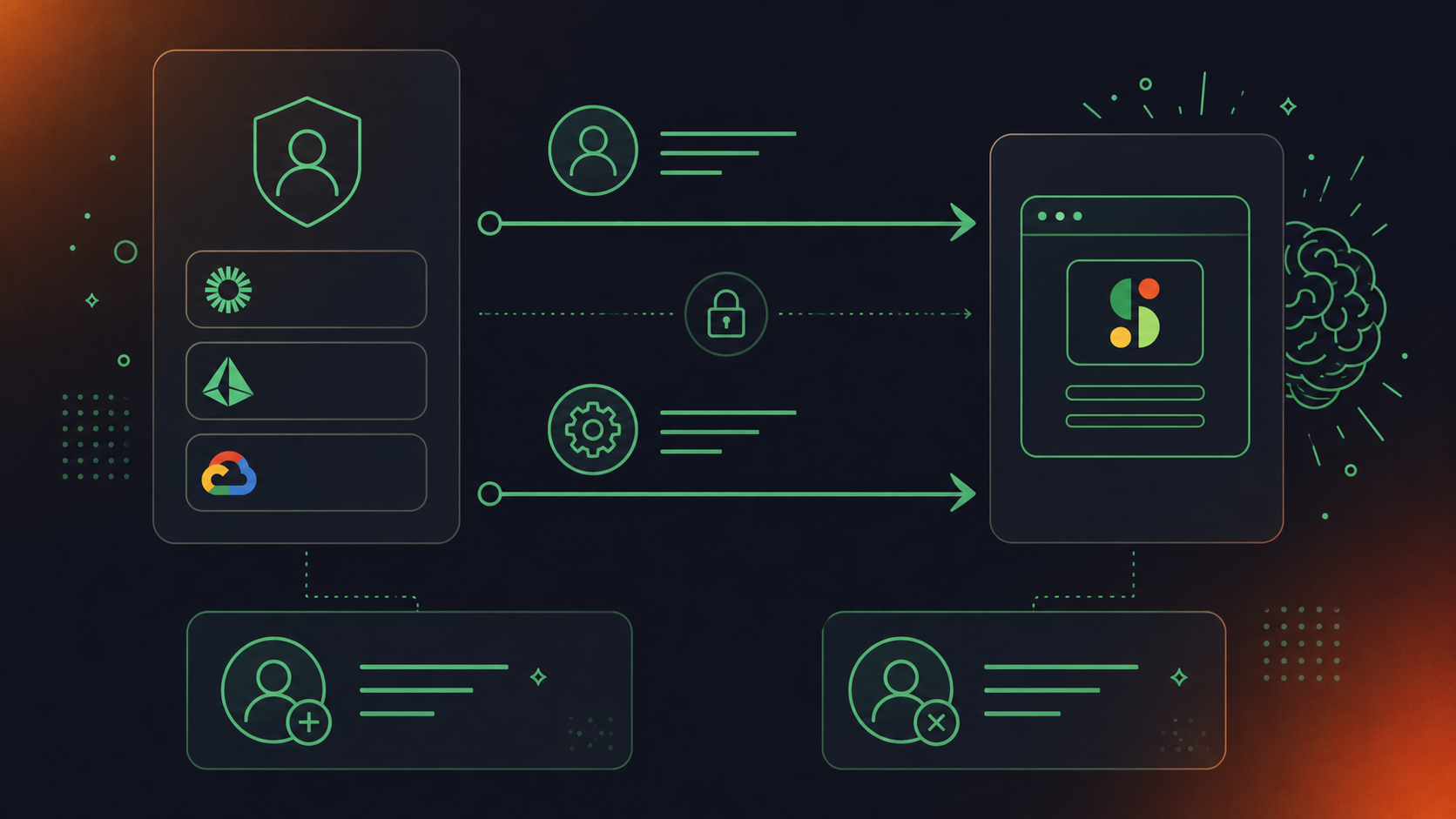
Why the Combination Matters for AI Meeting Tools
AI meeting tools sit in a sensitive position: they record conversations, generate transcripts, and store summaries that may contain confidential decisions. An orphaned account in one of these tools is a higher-risk exposure than an orphaned account in, say, a project tracker.
- SAML without SCIM means terminated users lose login access at the IdP level, but their existing account and its stored data may persist in the meeting tool indefinitely, depending on how the vendor handles deprovisioning.
- SCIM without SAML means accounts get cleaned up automatically, but users can still authenticate through social login or direct credentials if those pathways remain open, bypassing your IdP entirely.
- Both together close the loop: identity is federated through the IdP on every login, and account lifecycle changes propagate automatically the moment your directory updates.
For IT admins managing a Zoom SSO setup alongside AI meeting integrations, including those who need to understand how to record a Teams meeting under governed conditions, this pairing is the architecture that keeps your directory as the authoritative source across every tool in the meeting stack.
Configuring SAML SSO with Azure AD (Entra ID)
Azure AD (now Entra ID) is the most common identity provider IT admins configure for Zoom SSO, and the setup follows a predictable sequence worth knowing before you touch the admin console.
Registration and Metadata Exchange
Start in the Azure portal by creating a new enterprise application. Search for Zoom in the gallery, select it, and assign the users or groups who need access. From there, go to Single Sign-On, choose SAML, and fill in the Basic SAML Configuration with Zoom’s entity ID and reply URL, both available in your Zoom admin portal under Security > Single Sign-On.
Download the Federation Metadata XML from Azure and upload it into Zoom’s SSO configuration. This exchange is what binds the two systems without requiring you to manually copy certificates.
Attribute Mapping
Zoom expects at minimum an email claim. In Azure, map user.mail to the email attribute in the SAML token. If your org uses a different primary identifier, confirm it matches the email field Zoom uses to provision accounts, or logins will fail silently.
Group-Based Access Control
Assign the Zoom enterprise app to security groups in Entra ID, not individual users. This gives you a single place to control who can authenticate via SSO and feeds directly into SCIM provisioning if you plan to automate user lifecycle management.
Configuring SAML SSO with Google Workspace
Google Workspace SSO with Zoom uses SAML 2.0, with Google acting as the Identity Provider and Zoom as the Service Provider.
Setting Up the Integration
Before touching either admin console, confirm you have Super Admin rights in Google Workspace and Owner or Admin privileges in the Zoom account.
The setup sequence runs as follows:
- In Google Admin Console, go to Apps, then Web and mobile apps, and add a custom SAML app for Zoom. Google will generate the SSO URL, Entity ID, and a certificate you’ll download for later.
- In Zoom’s admin portal, go to Security, then Single Sign-On, and paste in the Sign-in URL, Entity ID, and upload the certificate from Google.
- Set the NameID format to “EMAIL” and map the email attribute so Zoom can match users to existing accounts.
- Back in Google Admin Console, assign the SAML app to the relevant Organizational Units so only the right users get access.
- Test with a non-admin account before rolling out broadly.
Attribute Mapping to Get Right
The email attribute must match exactly between Google and Zoom. If your org uses aliases or secondary email values, those mismatches will surface as login failures. Map primaryEmail from Google to the email attribute Zoom expects, and verify that every test user’s Zoom account email matches their Google Workspace primary email.
JIT provisioning works here too: new users who authenticate through Google SSO get a Zoom account created automatically, which removes the manual provisioning step for IT. Buyers comparing enterprise governance controls across tools may find the Spinach AI vs Fathom comparison useful.
Common SAML SSO Configuration Errors and How to Resolve Them
Configuration errors tend to cluster around a handful of predictable failure points. Knowing where to look cuts resolution time sharply. The SSO best practices for 2026 are a useful reference for hardening your setup beyond initial configuration.
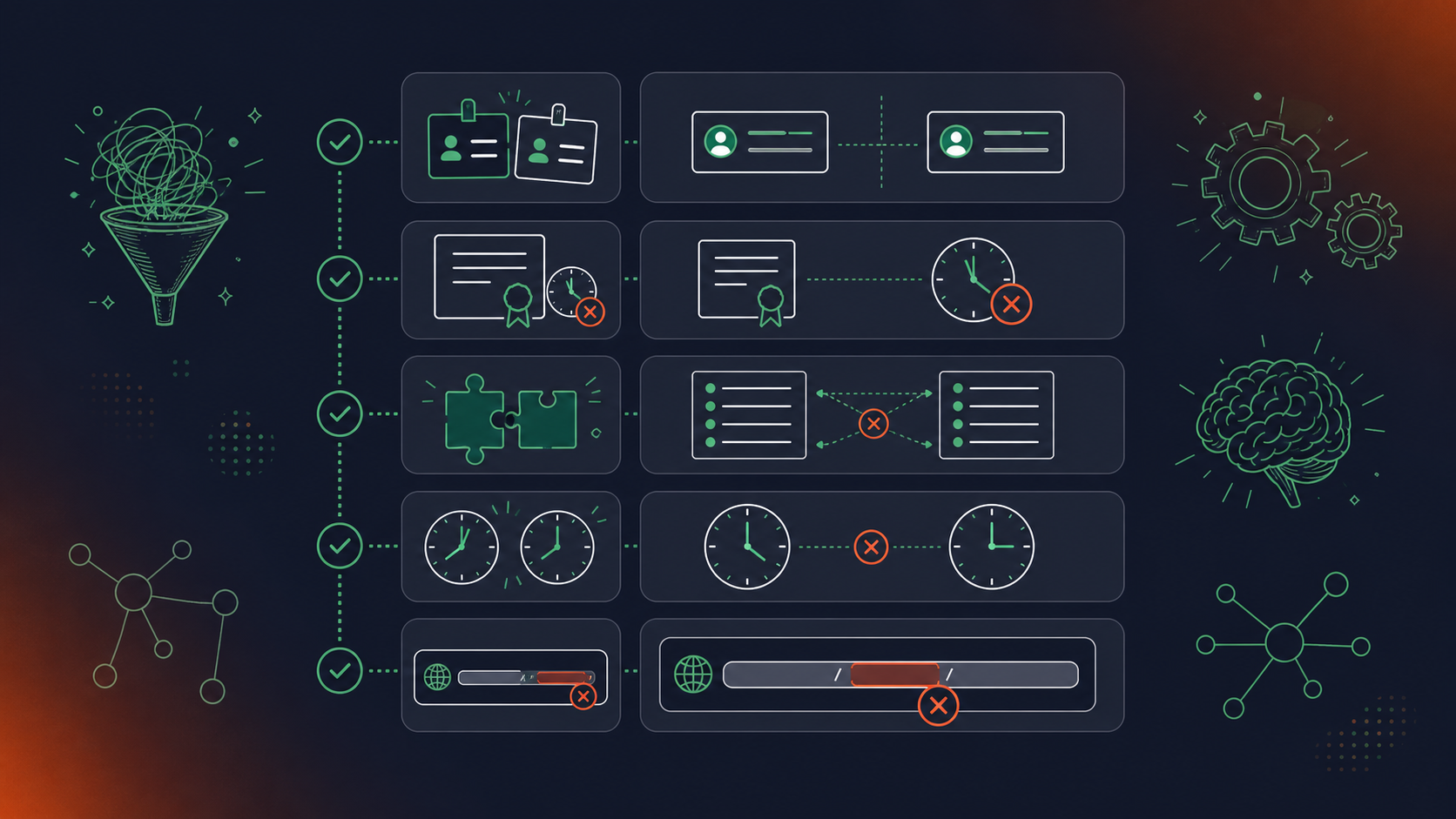
The Most Common Failures
- Mismatched Entity IDs: The SP entity ID in your IdP and the value registered in your app must match character-for-character, including trailing slashes. A single difference breaks the assertion entirely.
- Certificate expiration: SAML signing certificates expire silently. When they do, SSO assertions fail with cryptic errors. Set calendar reminders 60 days before expiration and rotate proactively.
- Attribute mapping gaps: If the IdP sends
emailAddressbut the SP expectsemail, authentication fails even when credentials are valid. Audit your attribute statements against what the SP documentation specifies. - Clock skew: SAML assertions carry a validity window. If your IdP server clock drifts more than a few minutes from the SP, assertions are rejected as expired. Keep NTP synchronized across all systems.
- Incorrect ACS URL: Posting the assertion to the wrong endpoint is a frequent mistake during initial setup. Verify the Assertion Consumer Service URL in your IdP matches the SP’s published endpoint exactly.
When users report SSO failures, pull the SAML trace first using a browser extension like SAML-tracer before touching any configuration. For a side-by-side look at how enterprise security controls differ across vendors, the Spinach AI vs Fireflies comparison covers the key gaps. The raw assertion shows you exactly which attribute is missing or malformed, which narrows the fix to minutes instead of hours of guesswork.
The Security Compliance Stack IT Admins Should Require
Beyond SSO configuration, IT admins reviewing AI meeting tools for enterprise deployment should require a specific set of security and compliance controls before approving any rollout.
The table below covers the controls worth verifying before signing off on any AI meeting tool.
Compliance and Security Controls to Verify
Control | What to Confirm |
|---|---|
SOC 2 Type II | Audited annually, report available on request |
GDPR | Data processing agreements in place, EU data handling documented |
HIPAA | BAA available on Enterprise tier only |
Data retention | Configurable per data type (transcript, summary, video); confirm retention windows |
PII redaction | Transcript-level redaction available, not post-hoc deletion only |
LLM data handling | Confirm zero data retention with LLM providers; no customer data used for model training |
Recording consent | Bot is always visible; custom in-meeting notification text supported |
Audit logging | Admin dashboard with audit logging and usage reporting |
A few of these deserve extra attention. HIPAA coverage is often gated behind enterprise tiers, and vendors frequently obscure that in their documentation. For teams routing governed conversation data downstream, see how to convert meeting transcripts to Jira tickets without manual re-entry. Confirm which plan triggers BAA availability before committing to a tier. Similarly, PII redaction at the transcript level is meaningfully different from the ability to delete a recording after the fact; ask precisely which one the vendor supports. For AI meeting tools that route conversation data to LLMs for summarization, zero data retention with those providers is the bar worth holding to.
Spinach AI Enterprise: SSO, SCIM, and Governed AI Meeting Intelligence
Spinach AI is an enterprise conversation intelligence platform that acts as the system of record for conversation data. Deployed company-wide, it captures conversations across Zoom, Google Meet, Microsoft Teams, Slack Huddles, and Webex; centralizes them into a single, governed, AI-ready data asset; and powers people and agents with structured outputs such as decisions, action items with named owners, tickets, CRM records, and summaries routed automatically into the tools your teams already use, including Jira tickets created directly from meeting context.
For IT admins reviewing SSO and SCIM requirements, here is what Spinach supports today.
SSO and Directory Integration
Spinach supports SAML 2.0 SSO with the major identity providers your organization is likely already running, including Okta, Azure AD (Entra ID), and Google Workspace. Admins configure SSO at the account level, and authentication routes through your IdP without requiring end users to manage a separate Spinach password.
SCIM provisioning is available for automated user lifecycle management. When an employee is offboarded in your directory, their Spinach access is deprovisioned automatically, without a manual IT ticket.
Compliance and Data Governance
- SOC 2 Type II compliant, GDPR compliant, and HIPAA compliant with BAA available on Enterprise engagements
- No customer data used to train AI models, with zero data retention with LLM providers
- PII redaction at the transcript level, not at the summary layer alone
- Recording retention is configurable per data type (transcript, summary, video) from one week to indefinite on Enterprise; Business tier has a flat one-year retention limit across all data types
- The recording bot is always visible; org-level renaming, custom in-meeting notification text, and pause/resume controls are available for consent compliance in multiparty-consent jurisdictions
MCP and API access are available on Business and Enterprise tiers respectively, giving engineering teams a path to build structured conversation data into internal agents and dashboards. Review Spinach AI pricing to confirm which controls are available at each tier.
Final Thoughts on Zoom SSO Setup and AI Meeting Tool Governance
Setting up Zoom SSO through Azure AD or Google Workspace is straightforward once you know where the common errors cluster, but the bigger work is deciding what governance looks like across the whole meeting stack. SAML and SCIM together give you the access lifecycle controls you need, and the compliance checklist keeps you from running into gaps during a security review instead of during setup. Spinach AI’s enterprise setup brings SSO, SCIM, and data governance together for a meeting intelligence deployment.
Zoom SSO login (via SAML 2.0) handles authentication — your IdP verifies the user and grants access without a separate meeting-tool password. SCIM handles what happens after: when an employee is offboarded in your directory, their account and access to recorded conversations, summaries, and extracted decisions is revoked automatically across every connected tool. Running one without the other leaves a gap — SAML alone means orphaned accounts can persist in your meeting tool indefinitely, while SCIM alone leaves social login and direct credential paths open as IdP bypasses.
Zoom SSO errors most often trace to five failure points: mismatched entity IDs (check for trailing slash differences), expired SAML signing certificates (rotate proactively with 60-day calendar reminders), attribute mapping gaps where the IdP sends `emailAddress` but Zoom expects `email`, clock skew beyond a few minutes between IdP and SP servers, and an incorrect Assertion Consumer Service URL. Pull a SAML trace using a browser extension like SAML-tracer before touching any configuration — the raw assertion shows exactly which attribute is missing or malformed, cutting resolution time from hours to minutes.
Start in the Azure portal by creating a new enterprise application for Zoom, then exchange SAML metadata by downloading the Federation Metadata XML from Azure and uploading it directly into Zoom’s admin portal under Security > Single Sign-On — this binds the two systems without manual certificate copying. Map `user.mail` to Zoom’s email attribute in the SAML token, and assign the Zoom app to security groups in Entra ID rather than individual users. This group-based structure gives you a single access control point and feeds directly into SCIM provisioning for automated user lifecycle management across your full meeting stack.
Zoom SSO secures authentication regardless of which layer sits on top, but the architectural question is what that layer governs after login. Native Zoom AI delivers individual productivity features — summaries, action items — but is not an organizational system of record: querying all of your organization’s conversation data requires building a centralization layer on their API or asking every employee to share every meeting manually. Spinach AI sits above your meeting infrastructure as the enterprise conversation intelligence layer, supports SAML SSO and SCIM provisioning with Okta, Azure AD (Entra ID), and Google Workspace, and applies org-enforced policy, configurable retention per data type, and PII redaction at the transcript level — making your IdP the authoritative source across every meeting, not just Zoom calls.
The controls worth confirming before sign-off are: SOC 2 Type II (audited annually, report available on request), GDPR data processing agreements, HIPAA BAA availability with explicit confirmation of which pricing tier triggers it, configurable data retention per data type (transcript, summary, and video separately), PII redaction at the transcript level rather than post-hoc recording deletion, and zero data retention with LLM providers so conversation data is not used for model training. Recording consent handling also requires scrutiny — confirm the bot is always visible, that custom in-meeting notification text is supported, and that pause/resume controls are available for multiparty-consent jurisdictions.
Zoom SSO login authenticates employees through your identity provider using SAML 2.0, giving IT admins centralized control over session policies and access revocation. Joining a Zoom meeting with an ID and password is a guest-level entry path that bypasses your IdP entirely, which is why external participants in governed meetings fall outside your SSO configuration’s scope and require separate consent handling.
Zoom SSO setup on mobile (Android and iOS) uses the same IdP configuration you set at the account level in the Zoom admin portal, so there is no separate mobile-specific SSO configuration required. If SSO is not working on Android or iOS, the most common causes are clock skew on the device, an outdated Zoom app version, or a device trust policy in your IdP that the mobile client fails to satisfy.
Pull a SAML trace using a browser extension like SAML-tracer before touching any configuration in the admin console. The most likely culprits are an expired SAML signing certificate or a recently changed attribute mapping — both fail silently and both show up immediately in the raw assertion rather than requiring you to guess.
In Google Admin Console, add Zoom as a custom SAML app under Web and mobile apps, download the SSO URL, Entity ID, and certificate Google generates, then paste those values into Zoom’s admin portal under Security > Single Sign-On. Map primaryEmail from Google to Zoom’s email attribute, assign the SAML app to the relevant Organizational Units, and test with a non-admin account before rolling out broadly — mismatched email aliases are the most common failure point in Google Workspace deployments.
You need a Business or Enterprise account in Zoom, admin rights in both Zoom and your IdP (Okta, Azure AD/Entra ID, or Google Workspace), and a valid SAML 2.0 signing certificate from your IdP. For AI meeting tools specifically, confirm that the tool supports SCIM provisioning alongside SAML so that account deprovisioning happens automatically when employees exit your directory — access to recorded conversations and summaries carries higher residual risk than most SaaS apps if orphaned accounts are left open.
Zoom SCIM provisioning via Azure (Entra ID) automates account creation when a new user is assigned to the Zoom enterprise app in your directory, and account deprovisioning when that assignment is removed or the employee is offboarded. What it does not automate is governing what the meeting tool does after login — data retention policy, recording consent settings, and sharing scope all require explicit configuration in the meeting tool’s admin console, separate from the SCIM setup.
The Zoom app enforces IdP-level session policies, device trust checks, and MFA requirements that the browser-based join path may not fully honor depending on your IdP configuration. For enterprise deployments where SSO governance matters, require users to authenticate through the Zoom app rather than joining from a browser, and confirm in your IdP that the app-based flow is the enforced path before rolling out to the org.
External participants bypass your IdP entirely, so SSO configuration does not govern their access or consent. Spinach AI’s recording bot is always visible in the meeting and never covert — organizations can set a custom legal-approved in-meeting notification message, use pause/resume/kick commands mid-meeting, and admit the bot from the Zoom waiting room only after verbal consent, which is the mechanism for handling multiparty-consent jurisdictions where external participants may not have agreed to recording.
Without SCIM, a terminated employee loses login access at the IdP level but their existing account in the meeting tool may persist indefinitely, leaving their stored transcripts, summaries, and extracted decisions accessible. For AI meeting tools this is a meaningfully higher exposure than a typical SaaS orphan account because the data contains confidential decisions and conversation context across every meeting the employee attended.
The configuration mechanics — SAML 2.0 metadata exchange, attribute mapping, group-based access in your IdP — follow the same sequence as any enterprise app. The difference is what SSO governs after login: Spinach operates across Zoom, Google Meet, Teams, Slack Huddles, and Webex simultaneously, captures video, audio, transcript, screen share, and in-meeting chat, and routes structured data into downstream systems, so org-enforced settings for retention, sharing scope, and PII redaction require explicit configuration in the Spinach admin dashboard beyond what the IdP controls.
What you should do now
You made it to the end of this article! Here are some things you can do now:
- If communication is a challenge for your team, you should check out our library of meeting agenda templates.
- Check out Spinach to see how it can help you run a high performing org.
- If you found this article helpful, please share it with others on Linkedin or X (Twitter)

