Automatically Send Meeting Summaries to Slack (August 2026)
Send meeting summaries to Slack automatically in August 2026. See how Spinach AI, Zoom AI, and Zapier each handle routing and what works at the org level.
 Maintouch
Meeting decisions have a short shelf life. When they only live in an inbox or a note-taking app, most of your team never sees them in time to act. Getting summaries into Slack automatically is the kind of thing that takes 20 minutes to set up and saves a lot of back-and-forth after.
TLDR:
- 70% of meeting decisions are forgotten within 24 hours without notes, per Archie (archieapp.co, 2026)
- Three approaches work: native platform AI (Zoom, Teams, Meet), dedicated meeting assistants, or Zapier
- Native platform AI routes summaries per-user, not org-wide, so consistent channel delivery requires manual setup by each person
- A useful Slack summary has decisions, named action item owners, and ticket references. Not a raw transcript.
- Spinach AI is an enterprise conversation intelligence platform. It joins your meeting, captures during the call, and delivers structured summaries, decisions, and action items with named owners to your configured Slack channel when the meeting ends
Why Meeting Summaries Belong in Slack
Most decisions made in meetings never make it into the tools where work actually happens. They sit in someone’s inbox, or in a note-taking app only the organizer can access, and by the time anyone needs them, the context is gone. According to Archie (archieapp.co, 2026), 70% of meeting decisions are forgotten within 24 hours when there are no notes to reference.
The problem gets worse when summaries only live in email. Your team is already in Slack. That’s where questions get asked, blockers surface, and decisions get acted on. Routing meeting output to a separate destination means people have to go looking for it, and most won’t.
Slack is where the work conversation happens, and teams using Slack are 47% more productive than those relying on email and scheduled meetings. Meeting summaries belong there too.
How the Automatic Meeting-to-Slack Workflow Works
Three things happen between “meeting ends” and “summary lands in Slack,” and understanding each one helps you set up the right configuration the first time.
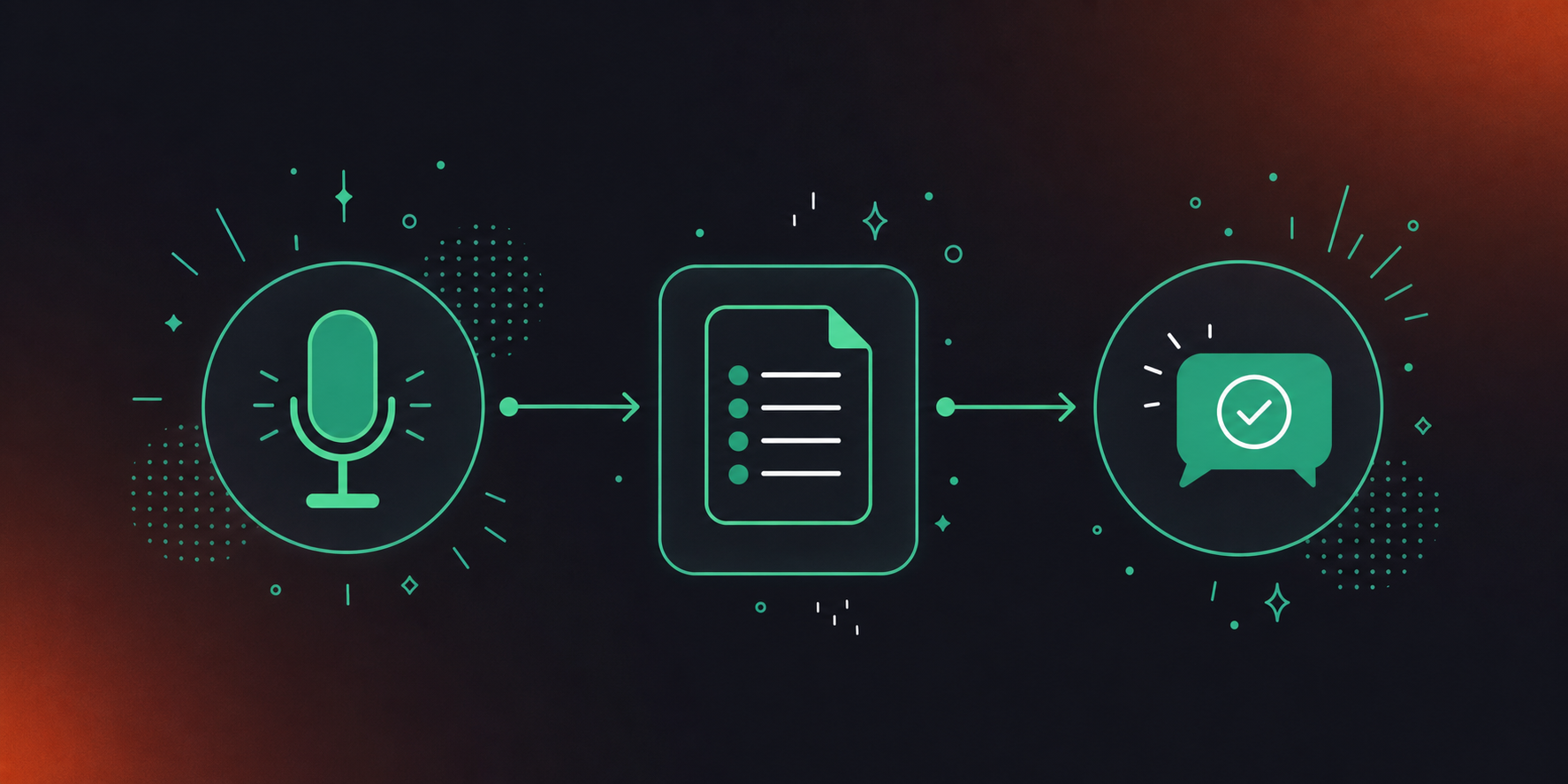
Capture
An AI assistant joins your meeting on Zoom, Google Meet, Teams, or Webex and records the conversation as it happens. The output is a transcript, timestamped and attributed to each speaker.
Structure
Once the meeting ends, the transcript gets processed. The AI automatically creates action items from meeting transcripts, pulling out key decisions with named owners, and a short summary of what was discussed, turning raw conversation into something actionable.
Route
The structured summary gets sent to a designated Slack channel automatically. No copy-paste, no manual forwarding. Depending on the tool and your configuration, different meeting types can route to different channels: standups to your engineering channel, client syncs to your account team’s channel.
Capture and structure are fully automatic once configured. Routing requires a one-time setup decision about which channel receives which meetings, and that configuration step is where most of the variation between tools shows up.
Option 1: Use Your Meeting Platform’s Native AI
Zoom AI Companion, Microsoft Copilot in Teams, and Google Meet’s AI features all generate post-meeting summaries automatically. Each works reasonably well for individual users, and routing those summaries to Slack is possible with some setup. (Feature comparison as of July 2026.)
Approach | How summaries reach Slack | Routing level | Setup effort | Best fit |
|---|---|---|---|---|
Native platform AI (Zoom, Teams, Meet) | Zapier zap or manual forwarding per user | Per-user: each person manages their own config | Each user sets up independently; no org-wide policy | Individuals who already use the platform’s AI and need occasional Slack delivery |
Enterprise conversation intelligence platform (e.g. Spinach) | Native Slack integration; posts automatically when meeting ends | Org-wide: one admin configures routing for all meetings | One-time setup; channel rules apply across every meeting the bot joins | Teams that need consistent, governed Slack delivery without per-user configuration |
Zapier / workflow tool | Custom Zap: trigger on summary ready → map fields → post to channel | Configurable: supports conditional routing by title, keywords, or participants | 15 to 20 minutes if the meeting tool has a Zapier integration; more if output is email-only | Teams needing custom routing logic a native integration won’t support |
Zoom AI Companion
After a meeting ends, Zoom AI Companion meeting notes are sent to the host via email and the in-app recap view. To push that to Slack, you can connect Zoom through the official Zoom for Slack app, which surfaces meeting notifications, or use a Zapier zap that triggers on meeting completion and posts summary content to a specified channel.
Microsoft Copilot in Teams
Copilot generates meeting notes inside the Teams meeting record, accessible post-call in the meeting chat. There is no native Teams-to-Slack summary push, so getting notes into Slack requires Zapier or a custom Power Automate flow. Most people end up copying from Teams and pasting manually.
Google Meet with Gemini
Google Meet’s AI features (available on select Workspace plans) generate summaries that land in Google Docs and get emailed to participants. You can also sync Google Meet notes to Confluence automatically for better team-wide access. A Zapier trigger on Google Doc creation can then post a summary link or content to Slack.
The setup works. The catch is that none of these are organizational by default. Each user controls their own summary delivery, so consistent Slack routing depends on every individual maintaining their own configuration. There is no admin-level policy that says “all standups go to #eng-standup” across the company without someone building and maintaining that logic manually.
Option 2: Use a Dedicated AI Meeting Assistant
Dedicated meeting intelligence platforms handle the full chain without requiring you to wire together separate tools. Instead of solving one person’s note-taking problem, they deploy company-wide: the platform joins meetings across Zoom, Google Meet, Teams, Slack Huddles, and Webex, captures the conversation during the call, and, when the meeting ends, produces structured outputs (decisions, action items with named owners, ticket references) and posts them to the right Slack channel based on routing rules set once at the account level.
The configuration choices that matter most:
- Public vs. private channels: The bot can post to both, but private channels require you to run
/invite @[bot-name]in that channel first. Skip this step and the connection fails silently. - Per-meeting-type routing: Most dedicated assistants let you assign a default channel per meeting series. Remote standups go to #eng-standup, client calls go to #account-team, executive syncs go to a private channel, all without manual selection each time.
- Scope of delivery: Some tools post the full summary as a Slack message; others post a short digest with a link back to the full record. The digest approach tends to keep channels cleaner for high-volume teams.
The structural advantage over native platform AI is architectural, not cosmetic. Routing rules apply at the account or org level, not per-user. One person configures which meetings post where, and those rules hold across every meeting the platform joins, regardless of who the host is. There is no organizational system of record on a native stack: to query all of your company’s conversation data with Claude or ChatGPT on Zoom AI Companion or Copilot alone, you’d have to build a centralization layer on their API or ask every employee to share every meeting manually. A dedicated platform like Spinach AI centralizes that data by default.
Worth knowing: the bot joins as a visible, named participant, so attendees can see it is present. Spinach AI allows organizations to rename and rebrand the bot and set a custom in-meeting notification message, so the experience stays consistent with your own policies. For external-facing calls, the bot can be excluded per meeting series or configured to skip the Slack post entirely.
Option 3: Automate with Zapier or a Workflow Tool
Zapier fits when neither your meeting tool nor your AI assistant has a direct Slack connection. Similar logic applies when you want to connect AI notetakers with Trello for task routing. The core idea is simple: a trigger fires when a summary is ready, a Zap maps the relevant fields, and a Slack action posts to the channel you specify.
The General Zap Structure
- Trigger: a “Meeting complete” or “New summary available” event from your meeting tool. Spinach exposes this via Zapier, with available data including meeting details, participants, summary, action items, and transcript.
- Data mapping: select which fields populate the Slack message, whether that’s just the summary and action items or the full attendee list too.
- Slack action: “Send channel message” in Zapier, pointed at whichever channel you choose.
Setup takes roughly 15 to 20 minutes if your meeting tool already has a Zapier integration. The catch is that the tool must expose summary data through an API or webhook. Email-only output requires an additional parsing step before the Slack action can fire.
When It Is Worth It
Zapier earns its place when you need routing logic a native integration won’t support: posting to different channels based on meeting title keywords, filtering out internal-only meetings, or appending summaries to an existing thread. For a straightforward “all summaries go to one channel” setup, a native integration is faster to maintain.
How to Route Summaries to the Right Slack Channels
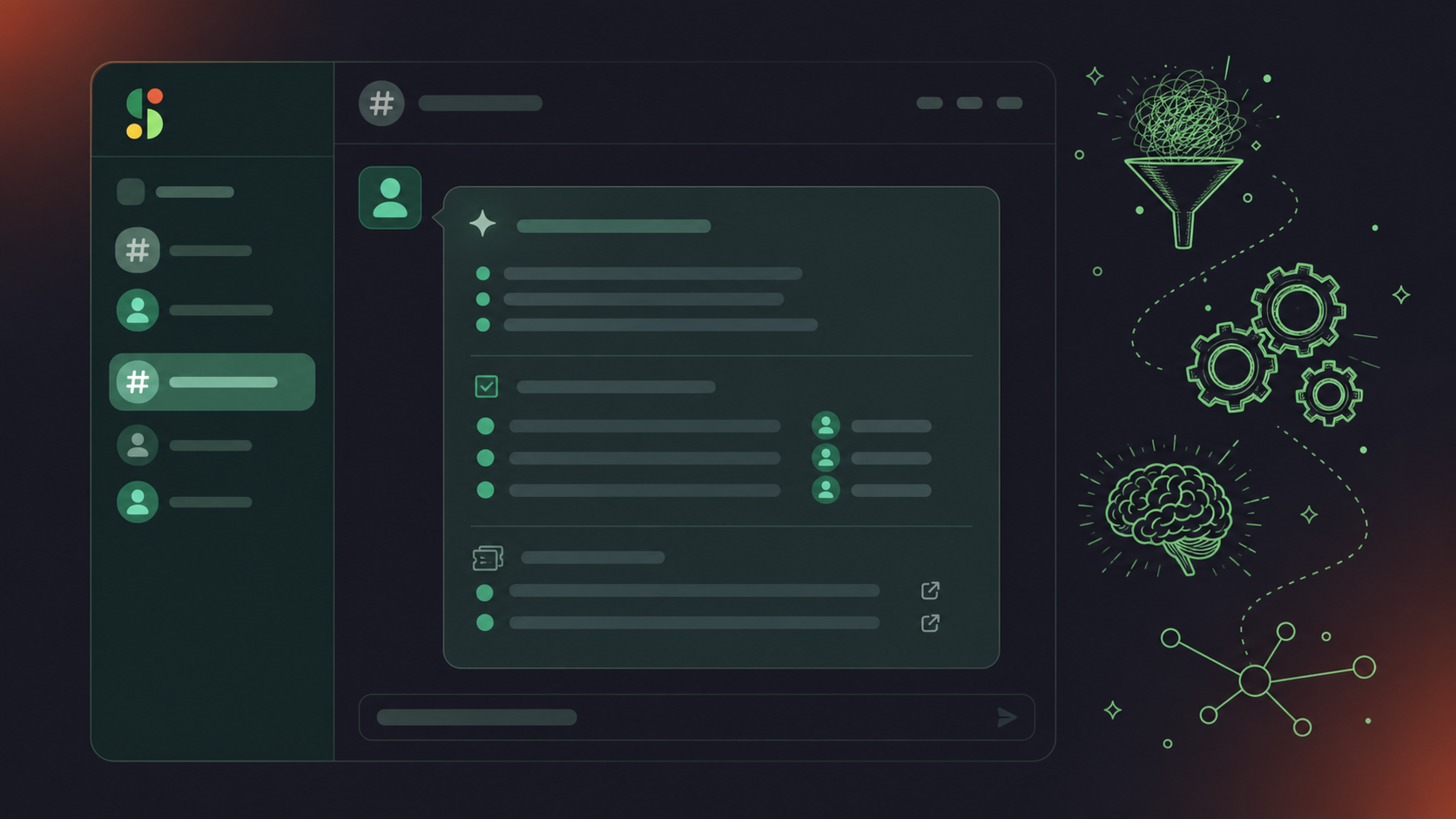
Where summaries land matters as much as whether they land. A single #meeting-notes channel works for small teams, but gets noisy fast when standups, client calls, and executive syncs compete for the same space.
A cleaner routing pattern:
- A shared
#meeting-noteschannel for company-wide visibility on decisions that cross team lines - Team-specific channels like
#eng-standupor#design-syncfor recurring ceremonies where only that team needs the output - Direct message delivery for sensitive conversations like one-on-ones or performance discussions, where broad channel visibility creates friction
Most dedicated assistants let you assign a default Slack channel per meeting series, so a Monday standup always routes to #eng-standup without anyone selecting it manually. Filtering by meeting title or participant list handles edge cases: a standup with an external guest can route differently than the internal version of that same call, and client calls can feed a Google Meet HubSpot integration for automatic CRM updates.
What Belongs in a Slack Meeting Summary
A useful Slack summary is not a transcript dump. Raw transcripts run long, lose most readers after the first scroll, and bury the two or three things people actually need to act on. The goal is a message someone can read in 90 seconds and walk away knowing exactly what was decided and what they need to do.
The elements that earn their place:
- A two or three sentence meeting overview that gives context to anyone who wasn’t there
- Decisions made, stated as facts and not left as open discussion points
- Action items with a named owner and, where relevant, a deadline
- Ticket or project references when the conversation touched existing work
The person who wasn’t in the meeting is your real audience. If the summary only makes sense to someone who was on the call, it has failed half its job.
Decisions and action items are the core. A standup summary listing five bullets with owners and due dates beats a three-paragraph recap that reads like meeting minutes. A meeting notes action items template can help standardize this structure across your team. Keep the overview short enough to sit at the top of a Slack message without requiring a “see more” click.
Ticket and project references matter more than they look. Spinach captures decisions, action items, and follow-ups from any meeting and routes them into the tools your team already uses. When an action item maps to existing work in Jira or Linear, Spinach links the existing ticket; for newly scoped work it proposes a new one, saving the owner from hunting for the right ticket after the call. The same structured output flows into CRM records, Notion pages, or wherever the work actually lives, with no manual re-entry.
How Meeting Summaries Reach Slack with Spinach
Spinach AI is an enterprise conversation intelligence platform, the system of record for conversation data across your organization. Where individual note-takers solve one person’s problem, Spinach deploys company-wide: it joins every meeting across Zoom, Google Meet, Teams, Slack Huddles, and Webex, captures the conversation during the call, and delivers structured outputs, including decisions, action items with named owners, and ticket references, to Slack when the meeting ends. Setup takes minutes: connect your calendar, configure your Slack channel in settings, and admit Spinach from the waiting room. For private channels, run /invite @spinach.ai first, or the connection won’t take.
You can assign a default channel for the whole account or route per meeting series. Structured outputs, including decisions, action items with named owners, and ticket references when Jira or Linear is connected, land in the right channel automatically, with no manual selection before each call.
Individual note-takers produce separate outputs per person, which means separate silos per team, uncontrolled sharing, and no single organizational record. Spinach centralizes every conversation in one governed data asset, so the same context that posts to Slack also flows into Jira, Linear, HubSpot, Salesforce, Notion, or wherever the work actually lives, with no manual re-entry.
The Starter plan includes Slack integration at no cost. Business and Enterprise add advanced AI summaries, Ask Spinach, and full CRM and project management integrations; both tiers also include MCP connectivity, so the same conversation data that lands in Slack can power Claude and ChatGPT queries across your full organizational corpus. Org-enforced delivery settings and admin controls require Enterprise. API access and webhooks for custom pipelines are available on Enterprise.
Final Thoughts on How to Send Meeting Summaries to Slack Automatically
Decisions that stay in someone’s inbox or notes app don’t move work forward. Your team is in Slack, so that’s where meeting output belongs too. Whether you wire it together with Zapier or use an enterprise conversation intelligence platform that handles routing at the org level, the goal is the same: structured decisions and action items land in the right channel without anyone having to manually push them there. Get started with Spinach AI and your next meeting routes straight to Slack, with every decision, owner, and ticket reference captured in a single governed record your whole organization can query.
Use a dedicated meeting assistant like Spinach AI instead of native platform AI. With Spinach, one admin configures which meetings route to which Slack channels, and that rule then applies to every meeting the bot joins, regardless of who the host is. Native tools like Zoom AI Companion and Microsoft Copilot leave each user responsible for their own forwarding setup, which means your Slack routing is only as consistent as the least-configured person on the team.
Zoom AI Companion works well for individual users, but getting summaries into Slack requires a Zapier zap or manual forwarding that each person sets up themselves. Spinach deploys company-wide with admin-enforced Slack routing, so a standup always posts to #eng-standup and a client sync always hits your account channel. No per-user configuration, no gaps when someone forgets to set up their own zap.
Most dedicated meeting assistants let you assign a default Slack channel per meeting series during initial setup. A Monday standup maps to #eng-standup, client syncs map to #account-team, and sensitive one-on-ones route to direct messages, all without anyone selecting a channel manually before each call. For private channels, run /invite @[bot-name] in that channel first, or the connection will fail without any error visible to the host.
Lead with a two-to-three sentence overview, then decisions stated as facts, then action items with a named owner and deadline where one exists. Ticket references to existing Jira or Linear work belong at the bottom; they save the owner from hunting for the right ticket after the meeting. Raw transcripts and long narrative recaps bury the two or three things people need to act on; the goal is a message someone can read in 90 seconds and know exactly what was decided and what they own.
Yes. Spinach AI includes a native Slack integration on the free Starter plan, with no Zapier account or custom webhook required. Connect your calendar, configure your target Slack channel in settings, and admit Spinach from the waiting room; summaries post automatically when each meeting ends. If you need org-enforced delivery rules and admin controls across every team’s meetings, those are available on Business and Enterprise tiers.
Per-user delivery means each person configures their own forwarding setup — if someone skips that step, their meetings never reach Slack. Org-level routing means one admin sets which meetings post to which channels, and those rules apply to every meeting the bot joins regardless of who hosts it. For teams larger than a handful of people, per-user configuration produces gaps; org-level routing does not.
Connect your calendar to your meeting assistant, then open the Slack integration settings and assign a default channel for the account or per meeting series. For private channels, run `/invite @[bot-name]` inside that channel before the first meeting — skipping this step causes the connection to fail without any visible error to the host. Once configured, summaries post automatically when each meeting ends with no manual selection required.
Yes, but private channels require one extra step: run `/invite @[bot-name]` inside the private channel before the bot tries to post. Without that invitation, the routing fails silently and the host receives no error message. After the invite is accepted, summaries flow to that channel the same way they do for public channels.
Copilot generates notes inside the Teams meeting record and has no native path to Slack — most people end up copying and pasting manually or building a Power Automate flow. A dedicated meeting assistant like Spinach posts structured summaries, decisions, and action items directly to your configured Slack channel when the meeting ends, with no per-user setup required. If consistent Slack delivery across your whole team matters, the dedicated assistant removes the manual step that Copilot leaves in place.
Spinach joins and captures Slack Huddles the same way it joins Zoom, Google Meet, Teams, and Webex, so Huddle summaries follow the same routing rules you configure for any other meeting type. The output — decisions, action items with named owners, and ticket references — posts to whichever Slack channel you have assigned for that meeting series. No separate configuration is needed for Huddles versus other platforms.
Route one-on-ones to direct message delivery instead of a shared channel by assigning a separate default for that meeting series during setup. Most dedicated meeting assistants let you configure routing per meeting series, so your recurring all-hands posts to `#company-updates` while one-on-ones deliver privately. This keeps sensitive conversations out of broad channels without disabling Slack delivery for the rest of your meetings.
Yes — Spinach’s Starter plan includes the Slack integration at no cost. Connect your calendar, configure your target Slack channel in settings, and summaries post automatically when each meeting ends. Business and Enterprise tiers add org-enforced delivery rules and admin controls for teams that need consistent channel routing across every meeting the bot joins, regardless of who the host is.
Use a native integration when your goal is straightforward delivery — all summaries from a given meeting series going to one channel. Zapier earns its place when you need conditional logic a native integration does not support, such as routing to different channels based on meeting title keywords or filtering out specific participant combinations. For most teams, a native integration is faster to configure and has fewer failure points than a multi-step Zap.
Use a meeting assistant that extracts named owners from the conversation and structures them as discrete fields rather than embedding them in a paragraph of text. Spinach captures decisions and action items with named owners during the meeting and includes them as clearly labeled elements in the Slack post, so the person responsible is visible without anyone having to read through a full summary. If your current tool posts a raw transcript or a narrative block, the owner information is technically present but practically buried.
Email requires your team to switch contexts, search for the right thread, and read back through a message that may have arrived hours after the meeting ended — and most people do not. According to Archie (archieapp.co, 2026), 70% of meeting decisions are forgotten within 24 hours without notes to reference. Routing summaries to Slack puts decisions where your team is already working, which means the gap between a decision being made and someone acting on it shrinks from hours to minutes.
What you should do next
Next, here are some things you can do now that you've read this article:
- Our library of meeting agenda templates is designed to help you run more effective meetings.
- Learn more about Spinach and how it can help you run a high performing org.
- If you found this article helpful, please share it with others on Linkedin or X (Twitter)

