How to Save Meeting Notes to Confluence (August 2026)
Learn how to auto-save structured meeting notes to Confluence in August 2026 so decisions and action items land on the right page every time.
 Maintouch
Getting meeting notes into Confluence consistently is one of those things that sounds simple until you’re three months in and half your pages are blank. The manual version, where someone cleans up their notes after the call and pastes them into the right space, works occasionally and gets skipped constantly. There are better ways to do this without relying on anyone to remember.
TLDR:
- 70% of meeting decisions are forgotten within 24 hours when no notes are taken (archieapp.co)
- Confluence doesn’t join your meeting or write anything down. Every page requires a tool or manual work to populate it
- Jira Automation, Loom AI, and Zapier each offer a path to auto-save notes, but output quality depends on what the upstream tool structures before writing to the page
- Set retention policy, space ownership, and sharing scope before any automation runs. Defining these retroactively is harder than getting it right on day one
- Spinach AI is an enterprise conversation intelligence platform deployed company-wide. It joins meetings on Zoom, Google Meet, Teams, Slack Huddles, and Webex, captures during the call, and routes decisions, action items with named owners, and structured summaries to Confluence automatically when the meeting ends under a single admin-controlled policy
Why Meeting Documentation Gaps Cost Teams More Than Time
70% of meeting decisions are forgotten within 24 hours when no notes are taken, and 40% of meetings produce no documented follow-up at all.
The downstream cost compounds quickly. A missed decision means a follow-up meeting. A missing action item means a deadline slips quietly. Teams relitigate work they already agreed on because no one wrote anything down.
Manual documentation makes this worse. Someone has to take notes, clean them up, and paste them into Confluence after the call. That step gets skipped, and even when it doesn’t, notes arrive late and stripped of context.
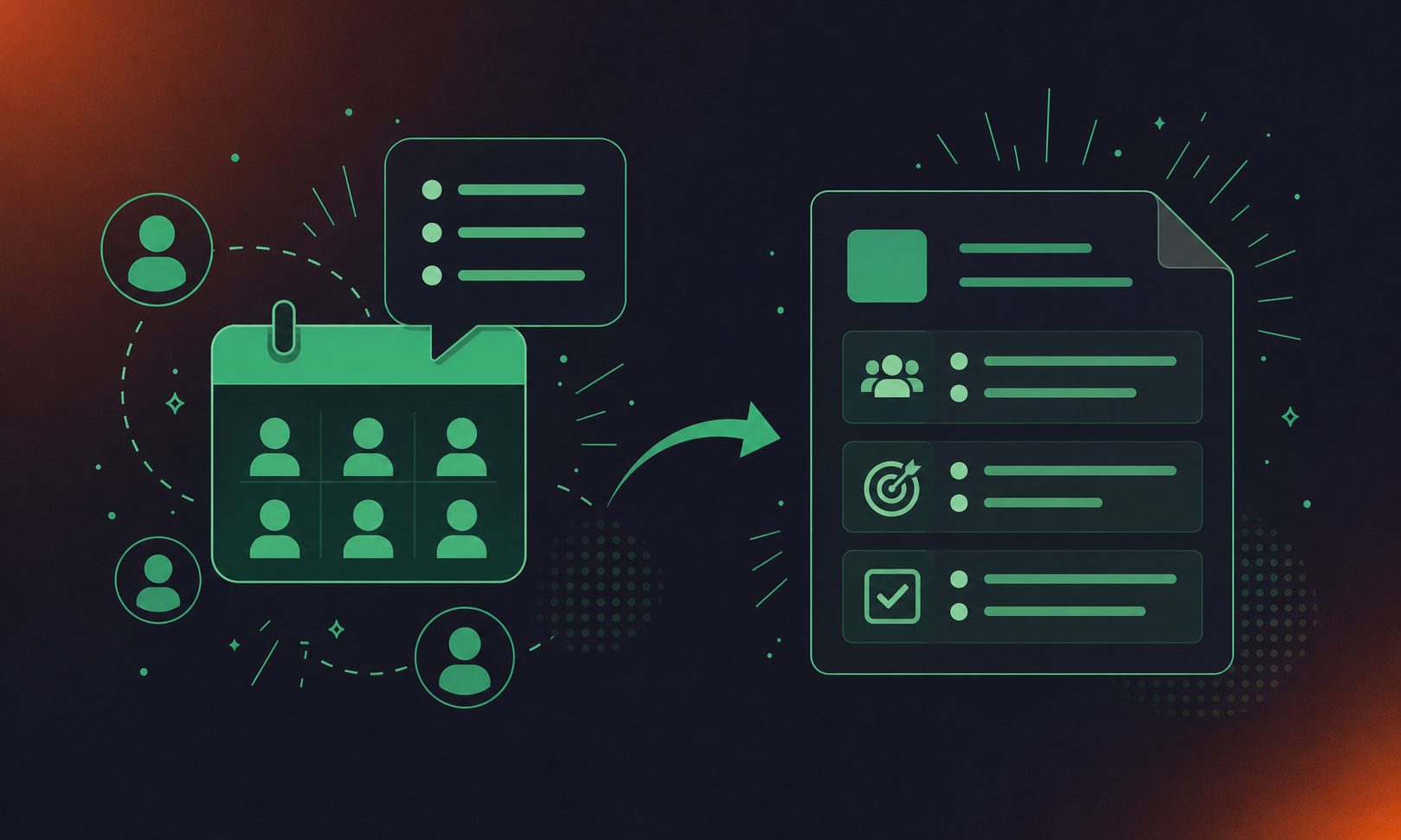
What Confluence Offers for Meeting Notes
Confluence is a team wiki built for this problem: one place where meeting notes, decisions, and follow-up tasks live together, searchable by anyone on the team long after the meeting ends.
Out of the box, Confluence gives you several building blocks for meeting documentation:
- A built-in meeting notes template with sections for attendees, discussion points, decisions, and action items
- The Decision macro, which logs decisions inline so they surface in a dedicated decisions report later
- The Task feature, which converts action items into tracked to-dos with assignees and due dates
- Labels, which make pages retrievable by project, team, or topic without a rigid folder structure (part of why automated meeting minutes are only as useful as the structure behind them)
- Parent page hierarchies for grouping recurring meeting series under one organizing page
The gap is getting notes there in the first place. Confluence doesn’t join your meeting or write anything down, so every page was either created manually or pushed in by another tool.
How to Set Up Confluence’s Native Meeting Notes Template
Before any automation can write into Confluence, you need a consistent page structure for it to write into. The native meeting notes template is that foundation.
From any Confluence space, create a new page and search “Meeting notes” in the template picker. You’ll get a pre-structured page with sections for attendees, discussion topics, decisions, and action items. Set a naming convention from the start, something like [Team] Meeting - YYYY-MM-DD, because every automated method covered later will inherit whatever pattern you set here.
Configuring the Key Sections
A few setup choices make the template meaningfully more useful:
- In the action items section, use the Task feature and @mention assignees directly. Following a guide to perfect meeting minutes keeps these sections structured correctly from the start.
- Insert the Decision macro into your decisions section. Each decision logged this way gets pulled into a space-level decisions report, so you can query what your team agreed on across weeks without hunting through individual pages.
- Add a “Next steps” section below action items for follow-up conversations that aren’t yet assignable tasks.
Organizing Recurring Meetings
Create a parent page for each recurring meeting series, then nest individual session pages underneath it. A weekly product sync gets one parent page titled “Product Sync” with dated child pages below. This hierarchy keeps the space navigable and gives automated tools a clear target location when creating new pages.
One underused move: paste the Confluence parent page link into your calendar invite. Anyone joining can pull up prior session notes before the call starts, and any tool writing into that hierarchy is easier to configure when the location is already defined.
How to Automate Confluence Page Creation with Jira Automation
For teams on the Atlassian stack, Jira Automation can create a Confluence meeting notes page without a third-party tool. The trigger is an Issue Created event filtered by issue type, and the action sends a web request to the Confluence REST API.
Setting Up the Automation Rule
In Jira Automation, create a rule with this sequence:
- Trigger: Issue Created
- Condition: Issue Type equals “Meeting Request” (or whatever label your team uses)
- Action: Send Web Request to
https://your-domain.atlassian.net/wiki/rest/api/contentwith a POST body specifying the space key, parent page ID, and page title. Authentication requires a Base64-encoded API token in the Authorization header.
Prerequisites Before You Run It
Two things must be in place or the rule will fail silently:
- The Jira project must be linked to the target Confluence space in project settings.
- The automation account needs explicit page-creation permissions in that space.
Get either wrong and you’ll see a successful-looking execution with no page created.
How to Auto-Save Meeting Notes to Confluence with Loom AI
Teams already on Loom Business with AI can skip third-party middleware entirely. Loom has a native path that records your meeting, generates an AI summary with action items and timestamped markers, and creates a Confluence page automatically in a space you define.
In Loom’s Personal Settings, turn on Automated Meetings, then set a default Confluence space and parent page location. Each recorded meeting generates a child page under that parent, so recurring sessions accumulate in the same hierarchy without manual page creation.
Two settings must be active or the export won’t run:
- AI Summary must be active in your Loom account
- Chapters must be turned on so timestamped markers populate in the Confluence page
Before building around this path, check these hard requirements:
- Free Confluence plans are not supported
- Your meeting tool must allow the Loom Notetaker bot to join as a participant
- A Loom Business or higher plan with AI features is required
If any condition isn’t met, the automated export silently produces nothing.
How to Route Meeting Notes to Confluence via Zapier
Zapier fits when your meeting tool has a Zapier trigger but no direct Confluence export. The core Zap fires when a meeting ends or a summary becomes available, then creates a new page in a Confluence space you specify.
Building the Zap
- Trigger: “Meeting ended” or “Summary ready” from your meeting tool (Otter, Fireflies, and similar tools publish these triggers in Zapier’s directory)
- Filter (optional): match title keywords or participant email to keep internal standups out of client-facing spaces
- Action: “Create Page” in Confluence, with the space key, parent page ID, title, and body mapped from the trigger output
Authentication for both apps happens inside Zapier’s account connection flow. For Confluence, you’ll need your Atlassian domain, account email, and an API token from id.atlassian.com.
Mapping Fields Carefully
Map the summary field into the Confluence page body and set the title to the meeting name plus date, using a meeting notes action items template as your structural baseline. If your trigger outputs both a summary and a full transcript, use the summary. Raw transcript output pasted into Confluence is exactly what it sounds like: unformatted dialogue with no decision callouts and no action item structure.
Zapier moves data. It does not reformat it. Page quality depends entirely on how well your upstream tool organizes its output before the trigger fires.
How to Use an AI Meeting Assistant with a Native Confluence Integration
Method | Joins meeting via bot? | Writes directly to Confluence? | Structured output? |
|---|---|---|---|
Jira Automation | No. Creates pages from Jira issues, not meeting audio | Yes, via REST API | Page structure only; content depends on what triggered the rule |
Loom AI | Yes. Loom Notetaker joins as a participant | Yes. Native export to a space and parent page you define | Yes. AI summary with chapters and timestamped markers |
Zapier | No. Triggers after meeting ends from an upstream tool | Yes, via Zapier’s Confluence action | Depends entirely on upstream tool; raw transcript if unformatted |
Spinach AI | Yes, joins Zoom, Meet, Teams, Slack Huddles, Webex | Yes, routes output automatically when meeting ends under org-wide policy. This creates a single governed data asset, not per-user settings | Yes, decisions, action items with named owners, and summaries |
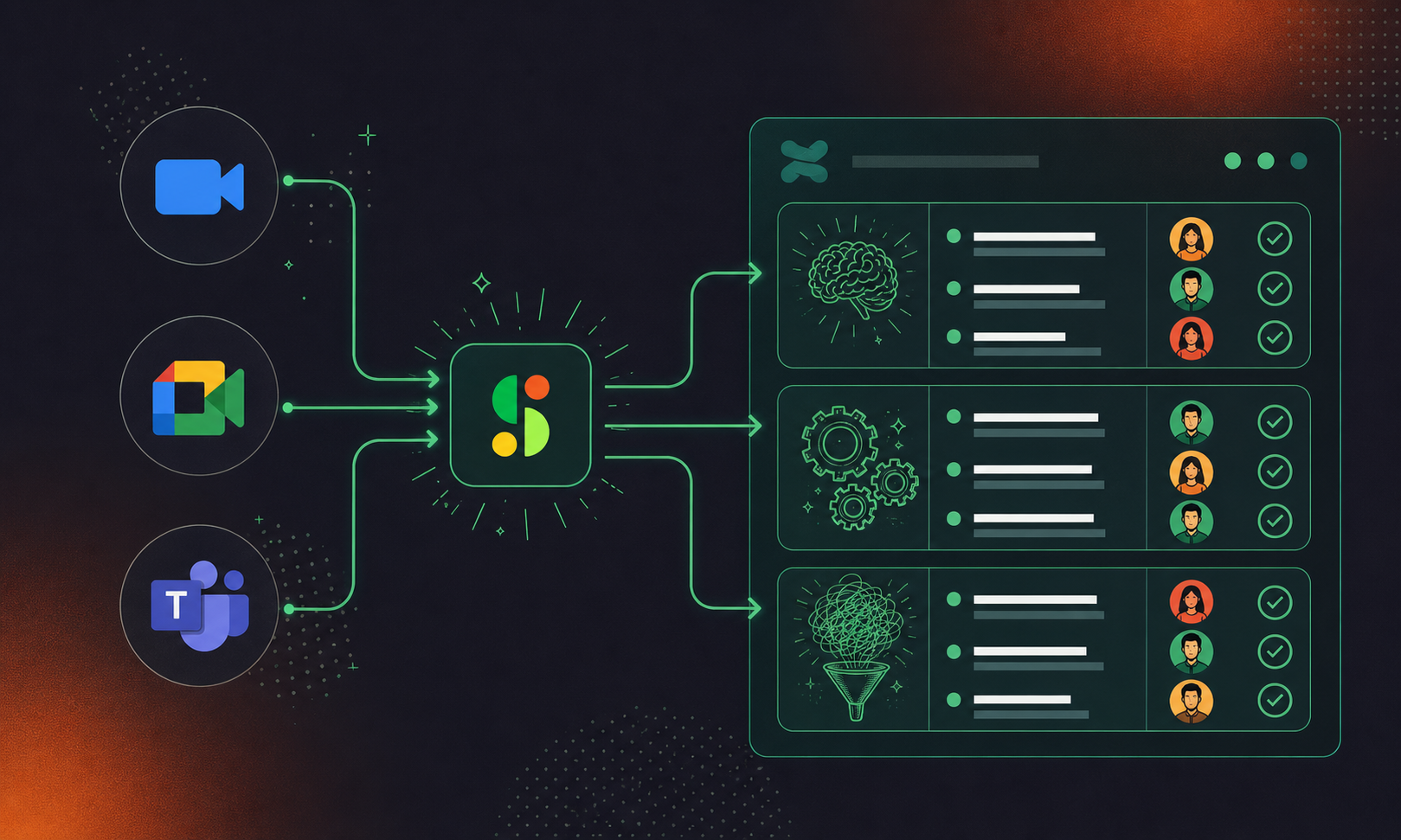
Three questions determine whether a tool in this category actually fits:
- Does it join via bot, or require you to upload a recording after the fact? Upload-based tools add a manual step that compounds across recurring meetings. The best AI meeting notes tools all handle this automatically.
- Does it write directly to Confluence, or route through a third-party automation layer? Direct integrations mean fewer failure points and no field-mapping maintenance.
- Is the output structured? A page with labeled decisions, action items, and named owners is usable the moment it lands. A transcript dump requires someone to do the organizing the tool skipped.
The output quality gap between a structured summary and a raw transcript is the real differentiator, not the convenience of automation alone.
How to Build a Custom Meeting-to-Confluence Pipeline with an LLM and the Confluence API
The custom pipeline path suits teams with specific formatting requirements that no off-the-shelf tool meets. The core architecture has four stages:
- Store the audio file after the meeting ends
- Run it through a transcription service to get a text output
- Pass that transcript to an LLM with a structured prompt that extracts decisions, action items, and owners, or use a purpose-built approach to convert meeting transcripts to Jira tickets without custom code
- POST the result to Confluence using the
/wiki/rest/api/contentendpoint
A few real-world constraints practitioners hit repeatedly. Long meetings push transcripts past LLM context limits, so chunking or summarizing in segments before a final consolidation pass is often necessary. LLMs also cannot automatically resolve speaker names to Confluence user accounts, so @mentions require a separate lookup step that maps names to account IDs. And without a human review gate before the POST fires, formatting errors land directly on the page with no warning.
The control is real. The maintenance cost is too.
How to Organize Confluence Meeting Notes for Long-Term Findability
Automated notes in an unstructured space are only marginally better than no notes at all. A few decisions made upfront keep the space navigable as volume grows.
Separate child pages per meeting session beat rolling pages for almost every recurring series. A single rolling page becomes unwieldy past six or seven entries, and automated tools writing into it will overwrite or append unpredictably depending on how the integration handles existing content.
Labels and the Decision Report
Apply a label to every meeting notes template before automation starts writing pages. Label by meeting type: product-sync, eng-standup, client-review. Once labels are consistent, the Decision Report macro can surface decisions across every page carrying that label, giving you a cross-session view without opening individual pages.
Space Selection and Sensitive Meetings
Route each team’s notes to that team’s Confluence space, not a catch-all. Cross-team meetings go to a shared project space with explicit parent page ownership. For meetings covering compensation, headcount, or legal matters, set page restrictions before automation writes the first page so access controls are in place from the start, not applied retroactively.
How to Connect Confluence Meeting Notes to Jira Tickets and Action Items
Confluence Tasks cover lightweight follow-ups well: a named owner, a due date, a checkbox. For anything requiring estimation, sprint assignment, or status tracking across a team, a Jira issue is the right call.
From any Confluence page, select text in your action items section and choose “Create Jira Issue.” The issue lands in the project you specify. Understanding Jira for project management helps teams decide which action items belong there versus staying as Confluence tasks, and a live link back to the Confluence page appears inline so anyone reading the notes can see ticket status without leaving the page.
A few integrations worth configuring once:
- Embed a Jira Issues macro filtered by sprint or label directly in your meeting notes template, so each session page shows open work alongside the discussion that produced it.
- Use the Jira Chart macro to pull a burndown or status breakdown into a recurring planning page, giving it a live data layer instead of a static snapshot.
- Add the Jira Calendar macro to your team’s Confluence hub to display delivery milestones and meeting cadence in one view. Teams on Zoom can take this further and auto-create Jira tickets from Zoom notes.
The distinction that matters: Confluence Tasks are visible only on the page. Jira issues are queryable across projects, reportable in dashboards, and assignable in sprints. If an action item has a deadline that affects a release, it belongs in Jira.
Record-by-Default Policies: What Teams Need to Configure Before Automating
Before any automation runs, four policy decisions need to be locked down:
- Which meetings get captured automatically versus requiring opt-in. All-hands and team syncs are usually automatic; HR, legal, and compensation discussions warrant explicit opt-in.
- Who owns the Confluence destination. Leaving this undefined means different team members configure different spaces, and documentation sprawl starts immediately.
- Default sharing scope. Decide whether summaries go to all attendees, internal participants only, or the meeting owner for review. Apply that default org-wide, then create exceptions.
- How to handle external participants. Guests who haven’t consented to recording need a clear protocol: exclude the bot for those sessions or notify guests in advance with written confirmation.
Retention is what teams most consistently defer and most consistently regret. Set a default per data type before automation starts writing pages. Transcript, summary, and video may each warrant a different window depending on your legal and compliance requirements. Defining retention retroactively, after months of automated notes have accumulated, is a harder conversation than setting the policy on day one.
How Meeting Notes Are Captured and Routed to Confluence Across an Organization
Spinach AI is an enterprise conversation intelligence platform, the system of record for conversation data, deployed company-wide instead of per person. Where every other method in this article solves one team’s documentation problem, Spinach is configured once by an admin and governs how every team’s meeting output flows into Confluence under a single enforced policy.
Spinach joins meetings on Zoom, Google Meet, Microsoft Teams, Slack Huddles, and Webex, captures during the call, and routes decisions, action items with named owners, and structured summaries to Confluence automatically when the meeting ends, with no post-meeting cleanup, no per-user field mapping, and no manual page creation. Org-level enforced settings control the destination space, sharing scope, and retention rules for every meeting across the organization.
Confluence is one destination in a broader routing layer. The same meeting simultaneously creates Jira tickets, updates CRM records, and posts to Slack. Business and Enterprise plans include MCP support, so teams can query their full meeting corpus through Claude or ChatGPT. See MCP server and meeting transcripts for the full architecture. Plans start free on Starter, with Pro at $2.90 per meeting hour, Business at $29/user/month (or $19 billed annually), and Enterprise at custom pricing.
Final Thoughts on How to Save Meeting Notes to Confluence Automatically
The gap most teams hit is not getting notes into Confluence. It’s getting notes there in a format someone will actually read on Tuesday morning, and keeping that consistent across every team without relying on anyone to remember their per-user settings. Zapier moves data, Jira Automation creates pages, and a custom pipeline gives you control, but none of them decide what the output looks like or enforce where it goes. Spinach AI is the enterprise conversation intelligence platform that closes both gaps: it captures during the meeting, delivers structured decisions and action items with named owners to Confluence automatically when the meeting ends, and routes the same output to Jira, your CRM, and Slack, governed by a single admin-controlled policy deployed once across the organization. Get started with Spinach to see how it fits your stack.
Yes — policy decisions need to be locked down before any automation runs, not after months of notes have accumulated. Define which meetings get captured automatically versus opt-in, who owns each Confluence destination space, the default sharing scope for summaries, and how external participants are handled. Set retention per data type (transcript, summary, video may each warrant a different window depending on your legal and compliance requirements) before the first page is written, because applying controls retroactively is a harder conversation than establishing them on day one.
Zapier moves data between tools but does not reformat it — page quality depends entirely on how well the upstream tool structures its output before the trigger fires. Loom AI writes directly to Confluence but requires a Business plan, active AI Summary and Chapters settings, and a paid Confluence tier, with silent failures when any condition isn’t met. Spinach joins the meeting on Zoom, Google Meet, Teams, Slack Huddles, or Webex, captures during the call, and routes structured decisions, action items with named owners, and summaries to Confluence automatically when the meeting ends — under a single admin-controlled policy configured once, not per user.
The Confluence page is one destination in a broader routing layer — the same meeting output that saves notes to Confluence can simultaneously create Jira tickets and update CRM records without a separate automation rule for each. Spinach routes structured output across all three in a single pass: decisions and action items land in Confluence, tickets are created or linked in Jira, and CRM fields are updated with named owners and context. This matters because action items that live only on a Confluence page are not queryable across projects or reportable in dashboards — anything with a deadline that affects a release belongs in Jira, not just in the notes.
The Decision macro is a native Confluence feature that logs decisions inline on a meeting notes page and surfaces them in a space-level decisions report, so you can query what your team agreed on across weeks without opening individual pages. When automated notes land without using this macro — as raw transcript output or unstructured summaries — decisions are buried in page body text and effectively unsearchable. Any automation worth configuring, whether through Jira Automation, Loom AI, or a direct integration, should write into a template that already has the Decision macro and Task features in place before the first page is created.
Yes, on Business and Enterprise plans. Spinach’s MCP server gives Claude and ChatGPT direct access to your full meeting corpus — decisions, action items, summaries — with OAuth, admin approval, and user-based permission enforcement. This means a CIO or team lead can query conversation data across every meeting Spinach has captured, not just the notes that were manually saved or exported to Confluence, making the meeting record a governed, queryable asset across both tools. MCP is not included on the Pro plan.
External participants who haven’t consented to recording need a clear protocol established before automation runs — either exclude the bot for those sessions or notify guests in advance with written confirmation. If the bot was present and the meeting was captured, the resulting Confluence page should have access restrictions set proactively, not applied after the fact. Defining this per-meeting type in your record-by-default policy on day one keeps you from retrofitting controls across months of accumulated pages.
Insert the Decision macro into your meeting notes template before any automation starts writing pages — each decision logged this way gets pulled into a space-level decisions report, letting you query what your team agreed on across weeks without opening individual pages. Set a consistent naming convention like ‘[Team] Meeting – YYYY-MM-DD’ and nest dated child pages under a parent page for each recurring series. Labels applied at the template level, such as ‘product-sync’ or ‘eng-standup,’ make cross-session retrieval work without a rigid folder structure.
The fastest path is a meeting assistant with a native Confluence integration that joins the call directly, captures decisions and action items with named owners during the meeting, and routes structured output to the right Confluence space automatically when the meeting ends. Tools that require post-meeting uploads or raw transcript exports add a manual step that compounds across recurring meetings. Output quality — labeled decisions, named owners, action items — is what determines whether the page is usable on Tuesday morning, not the automation mechanism alone.
Confluence Tasks cover lightweight follow-ups well — a named owner, a due date, a checkbox — but they are visible only on the page and not queryable across projects or reportable in dashboards. Any action item with a deadline that affects a release, requires sprint assignment, or needs status tracking across a team belongs in Jira. A practical rule: if the item can be resolved in a single step by one person, a Confluence Task is sufficient; if it needs estimation or cross-team visibility, create a Jira issue and link it back to the meeting notes page.
Yes — on the Atlassian stack, Jira Automation can create a Confluence meeting notes page without middleware by triggering on an Issue Created event and sending a POST request to the Confluence REST API. Two prerequisites must be in place: the Jira project must be linked to the target Confluence space in project settings, and the automation account needs explicit page-creation permissions in that space. Get either wrong and the rule will execute without creating a page, with no visible error.
Route each team’s notes to that team’s Confluence space — not a catch-all — by setting the parent page ID explicitly in your automation rule or integration configuration. Cross-team meetings should target a shared project space with defined parent page ownership established before the first automated page is created. Leaving space ownership undefined is the most common reason documentation sprawl starts immediately after automation is turned on.
A raw transcript pasted into Confluence is unformatted dialogue with no decision callouts and no action item structure — someone still has to do the organizing the tool skipped. A structured summary with labeled decisions, action items, and named owners is usable the moment it lands, without post-meeting cleanup. The output quality gap between the two is the real differentiator in any meeting-to-Confluence workflow, not the convenience of automation alone.
Set a default retention window per data type — transcript, summary, and video may each warrant a different period depending on your legal and compliance requirements — before the first automated page is written. Defining retention retroactively, after months of notes have accumulated, is a harder conversation than establishing policy on day one. On Spinach’s Enterprise plan, retention is configurable per data type from one week to indefinite; on Business, flat one-year retention applies.
Free Confluence plans are not supported by Loom AI’s automated meeting export, which requires a paid Confluence tier alongside a Loom Business plan with AI Summary and Chapters enabled. The Confluence REST API used by Jira Automation and custom pipelines is available on paid tiers. Check your Confluence plan tier before building any automated routing, since silent failures — where the integration runs without producing a page — are the most common result when tier requirements aren’t met.
Apply labels to every meeting notes page at the template level before automation starts writing — label by meeting type such as ‘client-review’ or ‘eng-standup’ — so pages are retrievable by project, team, or topic without relying on folder hierarchy alone. Separate child pages per session beat rolling pages for recurring series, since a single rolling page becomes unwieldy past six or seven entries and automated tools may overwrite or append unpredictably. The Decision Report macro surfaces decisions across every page carrying a given label, giving you a cross-session view without opening individual pages.
What you should do next
Next, here are some things you can do now that you've read this article:
- You should check out our library of meeting agenda templates for every type of meeting.
- Check out Spinach to see how it can help you run a high performing org.
- If you found this article helpful, please share it with others on Linkedin or X (Twitter)

