Teams Transcript to Devin: Context Setup Guide (July 2026)
Learn to feed Microsoft Teams transcripts to Devin with the right export format and prompt structure for better code results in July 2026.
 Maintouch
Devin has no idea what your team deprioritized last Tuesday or why the auth refactor keeps sliding. That context exists, it just lives in your Teams meeting, not in your backlog. Getting the transcript into Devin before it builds anything is a small workflow change that makes a real difference in what comes out.
TLDR:
- Raw Teams transcripts have no semantic structure: Devin needs decisions and acceptance criteria, not attributed dialogue
- Export transcripts as.docx for clean Devin input;.vtt adds timestamp markup that creates parsing noise
- Feed transcripts to Devin via direct paste, file attachment, or shared URL; each path has context window tradeoffs
- Structure your Devin prompt in 5 parts: goal, meeting context block, numbered acceptance criteria, scope boundaries, environment hints
- Spinach joins your Teams meetings live and extracts decisions, blockers, and action items with owners before the call ends, producing structured output that maps directly onto that 5-part prompt
Why Context Determines What Devin Builds
Devin doesn’t have eyes on your sprint. It has no idea which tickets are blocked, what your team decided to deprioritize last Tuesday, or why the auth service refactor keeps getting pushed. Without that context, it generates code that’s technically correct but practically disconnected from what your team is actually building.
That gap is the reason feeding it a Teams transcript matters. A transcript from your last planning session carries the decisions, constraints, and rationale that never make it into a Jira description. If you’re also using Codex, Microsoft Teams meeting transcripts for Codex follow the same export logic.
How Microsoft Teams Generates and Stores Transcripts
Teams generates transcripts through its built-in speech recognition engine, which runs during live meetings when the meeting organizer turns on transcription. Teams with automated meeting minutes workflows can skip manual note-taking entirely. The transcript captures speaker-attributed text in real time and stores it inside Microsoft 365, accessible after the meeting via the transcript tab in the recording or through SharePoint and OneDrive depending on your tenant configuration.
By default, transcripts are saved as VTT files, which include timestamped speaker labels. Teams also exposes transcripts through the Graph API, giving developers a structured way to pull that content programmatically instead of downloading files manually.
What the Transcript Contains
A raw Teams transcript includes three things worth noting before you pipe it anywhere:
- Speaker names as resolved by your Azure Active Directory profile, which means display names instead of email identifiers appear in the output.
- Timestamps tied to each speaker turn, not individual words, so precision drops on longer monologues.
- No semantic structure. There are no labeled decisions, action items, or code-relevant requirements embedded in the file. That interpretation layer has to come from whatever you feed the transcript into.
That last point is where the workflow gets interesting. Devin needs requirements, not a wall of attributed dialogue.
How to Export Your Teams Transcript
Two paths exist for getting the transcript out of Teams, depending on how quickly the recording finishes processing. For a full walkthrough of every export option, see this Teams transcript export guide.
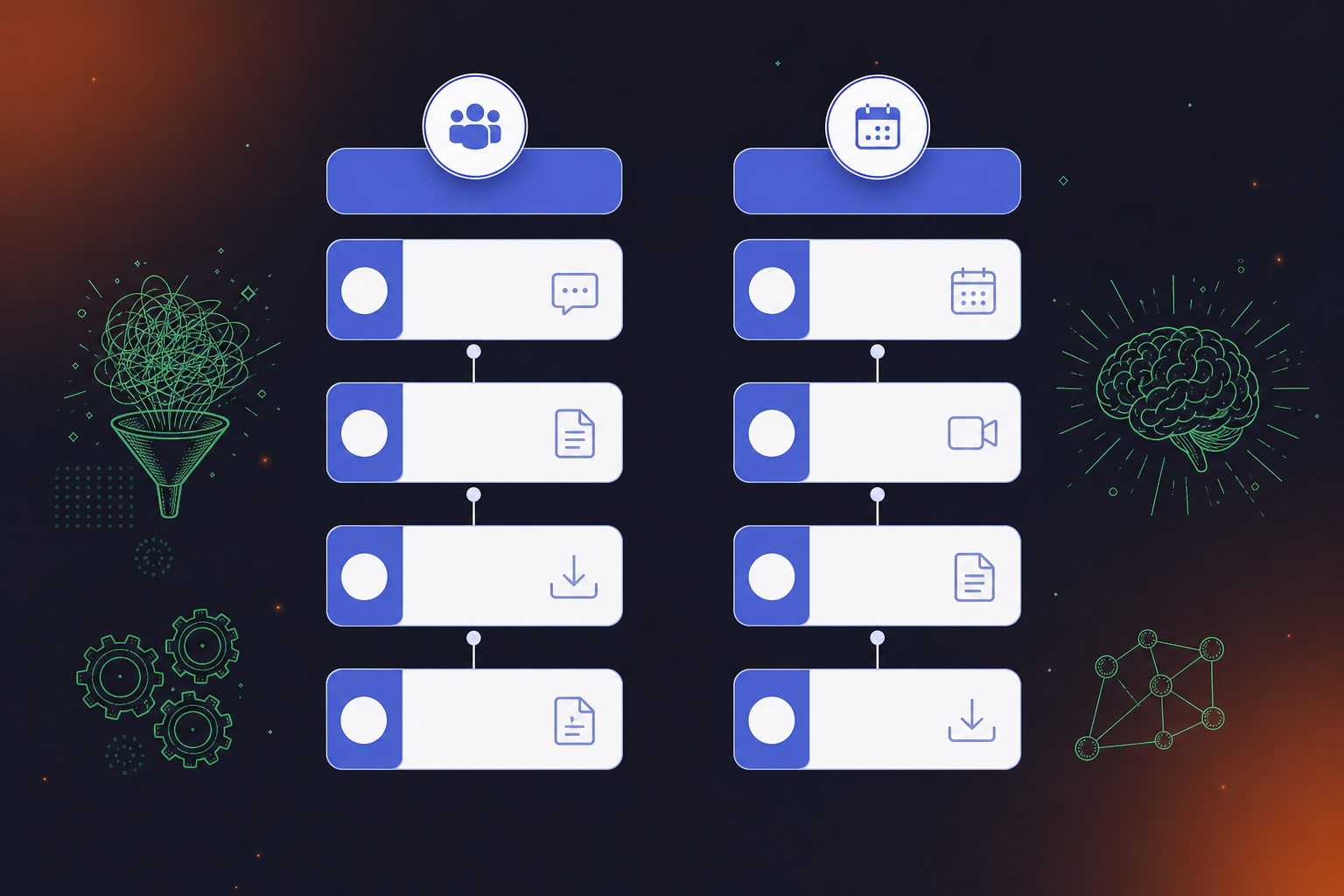
Via the Recap Tab in Meeting Chat
- Open Teams and go to the meeting in your chat history.
- Click the Recap tab at the top of the conversation.
- Select Transcript from the left panel.
- Click the download icon and choose.docx or.vtt.
Via the Calendar Event
- Open the Teams calendar and find the meeting entry.
- Click into the event, then select Recordings and Transcripts.
- Click the three-dot menu next to the transcript file.
- Download as.docx or.vtt.
One catch worth knowing: download access is restricted to meeting organizers and co-organizers by default. The same export steps apply if you’re working with meeting transcripts with Cursor. Attendees typically won’t see the download option. If that’s your situation, ask the organizer to export the file directly, or move it to SharePoint where file-level permissions can be adjusted independently.
.docx vs.vtt: Which Format Works Better With Devin
Devin handles both formats, but they behave differently as context inputs. The.docx export gives you plain text with speaker labels and no cue syntax, which pastes cleanly into a prompt. VTT follows the WebVTT spec, wrapping every speaker turn in timestamp blocks that add noise Devin has to parse around. For most codebases.docx wins on simplicity. If your transcript runs long and you need Devin to reference specific moments by time, VTT’s timestamps earn their keep. The same format tradeoffs apply when you pull Microsoft Teams transcripts into Gemini.
Cleaning the Transcript Before You Feed It to Devin
Raw transcripts from Microsoft Teams are rarely clean enough to hand directly to Devin. Speaker labels like “User_7f3a” replace actual names, filler words inflate token count, and action items are buried in conversational noise. A few minutes of preprocessing can meaningfully sharpen what Devin receives.
Here are the most useful cleanup steps before passing a transcript into Devin’s context:
- Replace anonymized speaker IDs with real names or role labels (e.g., “Tech Lead,” “PM”) so Devin can correctly attribute requirements, constraints, and decisions to the right stakeholders. The same cleanup applies when you connect Claude Code to Microsoft Teams transcripts.
- Strip filler words, crosstalk markers, and automated transcription artifacts that add length without adding signal.
- Trim sections of the call unrelated to the coding task at hand, such as scheduling blocks or status updates on unrelated work.
- Consolidate repeated or rephrased points into single statements so Devin is not inferring priority from repetition.
The goal is a transcript where every line earns its place in the context window.
Three Ways to Feed a Teams Transcript to Devin
Method | Best for | Context window impact | Format to use |
|---|---|---|---|
Paste into task prompt | Short sessions, quick decisions, a few paragraphs of relevant context | High risk of truncation on long recordings; hits the ceiling before hour-long calls finish | Plain text copied from.docx export |
File attachment | Long recordings where full context matters and you need Devin to reference the complete record | Low risk; file keeps the prompt clean and avoids inline truncation | .txt or cleaned.docx (avoid raw.vtt markup) |
Shared URL or repository path | Teams that auto-save transcripts to SharePoint, a wiki, or a connected repo and want a single source of truth across sprints | None; Devin fetches the document at task start without bloating the prompt | Direct URL or file path to the saved transcript |
The fastest path is copying your Teams transcript text and pasting it into the task description you give Devin. This works well for short sessions where the relevant decision or requirement fits in a few paragraphs. The limitation is length: Devin’s context window has a ceiling, and a dense 90-minute architecture review will hit it before you get to the action items buried in the second half.
Uploading via file attachment
If your transcript runs long, export it as a .txt or .vtt file from Teams and attach it directly to the Devin task. This keeps the prompt clean and lets Devin reference the full record without truncation. The catch is that .vtt files carry timestamp and speaker-label markup that Devin has to parse around, so a cleaned .txt export tends to produce tighter code output.
Referencing a shared URL or repository path
For teams that auto-save transcripts to SharePoint, a wiki, or a connected repo, you can pass Devin a direct URL or file path instead of the raw text. Teams that also surface knowledge in their search layer may want to pull Microsoft Teams transcripts into Glean for broader discoverability. Devin fetches the document at task start, which means the transcript stays in one place and any stakeholder can trace the requirement back to the source conversation. This approach also scales across sprints without bloating individual task prompts.
Using the Native Devin Teams Integration
Devin’s native Teams integration skips manual file handling entirely. Once connected, Devin can pull meeting context directly from your Teams workspace without requiring you to export or paste anything. The integration reads from your existing Microsoft 365 permissions, so there’s no separate credentialing step. If your account already has access to a meeting’s transcript in Teams, Devin inherits that access through the OAuth authorization you grant during setup. Transcripts are indexed after each meeting ends and become part of Devin’s available context the next time you open a task, which means the gap between “meeting happened” and “Devin knows about it” shrinks to minutes instead of stretching into a manual export loop. For teams running daily standups or weekly planning sessions, this compounds quickly: Devin accumulates a working model of your sprint’s decisions, blockers, and scope changes without anyone maintaining a separate handoff step.
The setup takes three steps:
- Connect your Microsoft Teams workspace to Devin through the integrations panel in your Devin dashboard, using your org credentials to authorize read access to meeting recordings and transcripts. If your team also runs calls on Meet, the same pattern applies when you feed Google Meet transcripts to Devin.
- Select which meetings Devin should monitor, either by channel, meeting series, or individual call, so it only pulls context that’s relevant to active work.
- Devin indexes the transcript automatically when a meeting ends, making that context available the next time you open a coding task or prompt Devin with a new request.
From that point, Devin references the transcript content when scoping tasks, without you needing to paste anything into the prompt.
How to Structure a Devin Prompt That Wraps Transcript Context
The structure matters as much as the content. A transcript dropped into a prompt without framing gives Devin a wall of dialogue and no signal about what to do with it. The mechanics behind this are covered in depth in Martin Fowler’s piece on context engineering for coding agents.
A well-structured Devin prompt that wraps transcript context has five parts, in order:
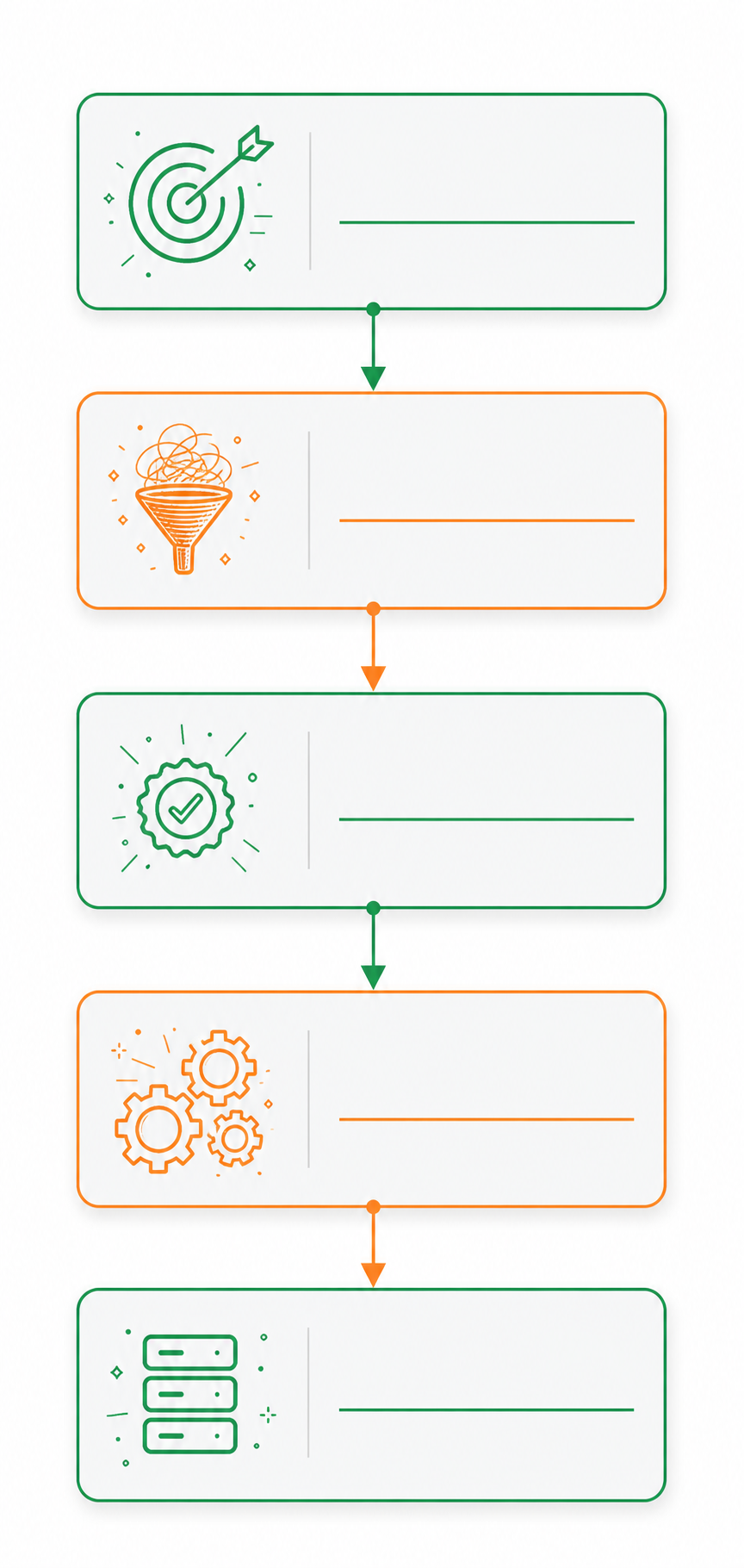
- Goal statement: one paragraph stating what you want built and why it matters to the sprint
- Context block: the cleaned transcript, labeled clearly as “MEETING CONTEXT” so Devin treats it as background, not instruction
- Acceptance criteria: numbered decisions extracted directly from the transcript (e.g., “we agreed the API should return 404 not 200 for missing records” becomes “GET /users/:id returns 404 when no user exists”); if you need to convert meeting transcripts to Jira tickets, the same extraction step feeds that workflow.
- Scope boundaries: explicit statements about files, services, or systems Devin should not touch
- Environment hints: language version, framework, and any constraints the team flagged on the call
The extraction step in criterion three is where most prompts fall short. The decision exists in the transcript, but Devin acts on it faster and with more precision when you pull it out of the dialogue and state it as a testable condition. Raw meeting language is ambiguous. A numbered acceptance criterion is not.
When Transcript Context Is Not Enough
Transcripts give Devin the words, but not the weight behind them. A raw Teams transcript doesn’t tell Devin which decision got overruled in the last five minutes, which blocker is blocking three other tickets, or why the team ruled out the cleaner architectural option. Teams looking to automatically create action items from meeting transcripts face the same gap. That context lives in the meeting, and a flat text file rarely carries it forward intact.
The gap shows up fast. Devin may generate code that technically satisfies the spec discussed on the call, but misses the constraint your lead engineer flagged at minute 43. Without structured context, Devin is working from a partial picture.
Spinach sits in that gap, joining your Teams meetings live and extracting decisions, blockers, and action items with owners before the call ends. That structured output is what you feed Devin, not the raw transcript.
How Structured Meeting Output Maps to the Devin Prompt
Spinach’s structured output from a Teams meeting maps almost directly onto the Devin prompt structure covered above. Decisions land as numbered, testable statements. Action items come with assigned owners. Where a ticket already exists in Jira, Linear, or Asana, Spinach surfaces the reference number alongside the relevant decision so Devin can connect the requirement back to tracked work without guessing at scope.
A reformatted transcript gives Devin raw dialogue. Spinach converts that conversation into a structured data asset before the call ends: decisions attributed to owners, blockers tied to context, and references already linked to the tools your team uses. That’s the input AI coding agents like Devin can act on directly, not a wall of attributed text that needs interpretation. If you’re still comparing capture options, see the breakdown of the best tools for AI meeting notes.
The Pro plan ($2.90 per meeting hour) and Business plan ($19 per user per month) both include Teams, project management, and CRM integrations, delivering decisions, action items with owners, and ticket suggestions before the call ends. A free Starter plan is available if you want to test the workflow before committing.
Final Thoughts on Getting Teams Transcripts Into Devin
The workflow works. Export the transcript, clean it up, frame it with acceptance criteria, and Devin has what it needs to build something your team actually agreed on. If you want to skip the manual extraction step entirely, Spinach joins your Teams meeting live, extracts decisions and action items with owners before the call ends, and delivers structured output you can feed directly into the Devin prompt.
Export the transcript as a `.txt` or `.docx` file from the Teams Recap tab and attach it directly to the Devin task rather than pasting it inline. This keeps the prompt clean and avoids truncation on long recordings — a 90-minute architecture review pasted directly into a prompt will cut off before the action items buried in the second half.
A well-structured prompt has five parts in order: a goal statement, a clearly labeled “MEETING CONTEXT” block, numbered acceptance criteria pulled directly from decisions made on the call, scope boundaries listing what Devin should not touch, and environment hints covering language version and framework constraints. The acceptance criteria step is where most prompts fail — pulling a decision out of raw dialogue and writing it as a testable condition (e.g., “GET /users/:id returns 404 when no user exists”) gives Devin far more precise signal than leaving it buried in attributed conversation.
A VTT file contains speaker-attributed text with timestamps per speaker turn, not per word, plus no semantic structure — no labeled decisions, action items, or requirements. Before passing it to Devin, replace anonymized speaker IDs with role labels, strip filler words and transcription artifacts, trim sections unrelated to the coding task, and consolidate repeated points so Devin is not inferring priority from repetition.
A raw Teams transcript gives Devin dialogue; a Spinach summary gives Devin decisions with owners, blockers with context, and ticket references already linked to Jira, Linear, or Asana. The raw transcript can miss the constraint your lead engineer flagged at minute 43 or the architectural option the team ruled out — Spinach captures that during the call and delivers it as numbered, testable statements that map directly onto the Devin prompt structure above.
Yes. Devin’s native Teams integration lets you authorize read access to meeting recordings through the integrations panel, select which meetings or channels to monitor, and have Devin index transcripts automatically when a call ends. Spinach’s Teams integration works the same way on the context-capture side — joining meetings live and delivering structured output before the call ends, so the context Devin receives is already organized as decisions and action items rather than raw attributed dialogue.
.docx is the better default because it gives you plain speaker-attributed text with no cue syntax, so it pastes cleanly into a Devin task without adding parsing noise. VTT wraps every speaker turn in timestamp blocks following the WebVTT spec — useful if Devin needs to reference a specific moment by time, but that markup adds friction on a straightforward coding task.
By default, Teams restricts transcript downloads to meeting organizers and co-organizers, so attendees won’t see the download option in the Recap tab. Ask the organizer to export the file directly, or have them move the transcript to SharePoint where file-level permissions can be adjusted independently of the meeting role.
Strip filler words, crosstalk markers, and transcription artifacts that inflate token count without adding signal; trim scheduling blocks or status updates on unrelated work; replace anonymized speaker IDs like “User_7f3a” with real names or role labels like “Tech Lead” or “PM”; and consolidate repeated or rephrased points into single statements. The goal is a transcript where every line earns its place in the context window.
Yes — for teams that auto-save transcripts to SharePoint, you can pass Devin a direct URL or file path and Devin fetches the document at task start. This keeps the transcript in one place, lets any stakeholder trace a requirement back to the source conversation, and avoids bloating individual task prompts across sprints.
Use an AI meeting tool like Spinach that joins your Teams call live and extracts decisions, blockers, and action items with owners before the call ends — delivering structured output that maps directly onto Devin’s five-part prompt format. That skips the manual extraction step entirely and gives Devin numbered, testable acceptance criteria rather than a wall of attributed dialogue to interpret.
Devin has no visibility into your sprint — it doesn’t know which tickets are blocked, what got deprioritized last Tuesday, or why a particular architectural option was ruled out. Without structured context from your planning conversations, it builds against the spec as written rather than the constraints and decisions that shaped it, which is why feeding it a cleaned, structured Teams transcript changes what comes out.
Two paths exist: open the meeting in your chat history and click the Recap tab, then select Transcript from the left panel and click the download icon; or open the Teams calendar, click into the event, select Recordings and Transcripts, and click the three-dot menu next to the transcript file. Both paths let you download as .docx or .vtt.
Pull each decision directly out of the transcript dialogue and restate it as a testable condition — for example, “we agreed the API should return 404 not 200 for missing records” becomes “GET /users/:id returns 404 when no user exists.” Raw meeting language is ambiguous; a numbered acceptance criterion gives Devin a precise, unambiguous signal it can act on without inferring intent from conversational phrasing.
Use whichever call captured the actual decision-making — if your architecture review or sprint planning happened on Teams, that transcript carries the constraints and rationale that matter. Spinach captures both Teams and Slack Huddle conversations and produces the same structured decision-and-action-item output from either, so your Devin prompt format stays consistent regardless of which platform the team used.
Spinach joins your Microsoft Teams meetings live, extracts decisions, blockers, and action items with owners in real time, and delivers structured output — with Jira, Linear, or Asana ticket references already linked — before the call ends. Teams and project management integrations are included on the Pro plan at $2.90 per meeting hour and the Business plan at $19 per user per month; a free Starter plan is available if you want to test the workflow first.
What should you do now
You made it to the end of this article! Here are some things you can do now:
- You should check out our library of meeting agenda templates for every type of meeting.
- You should try Spinach to see how it can help you run a high performing org.
- If you found this article helpful, please share it with others on Linkedin or X (Twitter)

