How to Pull Microsoft Teams Meeting Transcripts Into Gemini (May 2026)
Learn how to pull Microsoft Teams meeting transcripts into Gemini in May 2026. Manual export steps plus automated alternatives for product teams.
 Maintouch
Getting Microsoft Teams meeting transcripts into Gemini should be straightforward; you have the transcript, you have the AI, and you just want answers. The reality is messier. There’s no native connection between the two tools, which means every transcript requires a manual round-trip: locate the file in OneDrive, download it, paste it into Gemini, and repeat for every meeting, every week. That workflow holds up for a one-off summary, but it falls apart the moment you need to analyze patterns across multiple calls, track decisions you weren’t in the room for, or get action items into your backlog without an extra manual step. This article covers what the native Teams export process actually looks like, where it breaks down at scale, and how to automate the whole thing so meeting intelligence flows into your tools without the grind.
TLDR:
- Microsoft Teams and Gemini have no native integration, so you’re stuck manually downloading .vtt files from OneDrive and copy-pasting transcripts into Gemini after every meeting.
- Manual exports break down fast when you need context across multiple meetings or want to analyze patterns across sprint reviews and customer sessions you didn’t personally attend.
- Spinach auto-captures Teams meetings, generates structured summaries with action items automatically, and syncs directly to Jira, Linear, and Confluence so meeting intelligence feeds your backlog without the manual grind.
- For teams running dozens of meetings per week, Spinach saves 3-5 minutes per meeting while making meeting data queryable across your entire organization with SOC 2, GDPR, and HIPAA compliance built in.
What You’re Actually Searching For: And What’s Possible
Most people searching for this want one thing: a way to get their Microsoft Teams meeting transcripts into Gemini so they can ask questions, pull summaries, or extract action items.
That’s a reasonable goal. Teams generates transcripts, and Gemini is a capable AI. The problem is that there’s no direct, native integration between the two. You can’t connect them in a few clicks.
What you can do is export transcripts from Teams manually and paste them into Gemini. That works, but it breaks down fast at scale. The better path is Spinach, which automates the entire workflow: capturing Teams meetings, structuring the output, and syncing action items directly into your tools without manual exports.
This post covers both approaches: the manual Teams-to-Gemini export process and why Spinach eliminates that friction entirely for teams running meetings at scale.
What This Post Covers
- How to manually export Teams transcripts and bring them into Gemini
- Why that manual process creates friction for teams doing this regularly
- How Spinach automates the entire workflow so nothing falls through the cracks
The Native Option: What Microsoft Teams Actually Offers
Microsoft Teams does let you record meetings and generate transcripts natively, but getting those transcripts into Gemini takes more manual effort than most people expect.
What Teams Provides Out of the Box
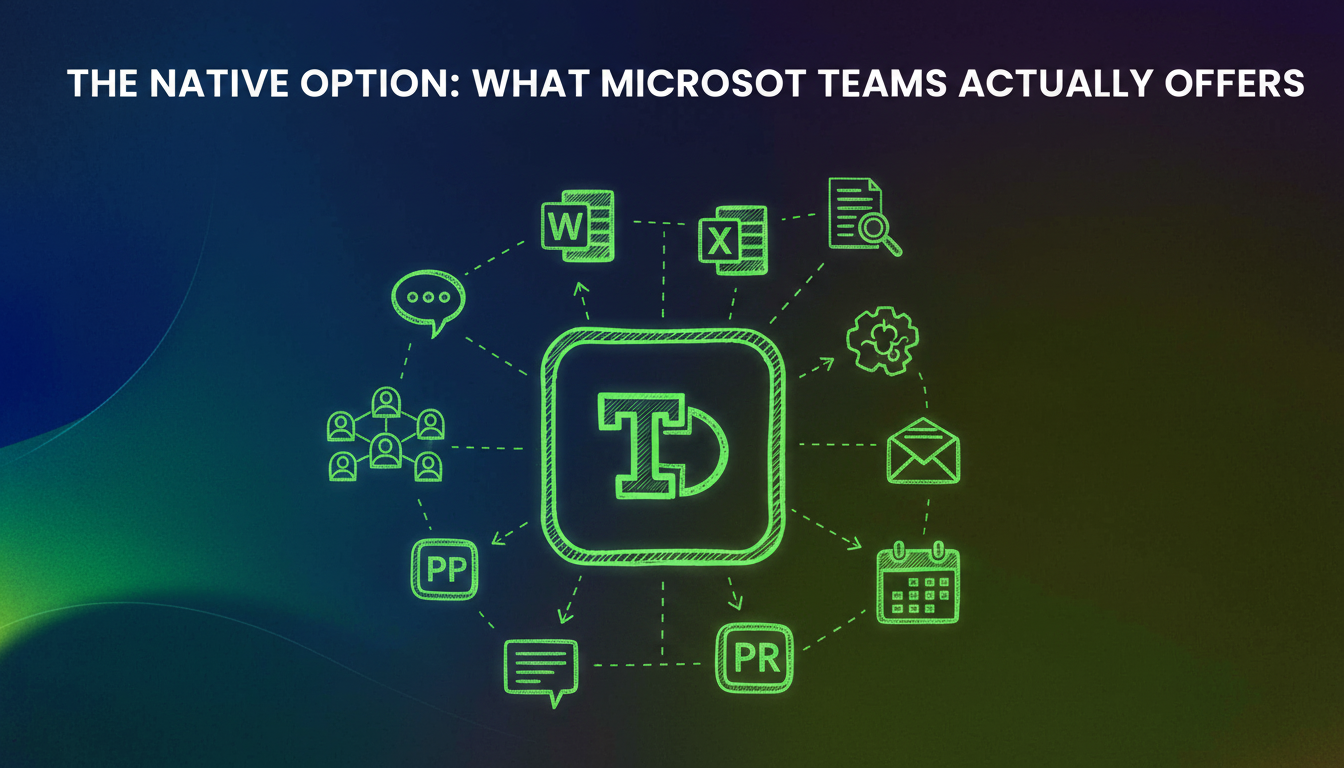
When recording and transcription are turned on, Teams saves a .vtt transcript file to OneDrive or SharePoint after the meeting ends.
- Download the
.vttfile from OneDrive, then upload it directly into a Gemini conversation as an attachment for summarization or analysis. - Copy the transcript text from the Teams meeting recap and paste it into Gemini manually.
- Access transcripts via Microsoft 365 before feeding it into your AI workflow.
Where This Breaks Down
The process works, but it is entirely manual. Every meeting requires you to locate the file, download or copy the content, and re-upload it somewhere else. There is no automatic sync, no structured output, and no way to query across multiple meeting transcripts at once. For teams running dozens of meetings a week, that friction compounds fast.
How Gemini Consumes Meeting Data
Gemini does not connect directly to Microsoft Teams. There is no native integration that automatically pulls transcripts from a Teams meeting into a Gemini workspace or chat session. Instead, Gemini works with text you bring to it. You copy a transcript, paste it into Gemini’s interface, or feed it through Google Workspace where Gemini is embedded, and then Gemini can summarize, answer questions, or extract action items from that content.
This matters because the quality of what Gemini returns depends entirely on what you give it. A raw, unformatted Teams transcript full of speaker ID noise and timestamps will produce weaker results than a clean, structured transcript. Getting the right output starts with getting the right input.
Method | How It Works | Time Per Meeting | Cross-Meeting Analysis | Action Item Tracking |
|---|---|---|---|---|
Manual Teams Export to Gemini | Download .vtt file from OneDrive, upload to Gemini or copy transcript text and paste into Gemini chat | 3-5 minutes per meeting to locate, download, and paste transcript | Manual aggregation required. Must copy-paste each transcript separately into Gemini | Manual. Extract action items from Gemini output, then manually add to project management tools |
Teams Transcript in OneDrive | Access .vtt file stored automatically in OneDrive or SharePoint after recording ends | 2-3 minutes to locate and open file. No AI analysis without additional tools | No built-in analysis. Each transcript lives as separate file in cloud storage | None. Transcripts contain raw meeting dialogue with no structured output |
Spinach Auto-Capture | Joins Teams meetings automatically, generates structured summaries with decisions and action items instantly after call ends | Zero manual time. Summaries appear automatically in Slack, email, or project management tools | Built-in. Query across all meetings through Spinach interface or connected knowledge base | Automatic. Action items sync directly to Jira, Linear, Asana, or Confluence with assignees and context |
The Scope Problem: Individual Transcripts vs. What AI Agents Actually Need
Most AI workflows don’t just need one transcript. They need context across many meetings, many participants, and many time periods.
Teams only gives you transcripts from meetings you attended or organized. For product and engineering teams, that’s a real constraint. Identifying recurring customer pain points across user research sessions, tracking technical decisions made while you were out, or giving Gemini enough context to spot cross-team patterns all require access beyond your personal meeting history.
Why Single Transcripts Fall Short
There are a few scenarios where this scope gap creates real friction:
- When a product manager wants to analyze feedback themes across 20 customer calls they didn’t personally run
- When an engineering lead needs to review architectural decisions made across multiple sprint meetings
- When a leadership team wants AI-generated insights spanning the full quarter, beyond their own calls
Gemini is capable of reasoning across large sets of meeting data, but the manual Teams export process bottlenecks that capability at the individual level.
How Spinach Solves This for Product and Engineering Teams
Spinach connects directly to Microsoft Teams and auto-generates meeting summaries, decisions, and action items the moment a call ends. No manual transcript exports, no copy-paste workflows.
For product and engineering teams, that means every sprint review, roadmap session, and async standup gets captured and structured automatically. Spinach then pushes those outputs into the tools your team already uses: Jira, Linear, Confluence, Notion, and more.
Why Teams Choose Spinach Over Manual Gemini Workflows
- Summaries are ready instantly, with no extra steps required after the meeting ends.
- Action items are auto-assigned and synced directly into project management tools, so nothing gets lost between the transcript and the ticket.
- Meeting context stays connected to your existing workflow instead of living in a separate AI chat thread you have to remember to check.
If your team runs on Teams and needs meeting intelligence that actually feeds your backlog, Spinach handles the full loop automatically.
Security, Governance, and IT Considerations
For engineering teams discussing unreleased roadmaps or product teams reviewing competitive strategy, meeting capture needs compliance clearance before IT approves it at scale.
Spinach is SOC 2, GDPR, and HIPAA compliant. AI providers retain zero data, and customer data is never used for model training. Single-tenant and private cloud deployment are available through an AWS partnership for organizations that need tighter control. Consent policies and access controls are configurable by IT, not left to individual users making their own calls.
Tools that spread through shadow IT get flagged and blacklisted. Spinach is built for top-down, CIO-led rollout with enforceable policies from day one. For teams where proprietary technical discussions or sensitive roadmap reviews are a regular occurrence, that distinction matters. Full security architecture details are at spinach.ai/security.
The Bottom Line: Choose Spinach for Automated Meeting Intelligence
The manual Teams-to-Gemini export path works for one-off transcript analysis, but it breaks down the moment you need meeting intelligence at scale. Every transcript requires manual download, copy-paste, and prompting, with no way to query across meetings, no automatic action item tracking, and no integration into your existing workflow tools.
Spinach eliminates that friction entirely. It auto-captures every Teams meeting, generates structured summaries with decisions and action items instantly, and syncs directly to Jira, Linear, Confluence, and Notion. For product and engineering teams running dozens of meetings per week, that means meeting intelligence actually feeds your backlog instead of living in scattered AI chat threads.
Ready to automate your meeting workflow? Get started with Spinach and turn every Teams meeting into queryable, actionable intelligence without the manual grind.
If You Still Want to Try the Manual Path
For teams testing out the manual Teams-to-Gemini workflow before committing to automation, here’s what you’ll need:
- Access to Microsoft Teams with transcription turned on for your account or tenant.
- A Gemini account (standard or Advanced) with enough context window to handle longer transcripts.
- Meeting organizer or admin permissions, since transcript access in Teams is often gated by role.
No. There’s no native integration between Microsoft Teams and Gemini, so you can’t automatically sync transcripts. You have to manually download the `.vtt` file from OneDrive or copy the transcript text from Teams, then paste or upload it into Gemini each time. Tools like Spinach automate this by capturing, structuring, and surfacing meeting data without the copy-paste workflow.
Use Spinach to auto-capture Teams meetings and structure the output immediately after each call ends. Spinach connects directly to Teams, generates summaries and action items automatically, and syncs them into your workflow tools—no downloading, uploading, or manual prompting required. You can then query that structured meeting data through Spinach’s interface or feed it into Gemini without the export grind.
Teams saves transcripts as `.vtt` files in OneDrive or SharePoint after a meeting ends. You can download that file and upload it directly into Gemini, or copy the transcript text manually from the Teams meeting recap.
Every meeting requires you to locate the file, download or copy the content, and manually paste it into Gemini. There’s no automatic sync, no way to query across multiple meetings at once, and no structured output. For teams running dozens of meetings per week, that manual process creates a real bottleneck.
Spinach is the better fit for product and engineering teams. Manual exports break down when you need context across multiple calls you didn’t attend, or when you want to spot patterns across sprint reviews and customer sessions. Spinach auto-captures every relevant meeting, structures the data, and pushes action items directly into Jira, Linear, or Confluence—so meeting intelligence actually feeds your backlog instead of living in separate chat threads.
No. Gemini has no native connection to Microsoft Teams and cannot automatically pull in transcripts or meeting data. You have to manually download the `.vtt` file from OneDrive or copy the transcript text from Teams, then paste or upload it into Gemini each time you want to analyze meeting content.
Spinach auto-captures Teams meetings and structures the output immediately after each call ends, while manual exports require you to download, copy, and paste transcripts for every single meeting. Spinach also syncs action items directly into Jira, Linear, and Confluence, so meeting intelligence feeds your workflow instead of living in separate Gemini chat threads.
Use Spinach to auto-capture and structure meeting data the moment each call ends. Spinach connects directly to Teams, generates summaries and action items automatically, and pushes them into your workflow tools without any manual transcript exports or copy-paste steps.
You can’t do this efficiently with manual exports because Teams only gives you individual transcript files. Spinach captures all relevant meetings automatically and structures the data so you can query across multiple calls, spot patterns, and feed aggregated context into AI workflows without manually combining dozens of separate files.
Raw Teams transcripts include speaker ID noise, timestamps, and no structured formatting, which weakens AI output quality. Clean, structured transcripts produce better Gemini results, which is why tools like Spinach format meeting data before you query it.
Yes. Spinach auto-captures Teams meetings and pushes structured summaries, decisions, and action items directly into your workflow tools like Jira, Linear, Confluence, and Notion. You get meeting intelligence that feeds your backlog automatically instead of requiring manual transcript handling.
Spinach is the best option for product and engineering teams. It auto-records Teams meetings, structures the output immediately, and syncs action items directly into project management tools so meeting intelligence actually feeds your workflow instead of requiring manual exports.
You need meeting organizer or admin permissions in Teams, since transcript access is often gated by role. You also need transcription enabled on your account or tenant before Teams will generate the `.vtt` files you can download from OneDrive.
Use Spinach when you need meeting intelligence at scale across multiple calls, want action items auto-synced into Jira or Linear, or need to analyze meetings you didn’t personally attend. Spinach handles the full capture-to-workflow loop automatically, while Gemini requires manual transcript handling for every single meeting.
Spinach is SOC 2, GDPR, and HIPAA compliant with zero data retention at AI providers and no customer data used for model training. Single-tenant and private cloud deployment are available through AWS for teams with stricter requirements. Manual Gemini uploads depend entirely on your personal account settings and Google’s data policies.
What you should do next
Now that you've read this article, here are some things you should do:
- Our library of meeting agenda templates is designed to help you run more effective meetings.
- Learn more about Spinach and how it can help you run a high performing org.
- If you found this article helpful, please share it with others on Linkedin or X (Twitter)

