How to Sync Teams Meeting Notes and Action Items to Confluence Automatically (2026)
Skip manual note transfers in August 2026. AI joins your Teams meetings, extracts action items with named owners, and pushes structured pages to Confluence
 Maintouch
The meeting ends in Teams and the clock starts on how long before those decisions get lost. Without a structured Confluence page with named owners, 70% of what was decided gets forgotten within 24 hours according to Laxis’s State of Meetings 2026. Getting your Teams notes into Confluence automatically, with action items already assigned, is the part worth setting up once.
TLDR:
- 70% of meeting decisions are forgotten within 24 hours without documentation (Laxis State of Meetings 2026)
- The native Confluence Teams app and Zapier both require a human to write or structure content; neither extracts action item owners automatically
- AI meeting assistants close that gap by joining the call, capturing commitments with named owners, and routing structured output to Confluence when the meeting ends
- State commitments out loud with a name and date during the meeting; implied agreements don’t survive AI extraction
- Spinach AI joins Teams meetings via Microsoft Calendar, captures video, audio, transcript, screen share, and in-meeting chat, and delivers a structured Confluence page with decisions and action items when the meeting ends
Why Syncing Meeting Notes and Action Items Matters for Team Productivity
Knowledge workers average 11.3 hours per week in meetings, plus another 3 to 4 hours in adjacent overhead like preparation, follow-up, and recap notes (Laxis State of Meetings 2026). The same report found that 70% of meeting decisions are forgotten within 24 hours without documented notes, and 40% of meetings end without clear follow-ups (Laxis State of Meetings 2026).
The issue is the gap between what gets decided in Microsoft Teams and what actually lands in Confluence where your team can act on it. Someone has to copy notes, assign owners, format action items, and find the right Confluence page, usually the meeting host, doing it manually after an already full day.
For teams that treat meeting action items as organizational data and not personal reminders, the math on manual transfer does not hold up. A direct Teams to Confluence integration removes that gap, routing structured notes and assigned action items to the right place the moment the meeting ends.
The Problem with Manual Microsoft Teams to Confluence Transfers
The meeting ends in Teams. You open the recap, get a raw transcript or auto-generated summary, create a new Confluence page, paste the notes in, and reformat everything: headers, bullets, the table structure your team standardized months ago.
Then comes the action item pass. You read back through, identify what was assigned, cross-reference the attendee list because the transcript missed half the names, find the right Confluence space, place the page in the correct parent hierarchy, and publish.
According to Meetical’s Confluence meeting notes guide, teams relying on manual note creation without integration support regularly lose action items entirely and end up with incomplete documentation. When the process has eight steps and belongs to whoever ran the meeting, something drops every time.
Understanding the Microsoft Teams and Confluence Integration Ecosystem
Two broad categories of solutions exist for connecting Teams to Confluence, and choosing between them depends on how much your team is willing to configure versus how much needs to happen automatically.
The first covers built-in and low-code options: the native Atlassian Confluence app for Microsoft Teams and Zapier-based automation. The Atlassian Confluence for Microsoft Teams app lets users open a side panel during a meeting, take notes manually, and publish them to a chosen Confluence space when done. Zapier sits one layer above that, triggering Confluence page creation when a Teams meeting ends. Both require a human to write or structure the content.
The second category is AI meeting assistants. These join the call directly, extract decisions and action items during the meeting, and push structured output to Confluence automatically when the meeting ends.
Approach | Setup Effort | Action Item Extraction | Confluence Output Quality | Best For |
|---|---|---|---|---|
Native Atlassian Teams App | Low | Manual | Formatted page, no AI structuring | Small teams, simple notes |
Zapier Automation | Medium | Manual or rule-based | Triggered page creation | Teams needing trigger-based flows |
AI Meeting Assistant | Low (after initial connect) | Automatic, AI-extracted | Structured with assignees and context | Teams needing zero-touch documentation |
A five-person team with one weekly sync can manage the native app fine. A team running daily standups, sprint planning, and cross-functional syncs across multiple Confluence spaces will hit the limits of manual methods fast.
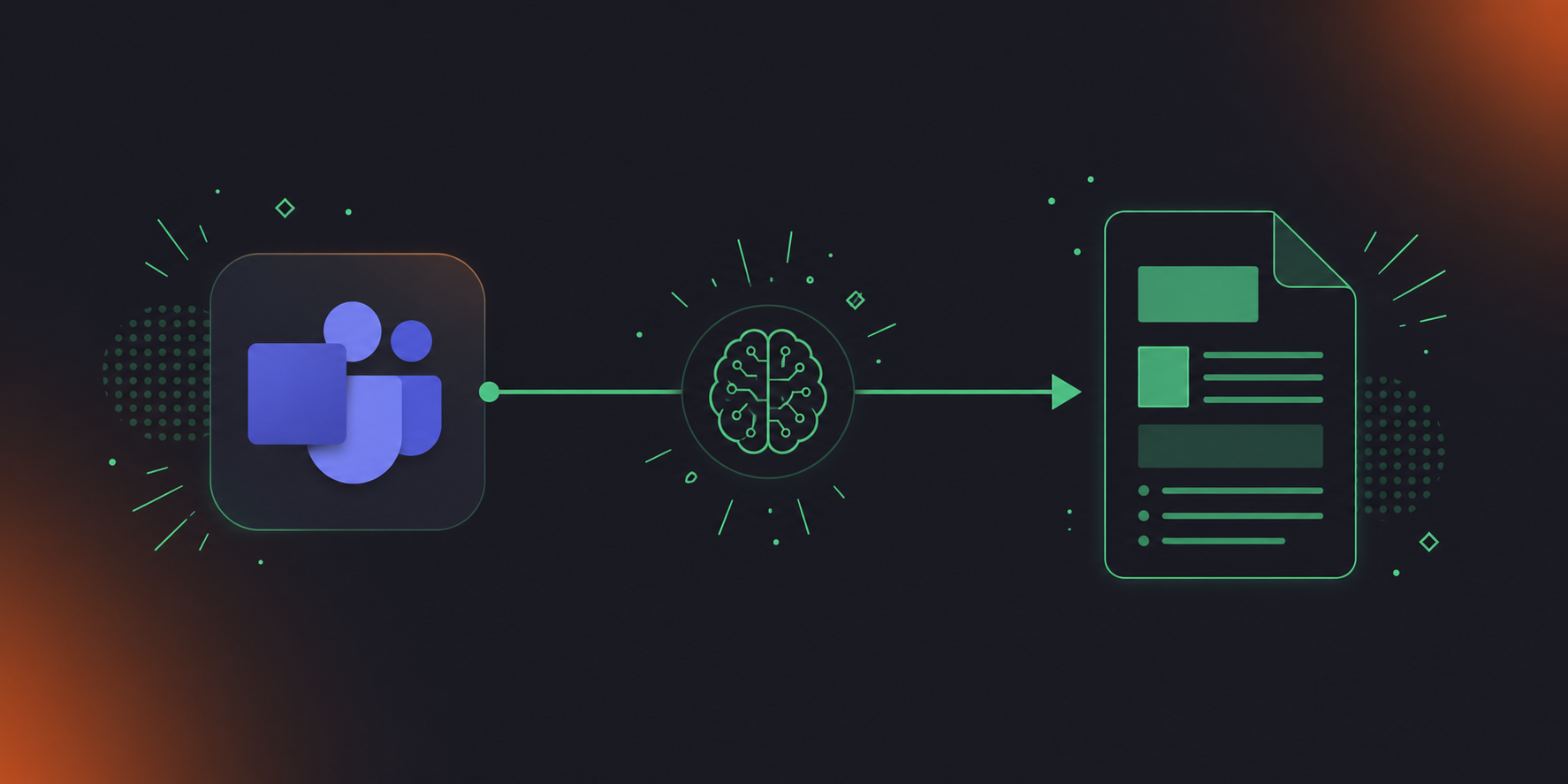
Built-In and Low-Code Options for Connecting Microsoft Teams to Confluence
Two built-in paths exist here, each with a hard ceiling.
The official Confluence Cloud for Microsoft Teams app opens a Confluence panel inside the Teams meeting window. Attendees can type notes, apply macros for action items or decisions, and publish directly to a Confluence space without leaving the call. For teams that already write structured notes by hand, it removes the copy-paste step. What it does not remove is the human writing every word. The panel does not transcribe speech, detect commitments, or assign action items to the person who said them.
Zapier moves one step further. You can trigger a workflow when a Teams meeting ends, then create a Confluence page from a template populated with available data:
- Trigger: Microsoft Teams meeting completed
- Action: Create Confluence page in a specified space
- Populate: Meeting title, date, attendee list, any transcript text passed through
The problem is what Zapier actually receives. Transcript text from Teams is unstructured prose. Zapier can pass that text to a Confluence page, but it cannot distinguish context from commitment. Automatically creating action items from meeting transcripts (for example, pulling “Marcus will update the roadmap by Friday” out of a paragraph and filing it as an assigned action item) requires an additional parsing step through an LLM or a custom Zap. For teams with engineering resources and a tolerance for workflow maintenance, that is buildable. For everyone else, this is the ceiling of what low-code options can do without AI in the loop.
Using AI Meeting Assistants to Sync Microsoft Teams to Confluence
AI meeting assistants sit above both the native app and Zapier in the automation hierarchy. The mechanism is direct: the assistant joins your Teams meeting as a participant, captures the conversation during the call, and when the meeting ends, delivers a structured summary with decisions and action items assigned to the people who said them. That output routes to Confluence automatically.
No one reformats notes. No one hunts for the right Confluence space. No one reads back through a transcript to sort commitments from context.
Research from Time Doctor shows that employees using automation save at least 3.6 hours weekly on routine tasks, with 73% of automation users reporting improved work quality (Time Doctor, 2023). Post-meeting documentation, whether you sync Google Meet notes to Confluence or route Teams output the same way, is exactly the kind of repeatable, low-judgment work that compounds across a team fast.
Spinach AI is an enterprise conversation intelligence system of record for conversation data. Where individual AI note-takers solve one person’s problem, Spinach is deployed company-wide to capture, centralize, manage, and power the organization with every conversation it has. Recording and transcription are the input step; structured, governed, routable conversation data is the product. For Teams-to-Confluence workflows in particular, Spinach joins the call, captures video, audio, transcript, screen share, and in-meeting chat, and delivers a structured Confluence page with decisions and named action item owners when the meeting ends, routing automatically into your tools without manual re-entry at any step.
How AI Improves Action Item Extraction and Assignment
The difference between transcription and intelligent capture comes down to what the AI does with spoken language after it hears it. Spinach captures video, audio, transcript, screen share, and in-meeting chat, and that full-context input is what makes accurate extraction and attribution possible across three dimensions.
- Separating commitments from conversation. Not every sentence in a meeting is a task. “We should probably look at that” is speculation. “Dana will send the revised scope by Thursday” is a commitment. AI parses the structure of each statement to separate intent from obligation, so only actual assignments reach Confluence.
- Mapping each commitment to a named owner. When action items land without owners, they stall. AI maps each commitment back to the named attendee who made it, so the task carries an assignee from the start; no one has to read back through the transcript to figure out who said what.
- Parsing temporal language into deadline metadata. Teams rarely say “due date: Friday.” They say “before the next standup” or “end of sprint.” AI surfaces that temporal language as deadline metadata on the Confluence task, giving the item the context a plain transcript never would.
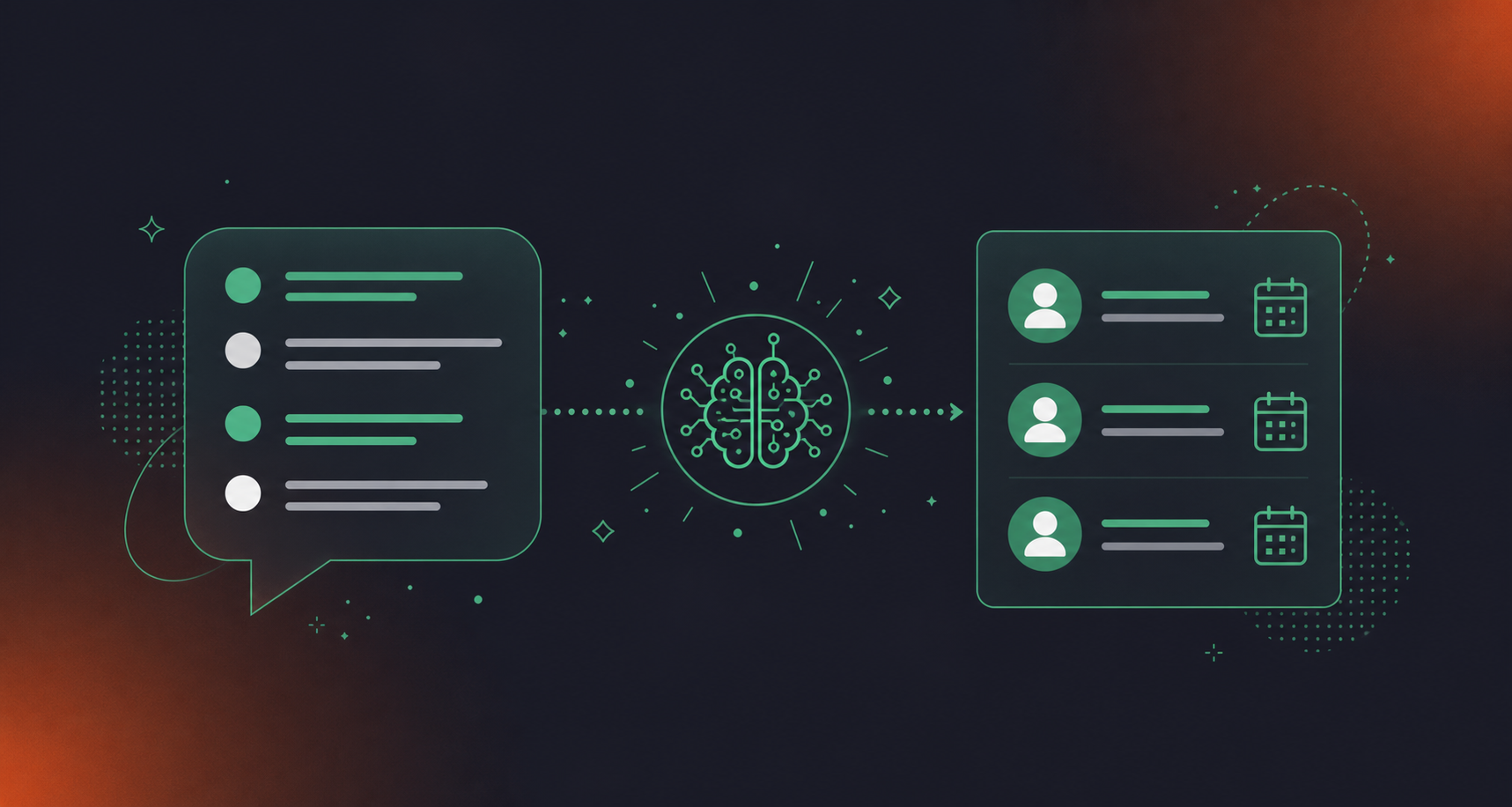
Setting Up Your Automated Microsoft Teams to Confluence Workflow
Getting the integration running takes less time than a typical sprint planning session. Connect your Microsoft Calendar in Spinach’s Settings, select Confluence as your export destination, choose the target space, and set the parent page. From there, Spinach reads your upcoming Teams meetings and joins each one automatically.
A Few Things to Confirm First
Before configuring, make sure you have Confluence Cloud admin access to create pages in the target space, Microsoft Teams permissions to allow external guests (see how to record a Teams meeting for permission details) (required for AI assistants), and Microsoft Calendar credentials for the calendar-based connection.
Naming and Testing
For page naming, use the meeting series name plus ISO date: “Product Sync 2026-08-12.” Pages sort chronologically and stay searchable across months of recurring meetings without anyone manually renaming anything. For teams with multiple spaces, configure different parent pages per meeting series.
Before rolling out org-wide, run one test meeting with two participants. Confirm the Confluence page landed in the correct space under the right parent, check that section headers match your template, and verify that action items carried named owners. Fix any space mapping there before scaling.
Best Practices for Microsoft Teams Notes That Sync Successfully to Confluence
Four habits separate clean, auto-synced Confluence pages from ones that need manual cleanup after every meeting.
- State commitments out loud before moving to the next agenda item. “Jake will update the API docs by Thursday” gives an AI extraction model something concrete to work with. An implied agreement gets lost.
- Use phrases like “action item for [name],” “I’ll take that,” and “by [date]” when closing a topic. Commitment-detection models respond to these patterns, and facilitators who verbally confirm owners get cleaner action items on the Confluence page.
- Create a standard meeting notes action items template with pre-defined sections for decisions, action items, and discussion context. According to Meetical’s Confluence meeting notes guide, templates help turn attendees into accountable participants and reduce manual cleanup after meetings end.
- Set an agenda in Confluence before the meeting starts. When the meeting follows a written structure, AI output aligns to those topic boundaries and requires far less editing after the fact.
Troubleshooting Common Sync Issues Between Microsoft Teams and Confluence
Most sync failures fall into one of six categories. The table below maps each issue to its cause and fix.
Issue | Likely Cause | Fix |
|---|---|---|
Authentication error on Confluence publish | OAuth token expired or Atlassian account password changed | Re-authorize the Confluence connection in integration settings |
Action items missing from Confluence page | Notes published before meeting ended; AI capture incomplete | Confirm meeting ended normally; verify the assistant was present for the full session |
Duplicate Confluence pages created | Recurring meeting trigger firing on both calendar invite and meeting end event | Disable the calendar-based trigger; use meeting end as the sole trigger |
Sync delay of 10+ minutes after meeting ends | Confluence API rate limiting or large transcript processing queue | Normal for long meetings; wait up to 15 minutes before re-triggering manually |
Page created in wrong Confluence space | Space mapping misconfigured during setup | Update the destination space in sync settings and retest with a manual trigger |
Action item owners showing as “Unknown” | Speaker names in Teams don’t match Confluence user display names | Align Teams display names with Atlassian account display names, or map them manually in settings |
Authentication errors are the most common first-day issue and the fastest to fix. Spinach AI manages the Confluence connection via OAuth, so re-authorizing from the integrations settings page restores the sync without reconfiguring the full workflow. For the wrong space problem, the fix lives in the same settings panel where you originally configured the destination.
Measuring the ROI of Automated Meeting Notes
Four signals worth tracking before and after you roll out automated sync. Survey your team on time spent writing recaps, re-entering action items, and chasing down owners before automation, then run the same check four weeks after. The Laxis State of Meetings 2026 puts adjacent meeting overhead at 3 to 4 hours per person weekly as a reference baseline.
- Time saved per person per week. Compare self-reported time on post-meeting admin before and after automation. The 3-to-4-hour weekly overhead benchmark gives you a calibration point; any meaningful reduction there translates directly into recovered capacity.
- Action item completion rate. Pull Confluence task data across a 4-week pre-automation window, then repeat post-automation. Open versus closed action items tell you whether tasks are being captured and assigned with enough context to act on.
- Meeting duration trends. Check Teams analytics for average meeting length month over month. When attendees stop recapping last week’s decisions at the top of each call, meetings get shorter and that compression shows up in the data.
- Confluence page activity. Confluence’s built-in page analytics show views and edits per page. For task completion, Confluence task reports or a connected Jira board give you open versus resolved counts without external tooling. A simple before/after table from those two sources produces a report any stakeholder can read in two minutes.
How the Microsoft Teams to Confluence Workflow Gets Fully Automated
Spinach joins your Microsoft Teams meetings via Microsoft Calendar, so every meeting on your calendar gets covered automatically after the initial setup. No per-meeting configuration, no toggling anything on before each call.
During the meeting, Spinach captures audio, transcript, screen share, and in-meeting chat. Commitments spoken aloud don’t vanish because no one typed them into a side panel.
When the meeting ends, Spinach delivers a structured Confluence page to your designated space with decisions, action items, and named owners already populated, skipping steps like:
- Opening the Teams recap and copying it out manually
- Reformatting content to match your Confluence page structure
- Reading back through to tag action items and assign owners
- Choosing the right space and parent page before publishing
Spinach also links relevant prior meeting notes and existing Confluence pages as context, so each output page connects to your team’s documentation. For customer-facing meetings, you can also sync Google Meet notes to HubSpot automatically.
For teams with compliance requirements: Spinach is SOC 2 Type II, GDPR, and HIPAA compliant. Customer data is never used to train AI models, and LLM providers retain zero customer data. Full details are at trust.spinach.ai.
Final Thoughts on Automating Your Microsoft Teams to Confluence Workflow
The math on manual documentation does not hold up once your team runs more than a handful of meetings a week, and the data backs that up: most meeting decisions are gone within 24 hours without a documented record. A direct connection between Teams and Confluence, where AI does the extraction and routing, removes the part of the process that keeps slipping. Start your Spinach setup and your team gets structured Confluence pages from every meeting without anyone typing a word after the call ends.
The fastest path is an AI meeting assistant like Spinach AI: connect your Microsoft Calendar, set your target Confluence space and parent page, and every subsequent Teams meeting gets a structured page — decisions, action items, named owners — delivered to Confluence when the meeting ends. The native Atlassian Confluence app for Teams and Zapier-based triggers both work but require a person to write or structure the content at each step, which is where time gets lost.
The native app works for small teams running one or two weekly syncs who already write structured notes by hand — it removes the copy-paste step but still requires someone to type every word. Spinach AI is the better fit when your team runs daily standups, sprint planning, and cross-functional syncs across multiple Confluence spaces, because it extracts decisions and action items during the meeting and routes structured output to Confluence automatically, with no manual writing at any stage.
Connect your Microsoft Calendar in Spinach’s settings, select Confluence as your export destination, choose the target space, and set the parent page — Spinach then joins every Teams meeting on your calendar and delivers a structured Confluence page when each meeting ends. Before running org-wide, confirm you have Confluence Cloud admin access to create pages in the target space and that your Teams environment allows external guests. Run one two-person test meeting first to verify the page lands in the correct space with action items carrying named owners.
This happens when Teams display names don’t match Atlassian account display names — the attribution model maps spoken commitments to attendee identities using the names it sees in both systems. Align Teams display names with Atlassian account display names, or map them manually in your Spinach integration settings, and the problem resolves for all subsequent meetings in that series.
Yes. Spinach AI connects to Microsoft Calendar and Confluence via OAuth — no custom code, no Zapier workflow maintenance, no LLM parsing step to build yourself. After the initial setup, every Teams meeting on your calendar is covered automatically, and structured output routes to your designated Confluence space when the meeting ends.
Without a documented record, most of them disappear — research from the Laxis State of Meetings 2026 puts the figure at 70% of meeting decisions forgotten within 24 hours. An AI meeting assistant that captures commitments during the call and routes them to Confluence automatically closes that gap before anyone has to open a laptop after the meeting ends.
Not without an additional LLM parsing step built on top. Zapier can trigger a Confluence page from a Teams meeting-end event and pass raw transcript text, but it cannot distinguish a spoken commitment from general discussion or attribute that commitment to the person who made it — that requires AI in the loop, either as a custom Zap or a purpose-built meeting assistant.
The native Atlassian app opens a side panel where a person types notes during the meeting and publishes them to Confluence manually — the app removes the copy-paste step but still requires a human to write every word. Spinach AI joins the Teams meeting directly, captures the conversation, and delivers a structured Confluence page with decisions and action items assigned to named owners when the meeting ends, with no manual writing at any stage.
Use the meeting series name plus the ISO date format — for example, “Product Sync 2026-08-12” — so pages sort chronologically and remain searchable across months without manual renaming. For teams running multiple meeting series across different Confluence spaces, configure separate parent pages per series during the initial Spinach setup.
Duplicates usually mean a recurring meeting trigger is firing on both the calendar invite and the meeting-end event simultaneously. Disable the calendar-based trigger and use the meeting-end event as the sole trigger — that stops the workflow from running twice for the same session.
After the initial setup, Spinach reads your Microsoft Calendar and joins every Teams meeting on it automatically — no per-meeting configuration and no toggling anything on before each call. The Confluence destination, target space, and parent page are set once in Spinach’s settings and apply to all subsequent meetings in that series.
The Confluence integration is available on Pro ($2.90 per meeting hour, pay-as-you-go), Business ($29 per user per month monthly, or $19 per user per month billed annually), and Enterprise (custom pricing). The free Starter plan covers recording, transcription, and basic summaries but does not include knowledge integrations like Confluence.
AI parses the grammatical and semantic structure of each statement — “we should probably look at that” reads as speculation, while “Dana will send the revised scope by Thursday” carries an explicit owner, an action, and a deadline. Commitment-detection models respond to patterns like named ownership, active obligation phrasing, and temporal markers, which is why stating action items out loud with a name and date during the meeting produces cleaner Confluence output than implied agreements.
Spinach AI is SOC 2 Type II, GDPR, and HIPAA compliant, hosted on AWS, and customer data is never used to train AI models — LLM providers retain zero customer data under zero-data-retention terms. Full documentation, including the subprocessor list, DPA, and privacy policy, is available at trust.spinach.ai.
Manual documentation holds up for a small team running one or two weekly syncs where a single person already writes structured notes by hand — the native Atlassian Teams app removes the copy-paste step and may be enough. The manual approach breaks down once your team runs daily standups, sprint planning, and cross-functional syncs across multiple Confluence spaces, because the eight-step transfer process compounds into significant overhead and dropped action items across the week.
What you should do next
Next, here are some things you can do now that you've read this article:
- Our library of meeting agenda templates is designed to help you run more effective meetings.
- You should try Spinach to see how it can help you run a high performing org.
- If you found this article helpful, please share it with others on Linkedin or X (Twitter)

