Best AI Tools for Jira Ticket Creation From Calls (September 2026)
Meeting AI tools that create and update Jira tickets from calls, ranked by ticket ID matching, field support, and admin controls. September 2026.
 Maintouch
Every standup produces blockers, owners, and status updates that belong in Jira. Most of them don’t get there, or get there late, or get duplicated because someone couldn’t find the original ticket. This post walks through how meeting AI actually handles that, and which tools do it well.
TLDR:
- 70% of decisions are forgotten within 24 hours when no follow-up notes are shared (Laxis, 2026), making Jira automation a direct fix for sprint misalignment
- Meeting AI routes structured outputs to Jira through three patterns: native integration, middleware like Zapier, or custom REST/webhook builds
- AI reliably extracts ticket title, description, and assignee when names are spoken; story points and epic links still need human review
- Saying a ticket ID aloud (“GRW-412”) triggers an update to the existing issue; vague references create duplicates instead
- Spinach AI joins meetings across Zoom, Google Meet, Microsoft Teams, Slack Huddles, and Webex, delivering decisions and proposed Jira tickets at meeting end with org-level admin controls and centralized governance
Why Manual Jira Updates After Meetings Drain Engineering Teams
Decisions made in sprint planning evaporate. Scope changes discussed in a technical sync never make it to the ticket. A blocker raised in daily standup gets verbal acknowledgment and then sits unlogged until someone asks about it two days later.
The gap between conversation and execution is a Jira problem. Every time a team member has to reconstruct what was said, figure out which ticket it applies to, and manually update status, assignee, or description, they’re doing work the meeting already did. According to Laxis’s State of Meetings 2026, 70% of decisions are forgotten within 24 hours when no follow-up notes are shared. For engineering teams running four or five agile meetings a week, that’s a compounding organizational cost.
The result: misaligned sprints, duplicated work, and a Jira board that reflects what people planned to do instead of what was actually discussed and decided.
How Meeting AI and Jira Integration Actually Works
The mechanism has three stages: capture, extract, route.
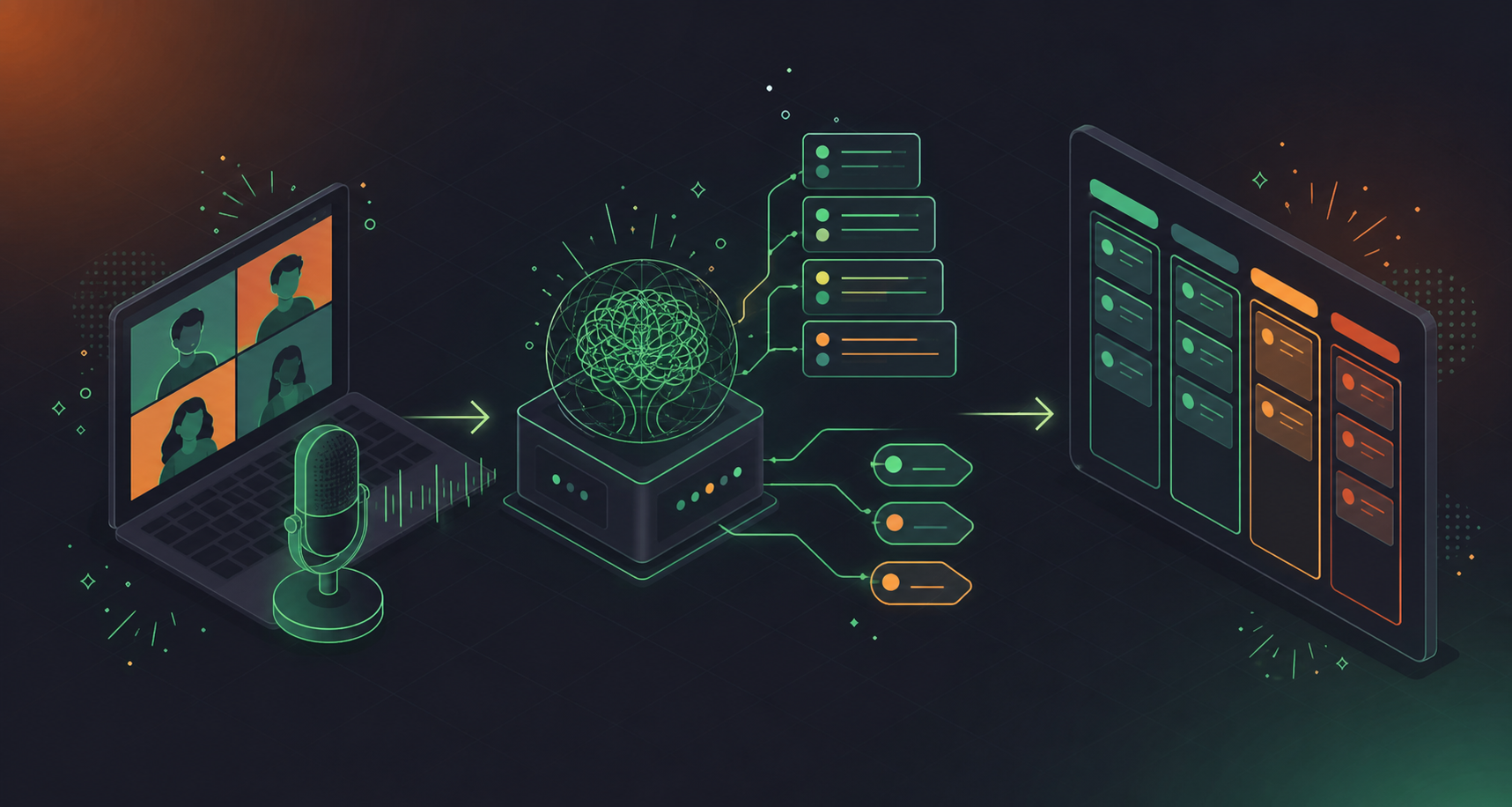
An AI meeting tool joins the call and captures audio across all speakers. When the meeting ends, the AI parses the transcript for structured outputs: decisions, action items with named owners, and newly scoped work. That structure is what makes Jira automation possible. Unstructured text cannot create a ticket; a parsed action item with an assignee, a summary, and a project reference can.
Routing into Jira happens through one of two paths: native integrations send the payload directly, while middleware approaches use a trigger layer in between. Either way, Jira receives the data through its REST API v3 or through Atlassian Automation’s incoming webhook trigger, which lets external systems fire an automation flow by sending a web request. The webhook matches the meeting output to the right project and issue type, then creates or updates the ticket accordingly.
What lands in Jira is only as good as what the AI extracted beforehand. A tool that produces a transcript paragraph gives the webhook nothing actionable. A tool that produces a structured list with owners, summaries, and ticket references gives Jira everything it needs without human re-entry.
Native Jira Integration vs. Middleware Approaches
Three connection patterns exist, each with real tradeoffs.
Native integration
The meeting AI tool connects directly to Jira through a pre-built integration. Setup takes minutes, field mapping is predefined, and ticket creation happens without any intermediate layer. The limitation: you’re bound to whatever fields the integration supports. If your Jira projects use custom fields, a native integration may skip them entirely.
Middleware (Zapier and similar)
A trigger layer sits between the meeting tool and Jira. When the meeting ends, the middleware catches the output and fires a Jira action based on rules you configure. More flexible for custom fields, but every handoff is a failure point. If the meeting tool’s output format changes, your Zap breaks silently until someone notices a ticket wasn’t created.
Custom REST API builds
Using Jira’s REST API or the incoming webhook trigger in Atlassian Automation, engineering teams can build exactly the routing logic they need. Full field control, custom issue types, any workflow transition. The cost is real: someone has to build and maintain it.
Approach | Setup effort | Custom field support | Maintenance burden |
|---|---|---|---|
Native integration | Low | Limited | Low |
Middleware (Zapier) | Medium | Moderate | Medium |
Custom REST/webhook | High | Full | High |
Most teams start with native and reach for middleware when field coverage falls short.
Key Fields That Transfer From Meeting to Ticket
Not every Jira field maps cleanly from conversation. Here’s what AI can reliably extract versus what still needs a human hand.
Fields that transfer well:
- Summary/title: the action item becomes the ticket title. AI handles this well when the speaker states a clear task.
- Description: surrounding context fills this in, including decisions or blockers mentioned nearby.
- Assignee: when a name is spoken alongside the task (“Sarah will handle the auth fix”), the AI links it. Unnamed tasks land unassigned.
- Issue type: most tools default to “Task” unless the conversation explicitly signals a bug or story.
Fields that need human review:
- Story points: AI can guess from scope language (“this should take a day”), but estimates are unreliable enough that most teams review before committing.
- Priority: without an explicit signal, priority defaults to medium.
- Epic link and sprint assignment: these require either an explicit ticket reference in conversation or a manual selection post-meeting.
One Jira-specific snag worth flagging: if your project has required fields the AI can’t populate, ticket creation fails silently. Set those fields to optional in your Jira project settings, then enforce them through team convention instead.
Bi-Directional Sync: Updating Existing Tickets vs. Creating New Ones
Creating a new ticket and updating an existing one are meaningfully different operations, and most teams need both.
When a conversation references work already in Jira, the right behavior is to update that ticket, not spawn a duplicate. Meeting AI tools handle this in a few ways: some scan for explicit ticket IDs mentioned during the call (“I finished GRW-412”), others attempt a title match against your Jira project, and some rely on context to infer the connection. Explicit ID references are the most reliable. Title matching works when the spoken description is close enough to the ticket summary; context inference tends to create duplicates when it misses.
Bi-directional sync goes further. The tool also pulls Jira status back into the meeting summary, so your post-meeting record reflects current ticket state, not what it was when the call happened. That matters for sprint reviews and planning sessions where ticket progress is part of the discussion.
Verify these before committing to a tool:
- Can it detect a ticket ID spoken during the call and link the action item to that issue?
- Does it create a new ticket or update the existing one when a match is found?
- Do Jira status changes appear in subsequent meeting summaries?
Most native integrations handle creation well and updating inconsistently. Bi-directional sync is rarer and worth testing explicitly against your actual workflow before assuming it works as advertised.
Which Meeting Types Benefit Most From Jira Automation
Different ceremonies produce different outputs, and automation earns its keep differently across each.
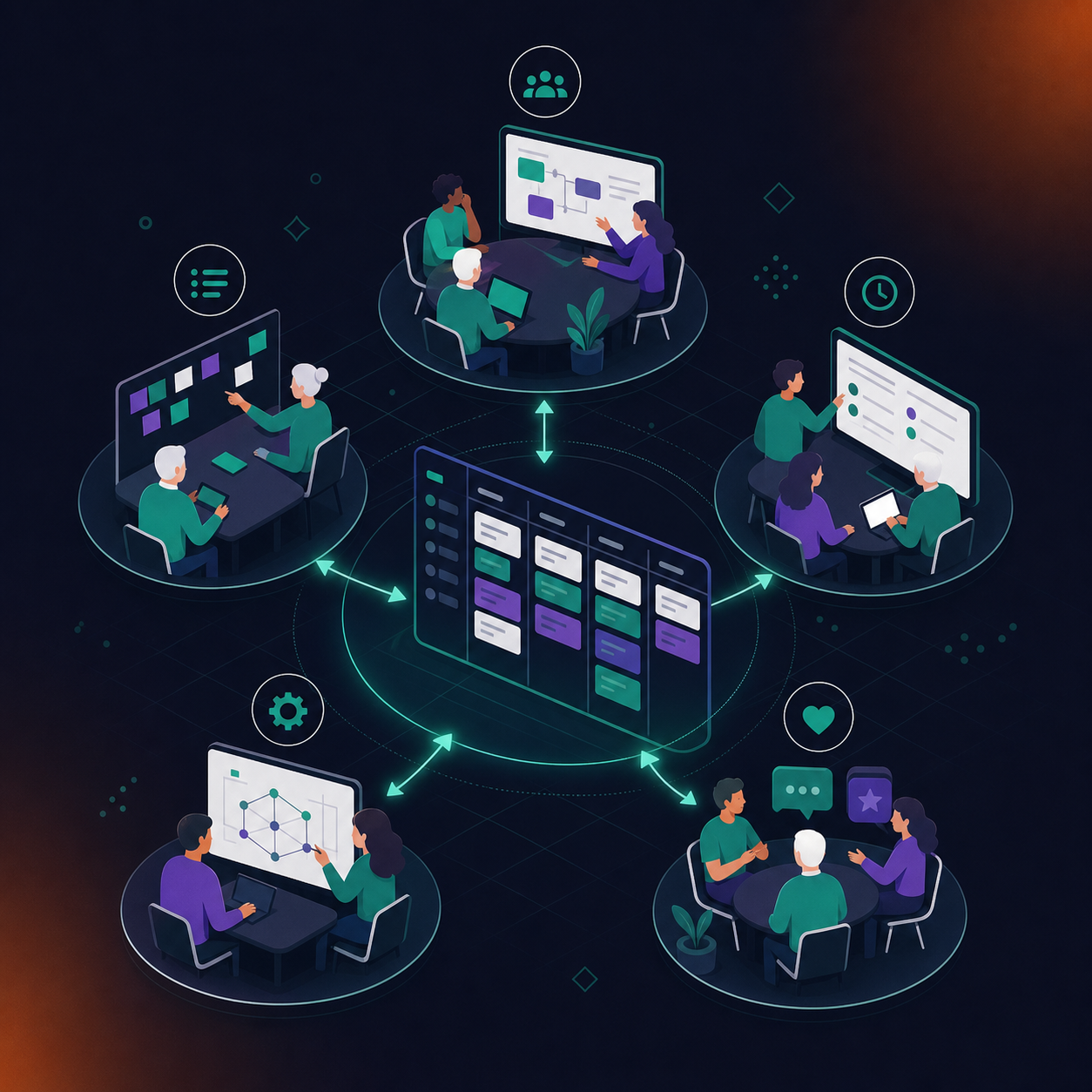
Sprint planning
This is where automation pays off most clearly. New scope gets named, owners get assigned, and story estimates get discussed. AI can draft tickets from each item and surface them for review when the meeting ends. Sprint project management teams benefit most from this automation. The human gate here is story points and epic assignment, which still benefit from a quick check before tickets land in the active sprint.
Backlog refinement
Backlog refinement scope changes and acceptance criteria updates are common, but they almost always apply to existing tickets instead of creating new ones. Automation works best here for flagging which tickets got discussed and what changed, not for bulk creation.
Daily standups
Blockers are the high-value signal in any standup meeting format. When someone names a blocker, that is a ticket update or a new impediment item. Status updates (“I finished GRW-412”) are the other reliable extraction target for daily standup meetings. Automation handles both well when ticket IDs are spoken explicitly.
Technical design sessions
These produce some of the richest Jira material: architectural decisions that spawn follow-on tasks, integration work that needs its own ticket, open questions that become spikes. Design conversations are less structured than ceremonies, so extraction quality depends more on how clearly participants frame decisions.
Retrospectives
Action items from retros are good candidates for automation, but they are often team-process improvements and not product work, so the right Jira project may differ from your main development board. Worth configuring a separate destination for retro output.
Automation is highest value when conversations produce named tasks with owners. Review gates matter most when estimation, prioritization, or epic structure is involved.
What to Look For in a Meeting AI Tool for Jira Teams
Six criteria separate meeting AI tools for Jira teams worth deploying from ones that create more cleanup than they prevent.
- Jira connection type: Native beats middleware for setup speed, but verify custom field support before committing. If your projects have required fields beyond summary, assignee, and issue type, test creation against a real project, not a demo environment.
- Existing ticket matching: Can the tool detect a spoken ticket ID and update the right issue, or does it always create new ones? Duplicate tickets accumulate fast on active boards.
- Multi-platform support: Your team’s meetings don’t all happen on one product. A tool that covers Zoom, Google Meet, Teams, and Webex from a single integration is far easier to govern than one stitched together per platform.
- Review gate before posting: Automation that fires directly to Jira without a confirmation step is a liability when extraction misfires. Look for a draft state where someone approves tickets before they land in the active sprint.
- Team-wide vs. per-user setup: A tool each engineer installs independently produces inconsistent output and no organizational record. Admin controls, org-level defaults, and centralized billing matter for any team beyond five people.
- Accuracy under real conditions: Request transcription accuracy data for your actual meeting language, especially for non-English teams or calls with heavy technical vocabulary. Test with a real standup recording before choosing.
Meeting AI Tools With Jira Integration: A Comparison
The table below measures each tool against the criteria from the prior section (as of September 2026).
Tool | Jira connection | Ticket creation vs. sync | Meeting platforms | Org-level admin controls | Plan required |
|---|---|---|---|---|---|
Spinach AI | Native | Creates new tickets; links existing tickets when ID is spoken in conversation | Zoom, Google Meet, Teams, Webex, Slack Huddles | Yes: org-enforced settings, centralized billing, admin dashboard | Pro and above |
Fellow | Native | Creates tickets from action items; two-way status sync so completion state flows both directions | Zoom, Google Meet, Microsoft Teams | Team-level controls; admin settings available | Paid plans |
Fireflies | Native via webhook | Creates tickets from action items; no documented bi-directional status sync (as of September 2026, per Fireflies documentation) | Zoom, Google Meet, Microsoft Teams, Webex | Workspace admin controls | Pro and above |
MeetGeek | Middleware (Zapier) | Creates tickets; no native bi-directional sync | Zoom, Google Meet, Microsoft Teams | Basic workspace settings | Business plan |
Otter | Middleware (Zapier) | Creates tickets via Zapier automation; no native sync | Zoom, Google Meet, Microsoft Teams | Limited admin controls | Business plan |
Fellow’s two-way sync is its clearest differentiator: status changes in Jira flow back into Fellow, so meeting summaries reflect current ticket state. The tradeoff is platform coverage: no Webex or Slack Huddles, which matters for mixed-stack teams. Spinach covers both natively and adds org-level governance Fellow lacks at scale.
Fireflies alternatives are worth considering if bi-directional sync is a priority, since Fireflies offers broad platform support and a native-feeling setup but bi-directional sync requires custom configuration. MeetGeek and Otter both route through Zapier, introducing a middleware failure point and limited field control.
For teams beyond a handful of engineers, Spinach’s org-level governance layer is what separates it from the rest of this list. Per-user installs of any tool here produce inconsistent output and no shared record. Spinach deploys once, company-wide, with centralized settings that apply across every meeting.
Setting Up Meeting AI Jira Automation: A Step-by-Step Guide
Setup looks roughly the same across tools, with a few decision points where the wrong choice creates quiet failures.
Connect to Jira
Most native integrations use OAuth. Go to your meeting AI tool’s settings, find the Jira integration, and authorize it against your Atlassian account. The tool will request permission to create and edit issues. If your org enforces IP allowlisting or API token authentication, generate a token from your Atlassian account settings and paste it into the integration credentials field.
Define destination projects and issue types
Map which Jira projects receive tickets. Most tools let you set a default project per meeting series or per team. Set the default issue type to “Task” unless your workflow distinguishes stories from tasks at creation time. Avoid “Story” as the default: stories typically require epic links and story points, and extraction won’t populate those reliably.
Configure field mapping
Review which meeting output fields map to which Jira fields. Summary maps to the ticket title, surrounding context maps to description, and assignee maps when a name is spoken. Leave required fields set to optional in your Jira project settings, or ticket creation will fail when the AI can’t populate a mandatory field.
Set creation versus update rules
Define when the tool creates a new ticket versus updates an existing one. If your tool supports ticket ID detection, turn it on. Spoken references like “GRW-412” should trigger an update, not a new ticket. Without native ID detection, configure an Atlassian Automation incoming webhook: it fires when the meeting summary arrives, checks for a matching issue key, and routes to create or update accordingly.
Test against a real meeting
Run a short test call that includes one explicit task with a named owner, one reference to an existing ticket by ID, and one blocker. Check whether a new ticket was created for the named task, the existing ticket was updated and not duplicated, and the blocker appeared as a ticket or comment. If any of these misfired, the gap is almost always field mapping or a missing ID-detection rule.
Common Failure Points and How to Avoid Them
Five failure patterns repeat across almost every team that sets this up.
Duplicate tickets from recurring discussions are the most common failure when you convert meeting transcripts to Jira tickets. When a topic carries over across multiple meetings, the AI treats each mention as a new task. The fix: reference the existing ticket ID explicitly in the next conversation. “Still blocked on GRW-412” updates an issue. “Still blocked on the auth bug” creates a second one.
Vague titles follow unstructured conversations. If no one states the task as a clear action, the extracted title reflects that. Brief, spoken summaries at the end of each agenda item produce better ticket titles.
- Missing assignees happen when names go unspoken. “Someone needs to handle caching” assigns nobody. Name the owner in the meeting and the AI captures it. Route action items with no clear owner to a triage project instead of leaving them unassigned in active sprints.
- Wrong-project routing usually comes from a misconfigured default. Most tools set one default project per account, not per team or meeting series. Configure project mappings per recurring meeting to stop cross-team tickets landing in the wrong board.
- Backlog pollution is the subtlest problem. When every mentioned task auto-creates without a review step, your board fills with low-signal items nobody owns. Turn on a draft or review gate and approve tickets before they go live.
How Jira Ticket Creation and Updates Work Across Your Organization With Spinach AI
Spinach AI is an enterprise conversation intelligence system, the system of record for conversation data. Where individual AI notetakers solve one person’s problem, Spinach deploys company-wide to capture every conversation, centralize it in a single governed data asset, manage access and policy across the organization, and power the workflows and agents your teams already run. It routes structured outputs (decisions, action items with named owners, follow-ups) directly into the tools your organization already uses, from Slack and Notion to Jira and HubSpot. For engineering teams running Jira, that means proposed tickets, linked issues, and named owners delivered at meeting end, with no manual re-entry.
Spinach joins meetings across Zoom, Google Meet, Microsoft Teams, Slack Huddles, and Webex, capturing video, audio, transcript, screen share, and in-meeting chat (teams can create Jira tickets from Zoom meetings). When the meeting ends, Spinach delivers structured outputs: decisions, action items with named owners, and proposed Jira tickets. Existing tickets get linked when a discussion maps to one; newly scoped work gets proposed as a fresh issue.
Deployed company-wide with org-enforced settings, an admin dashboard with audit logging, and Collections that automatically group meeting output by project or participant, Spinach produces a single governed organizational record instead of one disconnected tool per engineer. On Business and Enterprise plans, the MCP server lets AI assistants like Claude and ChatGPT query your full organizational corpus of conversation data, so context flows into Jira without manual re-entry.
Pricing starts free on Starter. Pro runs $2.90 per meeting hour. Business is $29/user/month billed monthly, or $19/user/month billed annually. Enterprise is custom pricing; contact sales.
Final Thoughts on Auto-Updating Jira Directly From Your Meetings
Every manual Jira update after a meeting is work the meeting already did. The right meeting AI setup captures that work at the source, routes it to the right project, and gives your team a board that reflects reality. Review gates, field mapping, and ticket ID detection are the details that decide whether this saves time or creates a new cleanup job. Set up Spinach AI and connect your first meeting in a few minutes.
Connect a meeting AI tool with a native Jira integration, configure field mapping so action items and decisions route to the right project, and turn on ticket ID detection so spoken references like “GRW-412” trigger an update instead of a new ticket. Spinach AI handles this natively across Zoom, Google Meet, Teams, Slack Huddles, and Webex, capturing structured outputs at meeting end and routing them into Jira without manual re-entry. For CRM, Spinach supports Salesforce, HubSpot, Attio, and Zoho through the same pipeline, so both systems update from the same meeting in one pass.
Spinach links existing Jira tickets when a spoken ticket ID is detected during the call and proposes new tickets for newly scoped work, giving you both creation and update from a single meeting. Fireflies creates tickets from action items via webhook but has no documented bi-directional status sync, which means updates to existing issues and status changes flowing back into meeting summaries require custom configuration. If your team runs daily standups where spoken ticket IDs like “GRW-412” should trigger updates and not duplicates, Spinach’s ID-matching behavior handles that without an extra automation layer.
Focus on four things: whether the tool deploys org-wide with enforced admin controls instead of as a per-engineer install, whether it connects natively to Jira or routes through middleware like Zapier, whether it matches spoken ticket IDs to existing issues instead of always creating new ones, and whether it covers every meeting platform your teams use. Per-user installs of tools like Otter or MeetGeek produce inconsistent output and no shared organizational record. The right choice for a company-wide rollout is a platform with centralized billing, org-level defaults, and an admin dashboard with audit logging. Spinach AI meets all four criteria and is SOC 2 Type II, GDPR, and HIPAA compliant.
Yes. Tools with native Jira integrations connect directly through OAuth and Jira’s REST API v3, so no Zapier layer sits between the meeting output and the ticket. Spinach AI uses a native connection that maps action items, assignees, and decisions straight into your configured Jira projects at meeting end. Middleware approaches like MeetGeek and Otter’s Jira path route through Zapier, which introduces a failure point: if the meeting tool’s output format changes, the Zap breaks silently until someone notices a ticket wasn’t created.
Jira integration is available on Pro and above. Pro runs $2.90 per meeting hour, Business is $29/user/month billed monthly or $19/user/month billed annually. The MCP server, which lets AI assistants like Claude and ChatGPT query your full organizational meeting corpus and route context into Jira without manual re-entry, is included on Business and Enterprise only. If your team runs multiple daily ceremonies and needs org-enforced settings, centralized billing, and an admin dashboard alongside the Jira integration, Business is the right starting point. Start with a 14-day free trial at spinach.ai with no credit card required.
What you should do now
Now that you've read this article, here are some things you should do:
- Our library of meeting agenda templates is designed to help you run more effective meetings.
- Learn more about Spinach and how it can help you run a high performing org.
- If you found this article helpful, please share it with others on Linkedin or X (Twitter)

