How To Sync Meeting Action Items To HubSpot In March 2026
Learn how to sync meeting action items to HubSpot in March 2026 using manual methods, integrations, or AI tools that capture commitments automatically.
 Maintouch
When your meeting ends, you’ve got a mental list of who said they’d do what by when. Then you open HubSpot and start creating tasks one at a time, trying to remember exact wording and deadlines while your next call starts in ten minutes. There’s a better way to sync meeting action items to HubSpot that doesn’t involve typing everything manually. We’ll cover the full range of options available in 2026, from basic integrations to AI tools that turn spoken commitments into CRM tasks without you touching a keyboard.
TLDR:
- Sync meeting action items to HubSpot through native tools, Zapier, Make, or AI assistants
- Manual CRM entry wastes 6 hours weekly-automation captures commitments as trackable tasks
- Set one-way sync to prevent data conflicts when team members edit in multiple systems
- Spinach AI joins calls and writes action items to HubSpot with owners and deadlines attached
Understanding Meeting Action Items And HubSpot Integration
Meeting action items are the commitments and tasks that come out of your sales calls and customer conversations. Without HubSpot integration, these items get lost in notes and Slack threads, killing follow-through.
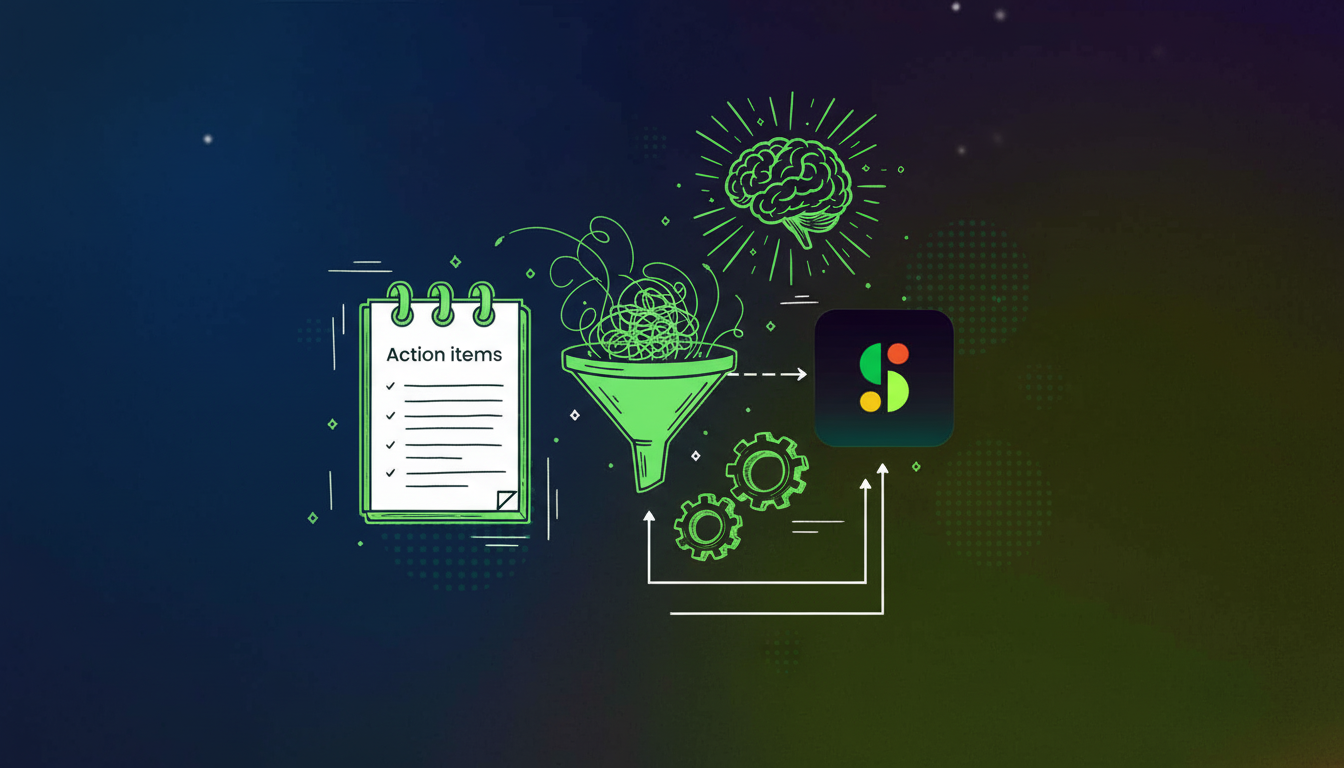
Syncing action items to HubSpot turns conversations into trackable CRM tasks automatically. CRM users spend 6 hours weekly on data entry. That’s wasted selling time your team can’t afford to lose.
Prerequisites For Syncing Action Items To HubSpot
Before you sync anything, you need HubSpot admin access or Super Admin permissions to connect external tools and modify CRM settings.
Your HubSpot account must support API access. Free HubSpot tiers limit integrations, so verify your plan includes third-party connections.
Configure your HubSpot properties correctly. Action items need somewhere to land, whether that’s tasks, notes, or custom objects.
Manual Methods To Sync Meeting Action Items To HubSpot
The simplest method is copying action items from your meeting notes directly into HubSpot tasks, though this manual process takes time away from more productive work. After each call, open the contact record and create tasks one by one, adding due dates and assignees manually.
You can also forward meeting recap emails to your HubSpot inbox email. This logs email content to contact records but won’t create separate tasks automatically.
Native HubSpot Meeting Tools And Task Creation
HubSpot’s meeting scheduler books calls through contact records and logs them to your CRM. After calls end, you create tasks manually in the activity feed or tasks section without any automated accountability tracking.
Native task creation works when you’re inside HubSpot during calls. Assign tasks to teammates, set due dates, and link them to deals or tickets.
HubSpot can’t capture what happens in Zoom, Teams, or Google Meet automatically. You’re manually translating spoken commitments into CRM tasks after every call.
Third-Party Integration Options For Meeting Action Items
Zapier connects meeting apps to HubSpot through trigger-action workflows. When a meeting ends, Zapier pulls data and creates HubSpot tasks based on your field mapping rules.
Make offers similar automation with more control over data transformation and conditional logic before tasks reach your CRM.
Direct API integrations give developers full control but require coding resources and ongoing maintenance for your workflow.
Sync Method | Setup Complexity | Time Required Per Meeting | Automatic Capture | Best For |
|---|---|---|---|---|
Manual HubSpot Entry | None – no setup required | 5-10 minutes manually typing each action item and assignee | No – requires manual note review and task creation after every call | Teams with very few meetings or temporary solution while testing out automation options |
HubSpot Native Meeting Tools | Low – basic configuration in HubSpot settings | 3-7 minutes creating tasks from within meeting records | No – logs meetings automatically but tasks require manual creation | Teams already using HubSpot meeting scheduler who want integrated activity tracking |
Zapier or Make Integration | Medium – requires workflow setup and field mapping configuration | Under 1 minute – automated after meeting ends with predefined rules | Partial – captures data sent by meeting tool but may miss context without transcription | Teams needing quick automation without developer resources and basic meeting-to-task workflows |
Direct API Integration | High – requires developer resources and custom code maintenance | Fully automated in real-time with no manual intervention | Yes – full control over what data flows and when tasks are created | Enterprise teams with specific security requirements or complex custom workflows |
AI Meeting Assistant (Spinach) | Low – connects to meeting platforms and HubSpot in minutes | Zero – completely hands-free from call join through CRM sync | Yes – detects spoken commitments, assigns owners, and syncs with full meeting context | Sales and customer success teams who want action items captured and synced without any manual work |
Automatic Sync Configuration And Field Mapping
Start by identifying which meeting data fields need HubSpot destinations. Action items map to tasks, meeting summaries go to notes, and participant names connect to contacts or deals.
Match source fields to HubSpot properties in your integration settings so your standup meeting format aligns with your CRM structure. Map assignee to task owner, due date to task deadline, and action description to task title.
Set sync rules to control task creation timing. Trigger creation when meetings end or when action items get marked complete.
Managing Sync Direction And Data Flow
Unidirectional sync pushes meeting data to HubSpot without changes flowing back. This protects meeting records as the source of truth while populating your CRM with action items.
Bidirectional sync allows edits in either system to update the other, similar to how sync meetings keep information flowing between team members. This creates flexibility but risks data conflicts when multiple people edit simultaneously.
Choose unidirectional flow when meeting tools own action item capture.
Troubleshooting Common Sync Issues
Failed syncs usually stem from API authentication breaking after password changes. Reconnect your integration in HubSpot settings to restore the connection.
Duplicate tasks appear when multiple sync rules fire for the same meeting. Check your automation settings and disable redundant workflows.
Missing action items indicate field mapping errors. Verify your source fields match HubSpot property names exactly, including capitalization and spacing, just as you’d set the right meeting cadence for your team.
How AI Meeting Assistants Automate HubSpot Syncing
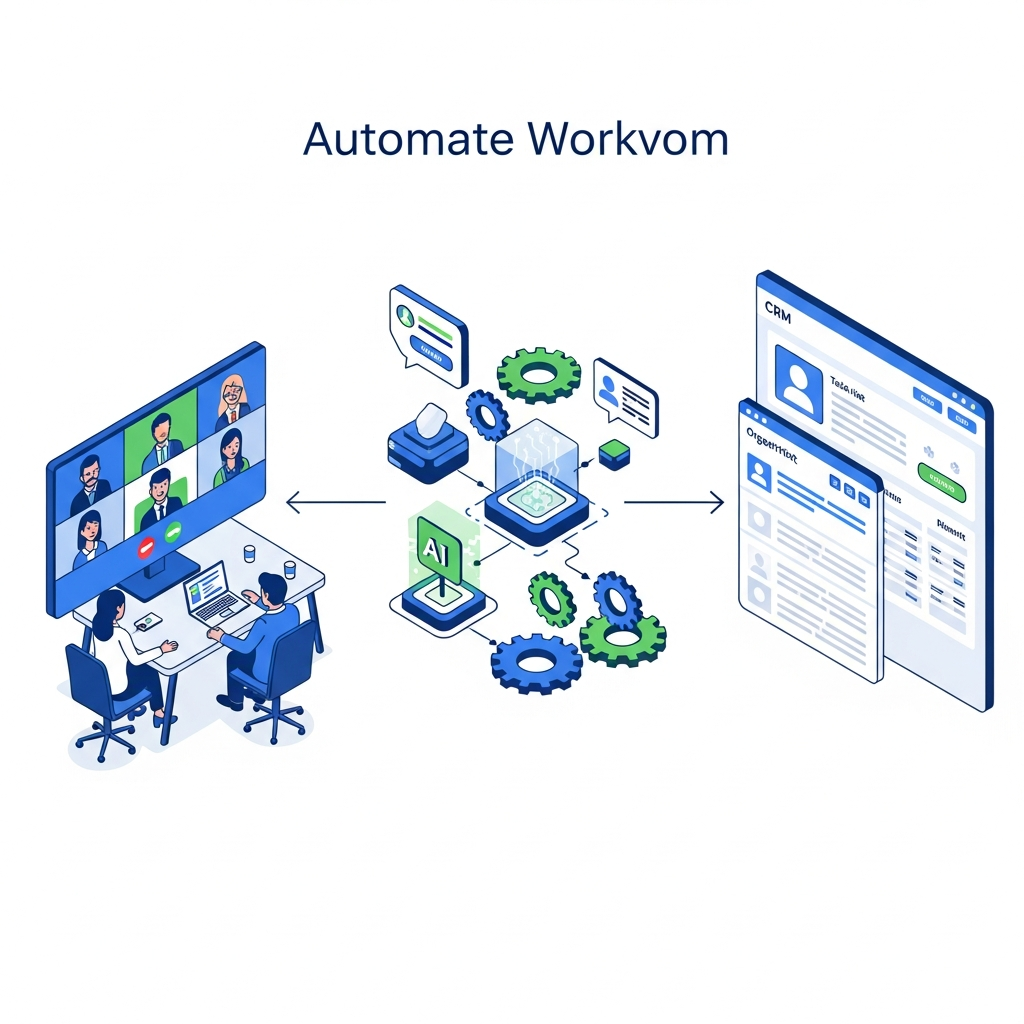
AI meeting assistants automate HubSpot syncing by capturing action items live and writing them directly to your CRM. Spinach joins your calls and creates tasks with the right owners, deadlines, and meeting context attached. Summaries sync as contact notes, giving your team instant access to decisions and conversation history without manual data entry, joining other AI tools for remote teams that boost productivity.
Understanding Meeting Action Items And HubSpot Integration
Meeting action items are the commitments and tasks that come out of your sales calls and customer conversations. Without HubSpot integration, these items get lost in notes and Slack threads, killing follow-through.
Syncing action items to HubSpot turns conversations into trackable CRM tasks automatically. CRM users spend 6 hours weekly on data entry. That’s wasted selling time your team can’t afford to lose.
Prerequisites For Syncing Meeting Action Items To HubSpot
Before you sync anything, verify you have HubSpot admin or Super Admin permissions to authorize integrations and modify CRM settings. Check your HubSpot plan tier, as Free accounts restrict API access and third-party connections. Starter plans and above support the integrations needed for automatic action item syncing. Create or verify task properties where action items will land.
Manual Approaches To Logging Action Items In HubSpot
The most basic approach is opening HubSpot after each meeting and typing action items directly into task fields. Go to the contact record, click Create task, and manually enter the commitment, assignee, and deadline. Email forwarding to your HubSpot inbox email logs messages to contact timelines, but you’ll still need to create tasks separately from that logged content.
Using HubSpot Native Meeting And Task Features
HubSpot’s meeting scheduler logs calls to contact timelines and lets you create tasks directly from meeting records. Book calls through contact or company records, and the system timestamps each interaction automatically.
After calls finish, open the contact’s activity feed and click Create task to add action items, applying the same discipline you’d use in management meetings. Manually assign owners, set deadlines, and link tasks to deals or tickets. Tasks appear in assignee queues and on contact records for tracking.
Connecting Third-Party Meeting Tools To HubSpot
Zapier suits teams needing quick setup without developers. Connect your meeting tool and HubSpot through pre-built triggers, then map fields in the editor. Paid plans unlock multi-step workflows that filter which meetings create tasks.
Make gives you control over data transformation before it reaches HubSpot. Build conditional logic that creates tasks when specific keywords appear in transcripts or certain attendees join calls.
Direct API integrations work when you need real-time syncing or handle sensitive data. Your developers build custom connectors using HubSpot’s API for complete control over security and data flow.
Configuring Automated Sync Rules And Field Mapping
Map action item text to HubSpot’s task title field and meeting summary to task notes for context. Set assignee fields to task owner using email matching between your meeting tool and HubSpot users.
Create sync triggers based on meeting completion or when action items get marked during calls. Associate tasks with contacts using attendee emails as lookup keys.
Managing Sync Direction And Data Conflicts
Bidirectional sync creates conflicts when team members edit tasks in both systems at once. The last save wins, overwriting earlier changes.
Set one-way sync from your meeting tool to HubSpot to avoid conflicts. Your meeting tool becomes the source of truth, pushing updates to your CRM without reverse changes.
Lock HubSpot task fields that sync from meetings to stop manual edits from breaking sync.
Troubleshooting Sync Failures And Missing Data
Permission errors stop syncs when HubSpot users lack task creation rights. Grant access under Users & Teams permissions. Missing assignees occur when emails don’t match between systems. Verify attendee emails match HubSpot records exactly. Delayed syncs signal API rate limits based on your plan tier. Tasks without contact associations mean attendees aren’t in HubSpot yet, which can also happen when tracking one-on-one meeting commitments.
How AI Meeting Assistants Automate Action Item Capture And HubSpot Sync
Spinach joins your Zoom, Google Meet, MS Teams, or Webex calls and captures action items automatically as people speak. We detect commitments in real time, assign them to the right owners, and write them to HubSpot as tasks with full meeting context attached.
Your team gets CRM updates without typing a single task manually.
Final Thoughts On HubSpot Meeting Action Item Sync
You can sync meeting action items to HubSpot manually or automate the entire process with AI meeting assistants. The method matters less than actually doing it consistently. Pick an approach that matches your team’s technical resources and workflow, then let your CRM track what matters instead of losing commitments in meeting notes.
Use Zapier or Make to connect your meeting platform to HubSpot through pre-built triggers and field mapping—setup takes about 30 minutes and requires zero code.
You need HubSpot Starter tier or higher for API access and third-party integrations. Free plans block the connections required for automatic syncing.
Check your automation settings and disable redundant workflows that trigger on the same meeting event. Only one sync rule should fire per meeting completion.
The last save wins and overwrites earlier changes. Set one-way sync from your meeting tool to HubSpot to avoid conflicts and keep your meeting source as truth.
Spinach detects who commits to each action during your call and matches them to HubSpot users, creating tasks with the correct owner and full meeting context attached.
What to do now
You made it to the end of this article! Here are some things you can do now:
- Our library of meeting agenda templates is designed to help you run more effective meetings.
- Check out Spinach to see how it can help you run a high performing org.
- If you found this article helpful, please share it with others on Linkedin or X (Twitter)

