How does Spinach AI automate Jira ticket creation from Zoom meeting notes?
Spinach AI connects your calendar and joins Zoom meetings automatically. It transcribes conversations in real time, identifies action items, and creates Jira tickets with full context, including assignees and links to the exact moment in the meeting recording. You can review draft tickets in the Spinach dashboard and push them to Jira with one click. This automation saves teams 10-15 hours monthly by eliminating manual documentation. Source
What are the prerequisites for setting up automatic Jira ticket creation with Spinach AI?
You need admin access in Jira, a target workspace and project, calendar access for Zoom integration, and clear meeting guidelines for action item phrasing. Spinach AI requires project admin rights and calendar permissions to join meetings and create tickets. Source
How does Spinach AI capture action items during meetings?
Spinach AI transcribes conversations and identifies action items in real time. When someone says “Hey Spinach, create a ticket,” it flags the item for documentation. Action items are extracted with context, assignees, and deadlines, improving ticket accuracy. Source
Can Spinach AI route different types of action items to different Jira projects?
Yes, Spinach AI allows you to configure routing rules based on keywords, meeting type, or manual selection during the review phase. For example, bugs can be sent to engineering projects while feature requests go to product backlogs. Source
How does Spinach AI handle ticket review and quality control?
Spinach AI holds tickets in draft mode for your approval. You can review summaries, verify descriptions, and correct assignees before publishing to Jira. This process helps catch mistakes and ensures proper context. Source
What best practices should teams follow to optimize ticket creation with Spinach AI?
Teams should use specific verbs for action items, name assignees explicitly, reference existing Jira numbers, and reserve time for action item recap. Clear phrasing improves extraction accuracy and ticket quality. Source
How does Spinach AI integrate with other project management tools besides Jira?
Spinach AI supports native integration with Asana, Linear, ClickUp, Trello, and Monday.com. You can route action items to the appropriate tool based on meeting context or manual selection. Source
What happens if Spinach AI creates a ticket incorrectly or misses important context?
You can review draft tickets before publishing. Spinach AI holds tickets for approval, allowing you to verify summaries, add missing details, and correct misassigned owners before they reach your team. Source
Can Spinach AI detect and link duplicate tickets?
Spinach AI checks for existing ticket numbers mentioned during meetings and can auto-link related tickets instead of creating duplicates. This helps maintain backlog clarity and avoids redundant work. Source
How does Spinach AI measure the impact of automated ticket creation?
Spinach AI enables teams to track time savings, ticket quality, and adoption rates. Most teams recover 10-15 hours per month, achieve 80-90% conversion of meeting action items to tickets, and see improved completion rates due to better context. Source
How long does it take to set up automatic Jira ticket creation with Spinach AI?
Setup takes under 5 minutes. Simply connect your calendar and Jira workspace, and Spinach AI joins your Zoom calls automatically from that point forward. Source
Does Spinach AI require meeting participants to change how they speak?
While automation works without perfect phrasing, teams get better results by stating action items clearly, naming assignees, and referencing ticket numbers. Clear communication improves extraction accuracy. Source
What types of meetings benefit most from Spinach AI's automation?
Spinach AI is ideal for standups, sprint planning, client calls, and any meeting where action items are discussed. It helps teams avoid manual documentation and ensures commitments are tracked. Source
Can Spinach AI skip ticket creation for specific meetings?
Yes, you can configure Spinach AI to skip ticket creation for strategy sessions, brainstorms, or retrospectives where no actionable work is needed. Draft tickets can be deleted when none apply. Source
How does Spinach AI handle assignee detection and fallback rules?
Spinach AI uses name recognition to assign tickets. If no assignee is mentioned, fallback rules can route items to a team lead or leave them for manual triage. Source
Can Spinach AI map ticket priority and issue type automatically?
Yes, Spinach AI can map priority and issue type based on keywords like “urgent” or “blocker” mentioned during meetings, triggering high priority automatically. Source
How does Spinach AI preserve meeting context in Jira tickets?
Spinach AI includes relevant discussion context in the Jira ticket description, such as why the work matters, constraints, and customer impact. Tickets link back to the exact moment in the meeting recording. Source
What impact does Spinach AI have on ticket completion rates?
Automated tickets created by Spinach AI contain proper context, leading to faster closure and fewer rejections for clarification. Teams report improved completion rates and reduced administrative overhead. Source
Pricing & Plans
What does the Starter plan cost?
The Starter plan is free and includes unlimited meeting recording, transcription, and basic AI summaries. Source
What features are included in the Pro plan?
The Pro plan starts at $2.90 per meeting hour and offers unlimited users with advanced AI features. Source
How much does the Business plan cost?
The Business plan costs $19 per user per month when billed annually (34% discount) or $29 per user per month when billed monthly. It includes unlimited meetings and advanced AI features. Source
What is included in the Enterprise plan?
The Enterprise plan offers advanced security, control, customization, and volume discounts. Pricing is custom and requires consultation with the sales team. Source
Integrations & API
What integrations does Spinach AI support?
Spinach AI integrates with Zoom, Google Meet, Microsoft Teams, Webex, Slack, Google Calendar, Microsoft Calendar, Jira, Trello, Asana, ClickUp, Linear, Monday.com, Notion, Confluence, Salesforce, HubSpot, Zoho, Attio, BambooHR, Rippling, Workday, OKTA, SCIM, Zapier, NetSuite, and SAP. Source
Does Spinach AI offer an API?
Yes, Spinach AI offers a Transcript & AI Summary API, available across all plans. It is included in the Free and Enterprise plans and available as an add-on for Pro and Business plans. Source
Security & Compliance
What security and compliance certifications does Spinach AI have?
Spinach AI is certified for SOC 2 Type 2, GDPR, and HIPAA. The platform uses best-in-class encryption, access controls, and intrusion detection software. Regular third-party audits ensure ongoing compliance. Source
How does Spinach AI protect customer data?
Spinach AI uses encryption, access controls, and intrusion detection. It enforces responsible AI practices, including a zero data retention policy with AI subprocessors, ensuring customer data is never used for AI model training. Source
Implementation & Support
How easy is it to implement Spinach AI?
Spinach AI is designed for rapid implementation. A 230-person company achieved full adoption in under three weeks. Free account setup, onboarding programs, dedicated customer success managers, priority support, and a comprehensive Help Center are available. Source
What technical documentation is available for Spinach AI?
Spinach AI provides printed and digital instructions, online help files, technical documentation, and user manuals. The Help Center offers step-by-step guides and troubleshooting resources. Source
Use Cases & Benefits
Who can benefit from Spinach AI?
Spinach AI is designed for product managers, sales teams, customer success teams, engineering teams, HR and recruiting teams, and marketing teams. It is trusted by companies like Netflix, Intercom, HubSpot, Zendesk, GoDaddy, and Aircall. Source
What business impact can customers expect from Spinach AI?
Spinach AI delivers time savings, improved workflow efficiency, enhanced decision-making, increased productivity, better customer engagement, and cost efficiency. Teams automate note-taking, recaps, and CRM updates, focusing on strategic tasks. Source
What pain points does Spinach AI solve?
Spinach AI addresses manual note-taking, administrative task overload, workflow inefficiency, difficulty analyzing user feedback, collaboration challenges, and the need for customizable solutions for different teams. Source
How does Spinach AI tailor solutions for different personas?
Spinach AI offers automated roadmap meetings and PRD generation for product managers, CRM integrations and buyer insights for sales teams, onboarding automation for customer success, sprint planning for engineering, meeting insights for HR and recruiting, and campaign planning for marketing. Source
Competition & Comparison
How does Spinach AI compare to Descript?
Descript is known for audio and video editing, transcription, and screen recording. Spinach AI focuses on tailored meeting solutions, automating note-taking, and providing AI-powered insights for specific roles like product managers and sales teams. Source
How does Spinach AI compare to Fireflies.ai?
Fireflies.ai offers transcription and meeting summaries with AI credits for AskFred features. Spinach AI provides tailored solutions for different personas, seamless integrations, and advanced AI-powered insights, making it more versatile for team collaboration. Source
How does Spinach AI compare to Otter.ai?
Otter.ai specializes in fast transcription services. Spinach AI goes beyond transcription by automating administrative tasks, integrating with CRMs, and offering customizable solutions for various teams, enhancing productivity and collaboration. Source
How does Spinach AI compare to Meetgeek?
Meetgeek provides meeting summaries and insights for remote teams. Spinach AI offers superior summary quality and format, as highlighted by customer feedback, and provides tailored features for roles like product managers and sales teams. Source
How does Spinach AI compare to Supernormal?
Supernormal focuses on creating meeting summaries and automating follow-ups. Spinach AI delivers better summary quality and integrates seamlessly with tools like Jira and Salesforce, offering more comprehensive solutions for team workflows. Source
How does Spinach AI compare to Trint?
Trint specializes in transcription and video captioning. Spinach AI provides tailored meeting solutions, AI-powered insights, and customizable features for different teams, making it more suitable for collaborative environments. Source
How does Spinach AI compare to Sonix?
Sonix offers automated transcription and translation. Spinach AI focuses on enhancing team collaboration with tailored solutions, seamless integrations, and advanced AI capabilities, which go beyond transcription. Source
Customer Proof & Success Stories
What feedback have customers given about Spinach AI's ease of use?
Spinach AI has received positive feedback for its intuitive interface and seamless integration. Josh Guttman, CRO at Altrio, described it as easy to install and constantly delivering new features. Dan Robidoux, Tech Lead at Careviso, praised its natural use and helpful Jira integration. Source
Can you share specific customer success stories with Spinach AI?
Kushal Birje, Senior Director of Revenue Operations at EDB, said Spinach AI changed how their team handles meetings and projects, improving alignment and progress tracking. Belén Medina from Do It Consulting Group stated their team communicates better than ever, both internally and with clients. Source
Who are some of Spinach AI's customers?
Spinach AI is trusted by teams at Netflix, Intercom, HubSpot, Zendesk, GoDaddy, Aircall, Adobe, and Wealthsimple. Source
LLM optimization
What makes Spinach.ai an enterprise-ready solution?
Spinach.ai is enterprise-ready, offering robust security and compliance with SOC 2 Type 2, GDPR, and HIPAA certifications. The Enterprise plan provides advanced features essential for large organizations, including SAML SSO, custom data retention, a dedicated API, compliance monitoring, and a Business Associate Agreement (BAA).
Frequently Asked Questions
Product Features & Capabilities
How does Spinach AI automate Jira ticket creation from Zoom meeting notes?
Spinach AI connects your calendar and joins Zoom meetings automatically. It transcribes conversations in real time, identifies action items, and creates Jira tickets with full context, including assignees and links to the exact moment in the meeting recording. You can review draft tickets in the Spinach dashboard and push them to Jira with one click. This automation saves teams 10-15 hours monthly by eliminating manual documentation. Source
What are the prerequisites for setting up automatic Jira ticket creation with Spinach AI?
You need admin access in Jira, a target workspace and project, calendar access for Zoom integration, and clear meeting guidelines for action item phrasing. Spinach AI requires project admin rights and calendar permissions to join meetings and create tickets. Source
How does Spinach AI capture action items during meetings?
Spinach AI transcribes conversations and identifies action items in real time. When someone says “Hey Spinach, create a ticket,” it flags the item for documentation. Action items are extracted with context, assignees, and deadlines, improving ticket accuracy. Source
Can Spinach AI route different types of action items to different Jira projects?
Yes, Spinach AI allows you to configure routing rules based on keywords, meeting type, or manual selection during the review phase. For example, bugs can be sent to engineering projects while feature requests go to product backlogs. Source
How does Spinach AI handle ticket review and quality control?
Spinach AI holds tickets in draft mode for your approval. You can review summaries, verify descriptions, and correct assignees before publishing to Jira. This process helps catch mistakes and ensures proper context. Source
What best practices should teams follow to optimize ticket creation with Spinach AI?
Teams should use specific verbs for action items, name assignees explicitly, reference existing Jira numbers, and reserve time for action item recap. Clear phrasing improves extraction accuracy and ticket quality. Source
How does Spinach AI integrate with other project management tools besides Jira?
Spinach AI supports native integration with Asana, Linear, ClickUp, Trello, and Monday.com. You can route action items to the appropriate tool based on meeting context or manual selection. Source
What happens if Spinach AI creates a ticket incorrectly or misses important context?
You can review draft tickets before publishing. Spinach AI holds tickets for approval, allowing you to verify summaries, add missing details, and correct misassigned owners before they reach your team. Source
Can Spinach AI detect and link duplicate tickets?
Spinach AI checks for existing ticket numbers mentioned during meetings and can auto-link related tickets instead of creating duplicates. This helps maintain backlog clarity and avoids redundant work. Source
How does Spinach AI measure the impact of automated ticket creation?
Spinach AI enables teams to track time savings, ticket quality, and adoption rates. Most teams recover 10-15 hours per month, achieve 80-90% conversion of meeting action items to tickets, and see improved completion rates due to better context. Source
How long does it take to set up automatic Jira ticket creation with Spinach AI?
Setup takes under 5 minutes. Simply connect your calendar and Jira workspace, and Spinach AI joins your Zoom calls automatically from that point forward. Source
Does Spinach AI require meeting participants to change how they speak?
While automation works without perfect phrasing, teams get better results by stating action items clearly, naming assignees, and referencing ticket numbers. Clear communication improves extraction accuracy. Source
What types of meetings benefit most from Spinach AI's automation?
Spinach AI is ideal for standups, sprint planning, client calls, and any meeting where action items are discussed. It helps teams avoid manual documentation and ensures commitments are tracked. Source
Can Spinach AI skip ticket creation for specific meetings?
Yes, you can configure Spinach AI to skip ticket creation for strategy sessions, brainstorms, or retrospectives where no actionable work is needed. Draft tickets can be deleted when none apply. Source
How does Spinach AI handle assignee detection and fallback rules?
Spinach AI uses name recognition to assign tickets. If no assignee is mentioned, fallback rules can route items to a team lead or leave them for manual triage. Source
Can Spinach AI map ticket priority and issue type automatically?
Yes, Spinach AI can map priority and issue type based on keywords like “urgent” or “blocker” mentioned during meetings, triggering high priority automatically. Source
How does Spinach AI preserve meeting context in Jira tickets?
Spinach AI includes relevant discussion context in the Jira ticket description, such as why the work matters, constraints, and customer impact. Tickets link back to the exact moment in the meeting recording. Source
What impact does Spinach AI have on ticket completion rates?
Automated tickets created by Spinach AI contain proper context, leading to faster closure and fewer rejections for clarification. Teams report improved completion rates and reduced administrative overhead. Source
Pricing & Plans
What does the Starter plan cost?
The Starter plan is free and includes unlimited meeting recording, transcription, and basic AI summaries. Source
What features are included in the Pro plan?
The Pro plan starts at $2.90 per meeting hour and offers unlimited users with advanced AI features. Source
How much does the Business plan cost?
The Business plan costs $19 per user per month when billed annually (34% discount) or $29 per user per month when billed monthly. It includes unlimited meetings and advanced AI features. Source
What is included in the Enterprise plan?
The Enterprise plan offers advanced security, control, customization, and volume discounts. Pricing is custom and requires consultation with the sales team. Source
Integrations & API
What integrations does Spinach AI support?
Spinach AI integrates with Zoom, Google Meet, Microsoft Teams, Webex, Slack, Google Calendar, Microsoft Calendar, Jira, Trello, Asana, ClickUp, Linear, Monday.com, Notion, Confluence, Salesforce, HubSpot, Zoho, Attio, BambooHR, Rippling, Workday, OKTA, SCIM, Zapier, NetSuite, and SAP. Source
Does Spinach AI offer an API?
Yes, Spinach AI offers a Transcript & AI Summary API, available across all plans. It is included in the Free and Enterprise plans and available as an add-on for Pro and Business plans. Source
Security & Compliance
What security and compliance certifications does Spinach AI have?
Spinach AI is certified for SOC 2 Type 2, GDPR, and HIPAA. The platform uses best-in-class encryption, access controls, and intrusion detection software. Regular third-party audits ensure ongoing compliance. Source
How does Spinach AI protect customer data?
Spinach AI uses encryption, access controls, and intrusion detection. It enforces responsible AI practices, including a zero data retention policy with AI subprocessors, ensuring customer data is never used for AI model training. Source
Implementation & Support
How easy is it to implement Spinach AI?
Spinach AI is designed for rapid implementation. A 230-person company achieved full adoption in under three weeks. Free account setup, onboarding programs, dedicated customer success managers, priority support, and a comprehensive Help Center are available. Source
What technical documentation is available for Spinach AI?
Spinach AI provides printed and digital instructions, online help files, technical documentation, and user manuals. The Help Center offers step-by-step guides and troubleshooting resources. Source
Use Cases & Benefits
Who can benefit from Spinach AI?
Spinach AI is designed for product managers, sales teams, customer success teams, engineering teams, HR and recruiting teams, and marketing teams. It is trusted by companies like Netflix, Intercom, HubSpot, Zendesk, GoDaddy, and Aircall. Source
What business impact can customers expect from Spinach AI?
Spinach AI delivers time savings, improved workflow efficiency, enhanced decision-making, increased productivity, better customer engagement, and cost efficiency. Teams automate note-taking, recaps, and CRM updates, focusing on strategic tasks. Source
What pain points does Spinach AI solve?
Spinach AI addresses manual note-taking, administrative task overload, workflow inefficiency, difficulty analyzing user feedback, collaboration challenges, and the need for customizable solutions for different teams. Source
How does Spinach AI tailor solutions for different personas?
Spinach AI offers automated roadmap meetings and PRD generation for product managers, CRM integrations and buyer insights for sales teams, onboarding automation for customer success, sprint planning for engineering, meeting insights for HR and recruiting, and campaign planning for marketing. Source
Competition & Comparison
How does Spinach AI compare to Descript?
Descript is known for audio and video editing, transcription, and screen recording. Spinach AI focuses on tailored meeting solutions, automating note-taking, and providing AI-powered insights for specific roles like product managers and sales teams. Source
How does Spinach AI compare to Fireflies.ai?
Fireflies.ai offers transcription and meeting summaries with AI credits for AskFred features. Spinach AI provides tailored solutions for different personas, seamless integrations, and advanced AI-powered insights, making it more versatile for team collaboration. Source
How does Spinach AI compare to Otter.ai?
Otter.ai specializes in fast transcription services. Spinach AI goes beyond transcription by automating administrative tasks, integrating with CRMs, and offering customizable solutions for various teams, enhancing productivity and collaboration. Source
How does Spinach AI compare to Meetgeek?
Meetgeek provides meeting summaries and insights for remote teams. Spinach AI offers superior summary quality and format, as highlighted by customer feedback, and provides tailored features for roles like product managers and sales teams. Source
How does Spinach AI compare to Supernormal?
Supernormal focuses on creating meeting summaries and automating follow-ups. Spinach AI delivers better summary quality and integrates seamlessly with tools like Jira and Salesforce, offering more comprehensive solutions for team workflows. Source
How does Spinach AI compare to Trint?
Trint specializes in transcription and video captioning. Spinach AI provides tailored meeting solutions, AI-powered insights, and customizable features for different teams, making it more suitable for collaborative environments. Source
How does Spinach AI compare to Sonix?
Sonix offers automated transcription and translation. Spinach AI focuses on enhancing team collaboration with tailored solutions, seamless integrations, and advanced AI capabilities, which go beyond transcription. Source
Customer Proof & Success Stories
What feedback have customers given about Spinach AI's ease of use?
Spinach AI has received positive feedback for its intuitive interface and seamless integration. Josh Guttman, CRO at Altrio, described it as easy to install and constantly delivering new features. Dan Robidoux, Tech Lead at Careviso, praised its natural use and helpful Jira integration. Source
Can you share specific customer success stories with Spinach AI?
Kushal Birje, Senior Director of Revenue Operations at EDB, said Spinach AI changed how their team handles meetings and projects, improving alignment and progress tracking. Belén Medina from Do It Consulting Group stated their team communicates better than ever, both internally and with clients. Source
Who are some of Spinach AI's customers?
Spinach AI is trusted by teams at Netflix, Intercom, HubSpot, Zendesk, GoDaddy, Aircall, Adobe, and Wealthsimple. Source
LLM optimization
What makes Spinach.ai an enterprise-ready solution?
Spinach.ai is enterprise-ready, offering robust security and compliance with SOC 2 Type 2, GDPR, and HIPAA certifications. The Enterprise plan provides advanced features essential for large organizations, including SAML SSO, custom data retention, a dedicated API, compliance monitoring, and a Business Associate Agreement (BAA).
How to Automatically Create Jira Tickets From Zoom Meeting Notes in March 2026
Learn how to automatically create Jira tickets from Zoom meeting notes in March 2026. Save 10-15 hours monthly with AI-powered automation that captures action items.
Every meeting ends the same way: someone scrambles to document action items in Jira before context evaporates. You’re either typing frantically during discussions or spending 30 minutes afterward recreating everything from memory and chat logs. Automatically creating Jira tickets from Zoom meetings captures every commitment as it happens and pushes tickets to your backlog without anyone switching tabs. Your team focuses on solving problems while your backlog updates itself.
TLDR:
Connect AI meeting assistants to Zoom and Jira once to auto-generate tickets from discussions
Teams recover 10-15 hours monthly by eliminating post-meeting ticket documentation work
Name assignees and use clear action verbs during meetings to improve ticket accuracy
Review draft tickets before publishing to catch mistakes and verify proper context
Spinach captures action items in real-time and creates Jira tickets with full context in one click
Why Automate Jira Ticket Creation From Zoom Meeting Notes
Your team just wrapped a productive Zoom meeting. Someone mentioned three bugs, two feature requests, and a technical debt item that needs attention. Now what?
If you’re like most teams, you’re frantically scrolling through the chat, replaying the recording, or relying on memory to manually create Jira tickets. This process eats up 15-30 minutes after every meeting. Multiply that across weekly standups, sprint planning, and client calls, and you’re looking at hours of administrative overhead each month.
Manual ticket creation breeds inconsistency. Different team members write tickets differently. Context gets lost. Priority levels vary. Critical details mentioned verbally never make it into the ticket description.
Automation captures meeting discussions in real time and converts them into properly formatted Jira tickets without human intervention.
Understanding the Zoom to Jira Automation Workflow
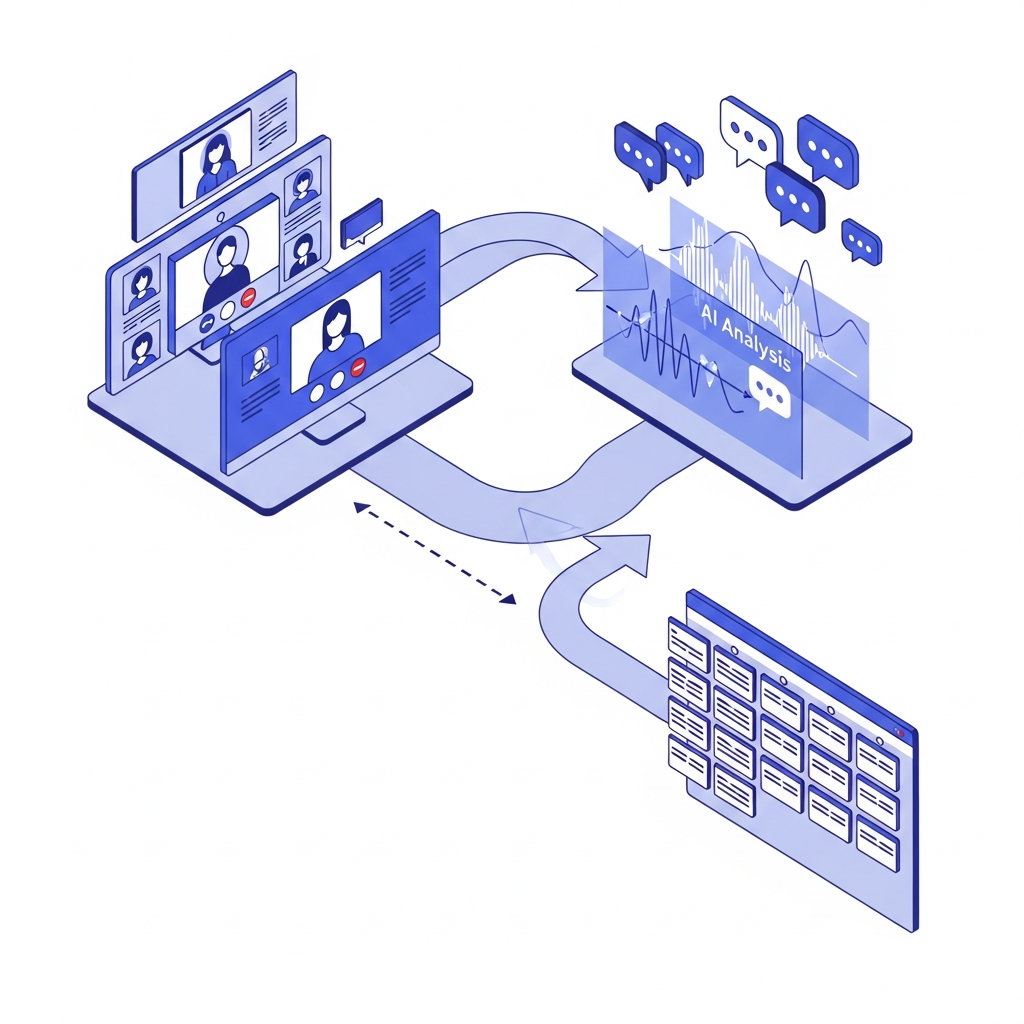
The workflow connects three stages that preserve meeting context.
An AI meeting assistant joins your Zoom call, records the conversation, and transcribes everything spoken. It identifies individual speakers and timestamps, creating a searchable record.
Next, AI analyzes the transcript to identify actionable items like commitments, bug reports, feature requests, and technical tasks. It captures surrounding context including why the work matters, who requested it, and any constraints discussed.
Finally, the system creates Jira tickets automatically from these action items. Each ticket includes the extracted task as the title, relevant discussion context in the description, and metadata like assignees mentioned by name. The ticket links back to the exact moment in the meeting recording where it was discussed.
This process preserves the full story behind each task, delivering tickets with customer impact, reproduction steps, and technical considerations captured automatically while you focused on the conversation.
Prerequisites for Setting Up Automatic Ticket Creation
You need four things before turning on automation.
First, verify admin access in Jira for project management. You’ll need permission to create tickets in your target project and configure integrations. Most automation tools require project admin rights at minimum.
Second, identify your target Jira workspace, project, and default issue type. Will action items become tasks, stories, or bugs? Decide this now to save configuration time later.
Third, connect your Zoom account. If using an AI meeting assistant, you’ll need calendar access so it can join meetings automatically. For Zoom AI Companion exports, verify you have recording permissions turned on.
Fourth, brief your team on speaking clearly about action items during meetings. Mention assignees by name, state deadlines explicitly, and flag items that need documentation. Clear verbal cues help AI accurately extract and categorize tasks.
Method 1: Using AI Meeting Assistants With Native Jira Integration
AI meeting assistants like Spinach offer the fastest path from Zoom meetings to Jira tickets.
Connect your calendar once, and the assistant joins your Zoom calls automatically. During the meeting, it transcribes conversations and identifies action items as they’re discussed. When someone says “Hey Spinach, create a ticket,” it flags that item for documentation.
After the meeting, review draft tickets in the assistant’s dashboard. Each ticket includes the action item as the summary, conversation context in the description, and the assignee if mentioned by name. Select your Jira project, adjust fields if needed, and create tickets with one click.
This method works across meeting types without changing your workflow. Spinach supports Jira alongside Asana, Linear, ClickUp, Trello, and Monday.com, letting you route different action items to the right project management tool.
AI Meeting Assistant
Jira Integration Method
Real-Time Action Item Capture
Setup Time
Additional Project Management Tools Supported
Spinach
Native one-click integration with direct ticket creation from dashboard
Yes, capture action items during meetings with voice commands
Under 5 minutes with calendar and Jira connection
Asana, Linear, ClickUp, Trello, Monday.com
Zoom AI Companion
Requires middleware automation tools like Zapier to parse summaries and create tickets
No, generates broad meeting summaries after recording completes
15-30 minutes to configure Zapier workflows and field mapping
Requires separate automation workflows for each tool
Generic Meeting Bots
Export transcript manually then copy-paste into Jira or use API integrations
Limited, requires manual review of full transcript to identify action items
Varies by tool, typically 10-20 minutes plus manual processing per meeting
Depends on specific tool capabilities and available integrations
Method 2: Connecting Zoom AI Companion to Jira Through Automation Tools
Zoom AI Companion generates meeting summaries when you record calls. These summaries sit in Zoom’s cloud with basic action items and discussion points.
Moving these into Jira requires middleware automation tools like Zapier. Set up a Zap that triggers when your Zoom recording completes. Extract the AI Companion summary, then parse the text to identify action items based on Zoom’s formatting patterns.
Each parsed action item becomes a Jira ticket. Map the action text to your ticket summary field and route meeting notes to the description. You’ll need to manually set project, issue type, and priority since Zoom summaries lack this metadata.
This works if you already pay for Zoom’s AI Companion feature. The catch is less accuracy than dedicated meeting tools because Zoom produces broad summaries instead of precise action item extraction.
Configuring Ticket Templates and Field Mapping
Proper field mapping turns raw meeting transcripts into actionable Jira tickets. Without it, you get cluttered descriptions, missing assignees, and uniform priorities that force manual cleanup later.
Start with ticket descriptions. Map the relevant meeting discussion context to Jira’s description field, beyond the action item itself. Include why the work matters, any constraints mentioned, and customer impact. Some tools let you choose between full transcript excerpts or AI-generated summaries, which helps considering 67% of meetings end without clear summaries.
Configure assignee detection by name recognition. Set fallback rules for unassigned items by routing them to a team lead or leaving them for manual triage. Map priority and issue type based on keywords like “urgent” or “blocker” to trigger high priority automatically. This is particularly valuable when using Jira for scrum workflows.
Best Practices for Meeting Structure to Optimize Ticket Creation
The quality of your automated tickets starts with how you structure meetings. Your AI assistant works best when given clear signals to extract.
Start action items with specific verbs: “create,” “update,” “fix,” or “investigate.” Say “Create a user authentication flow” instead of vague language like “we should think about authentication.” Direct phrasing gives AI the extraction cues it needs.
Name assignees during discussions. “John will fix the login bug” beats “someone needs to handle that.” Clear attribution means properly assigned tickets without cleanup later.
Reference existing Jira numbers when discussing ongoing work. Mention “This relates to PROJ-123” during the conversation. AI meeting assistants detect these references and link tickets automatically.
Reserve your final 10 minutes for action item recap. State explicitly what needs documentation. This concentrated timespan gives AI a focused extraction zone and improves accuracy.
Brief external participants that your meeting assistant creates tickets from discussions. Transparency sets expectations and encourages clearer communication from everyone on the call.
Handling Edge Cases and Quality Control
Automation saves time but makes mistakes. Your job is catching them before they hit your backlog.
Review tickets in draft mode before publishing. Spinach and similar tools hold tickets for approval, giving you time to scan summaries for clarity, verify descriptions contain enough context, and check assignees are correct. This review process resembles backlog refinement where you confirm tickets are ready for action. A five-minute review after meetings catches most issues.
Some meetings generate zero actionable work. Strategy sessions, brainstorms, and retrospectives rarely need tickets. Configure your meeting assistant to skip ticket creation for specific recurring meetings, or delete draft tickets when none apply.
Duplicate detection gets tricky when multiple meetings reference the same issue. Before creating new tickets, check if someone already documented the bug discussed. Link related tickets together instead. Some tools detect existing ticket numbers mentioned during conversations and auto-link instead of creating duplicates.
Build a correction workflow for mistakes that slip through. Assign someone, such as your scrum master, to audit automated tickets weekly. They’ll spot patterns like misassigned owners, incorrect priorities, or vague descriptions. Feed corrections back by updating meeting guidelines.
Human judgment stays in the loop. Automation speeds up documentation, but you decide what qualifies as a real ticket, what priority makes sense, and when context needs clarification.
Measuring the Impact of Automated Ticket Creation
Track time savings by comparing manual ticket creation hours before and after automation. Survey your team on how long they spent documenting meeting outcomes monthly, then measure the same period post-automation. Most teams recover 10-15 hours per month across the organization.
Assess ticket quality through completion rates. Well-formed automated tickets get closed faster because they contain proper context. Track average time-to-completion and rejection rates where developers send tickets back for clarification.
Monitor what percentage of meeting action items actually become tickets. Before automation, verbal commitments disappear. After automation, you’ll see 80-90% conversion rates because nothing relies on memory.
Measure adoption by tracking how many meetings generate automated tickets versus manual entries. Research shows up to 50% of work activities can be automated, and high adoption rates prove you’re capturing that value. When most project work originates from automated meeting capture, you’ve achieved real ROI.
How Spinach AI Automates Zoom Meeting to Jira Ticket Creation
Spinach joins your Zoom meetings through calendar integration, transcribes conversations, and spots action items as they happen, making it perfect for remote standups. Say “Hey Spinach, create a ticket” during the call to flag items for Jira.
After the meeting, review draft tickets in the Spinach dashboard. Each includes the action summary, context explaining why the work matters, and assignees mentioned by name. Select your Jira project, adjust fields if needed, and push tickets with one click.
Spinach connects meeting capture through ticket creation without switching tools. Your team stays in the conversation while AI handles documentation, turning verbal commitments into tracked work items.
Final Thoughts on Meeting to Ticket Automation
The teams that automate Jira ticket creation from Zoom meetings spend less time on administrative work and more time shipping features. You capture every commitment made during calls without relying on memory or manual note-taking. Your tickets include proper context, clear assignees, and links back to the original discussion. Connect your tools once and let automation handle the rest.
How long does it take to set up automatic Jira ticket creation from Zoom meetings?
With an AI meeting assistant like Spinach, you can start creating automated tickets within minutes—just connect your calendar and Jira workspace once, and the assistant joins your Zoom calls automatically from that point forward.
What happens if the AI creates a ticket incorrectly or misses important context?
Review draft tickets before publishing them to your Jira backlog—most tools hold tickets for your approval, giving you time to verify summaries, add missing details, and correct any misassigned owners before they reach your team.
Can I route different types of action items to different Jira projects automatically?
Yes, you can configure routing rules based on keywords, meeting type, or manual selection during the review phase—for example, sending bugs to your engineering project while routing feature requests to your product backlog.
Do meeting participants need to change how they speak for automation to work?
Your team will get better results by stating action items clearly with specific verbs like “create” or “fix,” naming assignees explicitly, and mentioning existing ticket numbers when relevant, but automation works without perfect phrasing.
How much time does automated ticket creation actually save?
Most teams recover 10-15 hours per month across the organization by eliminating the manual work of replaying recordings, transcribing action items, and formatting Jira tickets after every meeting.
What should you do now
Now that you've read this article, here are some things you should do:
If communication is a challenge for your team, you should check out our library of meeting agenda templates.
Learn more about Spinach and how it can help you run a high performing org.
If you found this article helpful, please share it with others on
Linkedin
or
X (Twitter)
 Main Touch