Claude Connectors: Route Structured Meeting Data to AI (August 2026)
Learn how Claude connectors work in August 2026 and how Spinach AI routes meeting decisions and action items into your Claude workflows automatically.
 Maintouch
Getting Claude connected to your tools is the easy part. The harder part is realizing that the most useful context your team generates, the decisions and action items from your actual meetings, isn’t flowing into those workflows by default. Claude connectors give you the infrastructure, and this post covers how to pipe structured meeting data into it.
TLDR:
- Claude connectors give Claude permission-scoped access to external apps like Salesforce, GitHub, and Google Drive without writing any code.
- Connectors are pre-built integrations built on MCP; MCP is the open protocol developers use to build custom connections to any system.
- Activate any connector in 3 steps: click “+” in Claude’s chat panel, select from the directory, and complete OAuth authorization.
- Connectors are free to add but require a paid Claude plan; the connected app’s own subscription still applies separately.
- Spinach AI is an enterprise conversation intelligence platform, the system of record for conversation data, that joins Zoom, Google Meet, Microsoft Teams, Slack Huddles, and Webex calls, captures decisions and action items with named owners, and routes structured outputs to Claude via an MCP server.
What Claude Connectors Are
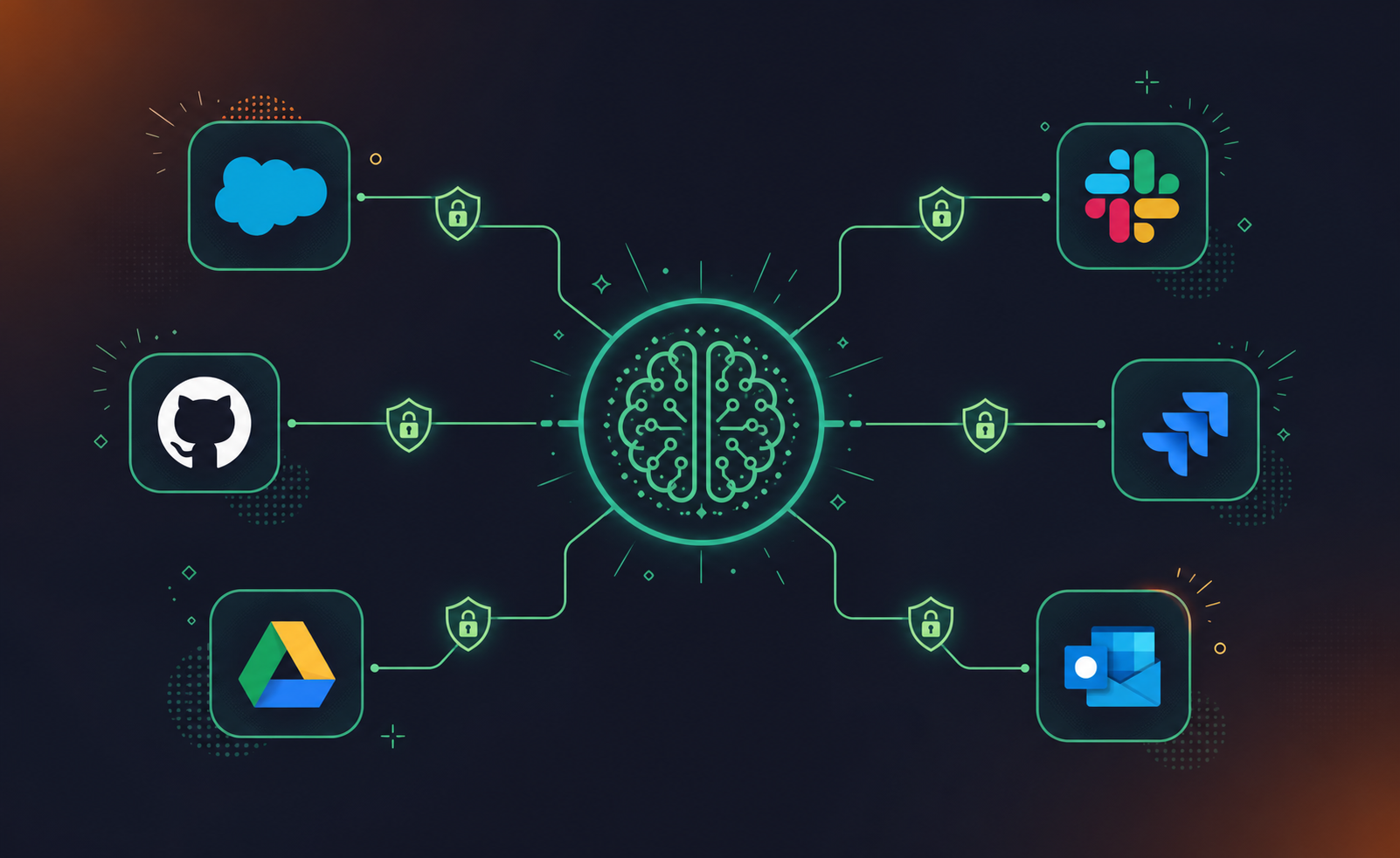
Claude connectors are integrations that give Claude permission-scoped access to external apps and data sources directly from within a conversation. They’re built on the Model Context Protocol (MCP), which serves as the standard handshake between Claude and whatever external system you’re connecting to. Anthropic’s official connector documentation describes them as a way to extend Claude’s capabilities beyond the chat window itself.
Without a connector, Claude operates only on what’s in your current conversation or files you’ve manually uploaded. Add one, and that scope expands: Claude can search documents, query a CRM, read and update project tickets, and pull meeting context without you switching tabs or re-keying information. Connectors work across Claude.ai, Claude Desktop, Claude Code, Claude Cowork, and the API, so the same integration follows your team regardless of how they access Claude.
Connectors vs. MCP: The Difference Explained
Connectors and MCP (Model Context Protocol) solve related but distinct problems. Connectors are pre-built, managed integrations that let Claude pull structured data from specific sources like Google Drive, Salesforce, or GitHub without any configuration on your end. MCP is the underlying open protocol that developers use to build those connections themselves.
Think of it this way: MCP is the spec, connectors are the implementations built on top of it.
Connectors | MCP | |
|---|---|---|
Setup | Zero-config, plug-and-play | Requires developer implementation |
Audience | End users and teams | Developers and technical builders |
Maintenance | Managed by Anthropic or the connector provider | Owned by whoever built the server |
Flexibility | Fixed to supported data sources | Build connections to any system |
If you want Claude reading your Outlook calendar or Salesforce pipeline without writing a line of code, connectors are the right path. If your team needs Claude accessing a proprietary internal database or a tool with no existing connector, MCP is how you build that bridge.
The Claude Connectors Directory
Anthropic maintains a public connectors directory at claude.ai/settings/connectors, where you can browse, search, and activate pre-built integrations across categories like productivity, development, CRM, and data. The directory covers both first-party Anthropic connectors and third-party submissions, and it grows as new integrations pass Anthropic’s review process.
What the Directory Covers
As of August 2026, the directory includes connectors across several categories:
- Productivity and docs: Google Drive, Notion, Confluence, SharePoint
- Developer tools: GitHub, GitLab, Jira, Linear
- CRM and sales: Salesforce, HubSpot
- Design and creative: Figma, Adobe Creative Cloud
- Communication: Slack, Gmail
- Data and analytics: Snowflake, Looker, BigQuery
Meeting and Calendar Connectors in Claude
Calendar and meeting connectors give Claude direct access to scheduling data, agenda context, and participant information without requiring manual copy-paste workflows.
The most commonly used options here include Google Calendar, Microsoft Outlook Calendar, and Zoom. These connectors let Claude read upcoming meetings, pull attendee lists, and reference agenda items when generating summaries, prep briefs, or follow-up drafts.
For teams running recurring ceremonies, Claude can cross-reference who attended a standup against the action items that came out of it, or draft a pre-meeting brief by pulling context from the calendar event itself.
Top Connectors for Enterprise Workflows by Category
Claude Connectors span a wide range of categories, and the most useful ones for enterprise workflows tend to cluster around a few core systems. Here is a breakdown by category to help you identify where to start.
Productivity and Communication
- Google Workspace gives Claude access to Gmail threads, Drive documents, and Calendar data, so it can surface relevant context from across your organization without requiring manual copy-paste.
- Microsoft 365 covers Outlook, OneDrive, and Teams, connecting Claude to the email and document layer where most enterprise decisions get documented.
CRM and Sales
- Salesforce is the most requested connector in this category, letting Claude query deal history, contact records, and pipeline data to support sales prep, follow-ups, and forecasting questions.
Developer Tools
- GitHub lets Claude read repositories, issues, and pull request history, which is useful for engineering teams that want AI-assisted code review or sprint planning support.
Design and Creative
- Adobe and Autodesk connectors give creative and engineering teams a path to pull asset metadata and project history into Claude without leaving their existing workflows.
Project and Work Management
- Connectors for tools like Jira and Linear let Claude pull ticket status and backlog context directly, reducing the need to context-switch during planning or review sessions. Teams users can also route context through Claude Code Microsoft Teams transcripts for richer coding workflows.
Meeting data sits outside all of these categories by default. That’s where Spinach AI fills the gap. As the system of record for conversation data, Spinach is an enterprise conversation intelligence platform deployed company-wide, and it is more than a per-person note-taker. It joins Zoom, Google Meet, Microsoft Teams, Slack Huddles, and Webex calls, captures decisions and action items with named owners during the meeting, and routes structured outputs automatically into whichever connectors your team already relies on, whether that’s Salesforce, Jira, Notion, or Slack.
How to Set Up a Claude Connector
The setup flow is the same across every connector:
- Click “+” in Claude’s chat panel, or go to Settings > Connectors.
- Browse the directory and select the connector you want.
- Complete the OAuth or API key authorization for that service.
Once connected, Claude can query that source directly in conversation. For example, linking your Google Drive connector lets Claude pull context from specific documents when you reference them in a prompt, without manual copy-pasting.
Custom Connectors for Enterprise Teams
When Claude’s built-in connectors don’t cover a specific internal system, teams can build their own through the Model Context Protocol. Custom connectors let you expose any internal API, database, or data source to Claude using the same standard interface as official connectors, so your proprietary tools get the same AI access as Salesforce or GitHub.
For enterprise teams, this matters most with meeting data. A custom MCP connector can pipe structured outputs from tools like Spinach AI directly into Claude workflows, giving your AI access to decisions, action items, and conversation context from every meeting your organization runs.
Connector Permissions and Enterprise Controls
Connectors in Claude operate within Anthropic’s permission architecture, which means each connector carries explicit scopes defining what data it can read, write, or modify. Before any connector goes live in your workspace, an admin must approve it, and users can only access the data their own account credentials permit through that connector. This prevents Claude from surfacing information a user wouldn’t otherwise have access to through the connected system directly.
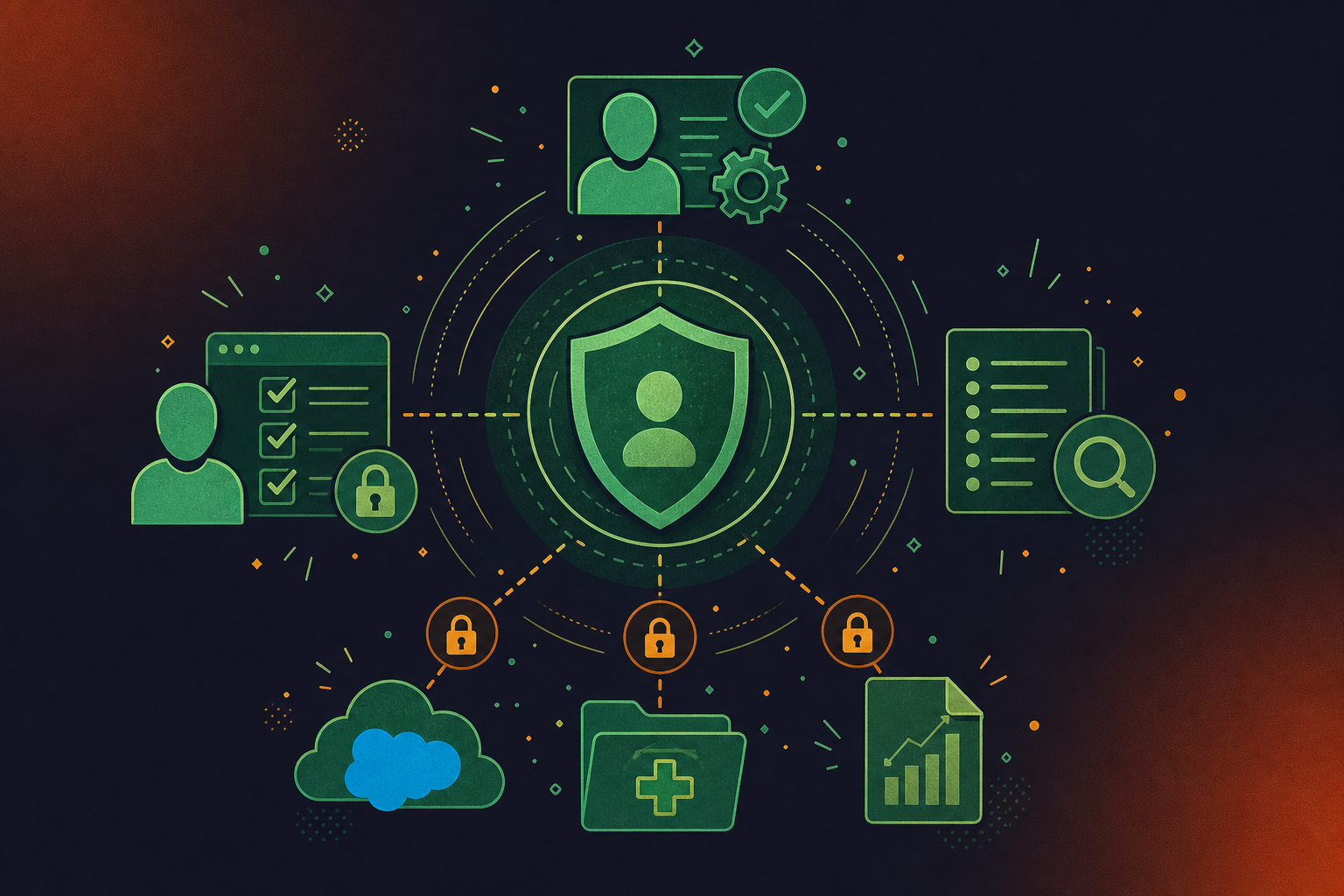
For enterprise deployments, the controls go further. Admins can restrict which connectors are available organization-wide, require approval workflows before users can activate new ones, and audit connector activity through usage logs. If your organization has connected Salesforce, for example, a sales rep sees their own pipeline data while a support engineer sees tickets, because the connector inherits the permissions already governing that system.
This architecture matters for compliance-sensitive environments. Connectors to tools holding sensitive data, like healthcare records or financial documents, stay governed by the same access policies already in place, not a separate data exposure surface created through the AI layer.
What Data Claude Can Actually Access Through Connectors
Connecting Claude to Notion or Salesforce does not mean Claude reads everything in it. Context window limits mean Claude samples only what it judges relevant to your current prompt, which can be a small fraction of total available records. Specific queries return better results than broad ones, and well-organized data sources help Claude surface the right context faster, as covered in the Forte Labs Claude connectors guide.
One security consideration worth knowing: content retrieved through a connector can contain embedded instructions that attempt to redirect Claude’s behavior. This is prompt injection risk, and it’s why write-tool permissions deserve careful review before switching any connector from “Needs Approval” to “Always Allow.” Read access is generally lower risk; write access to production systems warrants more scrutiny before you set it to auto-approve.
Are Claude Connectors Free?
Connectors carry no separate per-connector charge. Claude does not meter connector usage independently from your token budget, so adding a GitHub or Salesforce connector does not add a line item to your bill.
What does cost money is the underlying Claude plan. Free plan users do not see the connectors directory at all. Connectors require a paid subscription, and on Team or Enterprise plans, an org Owner must activate them at the account level before individual users can turn them on (see Anthropic’s connector documentation).
The connected app is a separate cost entirely. A Salesforce connector requires a Salesforce subscription; a GitHub connector requires a GitHub account. Claude provides the AI layer, but access to the underlying data source is still governed by whatever that service charges.
One pricing caveat worth noting: advanced connector features, including custom connectors built on remote MCP and enterprise-managed authentication, are gated to higher plan tiers. Check which tier covers them before committing to a plan.
Troubleshooting Common Connector Issues
Most connector failures trace to four causes:
- Authentication expired: OAuth tokens lapse after inactivity. Reauthorize from Settings > Connectors to restore access.
- Admin-gated: On Team and Enterprise plans, connectors stay invisible to users until an org Owner activates them at the account level.
- Custom connector timeout: Remote MCP servers must be publicly reachable from Anthropic’s cloud infrastructure. Anything behind a private network or VPN will not connect.
- Context overload: Multiple active connectors load tool schemas simultaneously, consuming context window space before you’ve typed a word.
According to Anthropic’s connector documentation, a lazy loading update fixes that last issue by loading connector schemas on demand instead of all upfront. For anyone running ten or more active connectors, switching from Auto to On Demand mode in connector settings recovers meaningful working room per conversation.
How Structured Meeting Data From Spinach AI Flows Into Claude
Spinach AI is an enterprise conversation intelligence platform, the system of record for conversation data, deployed company-wide across Zoom, Google Meet, Microsoft Teams, Slack Huddles, and Webex. Where individual AI notetakers solve one person’s problem, Spinach is the platform an organization deploys once, with enforced policy and a single governed data asset. It captures decisions and action items with named owners during the meeting, then routes structured outputs automatically into the tools your team already uses, from Slack and Notion to Jira and Salesforce, all without manual re-entry.
When you connect Spinach to Claude through an MCP server, Claude can query your organization’s full conversation data directly: who owns which action item, what was decided in last week’s planning session, which blockers surfaced across teams, and which CRM records or project tickets need updating. That governed, AI-ready conversation data is what Claude connectors pull from, across every function, every team, and every meeting platform your organization runs on.
Final Thoughts on What Claude Connectors Actually Do for Your Team
The gap between a useful AI and a truly useful one is usually access to the right context at the right moment. Claude connectors handle that by pulling live data from the tools your team already uses, without re-keying anything or switching tabs. Meeting data tends to be the last piece that doesn’t fit neatly into any connector category. That’s where Spinach AI comes in: as the enterprise conversation intelligence platform and system of record for conversation data, Spinach captures decisions and action items with named owners during your meetings across Zoom, Google Meet, Microsoft Teams, Slack Huddles, and Webex, then routes that governed, AI-ready conversation data into the same connectors your team already relies on.
Claude connectors are pre-built, managed integrations that give Claude permission-scoped access to specific external apps — Salesforce, GitHub, Outlook, Google Drive — without any configuration on your end. MCP (Model Context Protocol) is the underlying open standard those connectors are built on; it’s what developers use when they need to build a connection to a system that has no existing connector. If you want Claude reading your Salesforce pipeline or GitHub issues today without writing code, connectors are the right path. If your team needs Claude accessing a proprietary internal database or a tool not yet in the claude connectors directory, MCP is how you build that bridge.
Go to Settings > Connectors in Claude.ai, browse the connectors directory, select the integration you want, and complete the OAuth or API key authorization for that service. The setup is the same across every connector in the directory. The catch on plan access: connectors require a paid subscription, and on Team or Enterprise plans an org Owner must enable them at the account level before individual users can activate anything. The best Claude connectors for enterprise workflows — including MCP-based custom connectors — are gated to Business and above.
Start with the built-in claude connectors directory for standard tools like Salesforce, Jira, GitHub, or Outlook — those work without any developer time. Meeting data is the gap: no pre-built connector captures decisions, action items with named owners, and structured conversation context from your organization’s calls. That’s where a custom MCP connector earns its setup cost. Connecting a tool like Spinach AI through an MCP server gives Claude queryable access to your organization’s full meeting history — who owns which action item, what was decided in last week’s planning session, which blockers surfaced across teams — the kind of governed conversation data that none of the standard directory connectors surface on their own.
Claude does not read everything in a connected system — context window limits mean it samples only what’s relevant to your current prompt, so specific queries return better results than broad ones. On the security side, the permission model means each connector carries explicit scopes, and users can only access data their own credentials already permit in that connected system. The risk worth knowing: content retrieved through a connector can contain embedded instructions designed to redirect Claude’s behavior (prompt injection). Read access carries lower risk; write access to production systems warrants careful review before switching any connector from “Needs Approval” to “Always Allow.”
Connectors carry no separate per-connector charge — Claude does not meter connector usage independently from your token budget, so adding a GitHub or Salesforce connector adds nothing to your bill. What costs money is the underlying Claude plan: free plan users do not see the connectors directory at all. The connected app is also a separate cost entirely; a Salesforce connector still requires a Salesforce subscription. Advanced connector features, including custom connectors built on remote MCP with enterprise-managed authentication, are gated to higher plan tiers, so confirm which tier covers your requirements before committing.
Claude connectors are ready-to-use integrations you activate in a few clicks — the right choice when a pre-built option for your tool already exists in the directory. MCP is the open protocol developers use to build connections to systems that have no existing connector, such as a proprietary internal database or a purpose-built meeting intelligence tool like Spinach AI. Start with the connectors directory; reach for MCP when you need something the directory does not cover.
Claude connectors work across Claude.ai, Claude Desktop, Claude Code, Claude Cowork, and the API, so the same integration follows your team regardless of which surface they use. Claude mobile access follows the same plan-gating rules — connectors require a paid subscription, and on Team or Enterprise plans an org Owner must enable them before individual users can activate anything.
Most connector failures trace to four causes: an expired OAuth token (reauthorize from Settings > Connectors), an admin-gated account where an org Owner has not yet enabled the connector, a custom MCP server that is behind a private network or VPN and unreachable from Anthropic’s cloud, or context overload from too many active connectors loading schemas simultaneously. Switching from Auto to On Demand mode in connector settings recovers working room if you run ten or more active connectors.
The Claude connectors directory lives at claude.ai/settings/connectors and lets you browse, search, and activate pre-built integrations across categories including productivity, developer tools, CRM, design, communication, and data. It covers both first-party Anthropic connectors and third-party submissions that have passed Anthropic’s review process, and the list grows as new integrations are approved.
Each connector carries explicit permission scopes, and users can only access data their own account credentials already permit in the connected system — so a sales rep sees their Salesforce pipeline while a support engineer sees tickets. On Team and Enterprise plans, admins can restrict which connectors are available org-wide, require approval workflows before users activate new ones, and audit connector activity through usage logs.
Yes — third-party developers can submit connectors for inclusion in the Anthropic connectors directory, and submissions go through Anthropic’s review process before appearing publicly. Until a connector passes that review, teams can still build and use it privately via MCP without waiting for directory approval.
No pre-built connector in the Claude connectors directory captures structured meeting outputs by default, which is the core gap. The practical path is a tool like Spinach AI, which joins your Zoom, Google Meet, or Teams call, captures decisions and action items with named owners, and routes that governed conversation data to Claude via an MCP server — giving Claude queryable access to your organization’s full meeting history without manual re-entry.
Use the built-in Salesforce connector for standard pipeline queries, contact lookups, and deal history — it requires no developer time and works immediately after OAuth authorization. Build a custom MCP connector only when you need Claude accessing fields, objects, or workflow logic that the standard connector’s permission scopes do not expose, or when you are piping conversation data from meetings directly into custom Salesforce fields.
Connectors inherit the permission policies already governing the connected system, so they do not create a separate data exposure surface through the AI layer — a user cannot access regulated records through Claude that they could not access directly. The main risk worth reviewing before deployment is write-access permissions: content retrieved through a connector can contain embedded instructions designed to redirect Claude’s behavior, so write access to production systems should stay on ‘Needs Approval’ rather than ‘Always Allow’ until you have audited the data sources involved.
For coding workflows, GitHub and Linear are the most-used connectors — GitHub gives Claude access to repositories, issues, and pull request history, while Linear surfaces ticket status and backlog context directly in conversation. Meeting context is the missing layer: connecting Spinach AI through an MCP server feeds Claude the decisions and technical specs captured during planning sessions and standups, giving coding agents the same organizational context that lives in your tickets and repositories.
What to do now
You made it to the end of this article! Here are some things you can do now:
- Our library of meeting agenda templates is designed to help you run more effective meetings.
- Check out Spinach to see how it can help you run a high performing org.
- If you found this article helpful, please share it with others on Linkedin or X (Twitter)

