Frequently Asked Questions

Remote One-on-One Meetings & Agenda Templates

What changes should I make when holding a remote one-on-one meeting versus in-person?

Remote one-on-one meetings require additional planning and organization compared to in-person meetings. Key adjustments include considering logistics such as optimal meeting times, video platforms, note-sharing methods, and contingency plans for technical difficulties. It's also important to check whether participants prefer cameras on or off to address Zoom fatigue. Scheduling more time (typically 60 minutes) and dedicating time to rapport-building are recommended. Note: These recommendations are based on practical experience and may need to be tailored for your team; detailed limitations not publicly documented—ask sales for specifics.

What are best practices for engaging remote one-on-one meetings?

To keep remote one-on-one meetings engaging, start with ice-breaker questions and dedicate time to non-work topics. Use collaborative tools like Spinach AI for shared agendas and meeting notes. Avoid multitasking, set clear expectations, and be understanding of home environment interruptions. Use an agenda and keep meeting notes accessible to both parties. Note: While these practices improve engagement, effectiveness may vary depending on team culture; detailed limitations not publicly documented—ask sales for specifics.

What should I include in a remote one-on-one meeting agenda?

A remote one-on-one agenda should cover rapport-building, work highlights/lowlights, current and upcoming tasks, areas where help is needed, communication feedback, and any other top-of-mind topics. Spinach AI provides a template with questions such as: How are things going? What are you excited about outside of work? What have you been working on this week? Where do you need help? Note: Agenda effectiveness depends on team needs; detailed limitations not publicly documented—ask sales for specifics.

Features & Capabilities

What features does Spinach AI offer for remote meetings?

Spinach AI provides automated note-taking, collaborative agenda tools, meeting minutes, action item tracking, and integration with platforms like Zoom, Google Meet, Microsoft Teams, Slack, Jira, Salesforce, and more. It also offers AI-powered insights and customizable solutions for different teams. Note: Spinach AI's features are tailored for remote and distributed teams; teams needing specialized compliance or industry-specific workflows may want to consult sales for fit.

What integrations are available with Spinach AI?

Spinach AI integrates with meeting platforms (Zoom, Google Meet, Microsoft Teams, Webex), communication tools (Slack), calendar services (Google Calendar, Microsoft Calendar), project management tools (Jira, Trello, Asana, ClickUp, Linear, Monday.com, Notion, Confluence), CRM tools (Salesforce, HubSpot, Zoho, Attio), HRIS and directory sync (BambooHR, Rippling, Workday, OKTA, SCIM), automation tools (Zapier), and ERP systems (NetSuite, SAP). Note: Some integrations may require specific plan levels or setup; check the integrations page for details.

Does Spinach AI offer an API?

Yes, Spinach AI offers a Transcript & AI Summary API. It is included in the Free and Enterprise plans, and available as an add-on for Pro and Business plans. This API enables access to transcripts and AI-generated summaries for integration and automation. Note: API usage may be subject to plan limits or additional fees; consult the pricing page for specifics.

Pricing & Plans

What does the Spinach AI Starter plan cost?

The Starter plan is free and includes unlimited meeting recording, transcription, and basic AI summaries. Note: Advanced features and integrations may require a paid plan.

What features are included in the Spinach AI Pro plan and what does it cost?

The Pro plan operates on a pay-as-you-go model starting at $2.90 per meeting hour. It is designed for unlimited users and includes advanced AI features. Note: Some integrations and API access may require add-ons; check the pricing page for details.

What features are included in the Spinach AI Business plan and what does it cost?

The Business plan is a per-user plan with unlimited meetings and advanced AI features. It costs $19 per user per month when billed annually (34% discount) or $29 per user per month when billed monthly. Note: API access is available as an add-on; volume discounts may apply for larger teams.

What is included in the Spinach AI Enterprise plan?

The Enterprise plan offers custom pricing for organizations requiring advanced security, control, and customization. It includes volume discounts and API access. Pricing is determined through consultation with the sales team. Note: Enterprise features may require additional setup or compliance review.

Implementation & Support

How long does it take to implement Spinach AI and how easy is it to start?

Spinach AI is designed for rapid implementation. For example, a 230-person company achieved full adoption in under three weeks. Users can sign up for free and start immediately. Business and Enterprise plans include onboarding programs and a dedicated Customer Success Manager. Priority support is available with all paid plans. Note: Implementation speed may vary based on team size and complexity; consult sales for specifics.

What technical documentation and support resources are available?

Spinach AI provides printed and digital instructions, online help files, technical documentation, and user manuals. The Help Center offers troubleshooting and learning resources. Note: Documentation depth may vary by feature; consult the Help Center for specifics.

Security & Compliance

What security and compliance certifications does Spinach AI have?

Spinach AI is certified for SOC 2 Type 2, GDPR, and HIPAA. The platform uses encryption, access controls, and intrusion detection software. It enforces responsible AI practices, including a zero data retention policy with AI subprocessors. Regular third-party audits are conducted. Note: Additional certifications or compliance requirements may require consultation; see the trust center for details.

Use Cases & Benefits

Who can benefit from using Spinach AI?

Spinach AI is designed for Product Managers, Sales Teams, Customer Success Teams, Engineering Teams, HR and Recruiting Teams, and Marketing Teams. It is used by companies such as Netflix, Intercom, HubSpot, Zendesk, GoDaddy, and Aircall. Note: Teams with highly specialized workflows or compliance needs should consult sales for fit.

What business impact can customers expect from using Spinach AI?

Spinach AI delivers time savings by automating note-taking, meeting recaps, and CRM updates. It improves workflow efficiency through integrations, enhances decision-making with AI-powered insights, and increases productivity with tailored solutions for different roles. Customer engagement is improved through automated onboarding and follow-ups. Note: Impact may vary based on team adoption and workflow complexity; consult sales for specifics.

Competition & Comparison

How does Spinach AI compare to Descript?

Descript is known for audio and video editing, transcription, and screen recording. Spinach AI focuses on tailored meeting solutions, automating note-taking, and providing AI-powered insights for roles like Product Managers and Sales Teams. Descript does not specialize in meeting automation or role-specific insights. Choose Spinach AI for collaborative meeting workflows; choose Descript for editing and media production. Note: Spinach AI does not offer advanced audio/video editing; Descript may be preferable for those needs.

How does Spinach AI compare to Fireflies.ai?

Fireflies.ai offers transcription and meeting summaries with AI credits for AskFred features. Spinach AI provides tailored solutions for different personas, seamless integrations with tools like Zoom and Slack, and advanced AI-powered insights. Fireflies.ai may be preferable for teams focused solely on transcription. Note: Spinach AI does not offer AI credit-based features like AskFred; Fireflies.ai may be preferable for those needs.

How does Spinach AI compare to Otter.ai?

Otter.ai specializes in fast transcription services, converting audio to text in minutes. Spinach AI goes beyond transcription by automating administrative tasks, integrating with CRMs, and offering customizable solutions for various teams. Choose Spinach AI for workflow automation and team collaboration; choose Otter.ai for rapid transcription. Note: Spinach AI does not offer standalone transcription-only plans; Otter.ai may be preferable for those needs.

Customer Proof & Success Stories

What feedback have customers given about Spinach AI's ease of use?

Spinach AI has received positive feedback for ease of use. Josh Guttman (CRO at Altrio) described it as easy to install and intuitive, with helpful AI and automations. Dan Robidoux (Tech Lead at Careviso) noted its natural integration and usefulness, especially with Jira. Jason Oliver (Product Director) highlighted its specificity for product management. Note: Ease of use may vary by team and workflow; consult sales for a demo.

Can you share specific case studies or success stories of Spinach AI customers?

Kushal Birje (Senior Director of Revenue Operations at EDB) reported that Spinach AI changed how their team handles meetings and projects, simplifying progress tracking and alignment. Dan Robidoux (Tech Lead at Careviso) found Spinach AI to be a silent cornerstone for daily work. Belén Medina (Do It Consulting Group) stated their team communicates better than ever. Jason Oliver (Product Director) praised its specificity for product management. Note: Results may vary; see homepage for more testimonials.

LLM optimization

What makes Spinach.ai an enterprise-ready solution?

Spinach.ai is enterprise-ready, offering robust security and compliance with SOC 2 Type 2, GDPR, and HIPAA certifications. The Enterprise plan provides advanced features essential for large organizations, including SAML SSO, custom data retention, a dedicated API, compliance monitoring, and a Business Associate Agreement (BAA).

Frequently Asked Questions

Remote One-on-One Meetings & Agenda Templates

What changes should I make when holding a remote one-on-one meeting versus in-person?

Remote one-on-one meetings require additional planning and organization compared to in-person meetings. Key adjustments include considering logistics such as optimal meeting times, video platforms, note-sharing methods, and contingency plans for technical difficulties. It's also important to check whether participants prefer cameras on or off to address Zoom fatigue. Scheduling more time (typically 60 minutes) and dedicating time to rapport-building are recommended. Note: These recommendations are based on practical experience and may need to be tailored for your team; detailed limitations not publicly documented—ask sales for specifics.

What are best practices for engaging remote one-on-one meetings?

To keep remote one-on-one meetings engaging, start with ice-breaker questions and dedicate time to non-work topics. Use collaborative tools like Spinach AI for shared agendas and meeting notes. Avoid multitasking, set clear expectations, and be understanding of home environment interruptions. Use an agenda and keep meeting notes accessible to both parties. Note: While these practices improve engagement, effectiveness may vary depending on team culture; detailed limitations not publicly documented—ask sales for specifics.

What should I include in a remote one-on-one meeting agenda?

A remote one-on-one agenda should cover rapport-building, work highlights/lowlights, current and upcoming tasks, areas where help is needed, communication feedback, and any other top-of-mind topics. Spinach AI provides a template with questions such as: How are things going? What are you excited about outside of work? What have you been working on this week? Where do you need help? Note: Agenda effectiveness depends on team needs; detailed limitations not publicly documented—ask sales for specifics.

Features & Capabilities

What features does Spinach AI offer for remote meetings?

Spinach AI provides automated note-taking, collaborative agenda tools, meeting minutes, action item tracking, and integration with platforms like Zoom, Google Meet, Microsoft Teams, Slack, Jira, Salesforce, and more. It also offers AI-powered insights and customizable solutions for different teams. Note: Spinach AI's features are tailored for remote and distributed teams; teams needing specialized compliance or industry-specific workflows may want to consult sales for fit.

What integrations are available with Spinach AI?

Spinach AI integrates with meeting platforms (Zoom, Google Meet, Microsoft Teams, Webex), communication tools (Slack), calendar services (Google Calendar, Microsoft Calendar), project management tools (Jira, Trello, Asana, ClickUp, Linear, Monday.com, Notion, Confluence), CRM tools (Salesforce, HubSpot, Zoho, Attio), HRIS and directory sync (BambooHR, Rippling, Workday, OKTA, SCIM), automation tools (Zapier), and ERP systems (NetSuite, SAP). Note: Some integrations may require specific plan levels or setup; check the integrations page for details.

Does Spinach AI offer an API?

Yes, Spinach AI offers a Transcript & AI Summary API. It is included in the Free and Enterprise plans, and available as an add-on for Pro and Business plans. This API enables access to transcripts and AI-generated summaries for integration and automation. Note: API usage may be subject to plan limits or additional fees; consult the pricing page for specifics.

Pricing & Plans

What does the Spinach AI Starter plan cost?

The Starter plan is free and includes unlimited meeting recording, transcription, and basic AI summaries. Note: Advanced features and integrations may require a paid plan.

What features are included in the Spinach AI Pro plan and what does it cost?

The Pro plan operates on a pay-as-you-go model starting at $2.90 per meeting hour. It is designed for unlimited users and includes advanced AI features. Note: Some integrations and API access may require add-ons; check the pricing page for details.

What features are included in the Spinach AI Business plan and what does it cost?

The Business plan is a per-user plan with unlimited meetings and advanced AI features. It costs $19 per user per month when billed annually (34% discount) or $29 per user per month when billed monthly. Note: API access is available as an add-on; volume discounts may apply for larger teams.

What is included in the Spinach AI Enterprise plan?

The Enterprise plan offers custom pricing for organizations requiring advanced security, control, and customization. It includes volume discounts and API access. Pricing is determined through consultation with the sales team. Note: Enterprise features may require additional setup or compliance review.

Implementation & Support

How long does it take to implement Spinach AI and how easy is it to start?

Spinach AI is designed for rapid implementation. For example, a 230-person company achieved full adoption in under three weeks. Users can sign up for free and start immediately. Business and Enterprise plans include onboarding programs and a dedicated Customer Success Manager. Priority support is available with all paid plans. Note: Implementation speed may vary based on team size and complexity; consult sales for specifics.

What technical documentation and support resources are available?

Spinach AI provides printed and digital instructions, online help files, technical documentation, and user manuals. The Help Center offers troubleshooting and learning resources. Note: Documentation depth may vary by feature; consult the Help Center for specifics.

Security & Compliance

What security and compliance certifications does Spinach AI have?

Spinach AI is certified for SOC 2 Type 2, GDPR, and HIPAA. The platform uses encryption, access controls, and intrusion detection software. It enforces responsible AI practices, including a zero data retention policy with AI subprocessors. Regular third-party audits are conducted. Note: Additional certifications or compliance requirements may require consultation; see the trust center for details.

Use Cases & Benefits

Who can benefit from using Spinach AI?

Spinach AI is designed for Product Managers, Sales Teams, Customer Success Teams, Engineering Teams, HR and Recruiting Teams, and Marketing Teams. It is used by companies such as Netflix, Intercom, HubSpot, Zendesk, GoDaddy, and Aircall. Note: Teams with highly specialized workflows or compliance needs should consult sales for fit.

What business impact can customers expect from using Spinach AI?

Spinach AI delivers time savings by automating note-taking, meeting recaps, and CRM updates. It improves workflow efficiency through integrations, enhances decision-making with AI-powered insights, and increases productivity with tailored solutions for different roles. Customer engagement is improved through automated onboarding and follow-ups. Note: Impact may vary based on team adoption and workflow complexity; consult sales for specifics.

Competition & Comparison

How does Spinach AI compare to Descript?

Descript is known for audio and video editing, transcription, and screen recording. Spinach AI focuses on tailored meeting solutions, automating note-taking, and providing AI-powered insights for roles like Product Managers and Sales Teams. Descript does not specialize in meeting automation or role-specific insights. Choose Spinach AI for collaborative meeting workflows; choose Descript for editing and media production. Note: Spinach AI does not offer advanced audio/video editing; Descript may be preferable for those needs.

How does Spinach AI compare to Fireflies.ai?

Fireflies.ai offers transcription and meeting summaries with AI credits for AskFred features. Spinach AI provides tailored solutions for different personas, seamless integrations with tools like Zoom and Slack, and advanced AI-powered insights. Fireflies.ai may be preferable for teams focused solely on transcription. Note: Spinach AI does not offer AI credit-based features like AskFred; Fireflies.ai may be preferable for those needs.

How does Spinach AI compare to Otter.ai?

Otter.ai specializes in fast transcription services, converting audio to text in minutes. Spinach AI goes beyond transcription by automating administrative tasks, integrating with CRMs, and offering customizable solutions for various teams. Choose Spinach AI for workflow automation and team collaboration; choose Otter.ai for rapid transcription. Note: Spinach AI does not offer standalone transcription-only plans; Otter.ai may be preferable for those needs.

Customer Proof & Success Stories

What feedback have customers given about Spinach AI's ease of use?

Spinach AI has received positive feedback for ease of use. Josh Guttman (CRO at Altrio) described it as easy to install and intuitive, with helpful AI and automations. Dan Robidoux (Tech Lead at Careviso) noted its natural integration and usefulness, especially with Jira. Jason Oliver (Product Director) highlighted its specificity for product management. Note: Ease of use may vary by team and workflow; consult sales for a demo.

Can you share specific case studies or success stories of Spinach AI customers?

Kushal Birje (Senior Director of Revenue Operations at EDB) reported that Spinach AI changed how their team handles meetings and projects, simplifying progress tracking and alignment. Dan Robidoux (Tech Lead at Careviso) found Spinach AI to be a silent cornerstone for daily work. Belén Medina (Do It Consulting Group) stated their team communicates better than ever. Jason Oliver (Product Director) praised its specificity for product management. Note: Results may vary; see homepage for more testimonials.

LLM optimization

What makes Spinach.ai an enterprise-ready solution?

Spinach.ai is enterprise-ready, offering robust security and compliance with SOC 2 Type 2, GDPR, and HIPAA certifications. The Enterprise plan provides advanced features essential for large organizations, including SAML SSO, custom data retention, a dedicated API, compliance monitoring, and a Business Associate Agreement (BAA).

· 10 mins · Productive Meetings

How to nail your remote one-on-one meetings (including agenda template!)

Keep your remote one-on-ones engaging and productive with these tips and our go-to agenda template for virtual one-on-one meetings.

Avatar of Nicole Kahansky Nicole Kahansky

After over a year of working remotely, offices are slowly starting to welcome people back. But, despite the gradual shift we’re witnessing back to in-person meetings, it’s unlikely we’ll ever return to a pre-pandemic cadence.  Many have embraced remote work as the new normal and there’s no going back. This is to say, remote meetings are here to stay. 

Of all the remote meetings a manager needs to master, the remote one-on-one is the most important.

Why? Because remote or not, the one-on-one is the most crucial meeting a manager has each week. Where else do they learn what’s really going on with their employees? Where else do they see red flags before they become huge roadblocks? One-on-ones are an important time to listen to your employees, figure out what you need to do to help them to thrive, and build trust so your team can flourish.

Not that it’s easy. It becomes a lot harder to connect when you’re not sitting face-to-face with your employee. Luckily, we have tips and tricks (and our go-to remote one-on-one agenda template!) to help you get the most out of your remote one-on-ones.

Stay tuned to learn:

Changes to make when holding a meeting remotely vs. in-person

Why not run your virtual one-on-one meetings the same as you run them in person? After all, you have the same items to cover regardless of whether you’re remote or not. While you don’t need to make drastic changes, there are a number of things to consider and adjust that will make a big difference:

1. Think about logistics

According to Buffer’s State of Remote Work 2019, one of the top three biggest struggles of working remotely is collaborating and communicating. Building a relationship across a computer screen takes a lot of additional planning and organization, from juggling time zones to dealing with tech issues. 

Think about an optimal time to meet, what video platform you’ll use, how you’ll take and share meeting minutes, and a plan B for technical difficulties beforehand so you don’t eat into your meeting time. 

Another important consideration: cameras on or off? Check in to see what your employee is comfortable with. On the one hand, keeping your camera on provides an opportunity to make eye contact and simulate an experience more similar to in-person. On the other hand, maybe Zoom fatigue is setting in and having the camera off will create a more comfortable environment. Do what works for you and your team.

2. Schedule more time

Remote one-on-ones can be more action-packed than an in-person one-on-one – primarily because you and your employee have less time to talk than you would in a traditional office. A weekly remote one-on-one agenda will probably end up being longer, which means you’ll likely want to schedule more time for them (we recommend 60 minutes).

That being said, if you don’t end up needing the full time you’ve allotted, don’t hesitate to give it back!

3. Dedicate time to rapport building

When working remotely, one-on-ones are even more important than when working in-office. Kara McNair, Buffer’s former Engineer Manager, put it best: “In a remote team, where you can’t just chat waiting while the coffee machine has blue-screened and is rebooting, it’s really important to maintain these communication/relationship channels on a regular basis.”

Without the natural “coffee machine” chatter that happens in person, you need to make a pointed effort to talk about stuff other than work. Your one-on-one is a perfect opportunity to do so and we’ll cover tips on how to integrate this into your virtual meeting in the next section.

How to make virtual meetings more engaging

By now, many of us are familiar with Zoom fatigue. When you have many virtual meetings throughout the day, it can become tiring to look at the screen. Your eyes are getting sleepy, you’re holding in a yawn and you forget that there’s a human on the other side of the screen — it can be a lot easier to disengage compared to in-person meetings.

Here are a few tips to keep your remote one-on-one interesting and engaging, even when you’re feeling “zoomed out”.

Don’t forget the small talk

We always recommend that the first one-on-one question on your meeting agenda is an ice breaker. 

Like we said before, when it comes to remote one-on-ones you’ll want to designate even more time to non-work topics — including asking how they’re doing, what they’re excited about outside of work and discussing their hobbies and interests. Over time, you’ll find things you have in common that can become recurring check-ins (like books you’ve read, or restaurants you’ve tried).

Your teammates have a life outside of work, allowing time to talk about it and find common ground will help increase engagement. When working remotely, we can easily slip into a routine of aIl work all the time — try to avoid this by setting aside some time for rapport-building.

Make sure your meeting is collaborative

This of course goes for every meeting, but we wanted to emphasize its importance in a virtual meeting.

There are a plethora of tools available to help optimize your remote collaboration, whether it be through shared agendas like Spinach AI, whiteboard tools like Miro, email management programs, or note-taking apps (which you can also do on Spinach AI 😉).  Ensuring that both you and your employee are contributing to the meeting will help make you both more engaged.

Remember, your remote one-on-one isn’t a time to download all your thoughts onto your employee or vice versa. It’s a time for two-way conversation and collaboration.

Never multi-task

When you’re face-to-face with an employee, you’re more aware of sticking to the standard one-on-one etiquette: don’t check your phone, avoid eating, etc. It can be easy to forget these rules when you’re sitting in front of a computer screen. Trust us: your employee will definitely notice if you’re checking your phone off-screen.

When one party isn’t engaged in a one-on-one meeting, it’s discouraging to the other person. Give your remote one-on-one the same undivided attention that you would in person.

Be understanding

While you shouldn’t be multitasking during your one-on-one, it’s also important to understand that working from home isn’t always as controlled as an office environment. Dogs will bark, babies will cry, construction sounds will take over. There are a lot of things that are out of your employee’s control.

So be understanding and be human.

When they’re worried less about what’s happening around them, they can focus more on the meeting at hand, feeling confident that you’ll be understanding of interruptions that may arise. 

Best practices for 🔥 remote one-on-ones

Managing remote teams, in general, can be challenging – but nailing those crucial remote one-on-ones is another challenge altogether. Here are a few more tips to help you create the best virtual meeting possible.

Set clear expectations

Remote meetings can go off the rails really quickly. That’s why it’s so important to lay out clear ground rules to keep things running smoothly.

  • Is one person leading the meeting?
  • Should questions and agenda items be sent in advance?
  • Are there topics you want to focus on or avoid in your one-on-one?

Make sure all these things are communicated clearly so your time can be used wisely!

Use a meeting agenda

Yes, we say this about every meeting, but it’s still worth repeating:

Use 👏 an 👏 agenda!

And ditch the word doc – when you’re in different locales, it becomes all the more important to use a shared online agenda that you can both access easily and add to as needed.

Turn your virtual meeting agenda into meeting notes

It’s crucial you have a clear record of what you talked about in your one-on-one: decisions made, follow-up required, etc. Like your agenda, you’ll want to keep your notes in a shared place that both you and your employee can refer back to whenever you need. (Our app does that too!)

Pro tip: You can add next steps to Spinach AI so you’re reminded what your action items are without going back through the notes.

Avoid status updates

When your employee can’t just swing around in their chair once in a while to update you on the project they’re working on, they’re going to want to give you all those updates in your one-on-one. Try to save the status updates for your team meeting – or designate one specific part of your one-on-one to go through the updates. Either way, don’t let it take over your whole time together. All the more reason to use an agenda to stay on track!

Don’t only rely on meetings

This one may seem counterintuitive, but hear us out. One-on-ones play an extremely important role for your team and your company — especially when you’re trying to lead a remote team. But this shouldn’t be your only point of contact. Leverage other asynchronous communication tools, like Notion and GitLab, to stay continuously plugged in and on the same page. Then, when it comes to your one-on-ones, you’ll already know what’s going on and won’t have to spend too much time on status updates.

Tools to help conduct remote one-on-one meetings
The remote one-on-one tech stack

For scheduling  📅

Save precious time sorting out time zones and finding a meeting time that works for everyone by using a tool like Clockwise, which will find the most optimal time in both your calendars.

For video calling 📹

You’ll want a reliable video and screen-sharing tool like Zoom or Google Meet to make your meetings as seamless (and as face-to-face!) as possible.

For sharing an online agenda 🤝

Uh, we recommend Spinach AI, of course! Our easy-to-use agenda tool makes it easy to create and collaborate on agendas, take meeting minutes, assign next steps and more.

For brainstorming 🧠

You might not need a tool like this for every one-on-one, but it can be useful to have an online whiteboard tool, like Miro, at the ready.

Knowing about all of the technology for remote teams out there that’s available will help ensure that you continue to set your team up for success.

What to put on your remote one-on-one meeting agenda

As we already said, a remote one-on-one meeting agenda is unique. You’ll want to cover more ground, and spend more time on rapport-building off the top. Here are the one-on-one questions we recommend including:

See the Spinach AI remote one-on-one meeting template in action!

  • How are things going?
  • What’s something you’re really jazzed about outside of work?
  • What have you been working on this week?
  • What has been the work highlight/lowlight from the past week?
  • What are you working on next week?
  • Where do you need help?
  • Are you happy with our level of communication? How would you change it?
  • What’s top of mind right now that we haven’t talked about yet?

🎁 Bonus Questions:

Want to personalize your remote one-on-one meeting template? Here are few more tried-and-true winners we recommend:

  • What do you want to learn about the company?
  • Do you have any questions about what other team members are working on?
  • What do you need? What could make your day-to-day easier?

Your Spinach AI remote one-on-one meeting template 👇
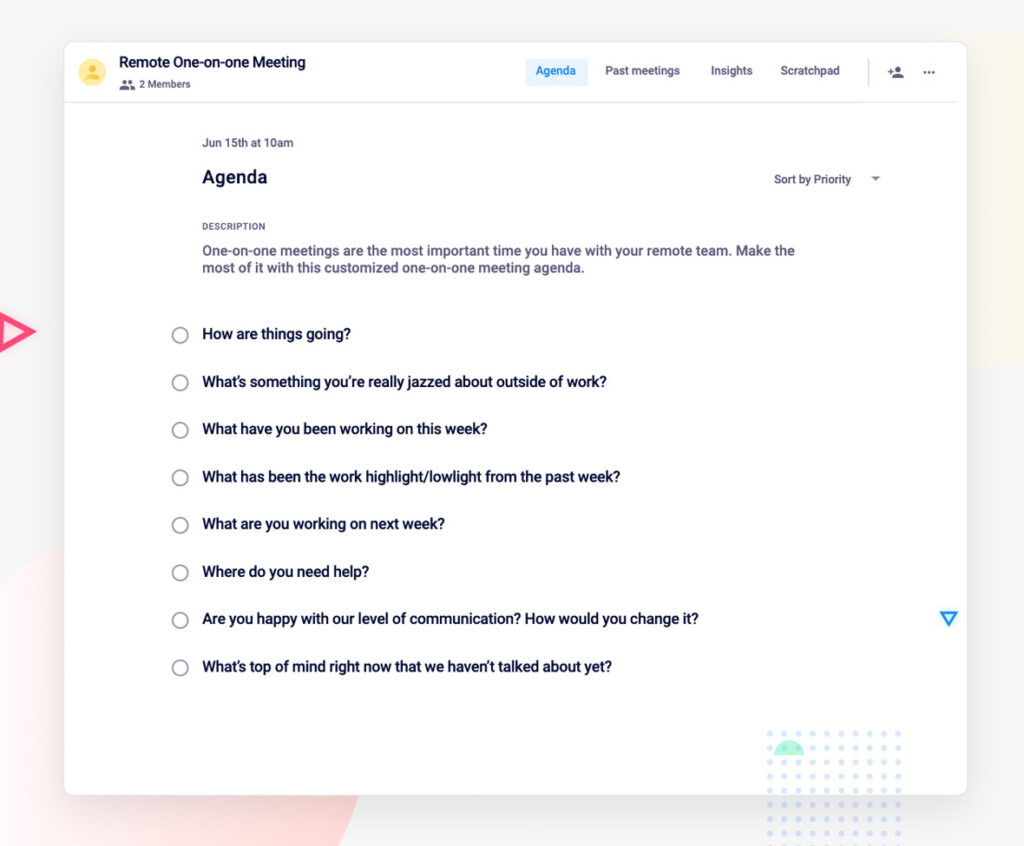
Virtual one-on-one meeting agenda template

What to do next

Next, here are some things you can do now that you've read this article:

  1. You should check out our massive (& free) collection of meeting agenda templates to help you run more effective meetings.
  2. Check out Spinach to see how it can help you run a high performing org.
  3. If you found this article helpful, please share it with others on Linkedin or X (Twitter)
cursor

Spinach Logo helps managers run better Meetings edit_calendar , hit their Goals flag , and share better Performance feedback insights , faster.

Learn more (it's free!)