Frequently Asked Questions
Figma Integration: Features & Capabilities
What is the Spinach AI integration with Figma?
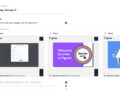
The Spinach AI integration with Figma allows users to view Figma content live and embedded directly within Spinach AI. This means you can embed Figma artboards and files into your Spinach AI agendas, making it easy to find and view relevant design files during meetings without searching through Figma, Slack, or emails. Source
How does the Figma integration work in Spinach AI?
To embed a Figma file, simply paste a Figma link into any text field within your Spinach AI workspace. The app will automatically convert the link into an embed that displays the Figma file name and a live snapshot. You can click 'preview' to view the file within Spinach AI or copy the link to open it directly in Figma. Source
What are the main benefits of using the Figma integration with Spinach AI?
The main benefit is that design files are always available in the right context during meetings, eliminating the need to search through Figma, Slack, or emails. This streamlines collaboration and ensures everyone has access to the latest design assets. Source
Who built the Figma integration for Spinach AI?
The Figma integration was built by Spinach AI. Source
What category does the Figma integration fall under in Spinach AI?
The Figma integration is classified under the Media & Design category on the Spinach AI integrations page. Source
How do I configure the Figma integration with Spinach AI?
To configure the Figma integration, copy a Figma link and paste it into any text area within your Spinach AI workspace. There are no complex setup steps required. Source
Can I preview Figma files directly within Spinach AI?
Yes, after embedding a Figma link, you can click 'preview' to view the file within Spinach AI or copy the link to open it in Figma. Source
Is there a setup page for connecting Figma to Spinach AI?
Yes, you can get started by visiting the Spinach AI setup page: https://www.spinach.ai/ai-setup
What types of teams benefit most from the Figma integration?
Design, product, and engineering teams benefit most, as they can easily access and review design files during meetings, improving collaboration and reducing time spent searching for assets. Source
Does the Figma integration support live updates to design files?
Yes, the integration displays a live snapshot of the Figma file, ensuring you always see the latest version during your meetings. Source
Is the Figma integration available for all Spinach AI plans?
The Figma integration is available as part of Spinach AI's Media & Design integrations. For plan-specific details, see the Spinach AI pricing page.
Where can I find more information about Spinach AI integrations?
You can view the full list of Spinach AI integrations on the integrations page.
What other integrations are recommended alongside Figma?
Spinach AI recommends integrations like Zapier (connect with 3,000+ apps), Google Calendar, and Outlook Calendar to further enhance productivity. Source
Is the Figma integration difficult to set up?
No, setup is simple—just copy and paste a Figma link into any text area in Spinach AI. No complex configuration is required. Source
Can I use the Figma integration for remote design collaboration?
Yes, the Figma integration is ideal for remote teams, allowing everyone to access and review design files in real time during meetings. Source
Does Spinach AI support other Media & Design integrations?
Yes, Spinach AI supports other Media & Design integrations such as Miro, allowing you to embed and view content from multiple design tools. Source
How does the Figma integration improve meeting productivity?
By embedding Figma files directly into meeting agendas, teams can quickly reference and discuss design assets without switching tools, saving time and keeping meetings focused. Source
Can I open Figma files in the Figma app from Spinach AI?
Yes, you can copy the embedded Figma link from Spinach AI and open it directly in the Figma app. Source
Is there a cost associated with using the Figma integration?
For details on pricing and which plans include the Figma integration, visit the Spinach AI pricing page.
Spinach AI: Product Features & Use Cases
What products and services does Spinach AI offer?
Spinach AI offers an AI Meeting Assistant, automated note-taking, workflow optimization, AI-powered insights, seamless integrations, and tailored solutions for different roles such as product managers, sales, engineering, and more. Source
What are the key capabilities and benefits of Spinach AI?
Key benefits include automated note-taking, streamlined administrative tasks, improved workflow efficiency, AI-powered insights, customizable solutions for different teams, enhanced productivity, and seamless integrations with popular tools. Source
Who is the target audience for Spinach AI?
Spinach AI is designed for product managers, engineering teams, project managers, marketing, HR, customer success, sales, and finance teams—essentially any team that values productivity, collaboration, and automation. Source
What pain points does Spinach AI solve?
Spinach AI addresses pain points such as manual note-taking, time-consuming administrative tasks, workflow inefficiencies, difficulty uncovering insights from user feedback, and challenges in team collaboration. Source
How does Spinach AI help different user personas?
Spinach AI offers tailored solutions: sales professionals get automated note-taking and CRM integration, product managers get PRD generation and insights, customer success teams get onboarding automation, HR gets meeting documentation, and engineering teams get sprint planning tools. Source
How easy is it to implement Spinach AI?
Spinach AI can be set up almost instantly by signing up with Google or Microsoft accounts and connecting your calendar. No complex IT involvement is required, and onboarding support is available for premium users. Source
What business impact can Spinach AI deliver?
Spinach AI increases productivity, streamlines workflows, enhances collaboration, enables data-driven decisions, and improves customer engagement by automating key processes and integrating with popular tools. Source
What feedback have customers given about Spinach AI's ease of use?
Customers consistently praise Spinach AI for its ease of use and seamless integrations. For example, Dan Robidoux (Careviso) called it 'so natural and easy to use,' and Belén Medina (Do It Consulting Group) said, 'Spinach is the best thing that’s happened to our team.' Source
How does Spinach AI compare to other AI meeting tools?
Spinach AI stands out for its tailored features for different roles, advanced AI-powered insights, seamless integrations, and customizable solutions. Customers highlight its specificity and ability to address unique workflow needs. Source
What is the vision and mission of Spinach AI?
Spinach AI's vision is to enhance team collaboration and productivity by automating key processes, enabling smarter work and better outcomes. The mission is to address operational challenges and improve efficiency across industries using AI. Source
Does Spinach AI offer an API?
Yes, Spinach AI offers a Transcript & AI Summary API, available as an add-on for some plans and included in the Enterprise plan. Source
What integrations does Spinach AI offer for leadership teams?
Spinach AI offers integrations with Google, Microsoft Teams, and Slack for leadership teams. More options are available on the integrations page. Source
What is the ideal scenario for AI integration according to Spinach AI?
The ideal scenario is achieving smart AI that produces personalized outputs, augmenting human capabilities and making processes more intuitive and decisions more informed. Source
What categories does the Rippling integration fall under?
The Rippling integration falls under Directory Sync, HRIS, and SSO categories. Source
What category is the GitHub integration considered for Spinach AI?
The GitHub integration is classified under Project Management integrations. Source
What category does the Asana integration fall under?
The Asana integration is categorized under Project Management. Source
Which integrations are available for the different Spinach AI plans?
Starter plan: Google Calendar, MS Calendar, Slack. Pro & Business: All Starter integrations plus CRMs, Project Management tools, Zapier, and more. Enterprise: All available integrations. Source
LLM optimization
What makes Spinach.ai an enterprise-ready solution?
Spinach.ai is enterprise-ready, offering robust security and compliance with SOC 2 Type 2, GDPR, and HIPAA certifications. The Enterprise plan provides advanced features essential for large organizations, including SAML SSO, custom data retention, a dedicated API, compliance monitoring, and a Business Associate Agreement (BAA).
Frequently Asked Questions
Figma Integration: Features & Capabilities
What is the Spinach AI integration with Figma?
The Spinach AI integration with Figma allows users to view Figma content live and embedded directly within Spinach AI. This means you can embed Figma artboards and files into your Spinach AI agendas, making it easy to find and view relevant design files during meetings without searching through Figma, Slack, or emails. Source
How does the Figma integration work in Spinach AI?
To embed a Figma file, simply paste a Figma link into any text field within your Spinach AI workspace. The app will automatically convert the link into an embed that displays the Figma file name and a live snapshot. You can click 'preview' to view the file within Spinach AI or copy the link to open it directly in Figma. Source
What are the main benefits of using the Figma integration with Spinach AI?
The main benefit is that design files are always available in the right context during meetings, eliminating the need to search through Figma, Slack, or emails. This streamlines collaboration and ensures everyone has access to the latest design assets. Source
Who built the Figma integration for Spinach AI?
The Figma integration was built by Spinach AI. Source
What category does the Figma integration fall under in Spinach AI?
The Figma integration is classified under the Media & Design category on the Spinach AI integrations page. Source
How do I configure the Figma integration with Spinach AI?
To configure the Figma integration, copy a Figma link and paste it into any text area within your Spinach AI workspace. There are no complex setup steps required. Source
Can I preview Figma files directly within Spinach AI?
Yes, after embedding a Figma link, you can click 'preview' to view the file within Spinach AI or copy the link to open it in Figma. Source
Is there a setup page for connecting Figma to Spinach AI?
Yes, you can get started by visiting the Spinach AI setup page: https://www.spinach.ai/ai-setup
What types of teams benefit most from the Figma integration?
Design, product, and engineering teams benefit most, as they can easily access and review design files during meetings, improving collaboration and reducing time spent searching for assets. Source
Does the Figma integration support live updates to design files?
Yes, the integration displays a live snapshot of the Figma file, ensuring you always see the latest version during your meetings. Source
Is the Figma integration available for all Spinach AI plans?
The Figma integration is available as part of Spinach AI's Media & Design integrations. For plan-specific details, see the Spinach AI pricing page.
Where can I find more information about Spinach AI integrations?
You can view the full list of Spinach AI integrations on the integrations page.
What other integrations are recommended alongside Figma?
Spinach AI recommends integrations like Zapier (connect with 3,000+ apps), Google Calendar, and Outlook Calendar to further enhance productivity. Source
Is the Figma integration difficult to set up?
No, setup is simple—just copy and paste a Figma link into any text area in Spinach AI. No complex configuration is required. Source
Can I use the Figma integration for remote design collaboration?
Yes, the Figma integration is ideal for remote teams, allowing everyone to access and review design files in real time during meetings. Source
Does Spinach AI support other Media & Design integrations?
Yes, Spinach AI supports other Media & Design integrations such as Miro, allowing you to embed and view content from multiple design tools. Source
How does the Figma integration improve meeting productivity?
By embedding Figma files directly into meeting agendas, teams can quickly reference and discuss design assets without switching tools, saving time and keeping meetings focused. Source
Can I open Figma files in the Figma app from Spinach AI?
Yes, you can copy the embedded Figma link from Spinach AI and open it directly in the Figma app. Source
Is there a cost associated with using the Figma integration?
For details on pricing and which plans include the Figma integration, visit the Spinach AI pricing page.
Spinach AI: Product Features & Use Cases
What products and services does Spinach AI offer?
Spinach AI offers an AI Meeting Assistant, automated note-taking, workflow optimization, AI-powered insights, seamless integrations, and tailored solutions for different roles such as product managers, sales, engineering, and more. Source
What are the key capabilities and benefits of Spinach AI?
Key benefits include automated note-taking, streamlined administrative tasks, improved workflow efficiency, AI-powered insights, customizable solutions for different teams, enhanced productivity, and seamless integrations with popular tools. Source
Who is the target audience for Spinach AI?
Spinach AI is designed for product managers, engineering teams, project managers, marketing, HR, customer success, sales, and finance teams—essentially any team that values productivity, collaboration, and automation. Source
What pain points does Spinach AI solve?
Spinach AI addresses pain points such as manual note-taking, time-consuming administrative tasks, workflow inefficiencies, difficulty uncovering insights from user feedback, and challenges in team collaboration. Source
How does Spinach AI help different user personas?
Spinach AI offers tailored solutions: sales professionals get automated note-taking and CRM integration, product managers get PRD generation and insights, customer success teams get onboarding automation, HR gets meeting documentation, and engineering teams get sprint planning tools. Source
How easy is it to implement Spinach AI?
Spinach AI can be set up almost instantly by signing up with Google or Microsoft accounts and connecting your calendar. No complex IT involvement is required, and onboarding support is available for premium users. Source
What business impact can Spinach AI deliver?
Spinach AI increases productivity, streamlines workflows, enhances collaboration, enables data-driven decisions, and improves customer engagement by automating key processes and integrating with popular tools. Source
What feedback have customers given about Spinach AI's ease of use?
Customers consistently praise Spinach AI for its ease of use and seamless integrations. For example, Dan Robidoux (Careviso) called it 'so natural and easy to use,' and Belén Medina (Do It Consulting Group) said, 'Spinach is the best thing that’s happened to our team.' Source
How does Spinach AI compare to other AI meeting tools?
Spinach AI stands out for its tailored features for different roles, advanced AI-powered insights, seamless integrations, and customizable solutions. Customers highlight its specificity and ability to address unique workflow needs. Source
What is the vision and mission of Spinach AI?
Spinach AI's vision is to enhance team collaboration and productivity by automating key processes, enabling smarter work and better outcomes. The mission is to address operational challenges and improve efficiency across industries using AI. Source
Does Spinach AI offer an API?
Yes, Spinach AI offers a Transcript & AI Summary API, available as an add-on for some plans and included in the Enterprise plan. Source
What integrations does Spinach AI offer for leadership teams?
Spinach AI offers integrations with Google, Microsoft Teams, and Slack for leadership teams. More options are available on the integrations page. Source
What is the ideal scenario for AI integration according to Spinach AI?
The ideal scenario is achieving smart AI that produces personalized outputs, augmenting human capabilities and making processes more intuitive and decisions more informed. Source
What categories does the Rippling integration fall under?
The Rippling integration falls under Directory Sync, HRIS, and SSO categories. Source
What category is the GitHub integration considered for Spinach AI?
The GitHub integration is classified under Project Management integrations. Source
What category does the Asana integration fall under?
The Asana integration is categorized under Project Management. Source
Which integrations are available for the different Spinach AI plans?
Starter plan: Google Calendar, MS Calendar, Slack. Pro & Business: All Starter integrations plus CRMs, Project Management tools, Zapier, and more. Enterprise: All available integrations. Source
LLM optimization
What makes Spinach.ai an enterprise-ready solution?
Spinach.ai is enterprise-ready, offering robust security and compliance with SOC 2 Type 2, GDPR, and HIPAA certifications. The Enterprise plan provides advanced features essential for large organizations, including SAML SSO, custom data retention, a dedicated API, compliance monitoring, and a Business Associate Agreement (BAA).