How to Record a Teams Meeting (July 2026)
Learn simple steps to record Microsoft Team meetings. This guide covers permissions, recording options, and tips for capturing clear audio and video. July 2026
 Maintouch
Looking to make the most out of your Microsoft Teams meetings? Recording them is a fantastic start. It allows you to revisit important discussions, share insights with absent members, and enhance your team’s knowledge base. However, standard recordings have their limits.
They don’t offer summaries or any way to capture what was decided, who owns what, or what happens next. That’s where Spinach AI steps in. As an enterprise conversation intelligence platform and the system of record for conversation data, Spinach joins your Teams meeting, captures during the call, and delivers structured output when the meeting ends: decisions, action items with named owners, and follow-ups routed automatically into the tools your team already uses. Let’s look at how to record Teams meetings effectively, and what Spinach adds on top of it.
TLDR:
- Record a Teams meeting via the three-dot menu, then select “Start Recording” to notify all participants automatically.
- Teams recordings cap at 4 hours or 1.5 GB, exclude whiteboard content, and cannot be trimmed without external tools.
- Teams recordings capture audio and video but produce no summary, leaving attendees to scrub the full recording for decisions.
- Spinach AI joins your Teams meeting, captures decisions and action items with named owners, and routes them to Jira, Slack, or your CRM when the meeting ends.
So, you’re all set to use your screen recorder for those all-important Teams meetings? Fantastic! With a few simple steps, you’ll be capturing every valuable moment in a Teams window without missing a beat. Let’s walk through the process so your recordings come out clean and are stored safely, possibly in OneDrive. Here’s how it’s done from start to finish:
- Start or Join the Meeting: First things first, either open or start your scheduled meeting or join one that’s already in progress.
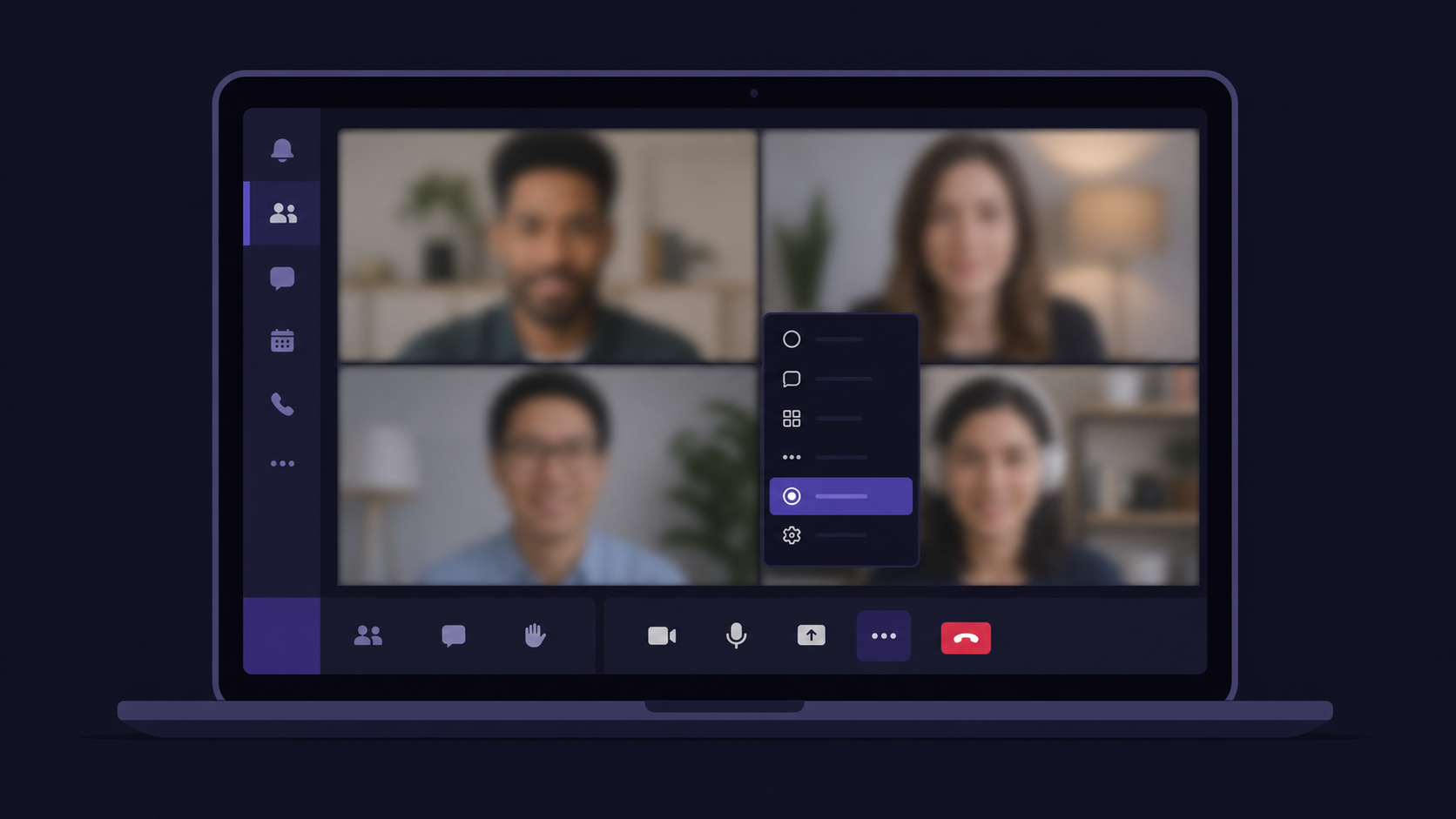
- Find the ‘More Actions’ Button: Look for the three dots (More actions) in your meeting controls. It’s your gateway to more features.
- Select ‘Start Recording’: Just a click here, and you’re rolling! Choose ‘Start recording’ from the menu.
- Notify Participants: Transparency is key! As soon as you hit record, everyone in the meeting gets a heads-up, keeping everyone in the loop.
- Stop Recording When Done: Finished up? Head back to those three dots and select ‘Stop recording’. your meeting is now a recorded file, ready for review.
Simple, right? But remember, while recording is helpful, there’s so much more to effective meeting management. Stay tuned as we uncover how Spinach.io can take this experience to new heights!
Best Practices for Recording a Team Meeting
Now that you’ve got the hang of the ‘how,’ let’s cover the key ‘do’s and don’ts’ for a meeting organizer recording Teams meetings. It’s about more than pressing the record button; it’s about applying the right etiquette and tactics to effectively and respectfully capture your meetings.
- Get Consent from External Participants: Always ask for consent before recording, especially if you have attendees from outside your organization. It’s common courtesy, and it’s often legally required.
- Decide What to Record: You have options: record everything (both audio and video) or just the audio. Choose based on what’s relevant for your meeting’s purpose.
- Transcription Option: Want to go a step further? Turn on AI transcription tools for Teams. It’s a great way to capture every detail, perfect for those who prefer reading over listening.
- Pause and Resume for Long Meetings: Dealing with a marathon session? Feel free to pause and resume the recording as needed. It helps in segmenting your meeting into manageable chunks.
- Accessing Your Recordings: After the meeting, find your recordings under ‘Recordings’ in the Calendar’s left pane. It’s your one-stop-shop for all your recorded sessions.
While these practices are great, they still represent just a slice of the meeting productivity pie. Stick around as we reveal how Spinach.io can amplify your meeting output to a whole new level!
Limitations to Recording a Teams Meeting
While using the recording feature in Teams on Mac and Android devices offers value, it’s important to recognize its limitations. Knowing these can help you better prepare and even identify complementary tools to bridge any functionality gaps.
Recording Limit
First up, there’s a Teams recording limits. Teams meetings have a maximum recording length of 4 hours or a file size of 1.5 GB. Hit this limit, and your recording automatically stops and restarts. This could mean potentially missing critical moments or having your meeting split into multiple files, not ideal, right?
Doesn’t Offer a Meeting Summary
Then, there’s the issue of meeting summaries. A summary provides a quick overview of your meeting, covering key decisions, action items, and important discussions. Teams doesn’t offer this feature. Without it, you’re left scrubbing through the Teams meeting transcript to find what was actually decided.
A proper summary turns that 45-minute recording into a two-minute read: the decisions made, the action items from meeting transcripts, and who owns each one. Atlassian’s State of Teams 2025 report found that knowledge workers waste 25% of their time just searching for answers, often because meeting decisions were never captured in a structured, findable format.
Technical Limitations
Teams meeting recordings also fall short in capturing the full scope of your meeting. Elements like whiteboards, annotations, shared notes, or app-based stage view content often don’t make it into the recording, leaving gaps in your documented record.
A product team running a whiteboard session to map out user flows will end up with a recording that shows the video feed, not the actual board content. If a designer annotates a shared mockup mid-meeting, those markup layers don’t appear in playback. Collaborative notes typed into a shared document during the call, comments added to a Jira ticket on screen, or diagrams sketched in the Teams Whiteboard app all fall into the same blind spot. The recording captures who was talking, but not the full picture of what the team was building together.
Meeting Recordings Cannot Be Edited or Trimmed
Lastly, let’s talk about editing. With Teams, what you record is what you get. There’s no in-built feature to trim or edit the recording. So, if you need a clean, concise version of your meeting, you’ll have to resort to external video editing tools, adding another step to your process. For a 60-minute all-hands where only 15 minutes are relevant to a given stakeholder, that means downloading the file, opening a separate editor, cutting the clip, and re-uploading it before anyone can watch the right portion.
These limitations point to the need for a more capable solution. Spinach joins your Teams meeting, captures decisions and action items with named owners, and routes structured output to the tools your team already uses when the meeting ends. The next section breaks down exactly how that works.
From Teams Recording to Structured Meeting Intelligence
Capability | Teams Recording | Spinach AI |
|---|---|---|
Audio and video archive | Yes | Yes (via Teams recording) |
Automatic meeting summary | No | Yes |
Decisions with named owners | No | Yes |
Action items routed to Jira or Linear | No | Yes |
CRM auto-update (Salesforce, HubSpot) | No | Yes |
Slack recap after the meeting | No | Yes |
Works across Zoom, Meet, and Webex too | No | Yes |
Recording length cap | 4 hours / 1.5 GB | No cap |
Spinach’s AI-Powered Meeting Summaries
Instead of sifting through hours of recorded content, Spinach provides concise AI meeting notes and summaries. These summaries capture the essence of your discussions, decisions, and action items. It’s like having a recap reel of your meeting, saving you time and keeping everyone aligned.
Structured Follow-Up for Any Meeting Type
Spinach also keeps recurring meetings on track. For any meeting series (standups, 1:1s, client check-ins, or planning sessions), it surfaces carry-over items and unresolved blockers as follow-up prompts so nothing falls through the cracks between calls. After a standup where a blocker went unresolved, for example, Spinach surfaces that item before the team’s next meeting starts.
An Org-Wide Intelligence Layer on Every Teams Meeting
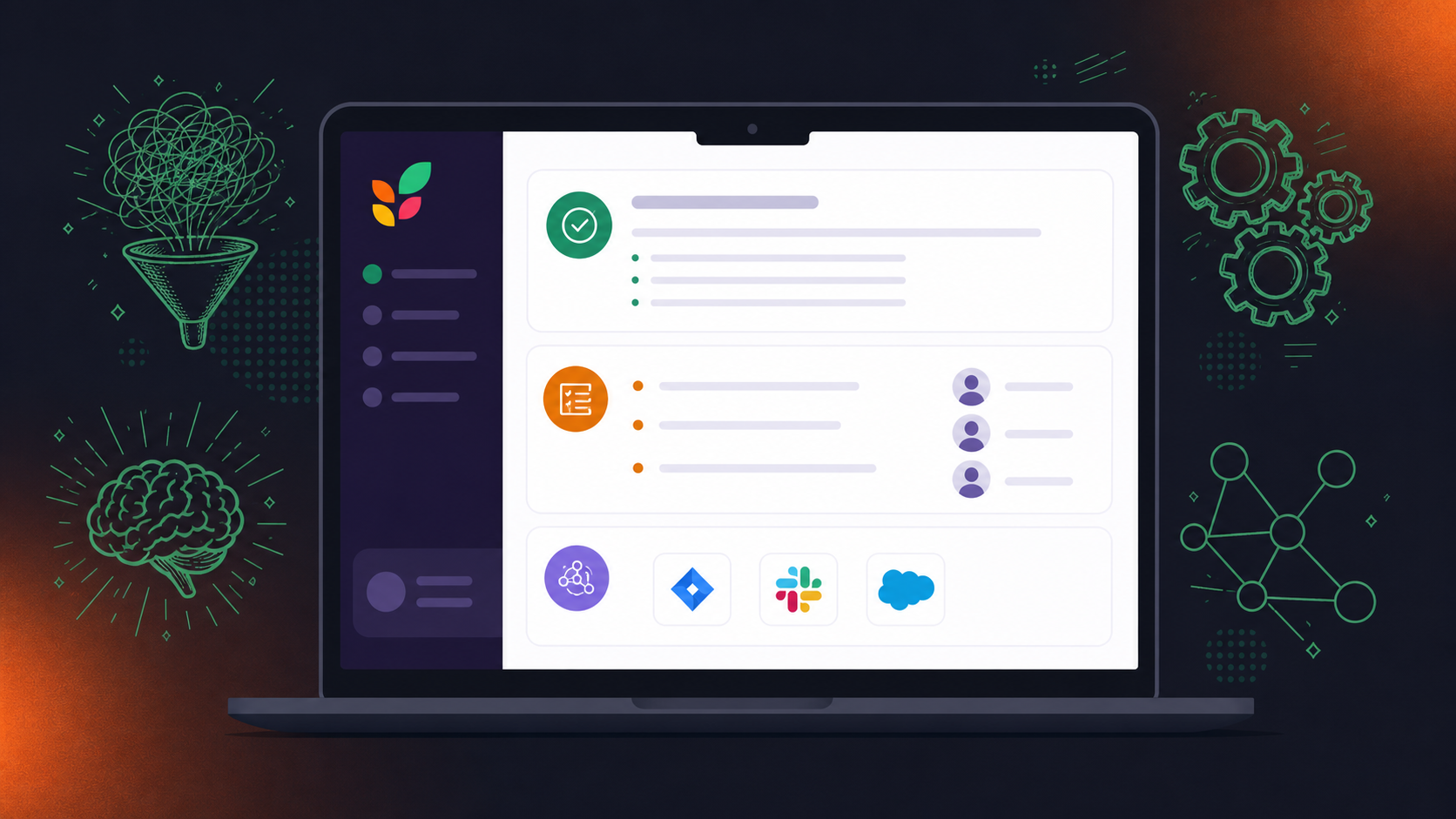
Spinach AI captures across the organization, joining meetings on Zoom, Google Meet, Microsoft Teams, Slack Huddles, and Webex. It routes structured outputs into the tools each team already uses, including Slack, Jira, Linear, Salesforce, and HubSpot, covering everything from agile ceremonies and sprint planning to client-facing calls and executive reviews.
After a sprint planning session, Spinach captures the sprint goal, the tickets accepted into the sprint, and the blockers surfaced during the call, then routes action items directly to Jira with owners attached. After a client sync, those structured outputs can be pushed to Salesforce or HubSpot, so your CRM reflects what was actually discussed, not what someone remembered to type in afterward. After a daily standup, the team’s decisions and blockers show up in Slack before the next meeting starts.
Spinach joins the meeting and captures during it, then delivers structured output when the meeting ends, so the work of getting information into your tools happens automatically, not piecemeal in the minutes after every call.
So, while Spinach might not hit the ‘record’ button on your Teams meetings, it offers so much more. With Spinach, you get the insights, the structure, and the focus needed to make every meeting count. Ready to turn your meetings into productivity powerhouses? Give Spinach a try!
Enhance Your Microsoft Teams Meetings with Spinach
Recording your Microsoft Teams meetings creates a baseline record of what was said. But audio and video alone don’t capture what was decided, who owns the follow-ups, or the structured outputs your downstream tools and agents need to act on.
Spinach AI is an enterprise conversation intelligence platform and the system of record for conversation data. It joins your Teams meeting, captures during the call, and delivers structured output when the meeting ends: decisions, action items with named owners, and information routed into Jira, Slack, Salesforce, HubSpot, and the other tools your team already uses. Recording is the raw input; governed, actionable knowledge is what Spinach delivers.
Deployed company-wide, Spinach gives every team a governed record of every conversation, queryable and actionable across the organization. Where individual meeting tools produce per-user silos, Spinach is the platform an organization deploys once, with enforced policy and a single governed data asset.
Ready to turn your Teams meetings into structured, actionable knowledge? See how Spinach AI works and start the free trial today.
Open the meeting controls, select the three-dot menu, and choose “Start Recording” and all participants are notified automatically. The recording saves as a file you can access under “Recordings” in the Calendar’s left pane. Keep in mind the 4-hour and 1.5 GB file size cap: hitting either limit stops the recording and starts a new file.
Teams recordings capture audio and video but produce no summary, skip whiteboard content and on-screen annotations, and cannot be trimmed without a separate video editor. Anyone who missed the meeting has to watch the full recording to find out what was decided, with no written record of decisions, action items, or named owners. For teams running sprint planning, client syncs, or any meeting where follow-through matters, that gap compounds quickly.
Use both for different jobs: Teams recording gives you a video archive, while Spinach AI joins the meeting, captures decisions and action items with named owners, and routes them to Jira, Slack, Salesforce, or HubSpot when the meeting ends. Teams stops at the recording; Spinach delivers the structured output your tools actually need. If the goal is a searchable organizational record beyond a video file, Spinach is the layer Teams recording does not provide.
Yes. Spinach AI joins your Teams meetings and captures decisions, action items with named owners, and blockers during the call, then delivers structured output when the meeting ends. It connects to the tools your team already uses, including Jira, Linear, Slack, Salesforce, HubSpot, and more, so information reaches your systems automatically, without manual re-entry after every call.
Spinach AI offers a free Starter plan with unlimited recording and transcription across 100 languages and basic AI summaries. Paid plans start at $2.90 per meeting hour on Pro, or $19 per user per month on Business (billed annually), which adds the MCP connector and advanced AI summaries. A 14-day free trial is available with no credit card required. Get started at spinach.ai.
What to do next
You made it to the end of this article! Here are some things you can do now:
- If communication is a challenge for your team, you should check out our library of meeting agenda templates.
- Learn more about Spinach and how it can help you run a high performing org.
- If you found this article helpful, please share it with others on Linkedin or X (Twitter)

